 Try ShortPoint now
This article shows you how to create an event countdown timer using the Countdown Design Element. In addition, you'll learn about the features you can modify.

TABLE OF CONTENTS
Prerequisites
- You have the latest ShortPoint public version installed for your environment
- You are a ShortPoint Designer with an active license
Step-by-step Tutorial
Follow the steps below to learn how to customize the Countdown Design Element:
Step 1: Insert the Countdown Design Element
Go through the interactive tutorial to learn how to insert a Design Element:
NOTE: Check out ShortPoint Basics: How to Insert a ShortPoint Design Element in Live Mode for more details.
Step 2: Customize the Alert
In the Design tab, type the date you prefer inside the Date field. The preferred date format is MM/DD/YYYY.

Alternatively, you can also use the [1] Day, [2] Month, and [3] Year fields to add your preferred countdown date.

Then, scroll down to select the Style of your Countdown Design Element. For this guide, we will choose Outline.

(Optional) Customize the [1] Icon and [2] Language.

(Optional) Change the Color of your countdown using the dropdown, the color picker, or by manually typing the hex code.

Step 3: Insert and Save
Once you are satisfied with your edits, click the green checkmark.

Then, click Save to keep your progress.

Congratulations! You can now create an event countdown timer using Events.
Countdown Features
There are many ways to customize the features of the Countdown Design Element. In the settings window, you will find the following tabs:
A. Content Tab
The Content tab is where you can edit the content inside the Countdown Design Element. Here are the options you can tweak:
 | Date | allows you to add your preferred countdown date. The ideal format is MM/DD/YYYY. |
 | Day | add the day of your preferred countdown date. |
 | Month | add the month of your preferred countdown date. |
 | Year | add the year of your preferred countdown date. |
 | Icon | customize the icon found on your countdown. |
 | Language | choose the language you prefer to showcase on your countdown. |
B. Design Tab
You can modify the default design of the element in the Design Tab. Below are the settings you can configure:
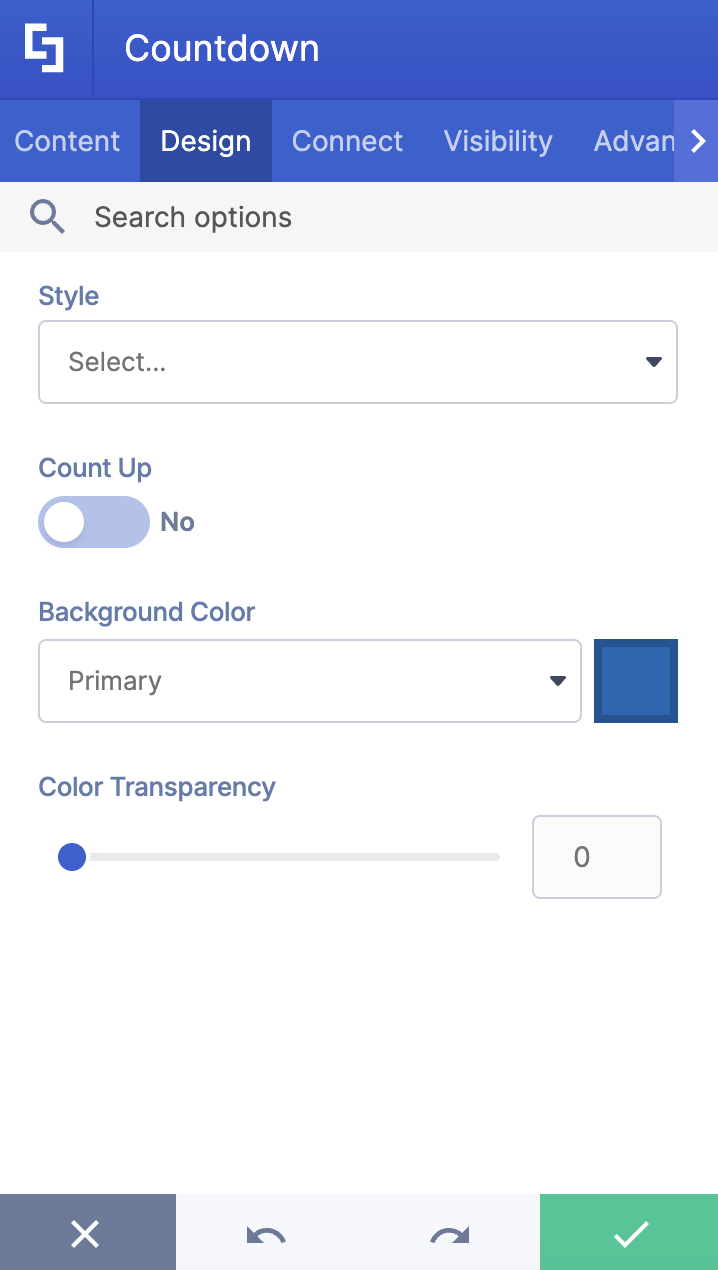
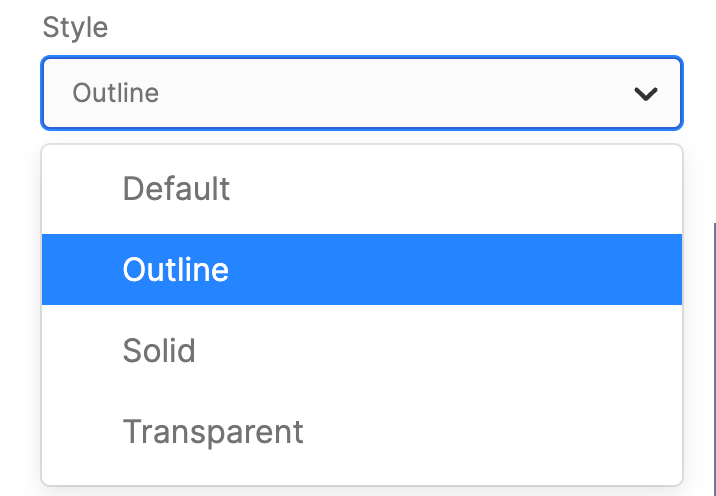 | Style | customize the style of your countdown. You can choose from Default, Outline, Solid, or Transparent. |
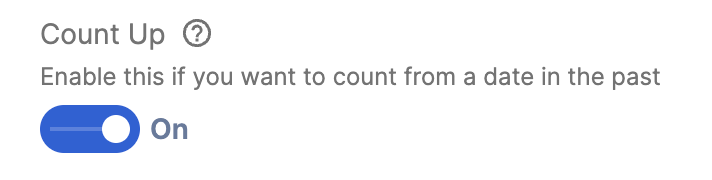 | Count Up | allows you to create a countdown from a date in the past. |
 | Background Color | customize the primary color of your countdown. |
 | Color Transparency | adjust the transparency of the color you chose. |
C. Connect Tab
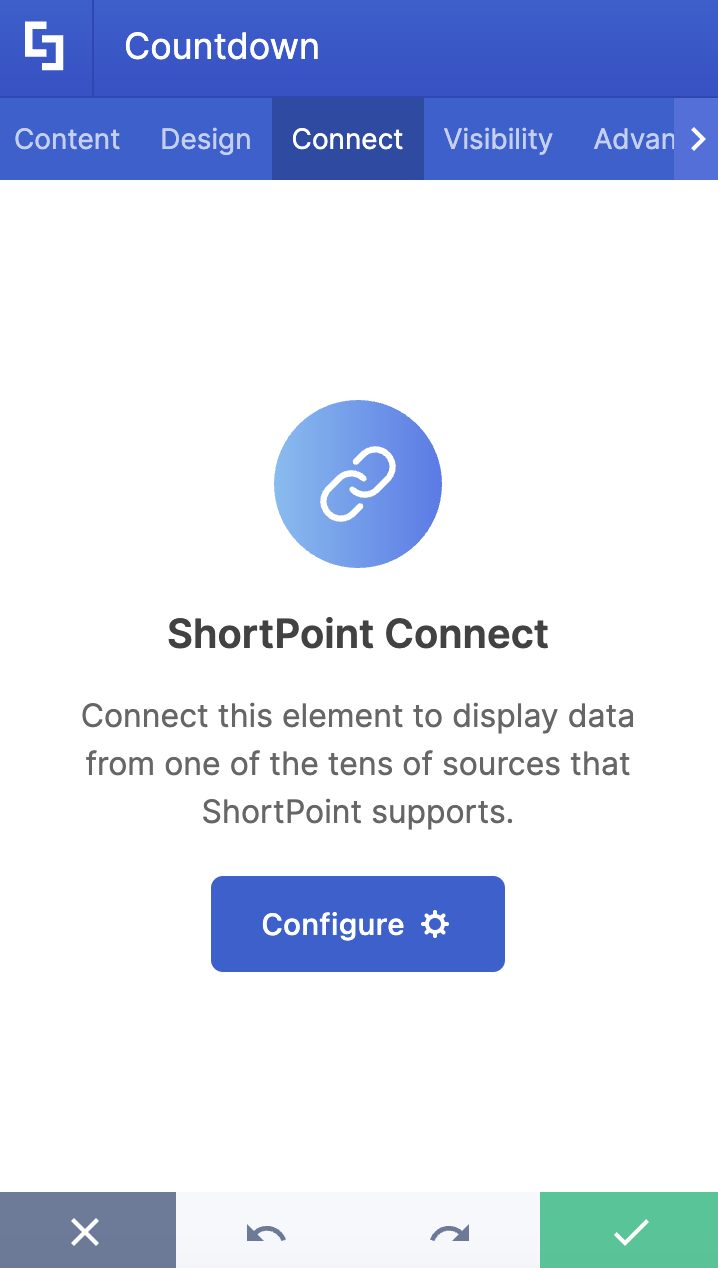
The Connect tab allows you to link the Design Element to SharePoint sources (List, Document Library, News, etc.) and other external sources (Microsoft Graph API, Teams, Outlook, etc.). For more details about ShortPoint Connect, check out Basic Tutorial: How to Establish Seamless SharePoint Connection with ShortPoint Connect.
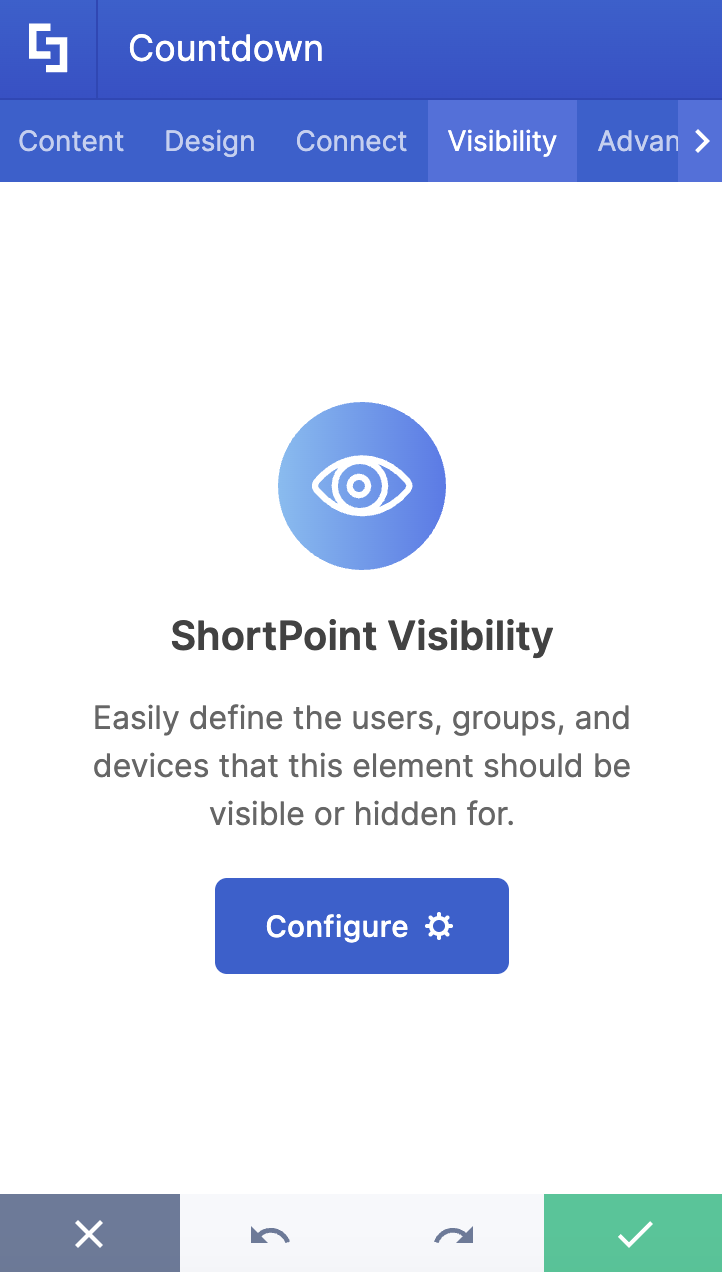
D. Visibility Tab
The Visibility tab allows you to specify who can see the Design Element and what type of devices it can be shown on. For more details, check out How to Use the ShortPoint Visibility Feature for Effective SharePoint Access Management.
E. Advanced Tab
This tab allows you to further customize how the Countdown Design Element will appear on your page.

SETTINGS
 | Text Size | customize the size of the text inside the countdown. |
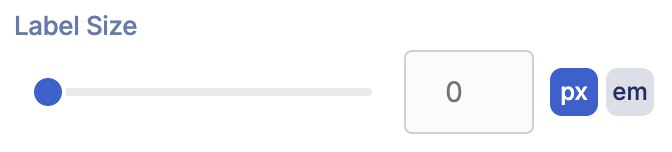 | Label Size | customize the text size of the label. |
 | Text Color | customize the color of the text. |
 | Icon Color | customize the color of the countdown. |
HIDE AND SHOW
 | Hide icon | allows you to hide the icon. |
 | Hide days | allows you to hide the days field. |
 | Hide hours | allows you to hide the hours field. |
 | Hide minutes | allows you to hide the minutes field. |
 | Hide seconds | allows you to hide the seconds field. |
F. Custom CSS Tab
This tab allows you to use your own CSS, HTML, and Javascript code to customize the Countdown Design Element.
NOTE: Check out our support article on How to Insert Custom CSS into a Page Builder Element (Basic Tutorial) to know more about Custom CSS.

Congratulations! You now know how to customize your Countdown Design Element. Enjoy making your own countdowns on your SharePoint pages.
Related articles:
