 Try ShortPoint now
Pulling data from various sources to showcase on your SharePoint pages can be such a head-scratcher. Good thing, there's the ShortPoint REST API connection type! Whether you’re looking to showcase documents, news, employee information, or data from external systems, the REST API SharePoint connection makes it simple to bring everything together in one polished presentation.
This guide will walk you through what the ShortPoint REST API connection type is, how to use it effectively, and answer some common questions along the way.
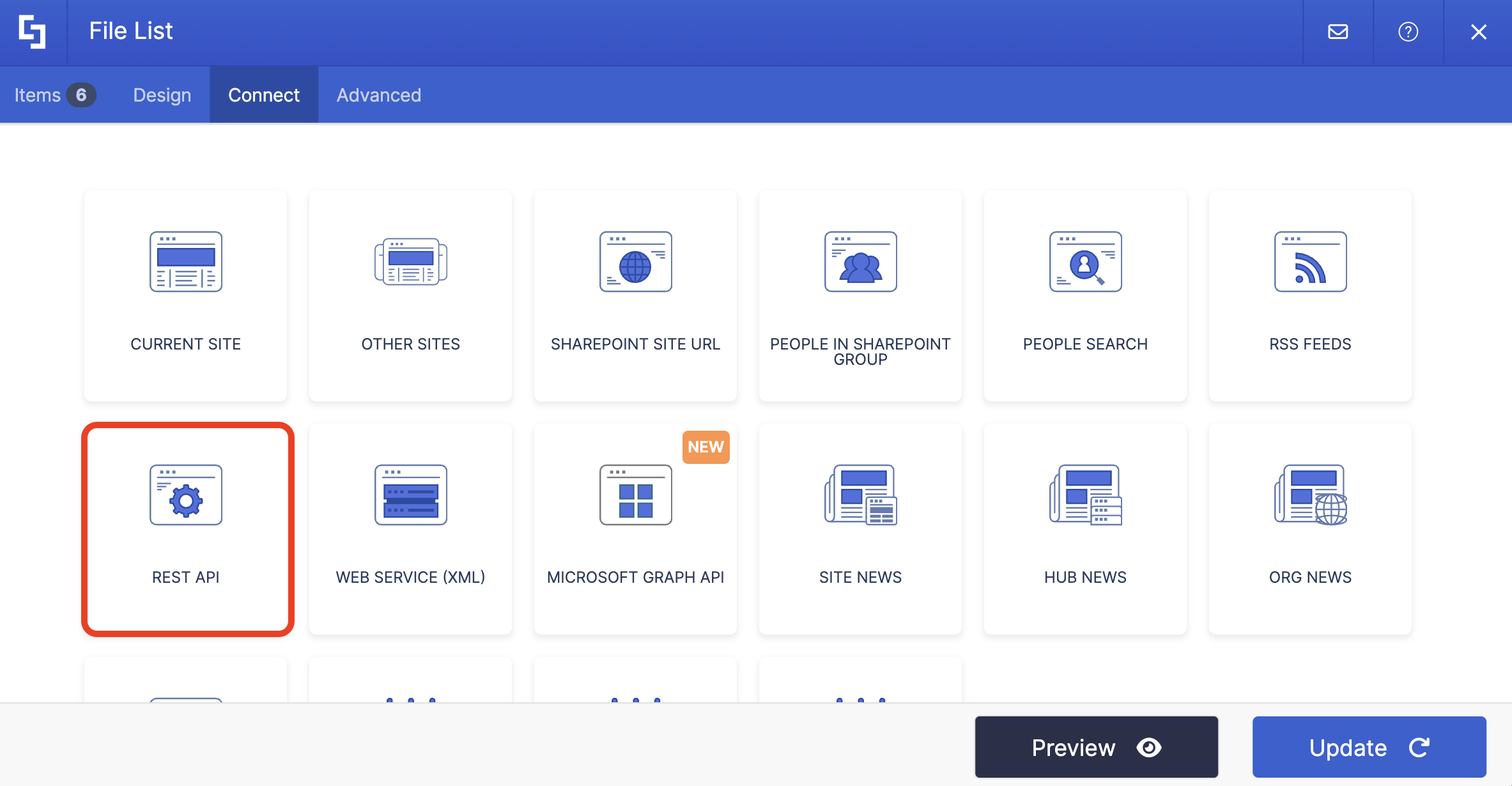
TABLE OF CONTENTS
- Prerequisites
- What is the ShortPoint REST API Connection Type?
- Interactive Tutorial
- REST API Connection Features
- Practical Use Cases for REST API Connections
- Start Connecting Using the REST API Connection
- Frequently Asked Questions
- What types of HTTP requests does ShortPoint REST API support?
- Do I need to be a developer to use REST API connections?
- Can I filter and sort the data returned by the REST API SharePoint?
- How do I know if my REST API connection is working correctly?
- Can I reuse REST API connections across multiple pages?
- What happens if the data source changes?
- Are there any limitations I should be aware of?
Prerequisites
- You have the latest version of ShortPoint SPFx installed on your SharePoint environment.
- You are a ShortPoint Designer with either a Pro or Enterprise License. For more information, go to Licensing Options.
- You must have the ShortPoint Design Element you want to use to connect on your page.
- You must already have a REST API URL prepared. For more information, check out How to Build a SharePoint REST API URL.
What is the ShortPoint REST API Connection Type?
The ShortPoint REST API SharePoint connection type is a powerful feature that allows you to retrieve data from specific SharePoint sites or other internet sources and display it beautifully on your pages using ShortPoint design elements.
REST API stands for Representational State Transfer Application Programming Interface. In simpler terms, it’s a way for different systems to talk to each other using standard web protocols. The ShortPoint implementation currently supports GET requests, which means you can retrieve and display data, but not modify it through this connection.
With the REST interface, you can connect to SharePoint lists and Document libraries from any site collection, SharePoint search results, site news and pages, and other external data sources that provide REST API endpoints.
Once connected, you can map the data fields to any ShortPoint Design Element — from simple lists and tiles to slideshows and textshows. The visual possibilities are endless, and the setup process is surprisingly straightforward.
Interactive Tutorial
Ready to use the REST API SharePoint connection? Here's what you need to do:
NOTETo learn more about the settings you can modify, check out REST API Features.
Step 1: Edit the ShortPoint Web Part
- Go to the SharePoint page you want to use and click Edit:

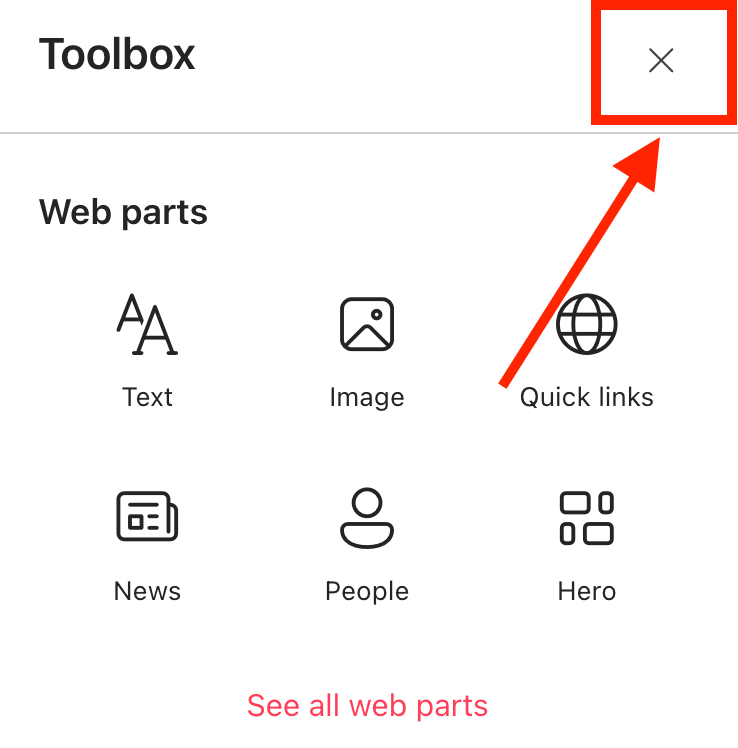
- Close the Toolbox:
- Click the Edit Properties icon:

Step 2: Edit the Design Element
NOTEMake sure you already have an existing Design Element you want to use to connect. For this guide, we'll use File List.
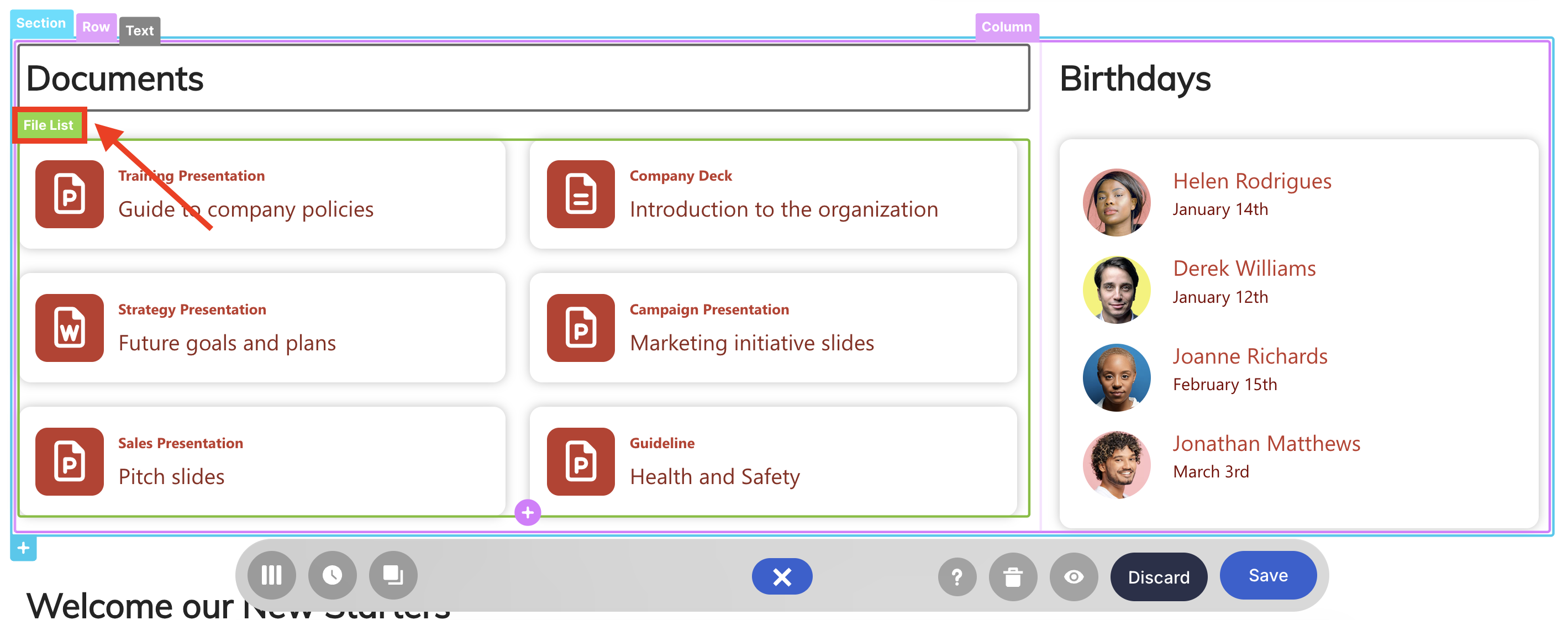
- Click the EasyPass tag of the Design Element:
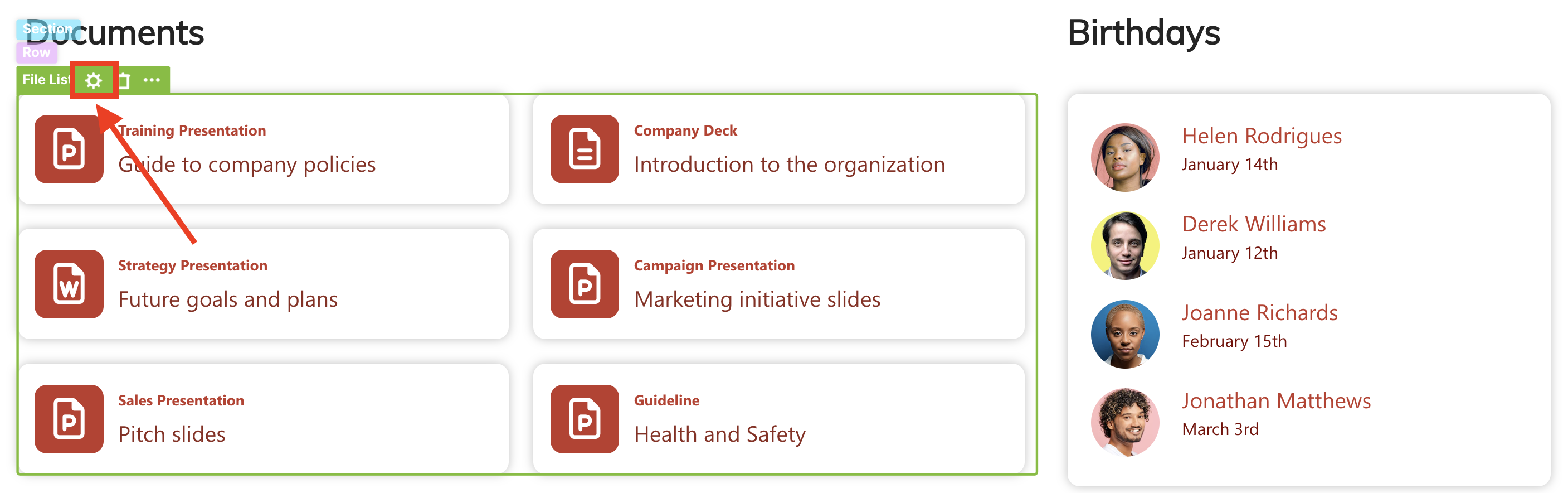
- Select the cogwheel icon:
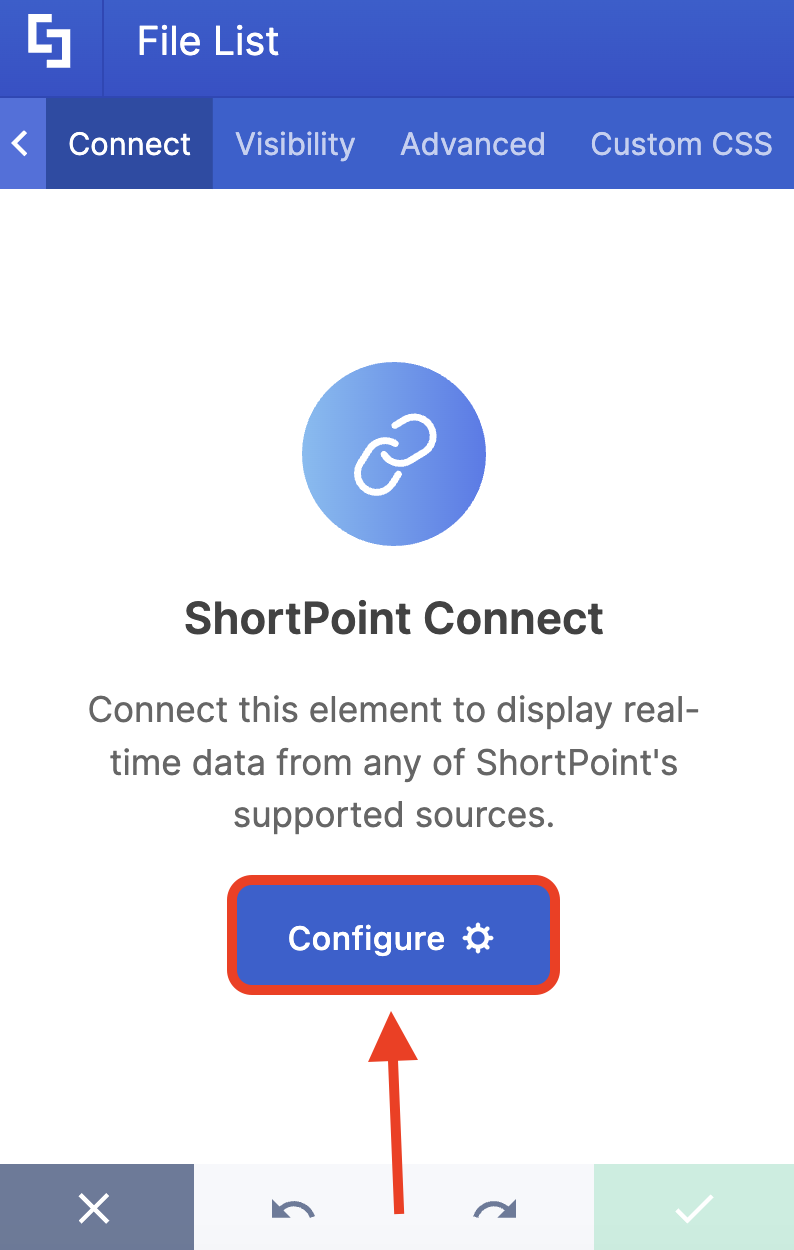
- Go to the Connect tab.
- Click Configure:
Step 3: Establish Connection
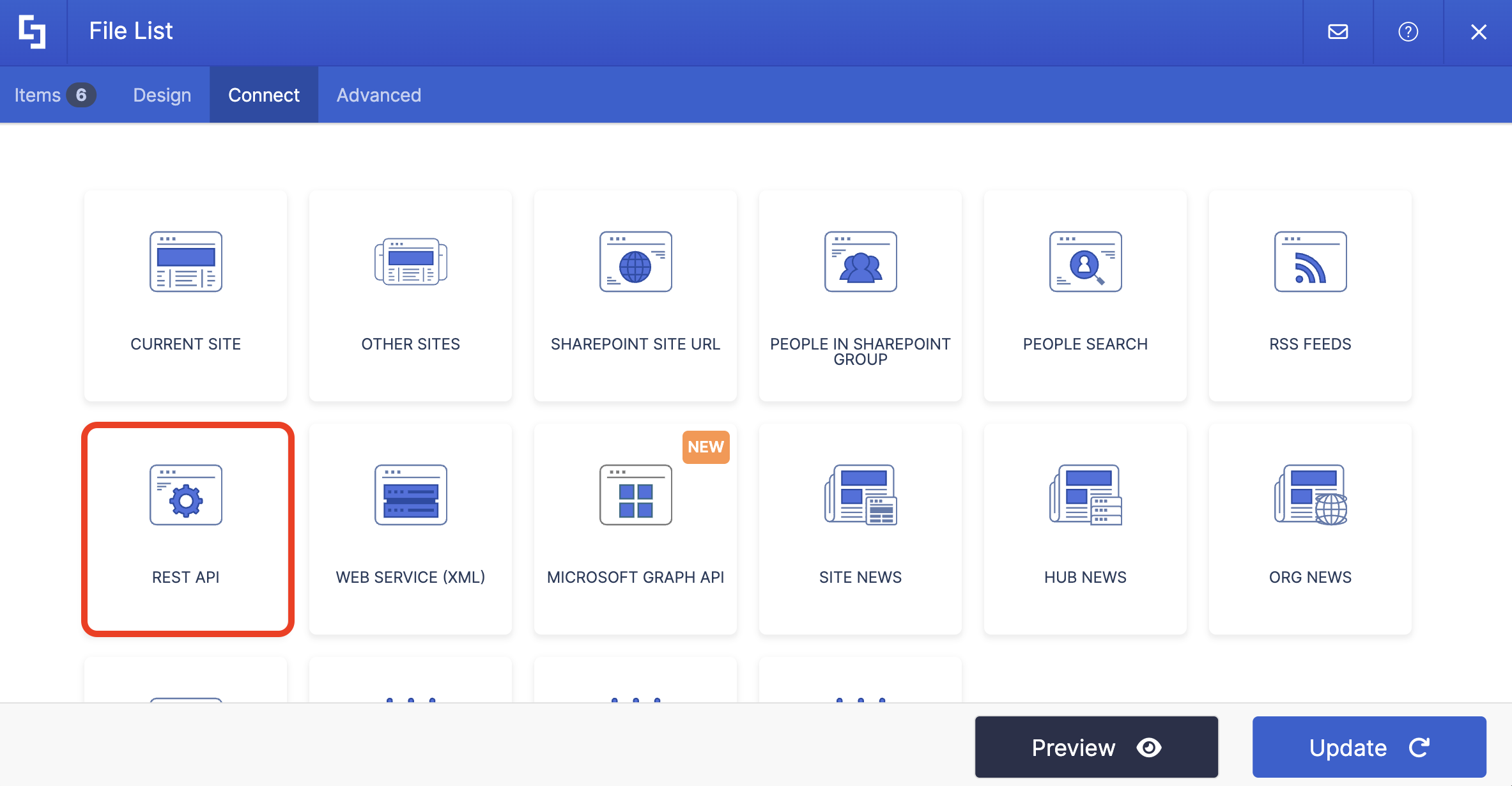
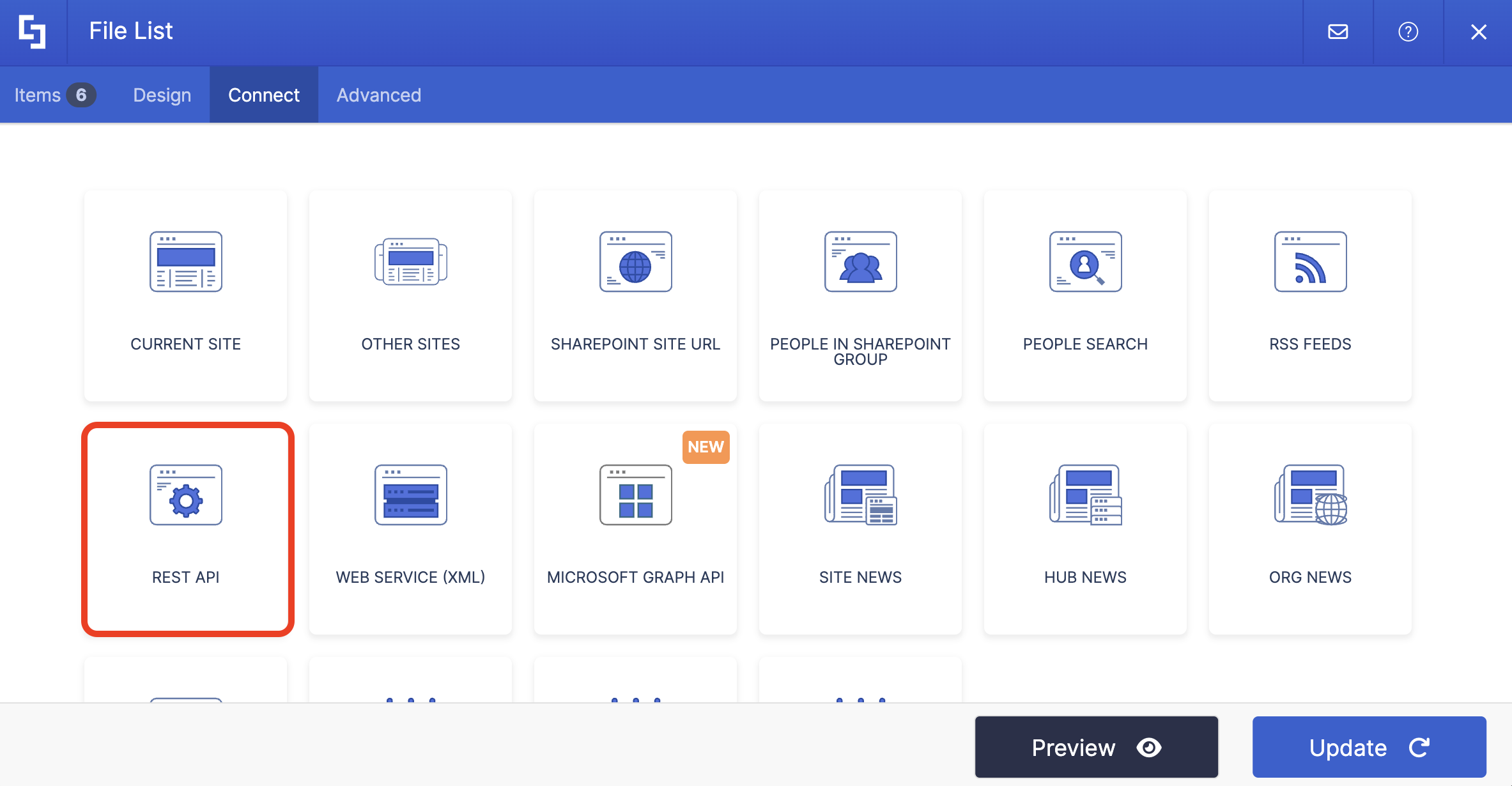
- Select REST API:
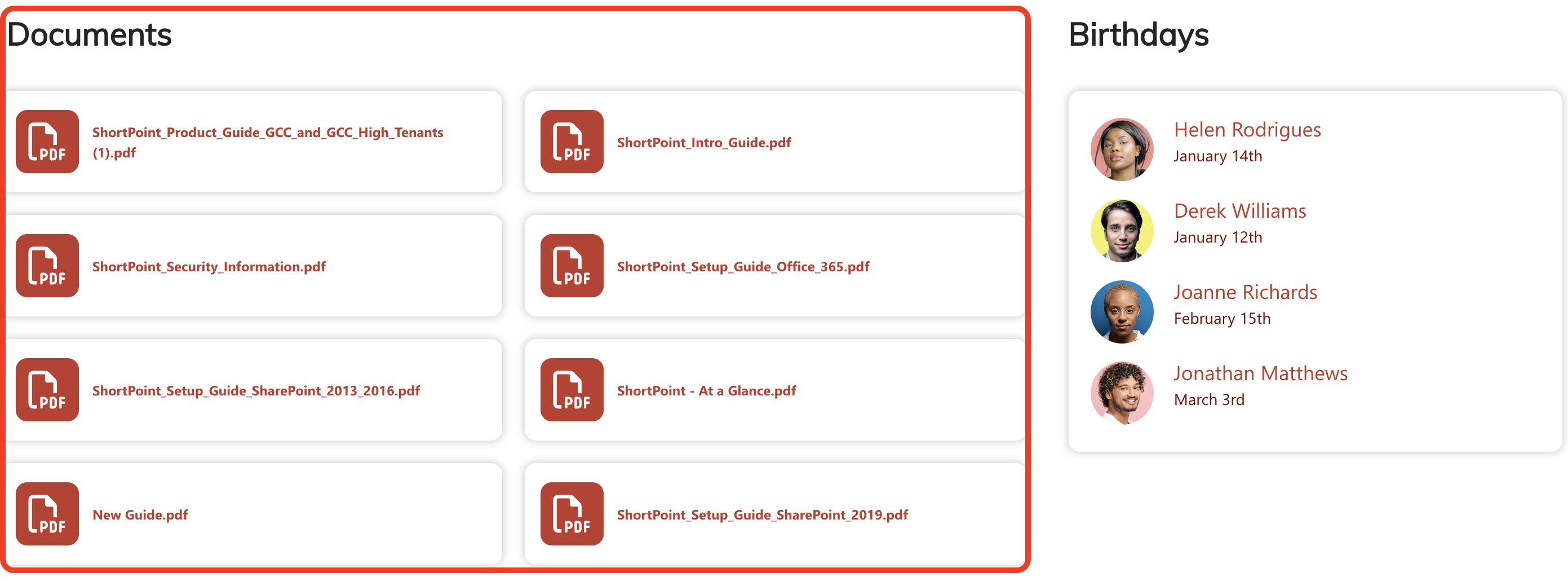
- Add the REST API URL. For this guide, we'll use the REST API URL below. This will get all the files from a specific folder in our Document Library. If you want to build your own SharePoint REST API URL, go to How to Build a SharePoint REST API URL.
https://<sharepointurl>/_api/web/GetFolderByServerRelativeUrl('<document library name>/<folder name>')/Files- Then, configure the settings to your liking.
NOTETo learn more about the settings you can modify, check out REST API Features.
- Click Connect.
Step 4: Map Items
- Go to the Items tab.
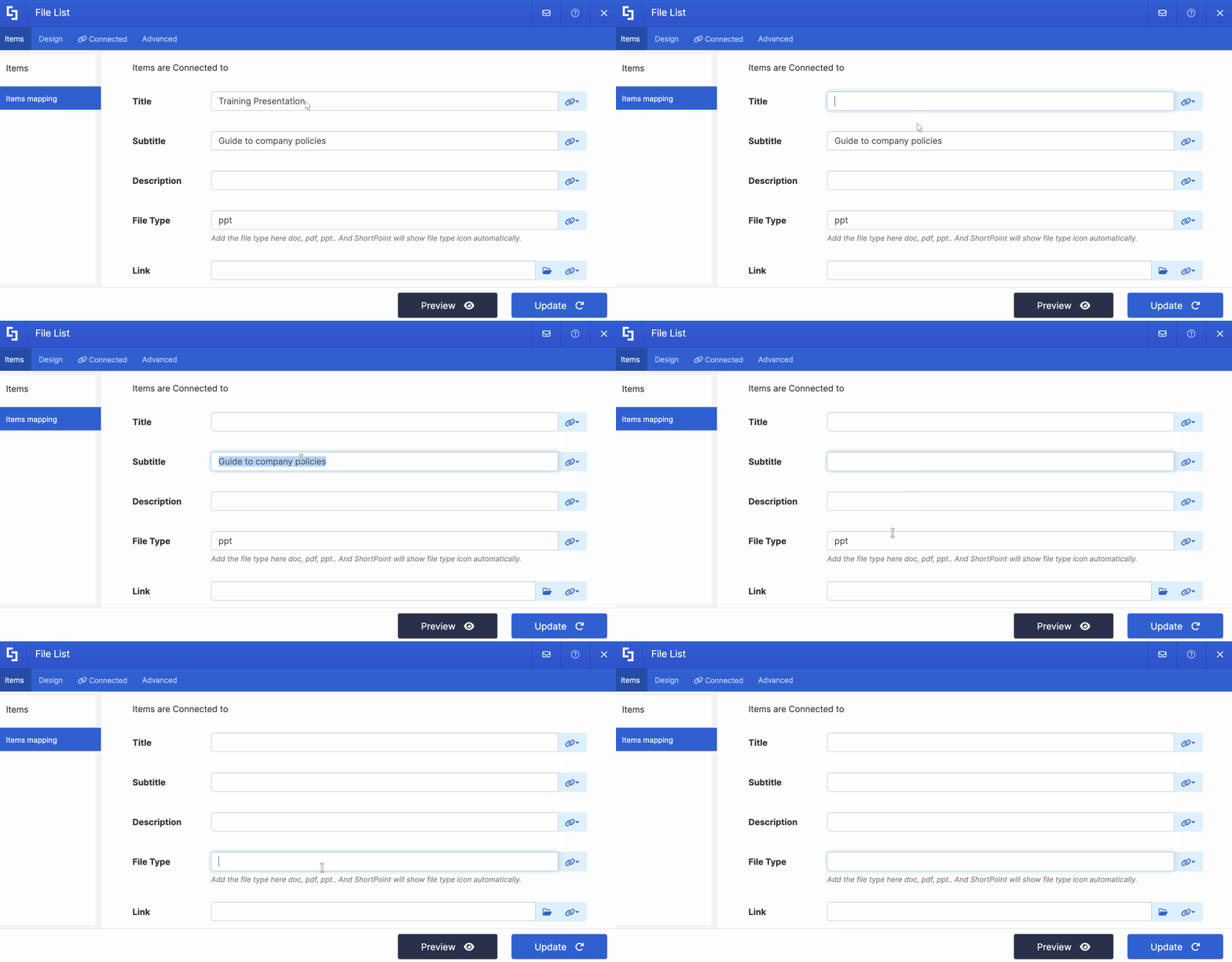
- Delete default content:
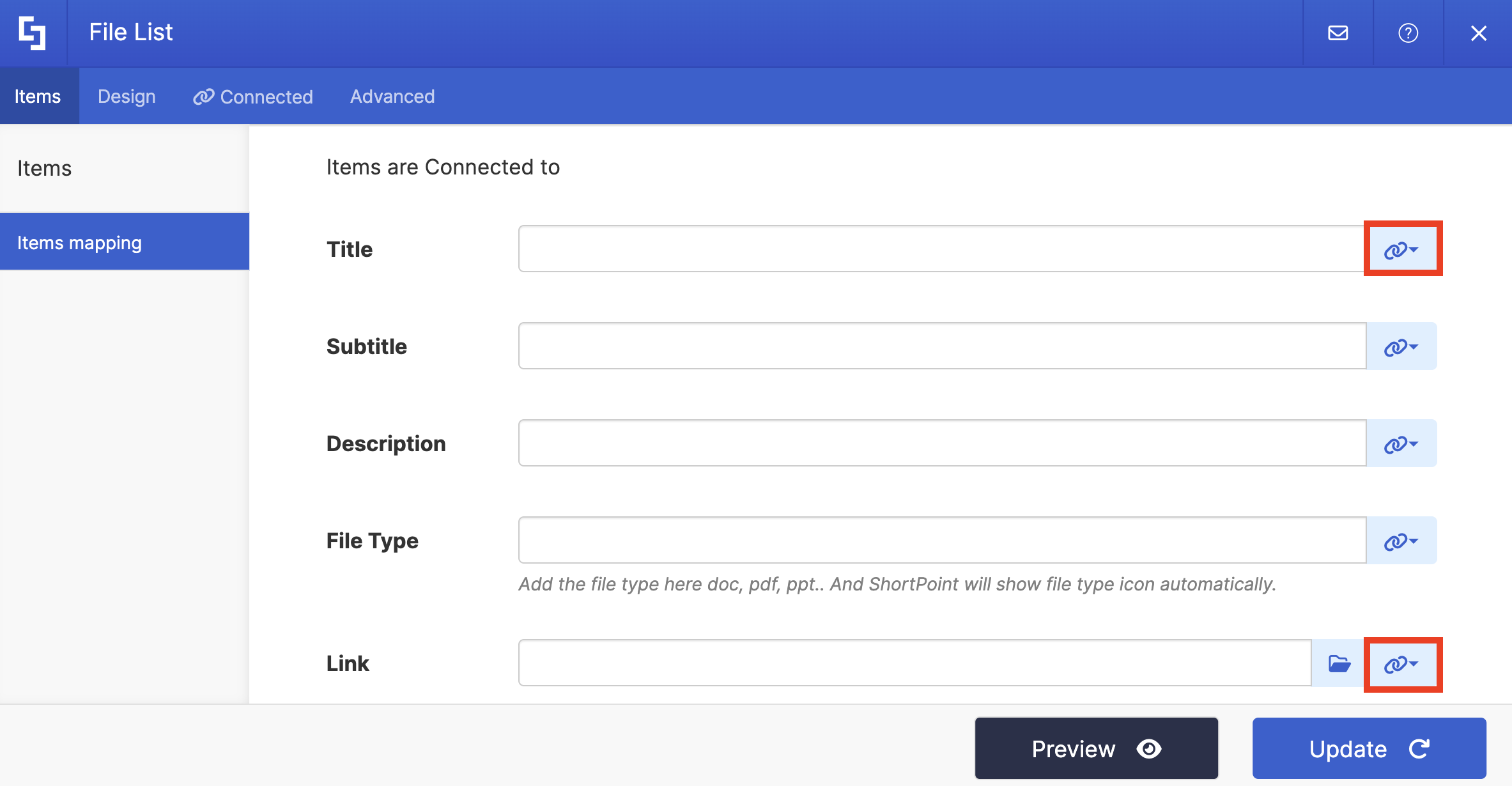
- Use the link icon to map the properties you want to display:
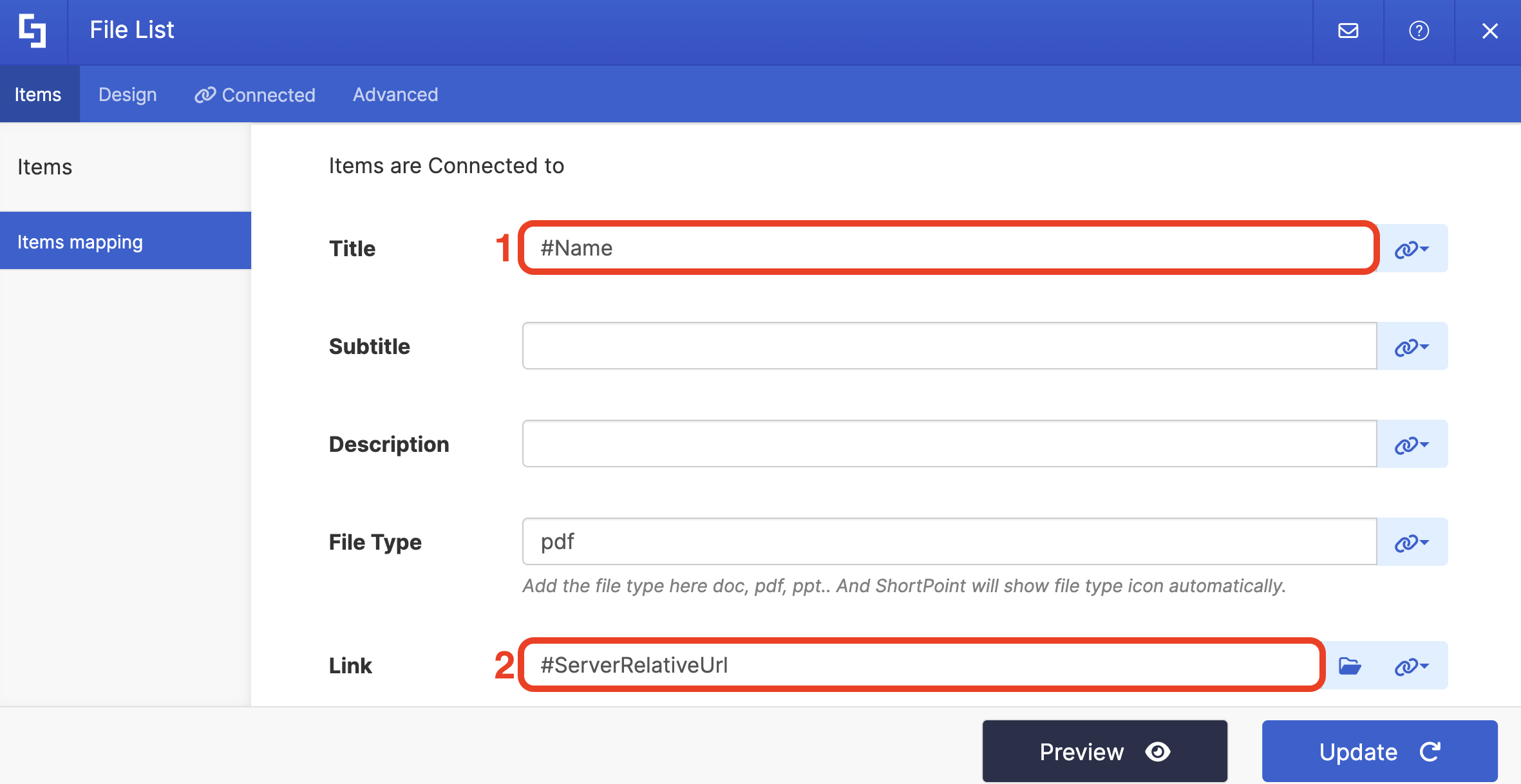
- Below are the properties we mapped. You can choose to map the same items or choose your own.
- #Name- shows the file name
- #ServerRelativeUrl - links the file to its source.
Step 5: Save
- To see how the Design Element looks, click Preview.
- Once satisfied, click Update.
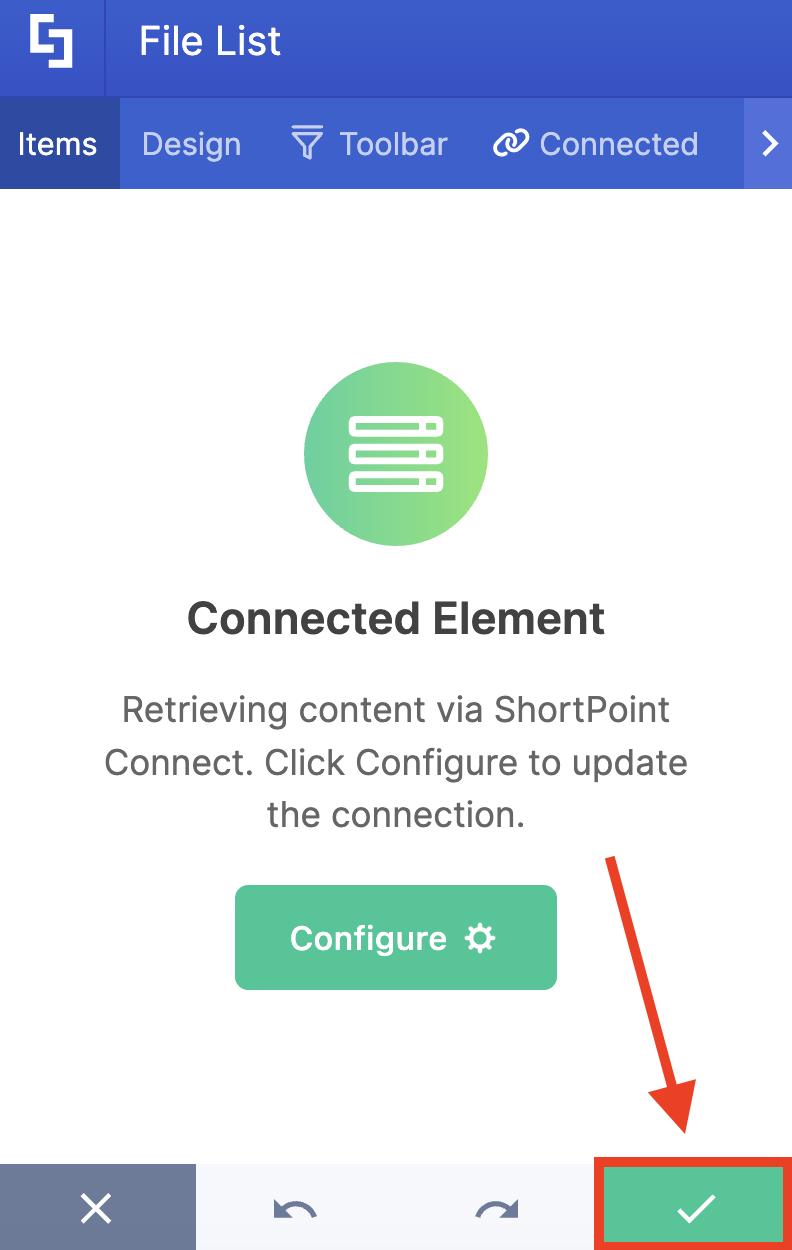
- Click the green check mark:
- Save your changes:

Well done! It's super easy to have dynamic content using the REST API connection.
REST API Connection Features
Here are the features you can modify inside the REST API connection:
 | REST API URL | allows you to write your own REST API URL. |
 | Items Limit | allows you to modify the maximum number of events shown. |
ADVANCED SETTINGS
 | Enable Advanced Settings | when enabled, advanced settings will be displayed. |
 | Custom headers | allows you to append custom header parameters using JavaScript. Learn more about the Custom Headers function. |
 | Change Parameters | allows you to pass parameters to the URL with JavaScript. Learn more about the Change Parameters function. |
 | Change Path | allows you to modify the Service URL Path using JavaScript. Learn more about the Change Path function. |
 | Map Results | If your API doesn't return an array of result items (which ShortPoint expects), you can use this function to transform the data into the proper format for ShortPoint. Learn more about the Map Results function. |
PERFORMANCE AND CACHING
 | Enable Partial Loading | This feature comes enabled by default. It allows partial loading to activate automatically when the connection returns more than 20 results. Additional results will load as the user scrolls. Learn more about the Partial Loading function. |
 | Cache Options | allows you to choose from 3 caching options. Learn more about these caching optionsand how to improve ShortPoint performanceon your SharePoint sites.
|
Practical Use Cases for REST API Connections
Understanding the theory is great, but seeing how organizations actually use the REST API SharePoint connection brings it to life. Here are some real-world scenarios where this powerful feature shines:
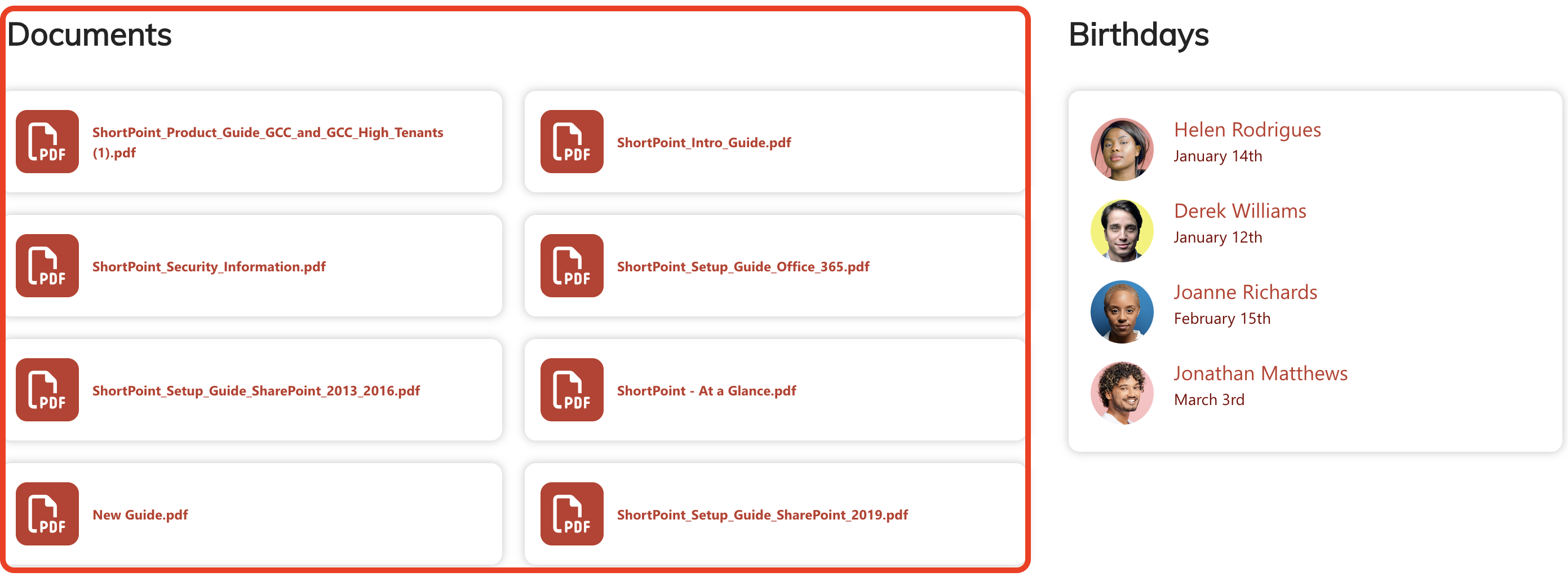
Display Files from Specific Folders
Sometimes you don’t want to show an entire document library — just the contents of a specific folder. Perhaps you have a quarterly reports folder, training materials section, or policy documents that deserve their own spotlight. The REST API SharePoint makes it easy to connect directly to any folder and display its contents with all the styling power of ShortPoint design elements.
Ready to try it out? Go to How to Connect to a Specific Folder Inside a Document Library Using REST API.
Create a Centralized News Hub
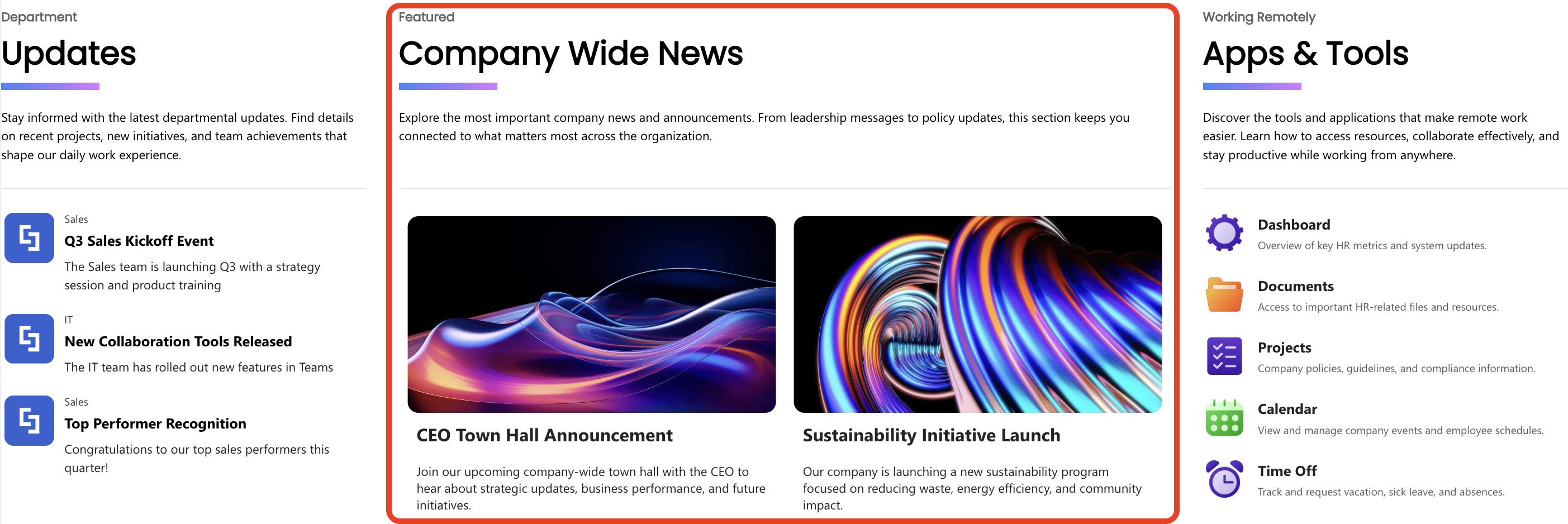
Many organizations have news posts scattered across different pages. With the REST API connection, you can aggregate news from multiple pages into a single, unified news feed. Display them with eye-catching images and descriptions. Your employees stay informed without having to visit multiple sites.
Want to give this a try? Go to How to Display SharePoint Site News Using ShortPoint REST API Connection Type.
Create a Knowledge Hub
Imagine you want to create a Resources section on your intranet homepage. Using the REST API, you can pull all the Document Libraries across your SharePoint site collection in an attractive file list or cards layout. This helps employees quickly find the resources their colleagues find most valuable, improving knowledge sharing and reducing duplicate questions.
Need this in your SharePoint site? Follow our step-by-step guide on How to Retrieve All Document Libraries from a Site Collection Using ShortPoint Connect.
Start Connecting Using the REST API Connection
The ShortPoint REST API SharePoint connection type transforms how you present data on your SharePoint sites. Instead of static, manually maintained content, you can create dynamic, always-current displays that pull from multiple sources and update automatically, leveraging Microsoft 365 capabilities and authentication to ensure secure and seamless data access.
Thinking about trying this out? For those of you already working with ShortPoint, we've created an interactive tutorial that makes setup a breeze. If you're just discovering ShortPoint, you're welcome to take it for a test drive with our FREE 15-day trial—completely risk-free! Or, if you'd like someone to guide you through it, our experts are here for one-on-one demos. They'll show you how the REST API connection works and introduce you to the full range of what ShortPoint can do.
Frequently Asked Questions
What types of HTTP requests does ShortPoint REST API support?
Currently, the ShortPoint REST API SharePoint connection type supports GET requests only. This means you can retrieve and display data, but you cannot create, update, or delete data through this connection. For most display purposes on SharePoint sites within Microsoft 365, GET requests provide the necessary functionality to showcase content effectively.
Do I need to be a developer to use REST API connections?
Not at all! While understanding REST API SharePoint concepts helps, ShortPoint makes the process accessible to non-developers. You’ll need to construct or copy a REST API URL, but the actual connection and mapping process is entirely visual and click-based. If you can copy and paste a URL and click a few buttons, you can set up REST API connections.
That said, if you want to create advanced queries with filtering, sorting, and custom parameters, having some familiarity with REST API syntax will be helpful. You can check out How to Build a SharePoint REST API URL and ShortPoint REST API: Selecting, Filtering, Sorting Results in a SharePoint List for more information.
Can I filter and sort the data returned by the REST API SharePoint?
Absolutely! This is one of the most powerful features. REST API supports several query parameters:
- $select — Choose which fields to retrieve (makes your query faster and cleaner)
- $filter — Return only items that meet specific criteria
- $orderby — Sort results in ascending or descending order
- $expand — Include related data (like lookup fields or people fields)
For example, to show only documents created in the last 30 days, sorted by modification date, you might use: ...?$filter=Created ge ‘[date]’&$orderby=Modified desc
How do I know if my REST API connection is working correctly?
After entering your REST API URL and clicking Connect, ShortPoint will attempt to retrieve the data. If successful, you’ll see a “Connected successfully” message, and a Data Example field will populate showing a sample of the data returned. This is your confirmation that the connection is working.
If the connection fails, double-check your URL for typos, ensure you have the correct permissions and authentication to access the data source, and verify that the list name or path is accurate. The most common issues are incorrect list names or missing user permissions.
Can I reuse REST API connections across multiple pages?
Yes! ShortPoint offers a Connections feature in the Dashboard where you can create reusable REST API connections. Set up your connection once, give it a meaningful name, and then select it from the Page Builder on any page across your SharePoint tenancy. This saves time and ensures consistency across your intranet. For more information, check out Connections Tool in Dashboard: How to Create Re-Usable Integrations.
What happens if the data source changes?
REST API connections are dynamic — they pull data in real-time. If someone adds, modifies, or deletes an item in your source list or library, those changes will be reflected automatically in your ShortPoint Design Element. You don’t need to manually update anything. However, if the structure of your data source changes significantly (like column names being renamed), you may need to update your field mappings.
Are there any limitations I should be aware of?
A few things to keep in mind:
- Only GET requests are supported (no creating or updating data)
- You must have appropriate permissions to access the data source
- Very large datasets may take longer to load (consider using $top to limit results)
- External APIs must be accessible from your SharePoint environment (check with your IT admin if you have firewall restrictions), and it must be CSP-compliant. To learn more about it, check out Content Security Policy (CSP) in SharePoint Online: What It Is and Why It Matters.
Related articles:
- ShortPoint Connect: Basic Tutorial
- Modify the URL Path Function for your REST API connection
- Modify URL Parameters Function for your REST API connection
- ShortPoint RSS Feed Connections stopped working
- How to Make a field clickable when using REST API connection with table
- Connect ShortPoint with external business systems
- How to Connect to a Folder inside a Document Library
- How to Make a Counter Box Show the Total Number of Items in a SharePoint List
- How to Make a Counter Box Show the Number of Items in a SharePoint List (Different Views)
- Connect ShortPoint Elements with Hub Site Documents
- How to Show Both Files and Folders of the Document Library in your ShortPoint Element
- How to Map Document / File Type Icon when Using SharePoint Document Library REST API
- Connection Types: Web Service (XML)
