 Try ShortPoint now
If you're like most ShortPoint users, you spend nearly all your time in Live Mode's visual design interface. It's intuitive, it's fast, and it gets the job done. The only exception? When you need ShortPoint Connect. Until now, that meant switching over to Grid Mode every single time.
Not anymore. Starting with ShortPoint SPFx version 8.7.2.0, you can set up your Connections directly from the Design Element settings window in Live Mode. No more mode-switching. No more workflow interruption. In this guide, we'll walk you through the new streamlined process.
TABLE OF CONTENTS
- Prerequisites:
- Interactive Tutorial
- Establishing a Connection from the Design Element Settings Window in Live Mode
- Modifying an Existing Connection
Prerequisites:
- You must have ShortPoint SPFx version 8.7.2.0 or laterinstalled on your SharePoint environment.
- You must be a ShortPoint Designer with an active license.
- You have inserted a Design Element and wish to establish a connection to an internal or external data source using Connect.
Interactive Tutorial
Discover the new user experience by going through this interactive tutorial.
Establishing a Connection from the Design Element Settings Window in Live Mode
Follow this step-by-step walkthrough to learn how to set up your connections in the updated user experience:
Step 1: Edit the ShortPoint web part
- Enter Edit mode on your SharePoint page.
- Select the ShortPoint web part and click the Edit properties button. This will open the Live Mode editing interface.
Step 2: Open the Design Element settings window
- Navigate to the Design Element you want to connect to your data source.
- Hover over its EasyPass tag and press the cogwheel icon. You will now have access to the Design Element Settings window.
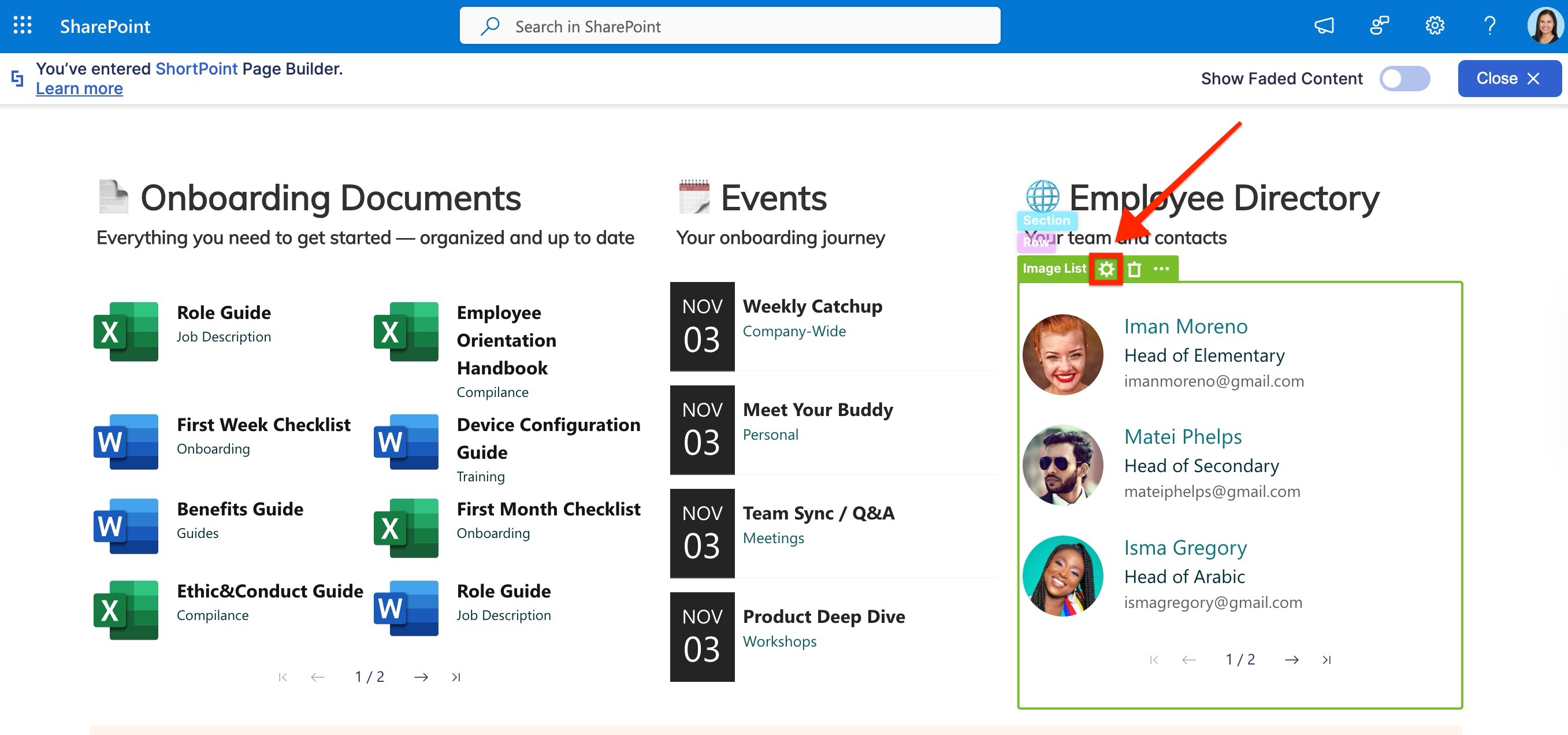
Step 3: Access the Connect interface
- Go to the Connect tab. You may need to press the arrow right icon to see it.
- Click Configure. This will open the connection settings window.
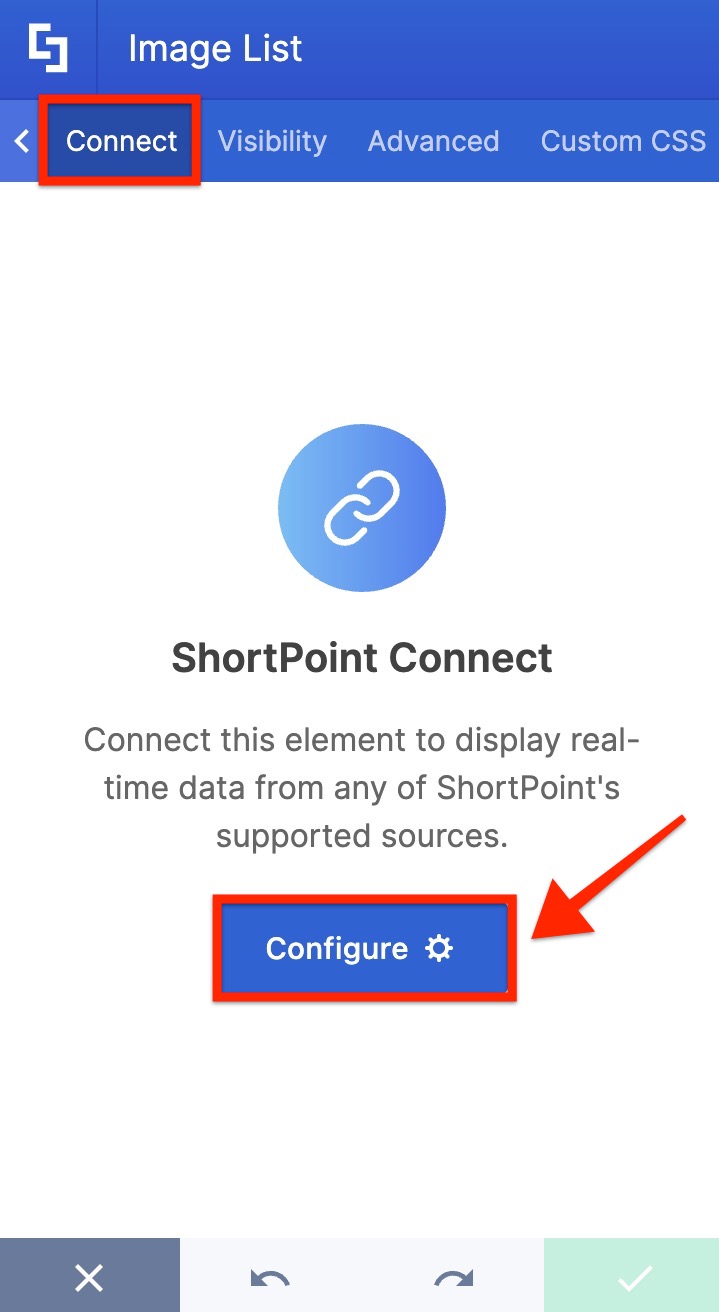
Step 4: Connect and map items to display
- Choose your preferred connection type depending on your data source.
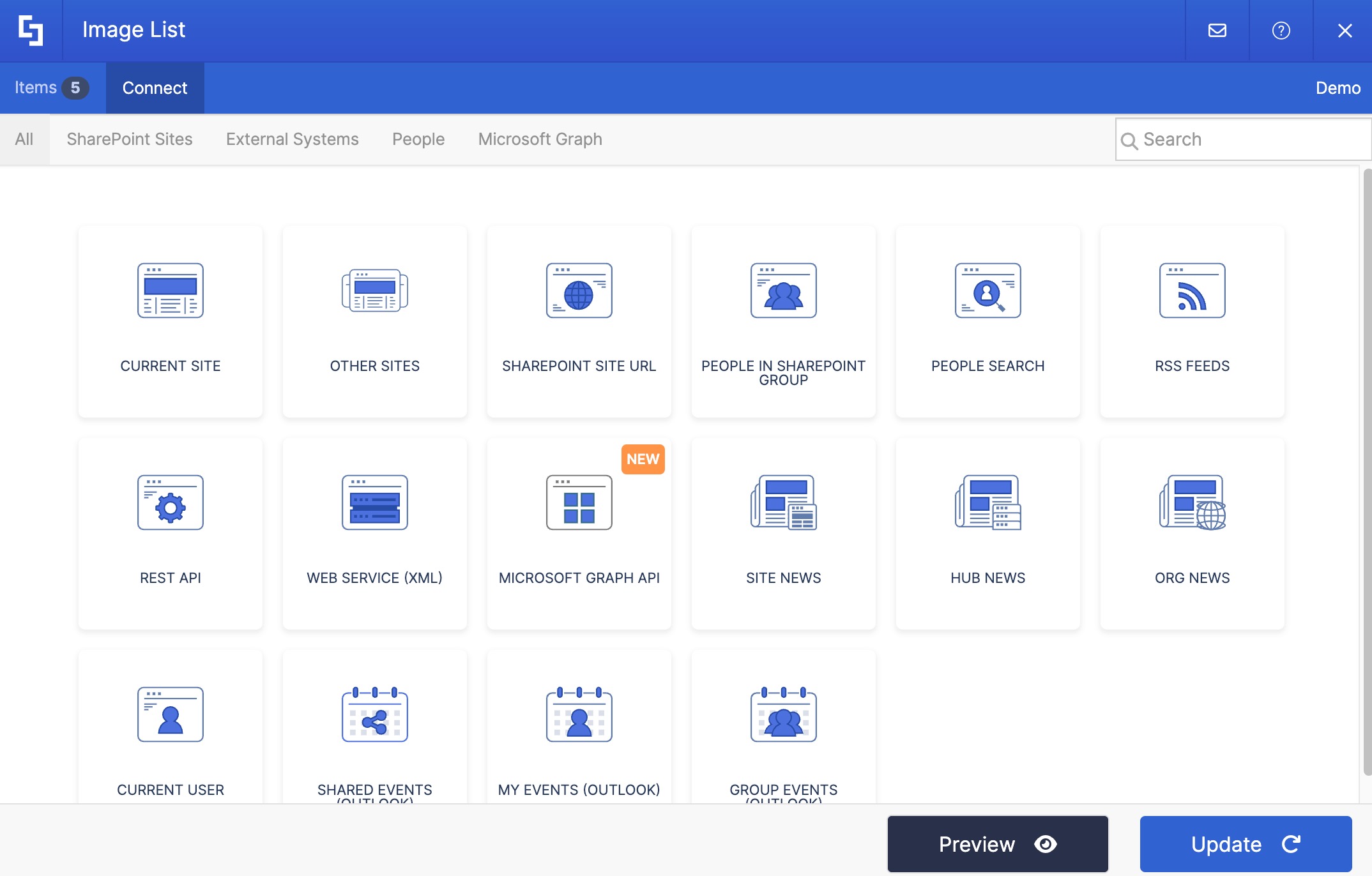
- Complete the required fields and adjust other connection settings as needed.
- Click Connect. You will see a notification once your connection is established successfully.
- Switch to the Items tab.
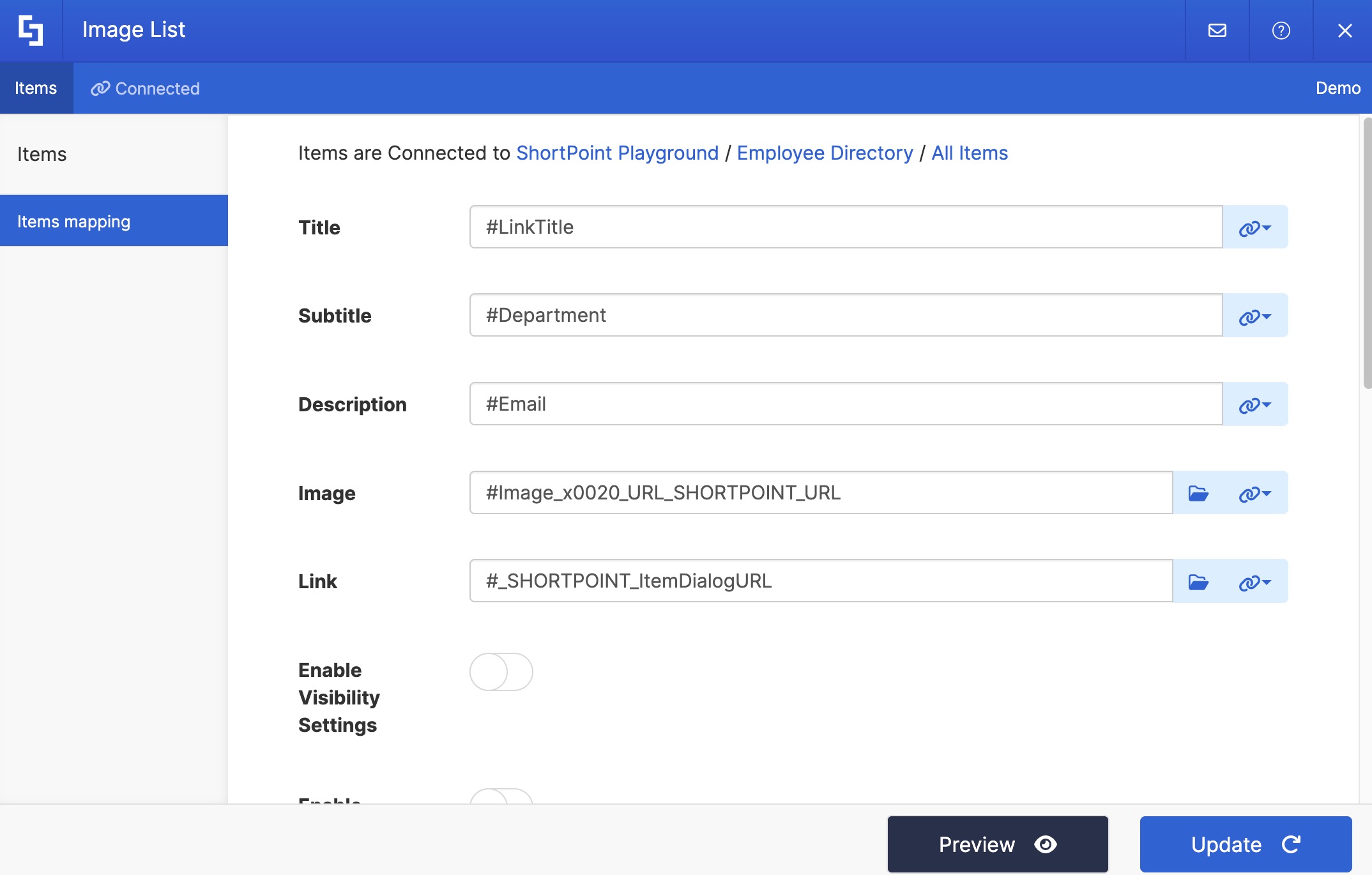
- Press the link icon on the available Design Elements fields to map the data properties that you want to display in them.
- Hit Preview to check if you have achieved the results that you need.
- Once done, click Update to save your connection settings and to return to the main Design Element settings window.
Step 5: Adjust other settings as needed
- Make other modifications to the Design Element settings to achieve the desired result.
Step 6: Update and save your changes
- Once satisfied, apply your changes by clicking the green checkmark button.
- Save your changes and hit Republish.
Now, all changes to a specific Design Element can be completed within a single workflow. No need to access Grid Mode.
Note: If you are new to ShortPoint Connect and want to get more details about the feature, please check out our Basic Tutorial article.
Modifying an Existing Connection
When you need to update an existing connection, you will also be able to do this while in Live Mode.
- Once you open the settings window of a connected Design Element, you will be informed that it is currently a connected element in the main tab.
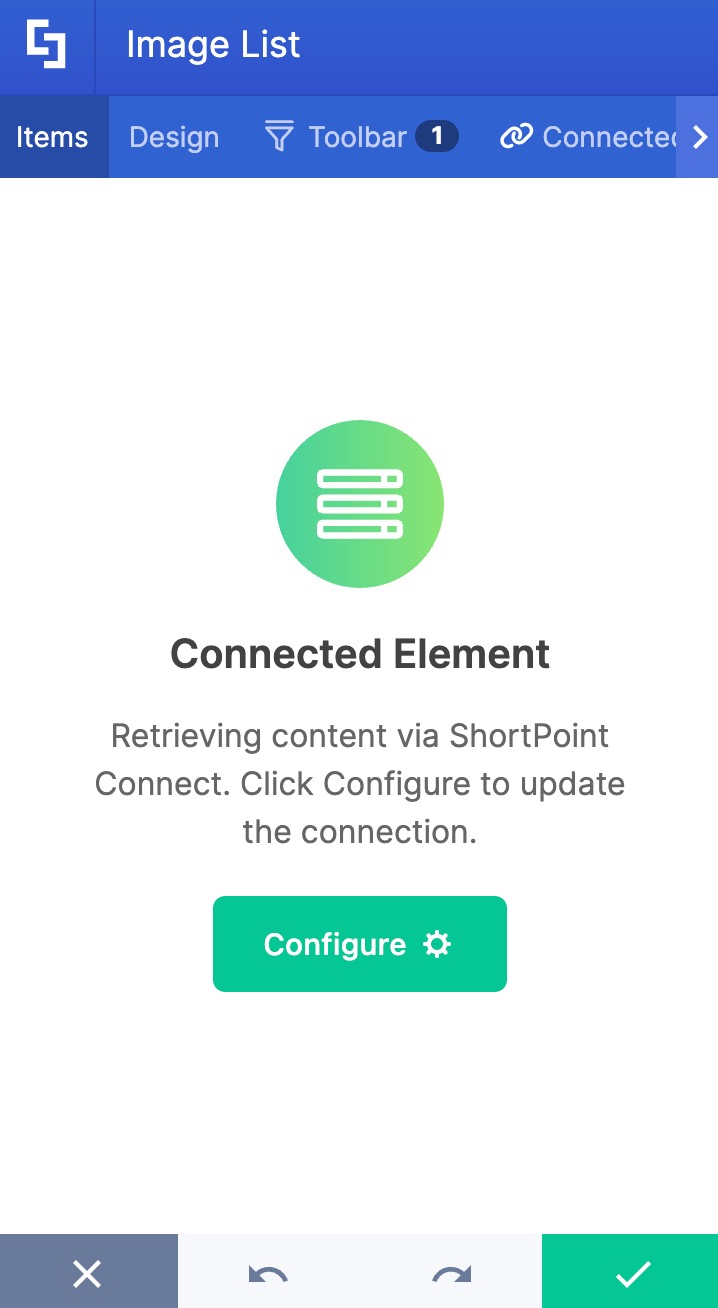
- Click the Configure button. This will bring you to the Connect window. An alternative is to go to the Connected tab and click the Configure button from there.
- Proceed to editing your connection. You can do any of the following:
- Go to the Connected tab, click Disconnect, modify the connection settings, and then reconnect.
- Update the mapped fields in the Items or Content Tab; or,
- Fully remove the connection by clicking Disconnect.
- Hit Update to apply your changes. You will then be brought back to the main settings window.
Related articles:
