 Try ShortPoint now
This article will tackle the basics of the ShortPoint Sandbox Mode feature, including what it is and how to use it.
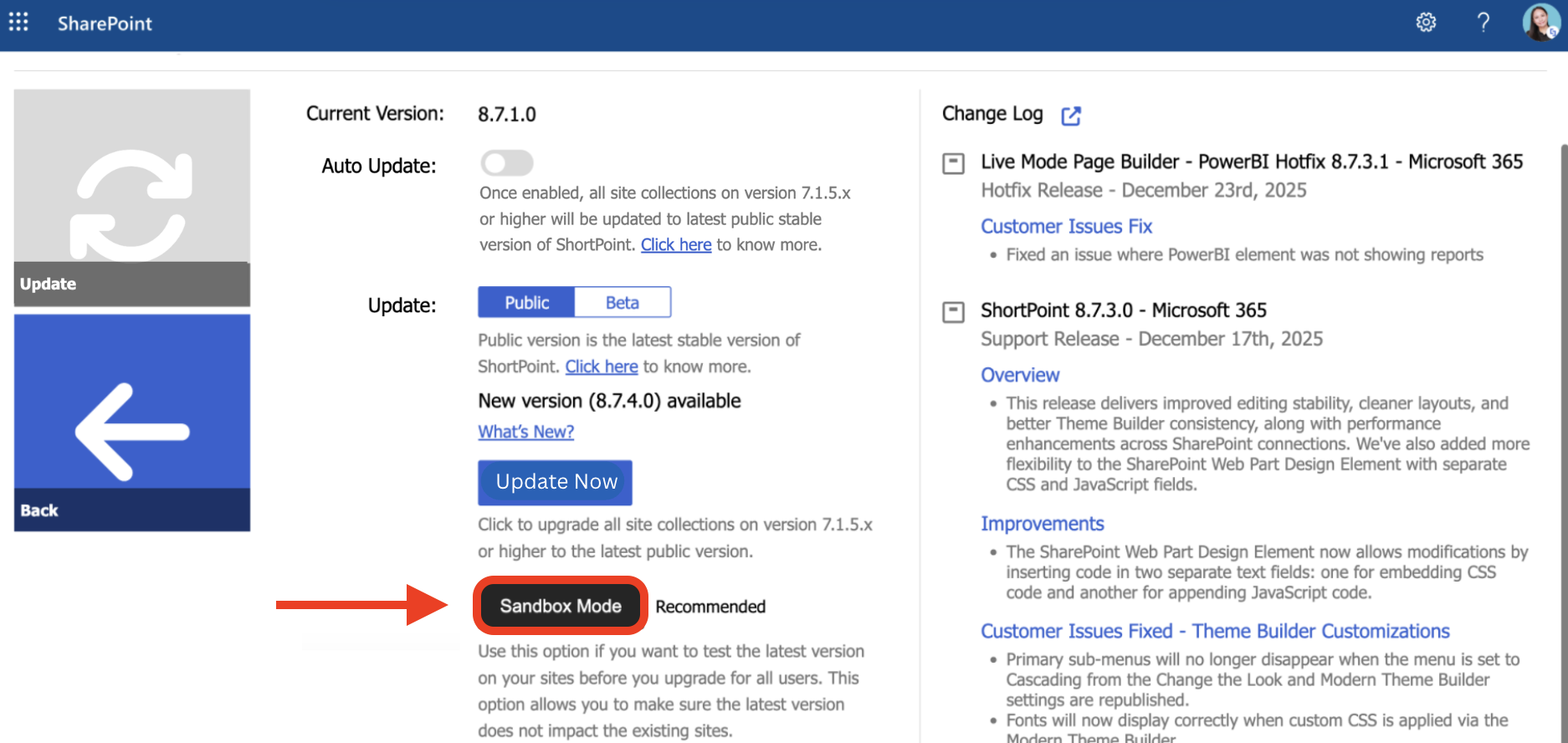
TABLE OF CONTENTS
- Prerequisites
- What is Sandbox Mode?
- How to Use Sandbox Mode
- What are the Limitations of Using Sandbox Mode
- How to Rollback to a Previous Version
- FAQ
Prerequisites
- You must be on Microsoft 365 (SharePoint Online) or SharePoint 2019 On-Premise environment.
- You must have the latest version of ShortPoint SPFx installed on your SharePoint site/s.
- You must be a ShortPoint Designer with an active license.
What is Sandbox Mode?
Sandbox Mode lets you preview the latest ShortPoint SPFx release.
When you enable Sandbox Mode, you'll be taken to a preview environment where you can explore the new features and improvements to see how they'll work on your SharePoint site.
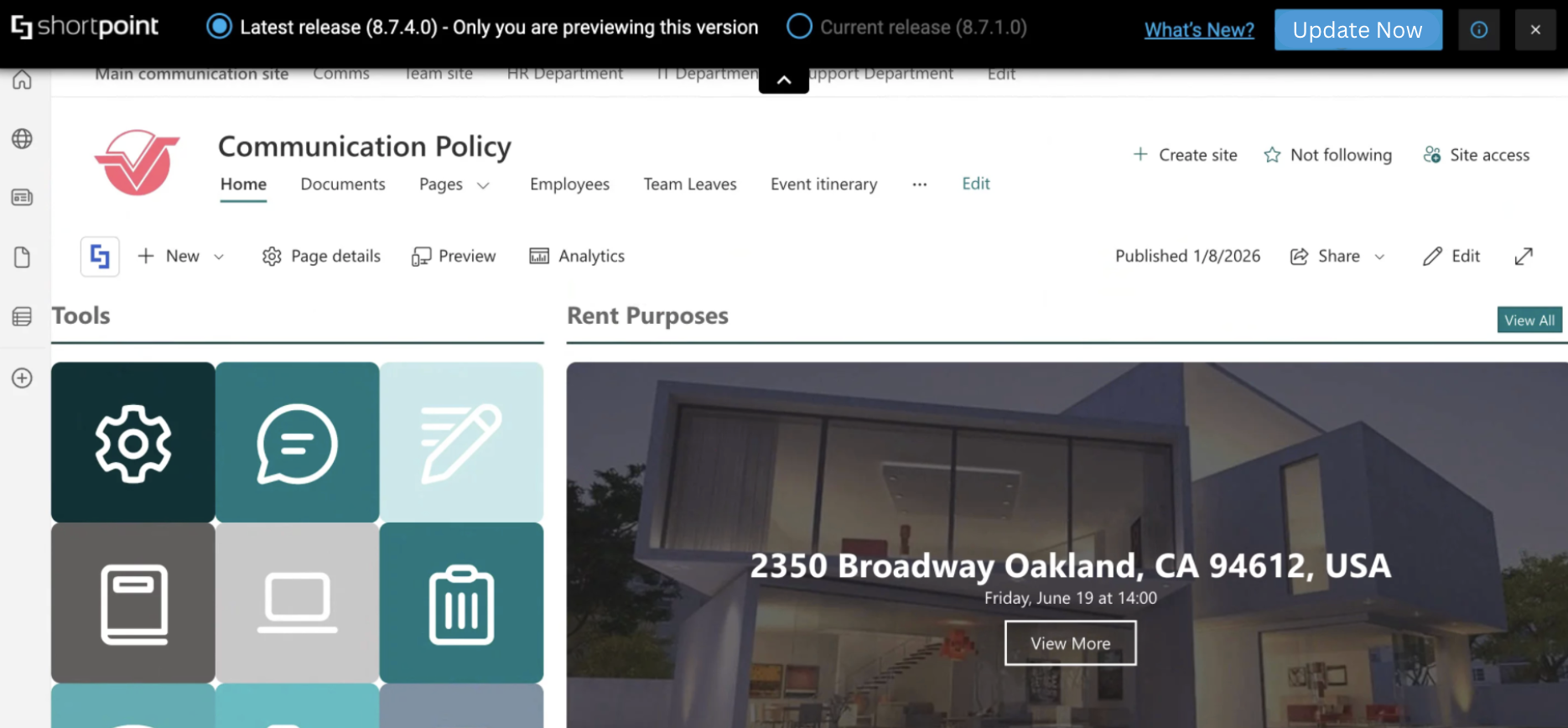
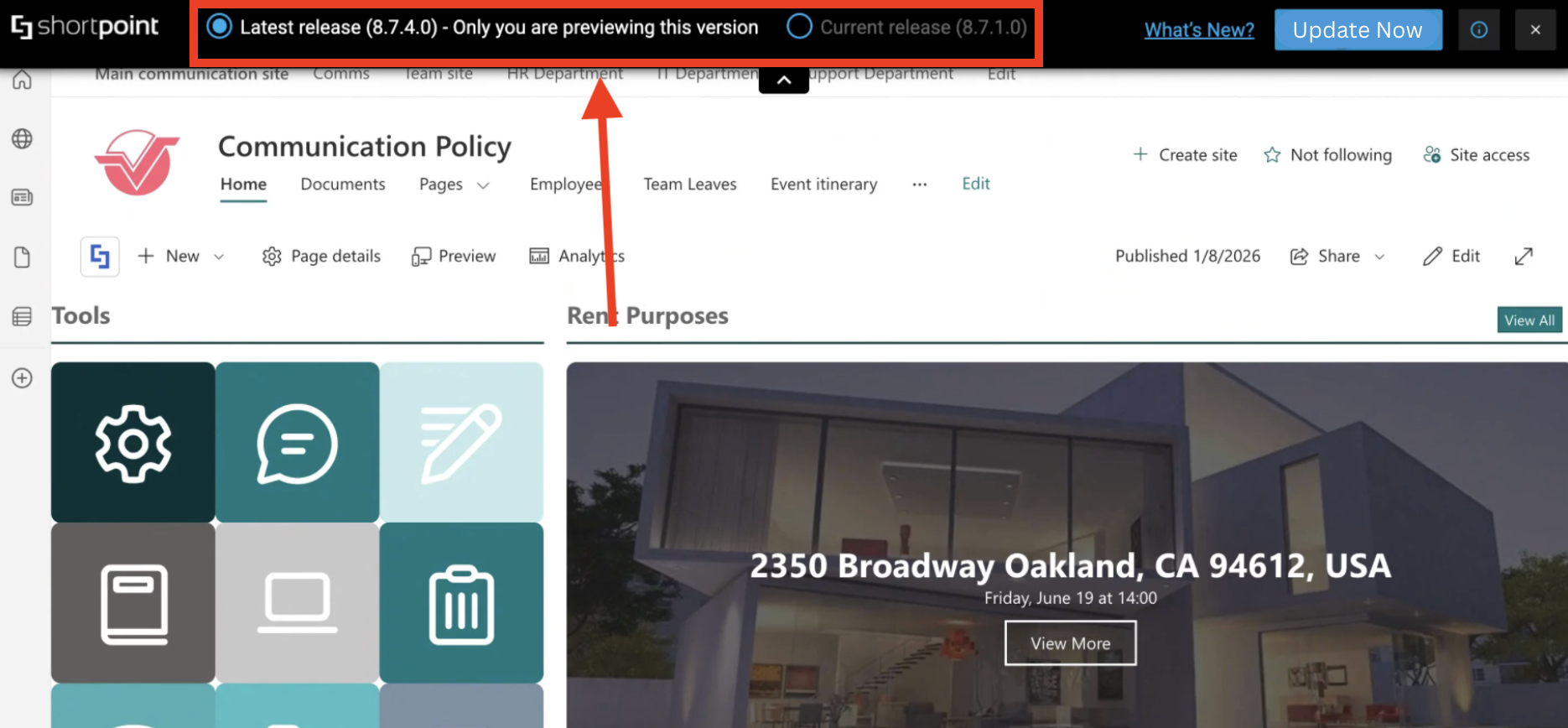
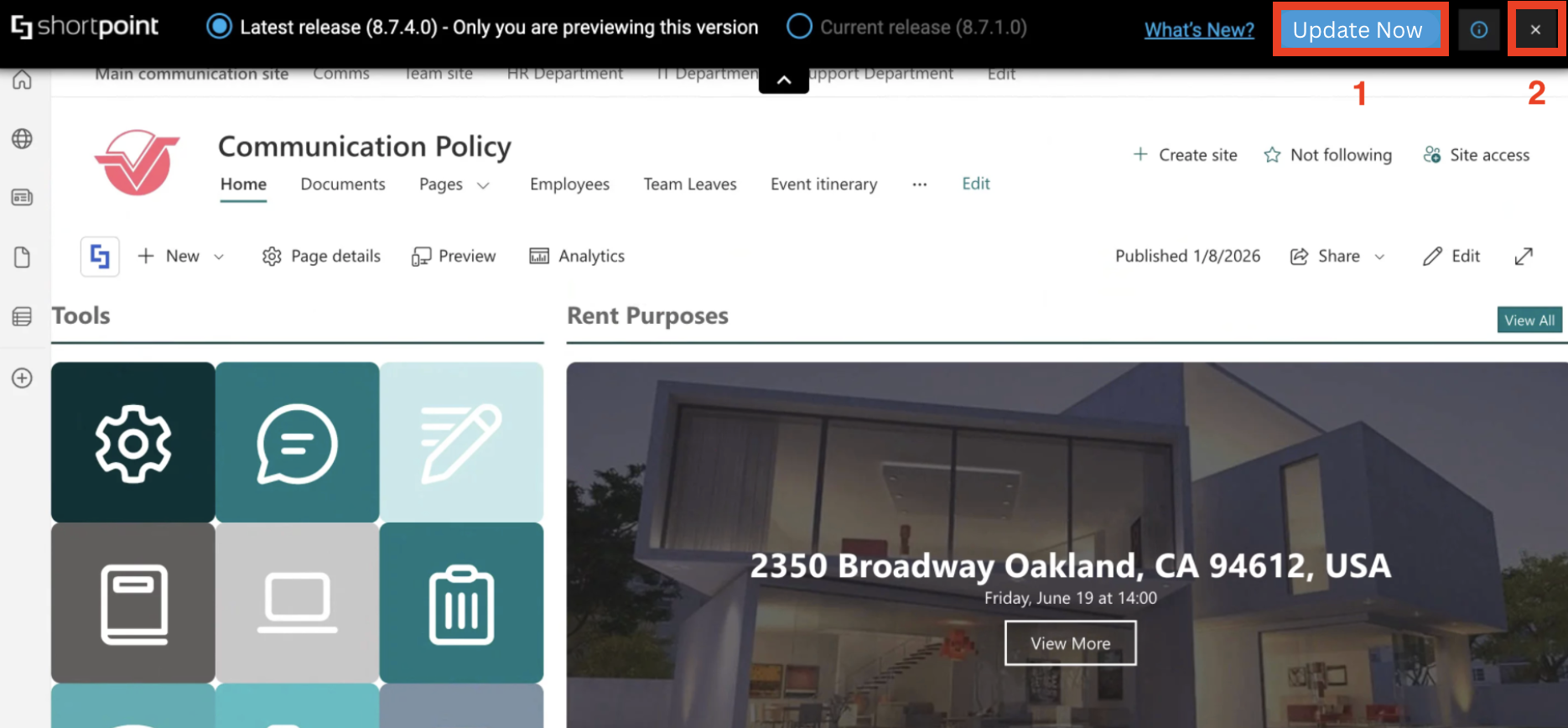
In preview mode, you can also easily switch between the latest ShortPoint SPFx version and the current version for better comparison of the two versions:
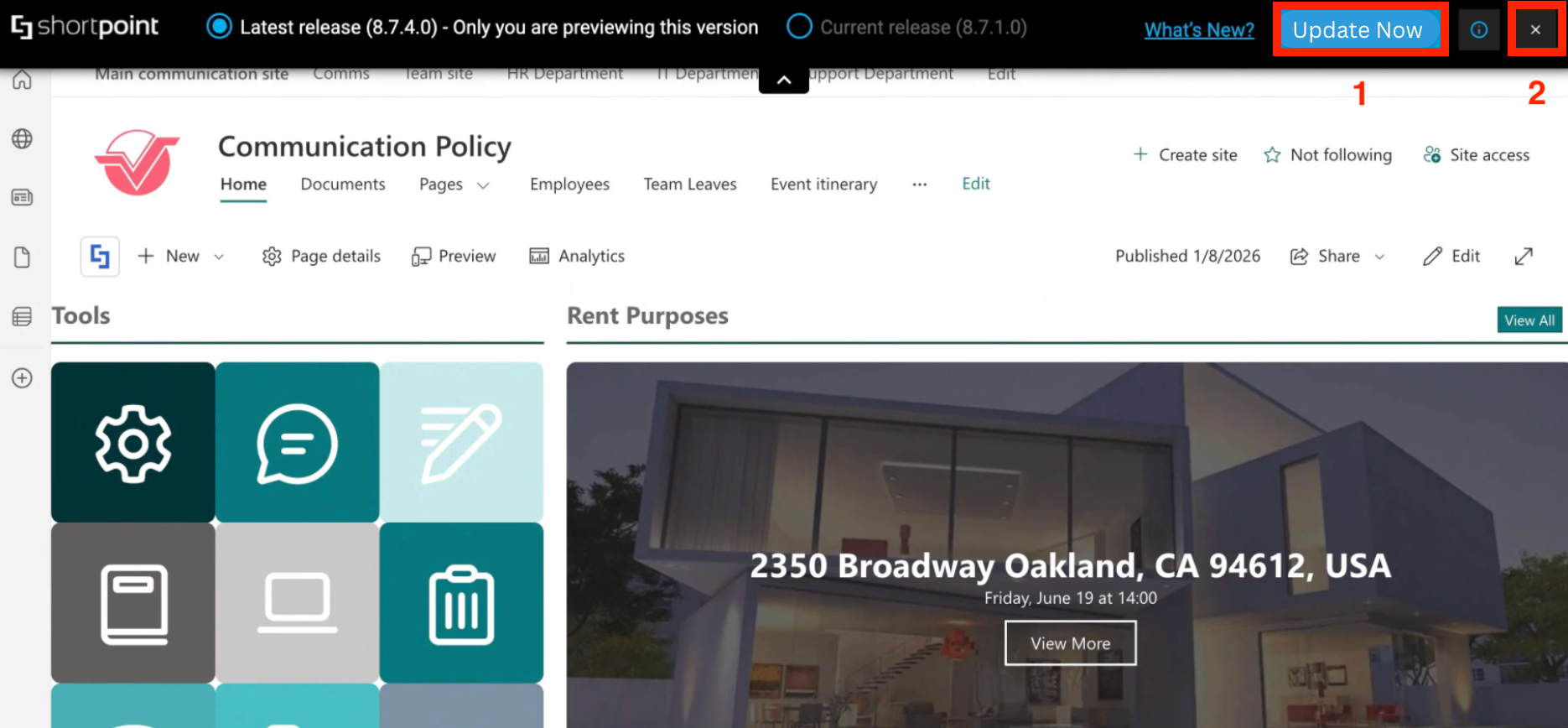
After testing, you can decide whether to [1] update to the new release or [2] continue using your current version.
How to Use Sandbox Mode
Start the interactive tutorial to learn how to enable Sandbox Mode:
Step 1: Open the ShortPoint Dashboard
- Go to the SharePoint site where ShortPoint is installed and click the ShortPoint logo:

- Select Dashboard:

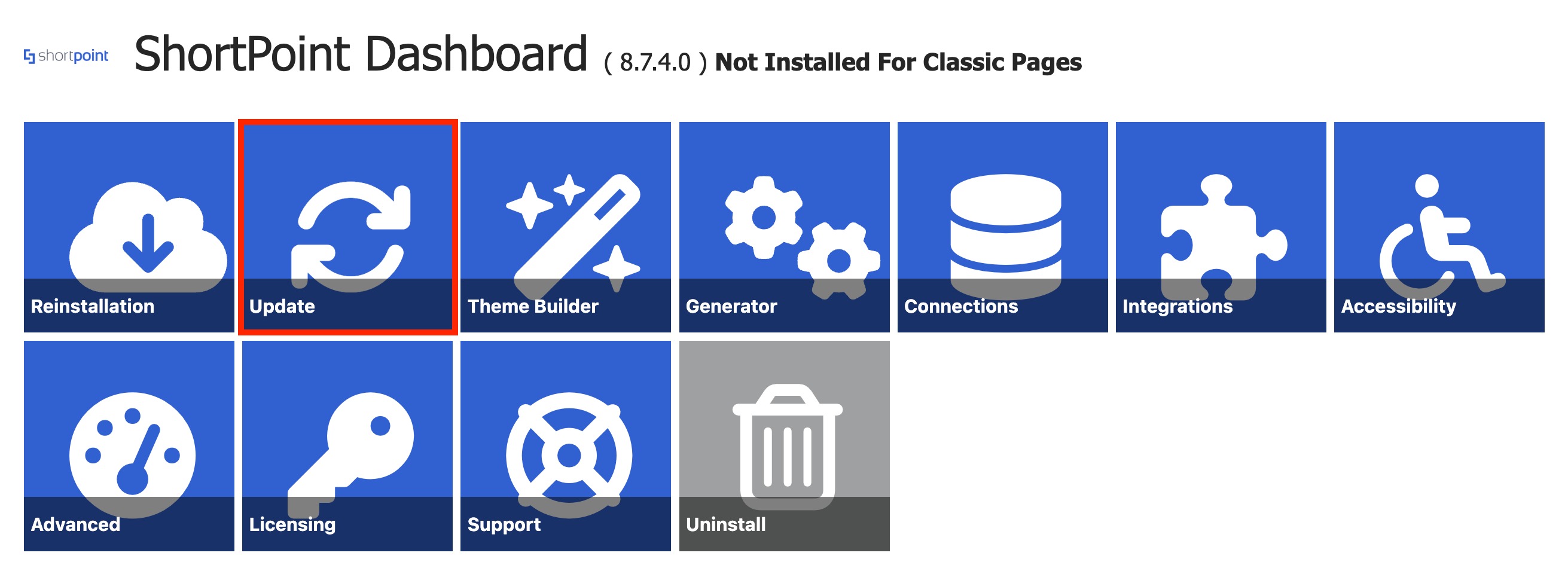
Step 2: Open the Update Page
- Click Update:
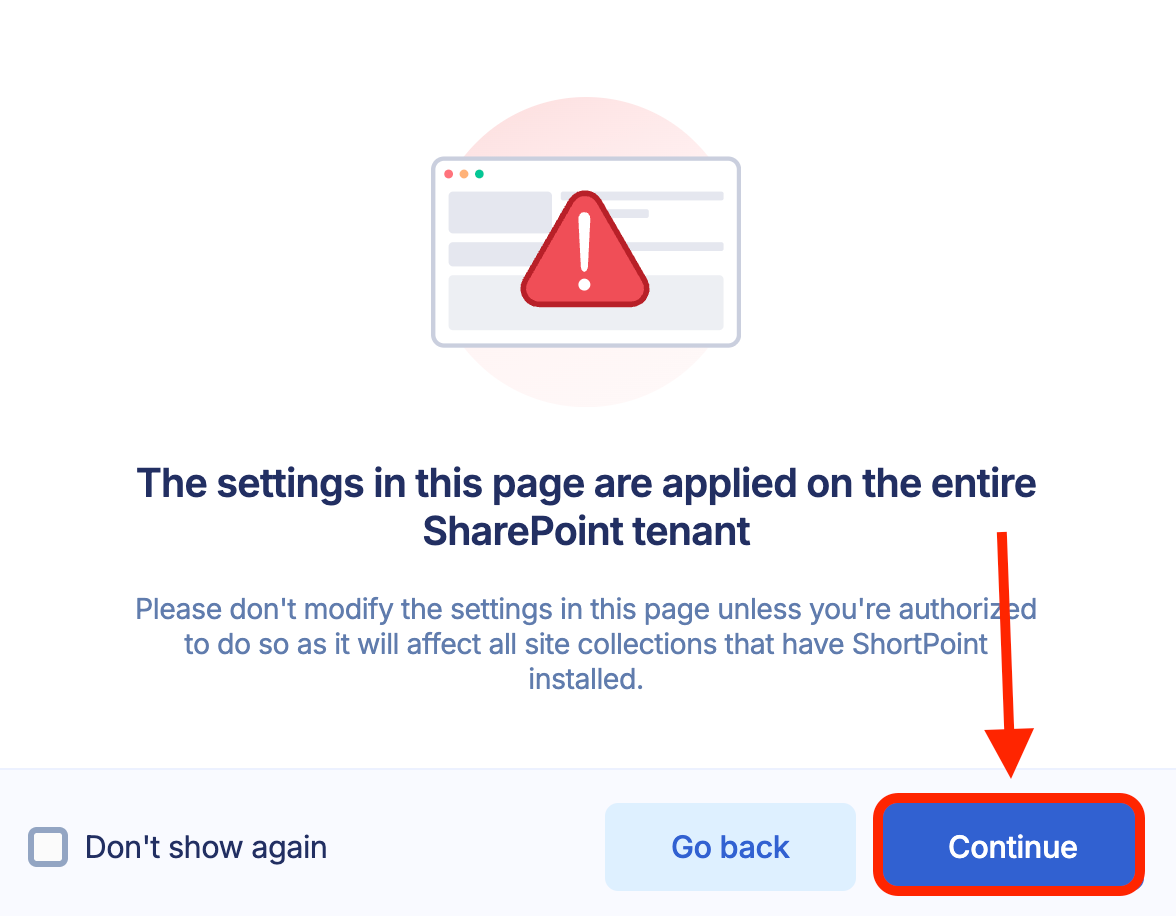
- A pop-up message informing you that changes made inside will affect the whole SharePoint tenant. Click Continue:
Step 3: Enable Sandbox Mode
NOTEBefore proceeding, make sure you have Auto Update disabled. Otherwise, you won't be able to see the Sandbox Mode option.
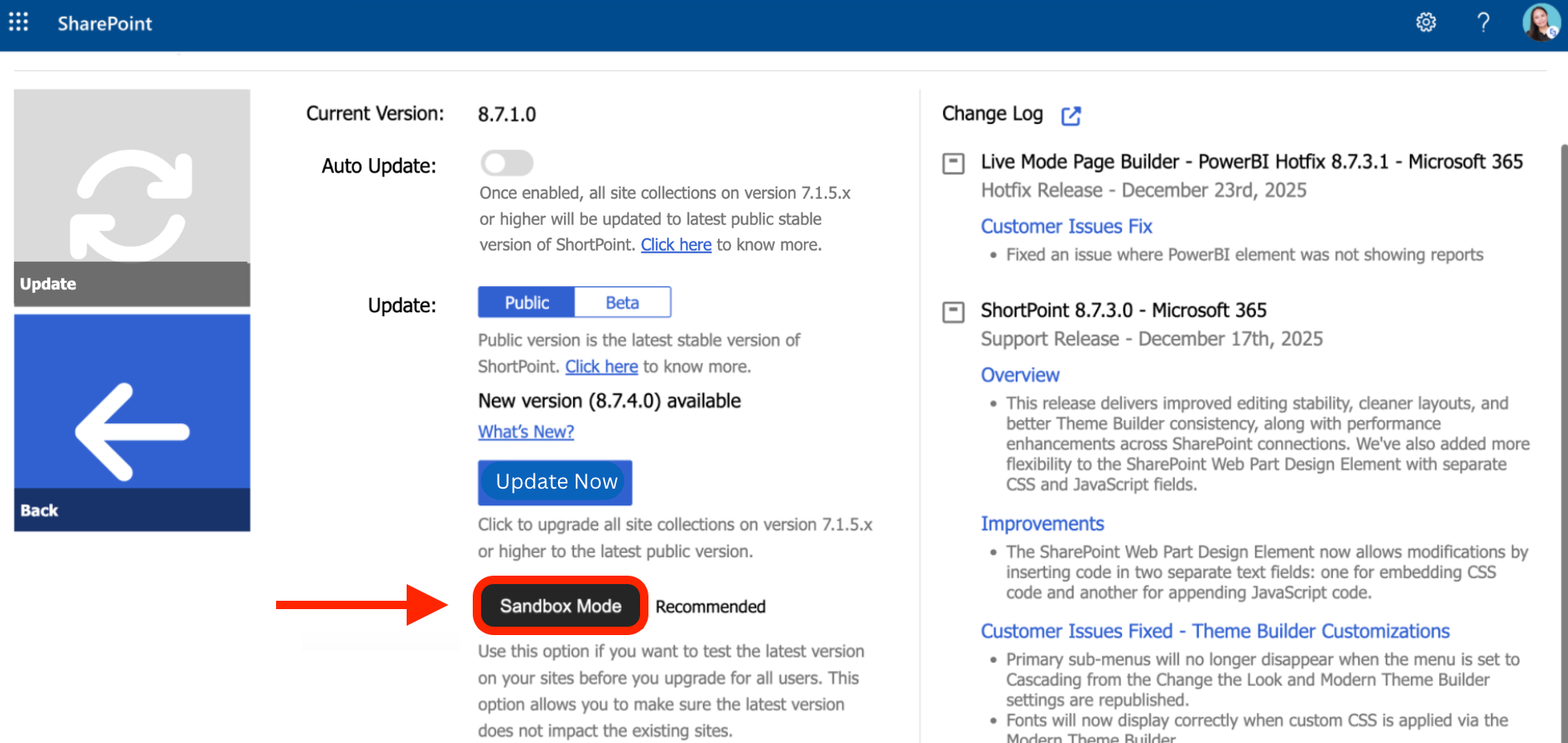
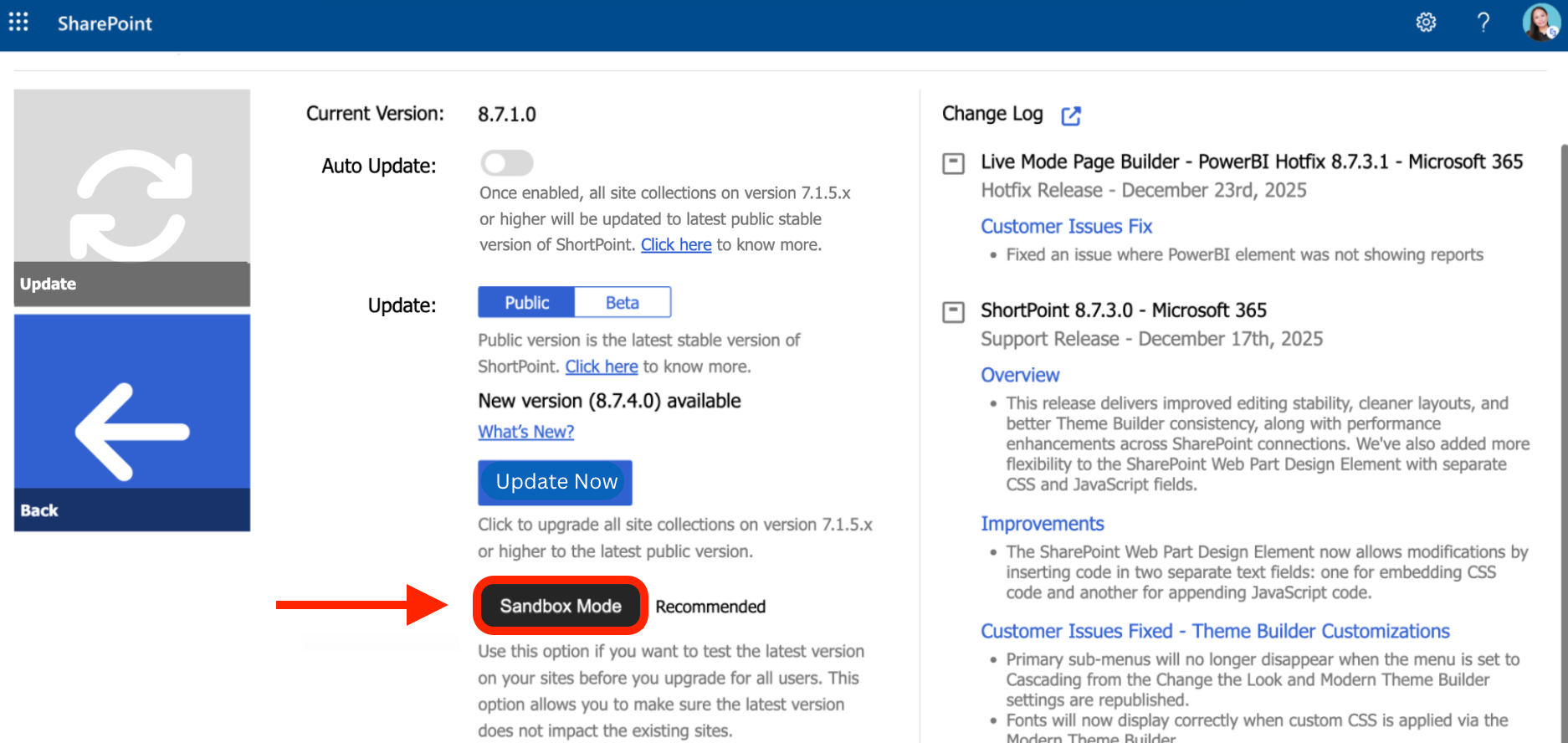
- Choose either [1] Public or [2] Beta. Choose Public if you want to preview a public release. Choose Beta if you want to preview a Beta release.
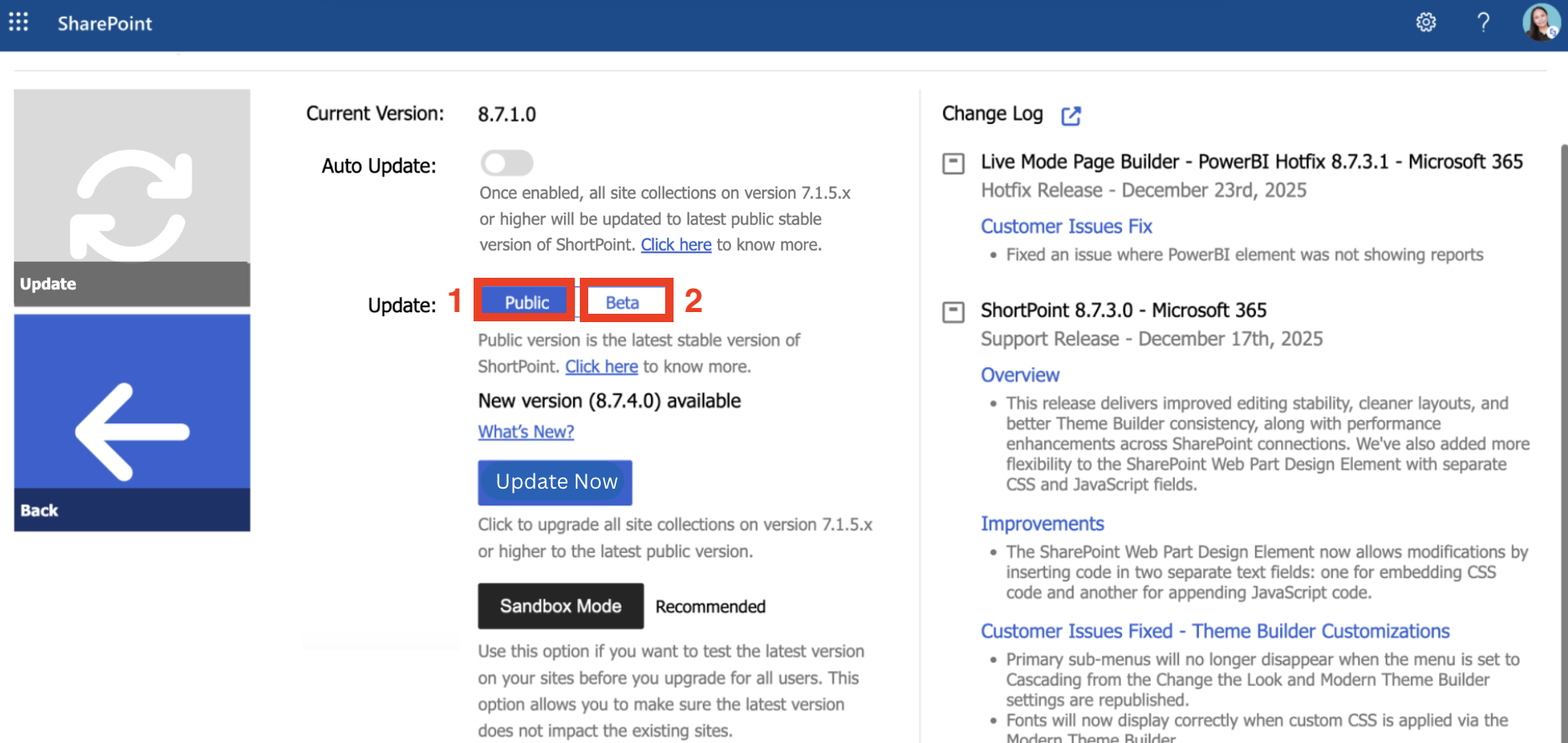
- Select Sandbox Mode:
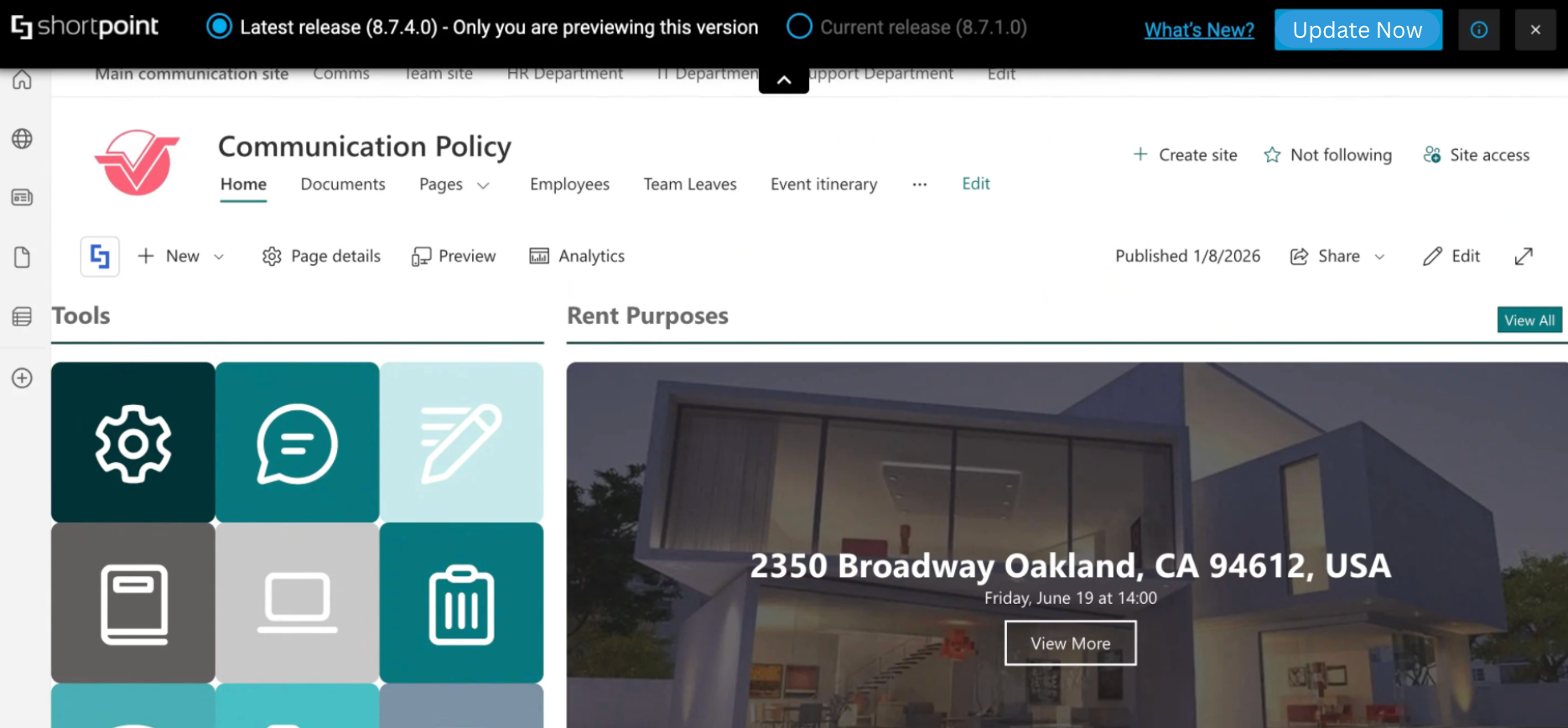
- You will be redirected to a preview environment where you can see how your SharePoint site looks in the latest ShortPoint SPFx version:
Step 4: Explore
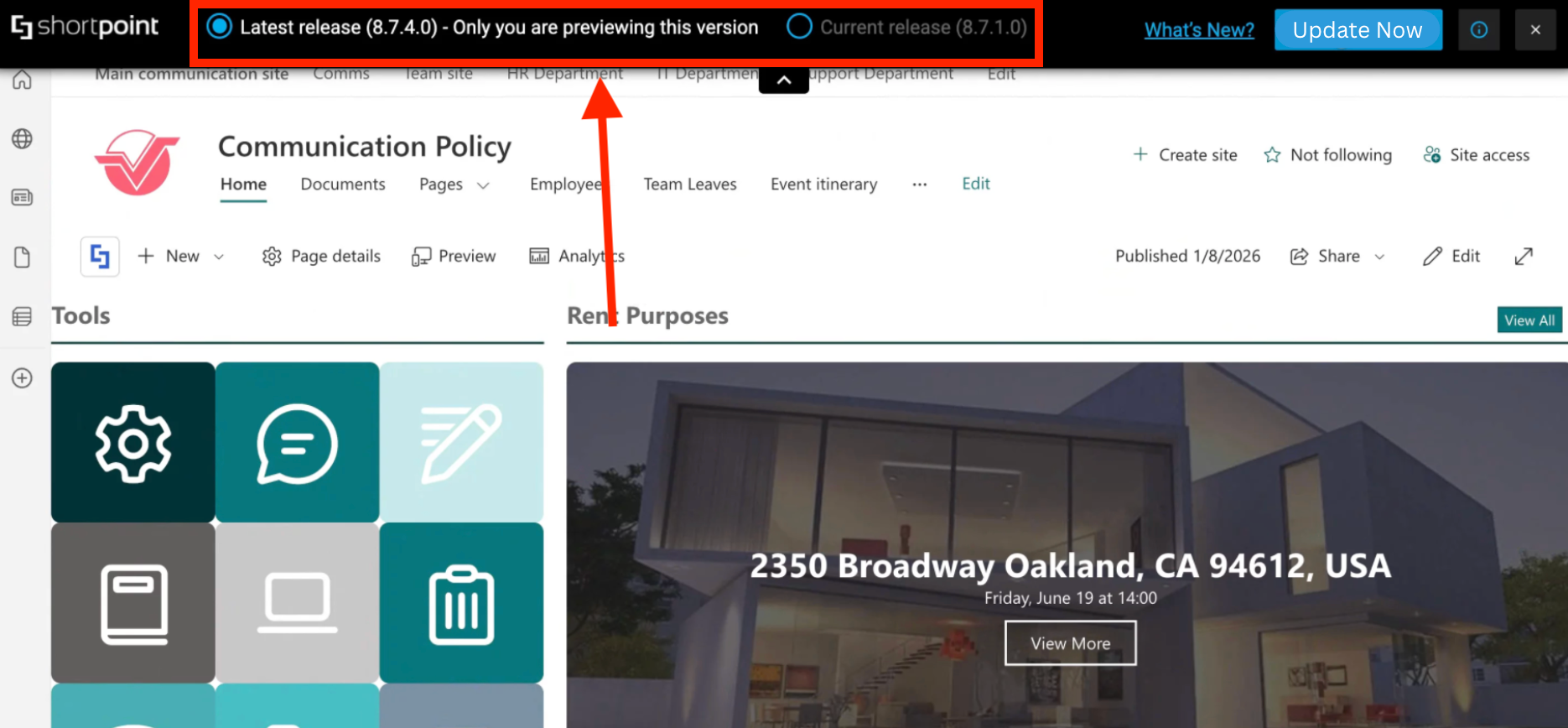
- You can now start exploring the preview page as you see fit. You can even switch between the latest ShortPoint SPFx version and the current version for better comparison of the two versions:
NOTEIt is important to know that you cannot save the changes you make in Sandbox Mode.
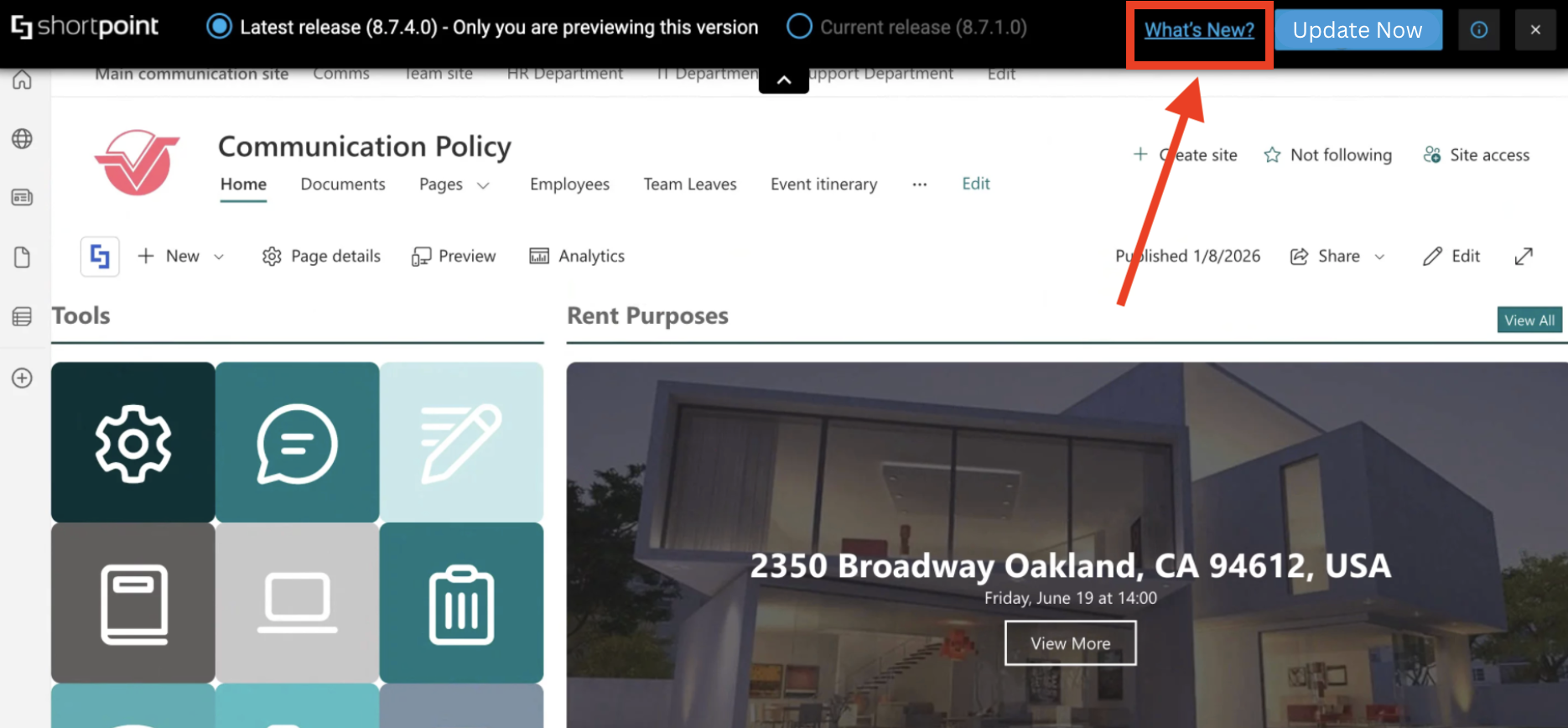
- You can also select Whats New? to see a detailed list of the improvements made for the latest version:
Step 5: Update or Retain Current Version
- Select [1] Update Now to update to the latest ShortPoint SPFx version or click the [2] close icon to retain the current version.
That's it! You now know how to enable Sandbox Mode.
What are the Limitations of Using Sandbox Mode
Since the purpose of Sandbox Mode is for you to check what your page looks like on the new version, some ShortPoint features will not work while you're in Sandbox mode. We've listed them below:
- Save is Disabled
You will not be able to save any changes you make while in Sandbox Mode.

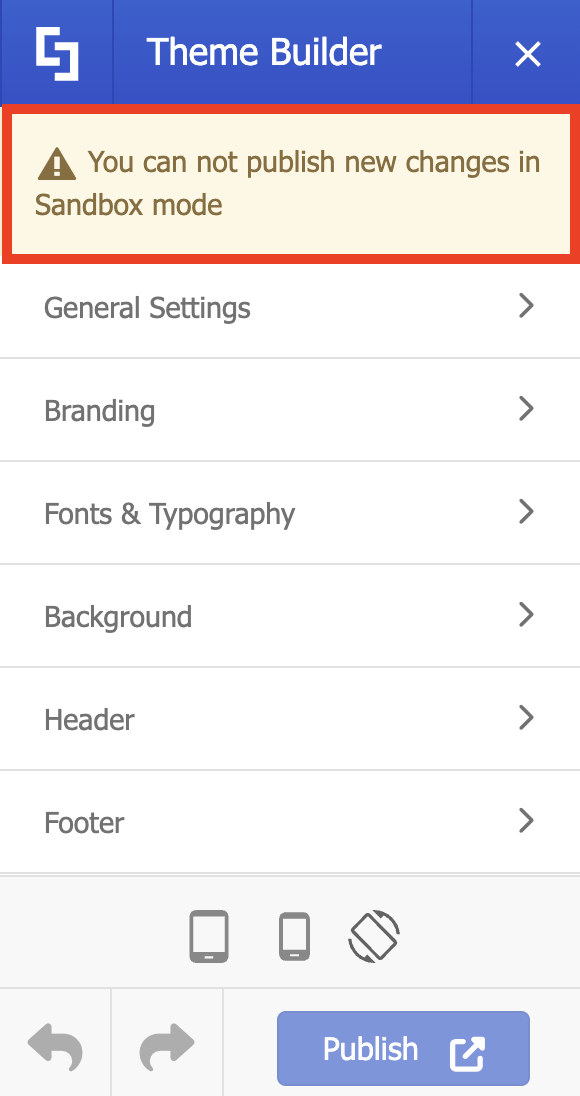
- Publishing Theme Builder customizations is not allowed
In Sandbox mode, you will not be able to publish your Theme Builder customizations.
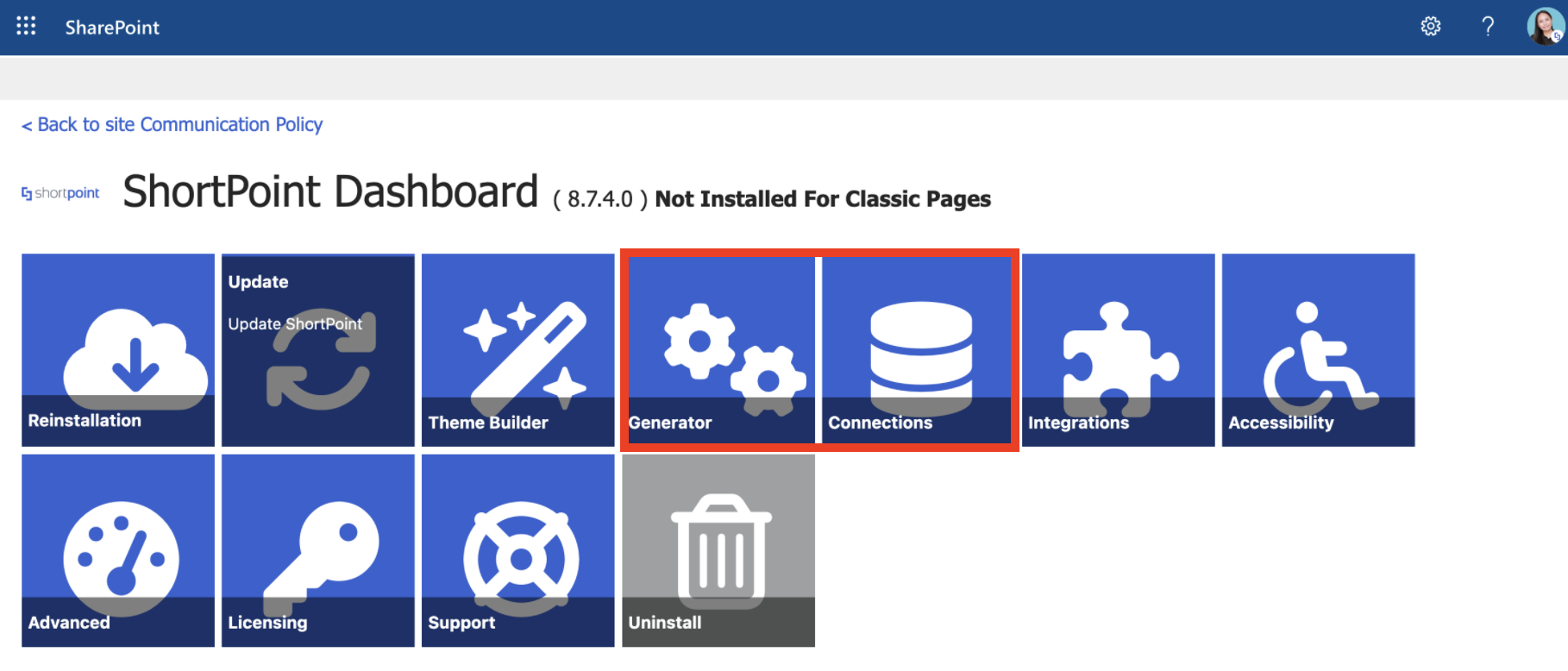
- Generator and Connections pages will not work
The Generator and Connections pages will not work while in Sandbox Mode. However, you will be able to see existing generated or connected Design Elements on the site pages.
How to Rollback to a Previous Version
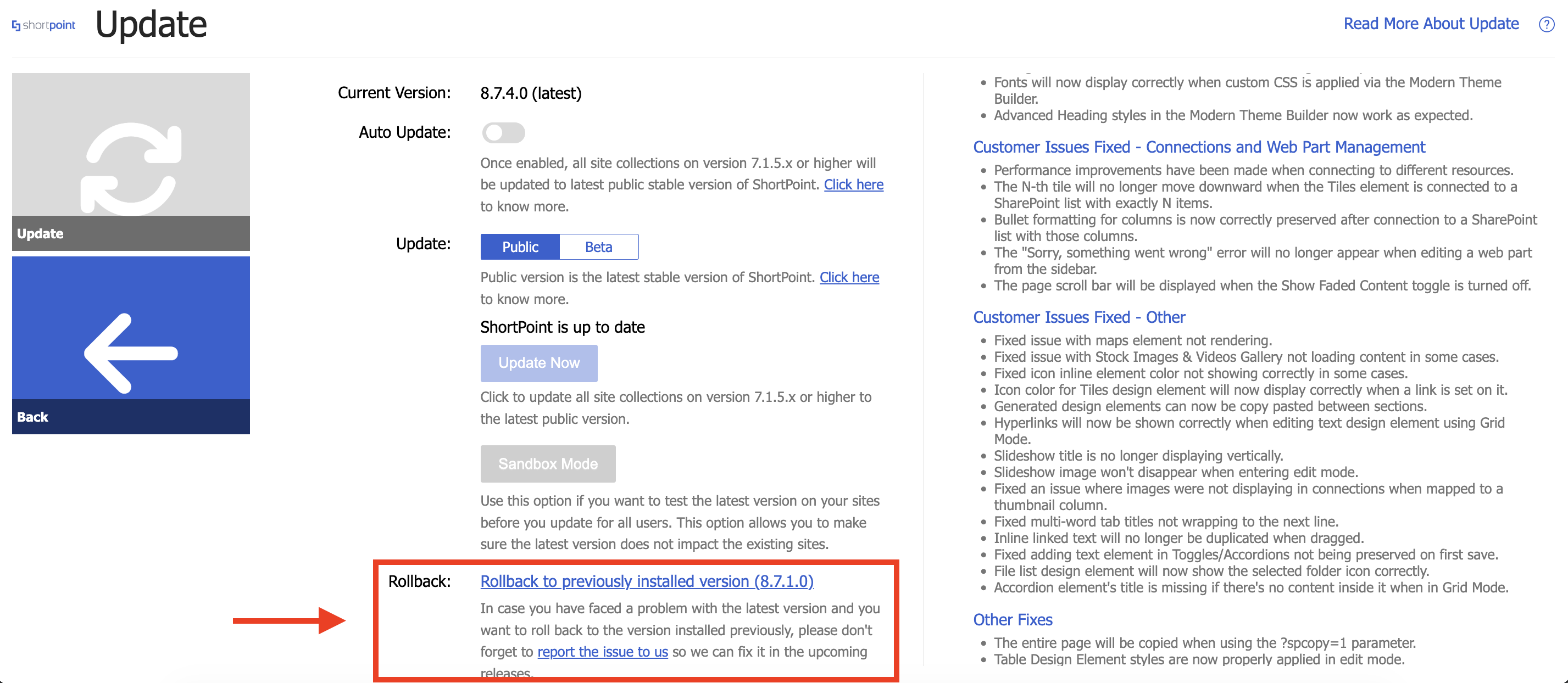
The Rollback option allows you to go back to the previous ShortPoint SPFx version you have. It is only available when you upgrade using Sandbox Mode, and it cannot be used if Auto Upgrade is enabled.
Click Get Started to see it in action:
NOTEOnce you proceed with the rollback, this option will become unavailable. Multiple rollbacks are not possible.
Step 1: Open the ShortPoint Dashboard
- Go to the SharePoint site where ShortPoint is installed and click the ShortPoint logo:
- Select Dashboard:
Step 2: Open the Update Page
- Click Update:
- A pop-up message informing you that changes made inside will affect the whole SharePoint tenant. Click Continue:
Step 3: Rollback
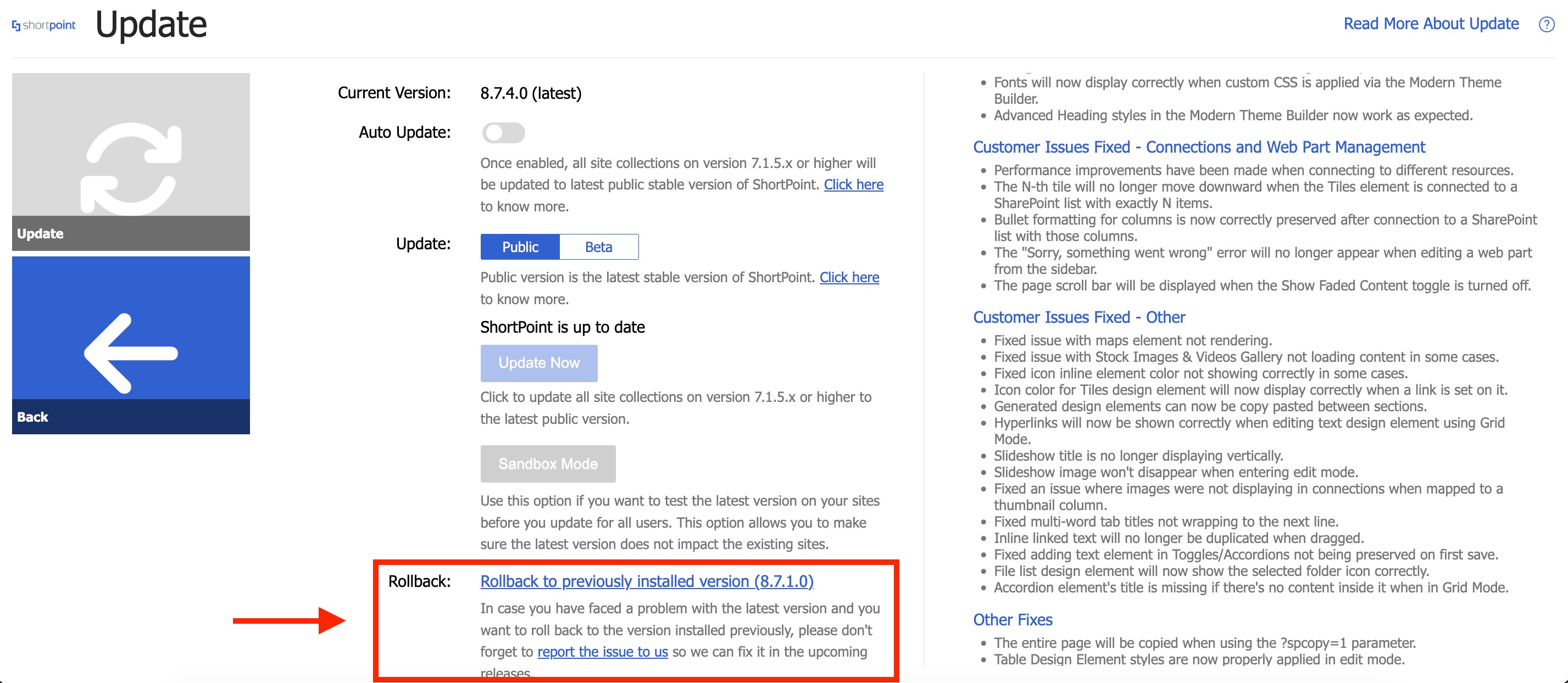
NOTEThe Rollback option is only available if you've previously updated using the Sandbox Mode. You must also disable Auto Update.
- Click Rollback to previously installed version:
- A pop up window will appear notifying you about the successful rollback. Click OK.
NOTEOnce you proceed with the rollback, this option will become unavailable. Multiple rollbacks are not possible.
That's it! You've successfully rolledback to a previous version.
FAQ
If you want to know more about the Update page, check out these articles that we have collated for you in this Frequently Asked Questions folder.
Related articles:
