 Try ShortPoint now
Whether you're managing a small team or coordinating across multiple sites and departments, getting important news in SharePoint to the right people at the right time is crucial. That's where ShortPoint's Org News connection type comes in! It's a powerful feature that makes sharing organization news as easy as a few clicks. This article will show you how it works.
NOTEIf you want to present news posts and news links within your site collection or a specific site collection within your organization’s tenancy, check out our article on Site News connection type. Or if you want to present news articles from site pages associated with a hub site, check out the article on Hub News connection type.
TABLE OF CONTENTS
- Prerequisites
- What is the Org News Connection Type?
- Interactive Tutorial
- Step-by-step Tutorial
- Org News Connection Features
- Practical Use Cases
- Getting Started with Org News
- Frequently Asked Questions
- What's the difference between Org News, Site News, and Hub News?
- Do I need special permissions to use Org News?
- How current is the news displayed?
- What if a news post doesn't have an image?
- Can I use Org News with any ShortPoint design element?
- Is coding required to set up Org News?
- Can I use the same Org News connection across multiple pages?
- What happens if someone deletes a news post?
- Does Org News work on mobile devices?
Prerequisites
- You have the latest version of ShortPoint SPFx installed (version 8.7.2.0 and up) on your SharePoint environment.
- You are a ShortPoint Designer with an active license.
- You must have the ShortPoint Design Element you want to use to connect on your page.
- You must have existing SharePoint news on your SharePoint tenant.
- You must have at least Read permissions to connect to your organization’s Site Collections. For more information, check our FAQ article: What permissions are required to be able to view news posts and links that are dynamically inserted using any of the ShortPoint News connection types?
What is the Org News Connection Type?
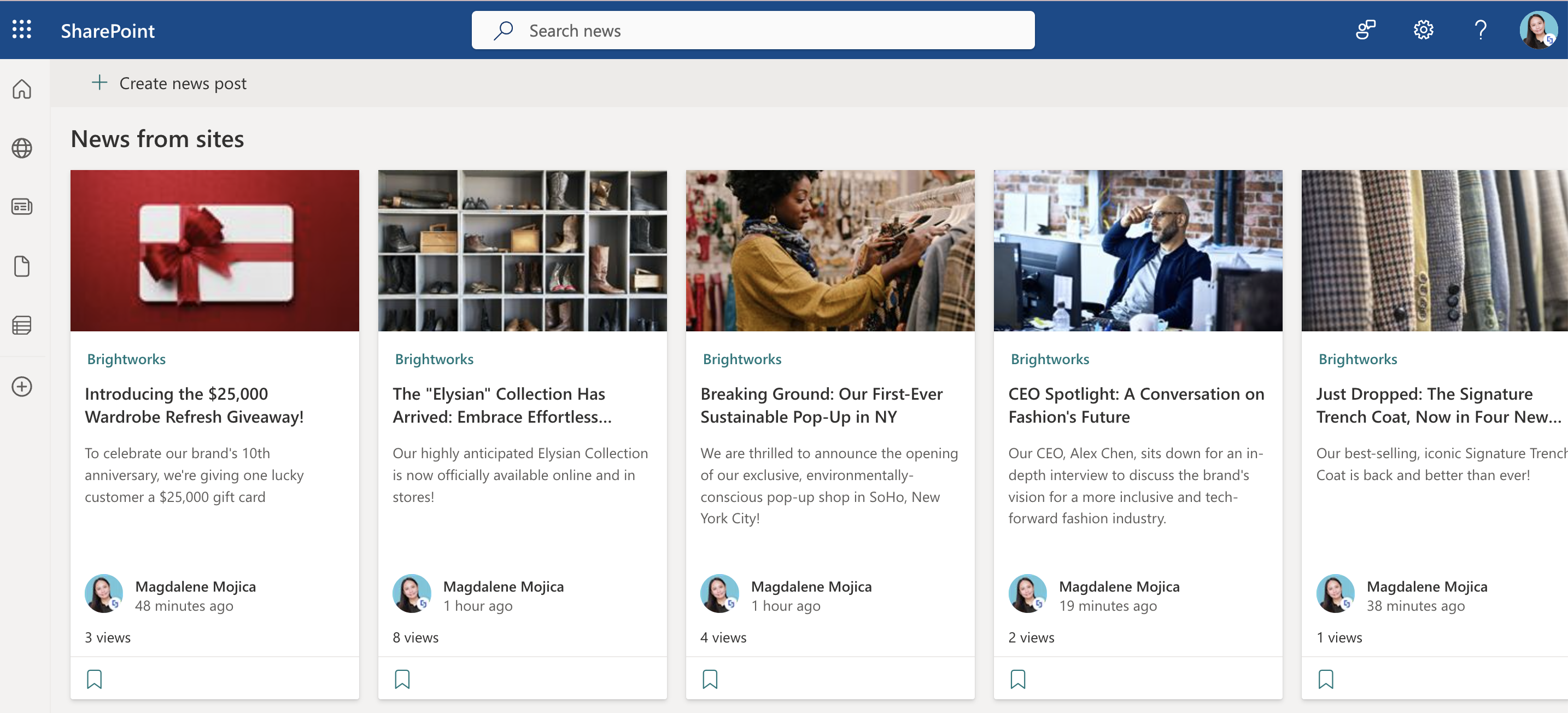
The Org News connection type is a dynamic content integration feature within ShortPoint Connect that allows you to automatically pull and display news posts and news links from across your entire SharePoint tenant.
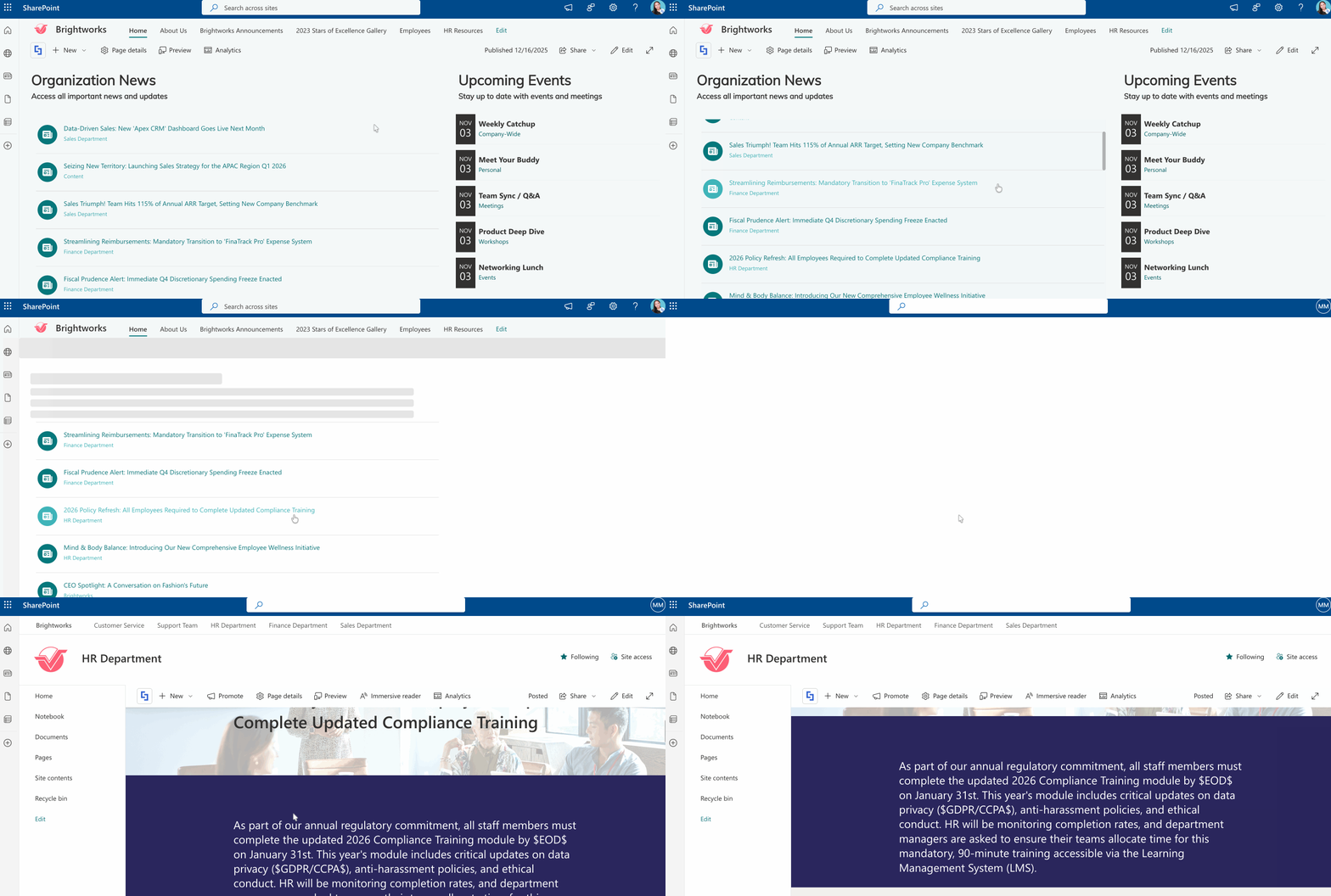
Unlike traditional methods, where you'd need to manually curate content or create complicated lists, Org News allows you to pull content from multiple sites and show it within your SharePoint intranet page. This means every news post published anywhere in your organization can automatically appear on your designated home page. No more manual updates required.
Interactive Tutorial
Click Get Started to learn how to use the Org News connection type to effectively display news posts across your SharePoint intranet.
NOTETo learn more about the options you can modify, go to Org News Connection Features.
Step-by-step Tutorial
Learn how to use the Org News connection type in this step-by-step guide to efficiently display news in SharePoint.
Step 1: Edit the ShortPoint web part
- Go to the SharePoint page you want to use and click Edit:

- Close the Toolbox:
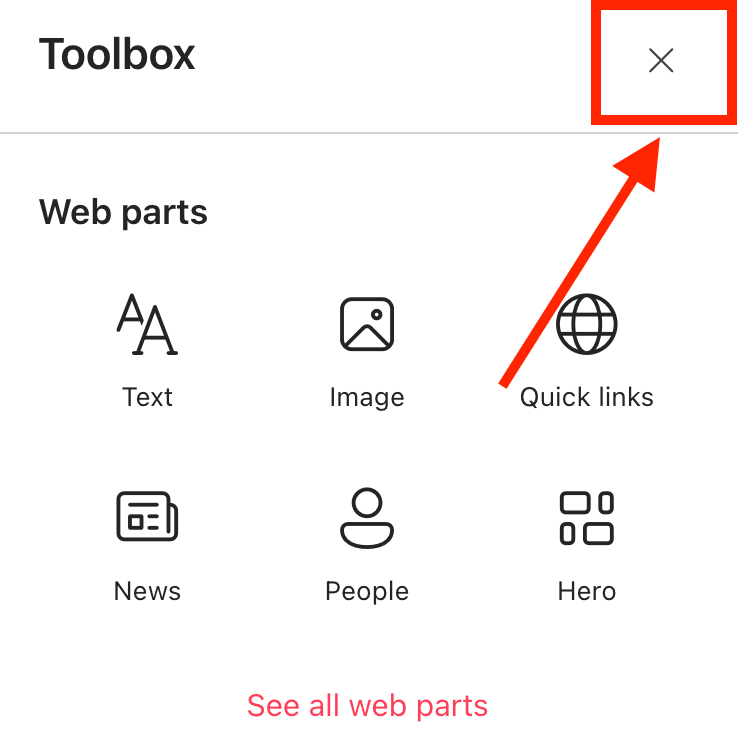
- Edit the ShortPoint web part:

Step 2: Edit the Design Element
NOTEBefore proceeding, you must already have the Design Element you want to use to connect on your SharePoint page. You can use any Design Element you prefer, but we recommend using Design Elements that allow listing of multiple items, including Simple List, Image List, Icon List, and so much more. For this guide, we'll use Icon List.
- Click the EasyPass tag of the Design Element you want to use to connect:
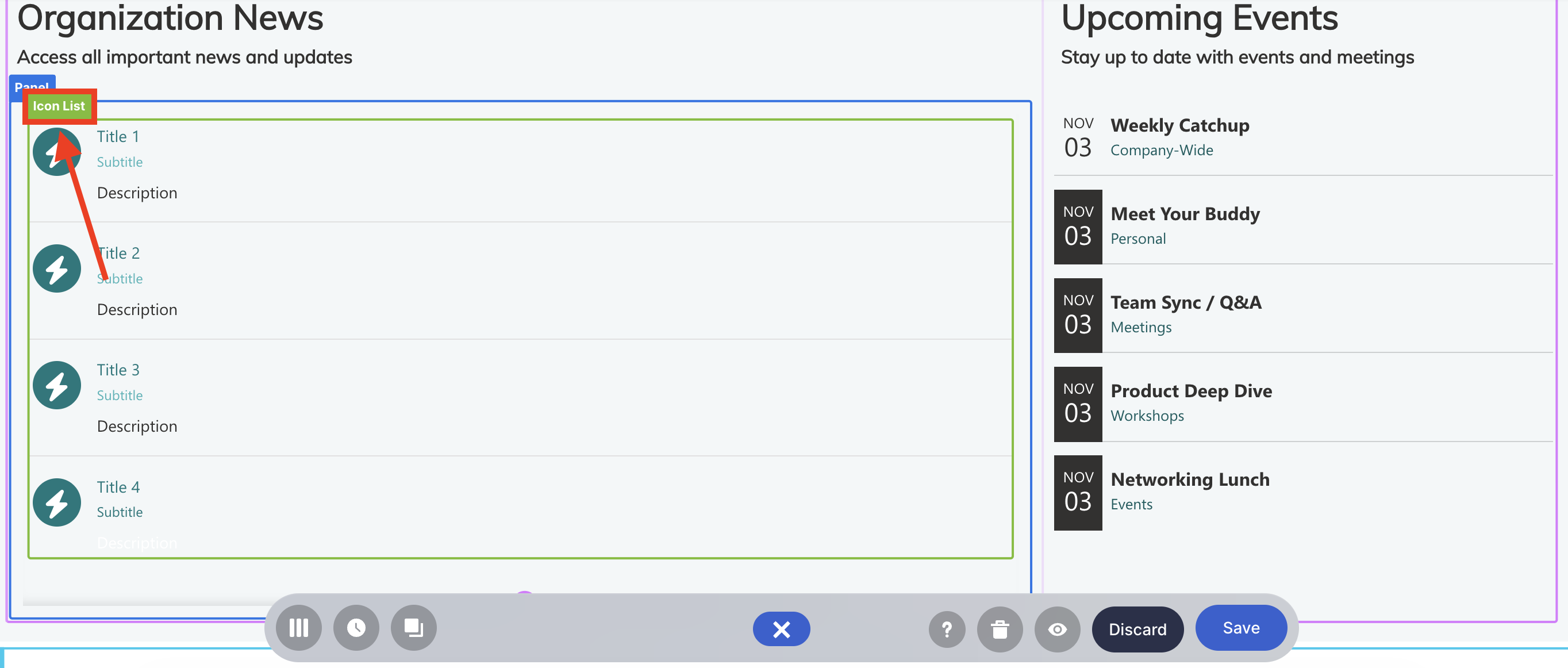
- Select the cogwheel icon:
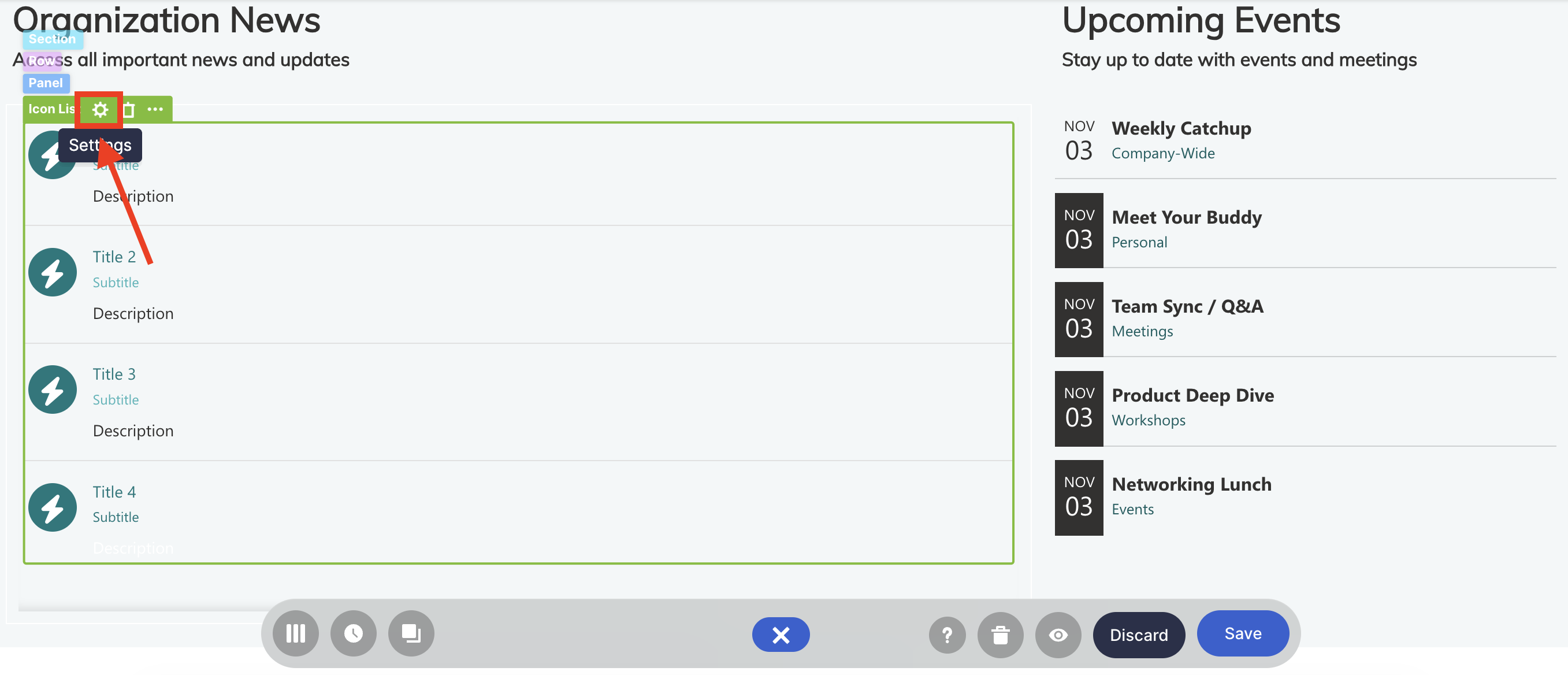
Step 3: Connect using the Org News connection type
- Go to the Connect tab.
- Click Configure:
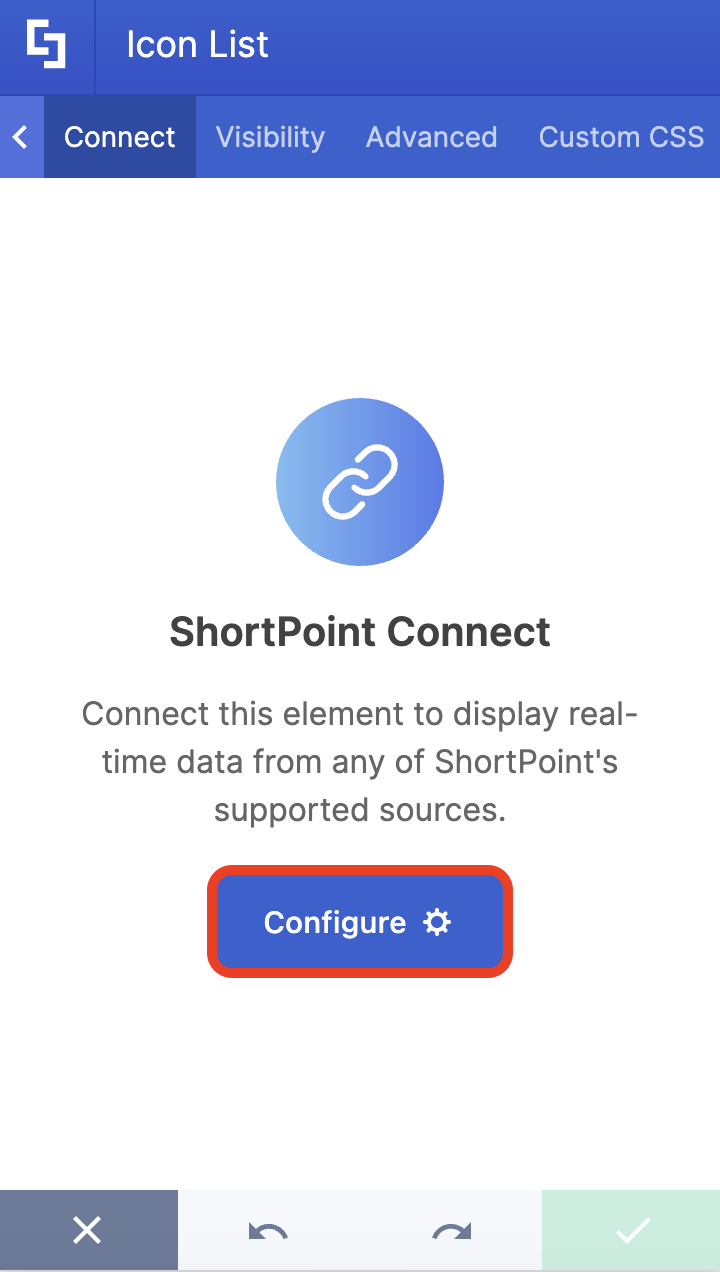
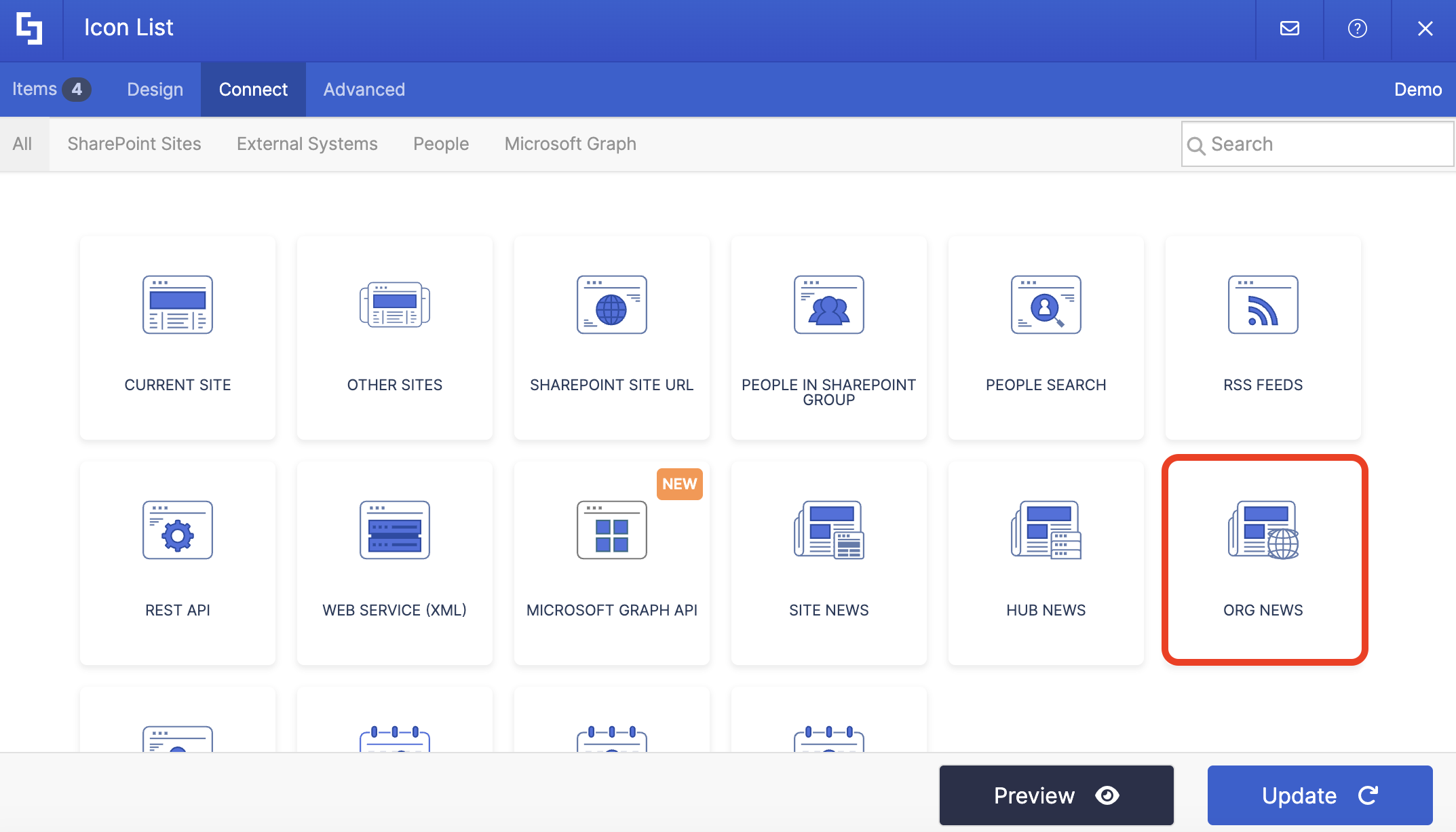
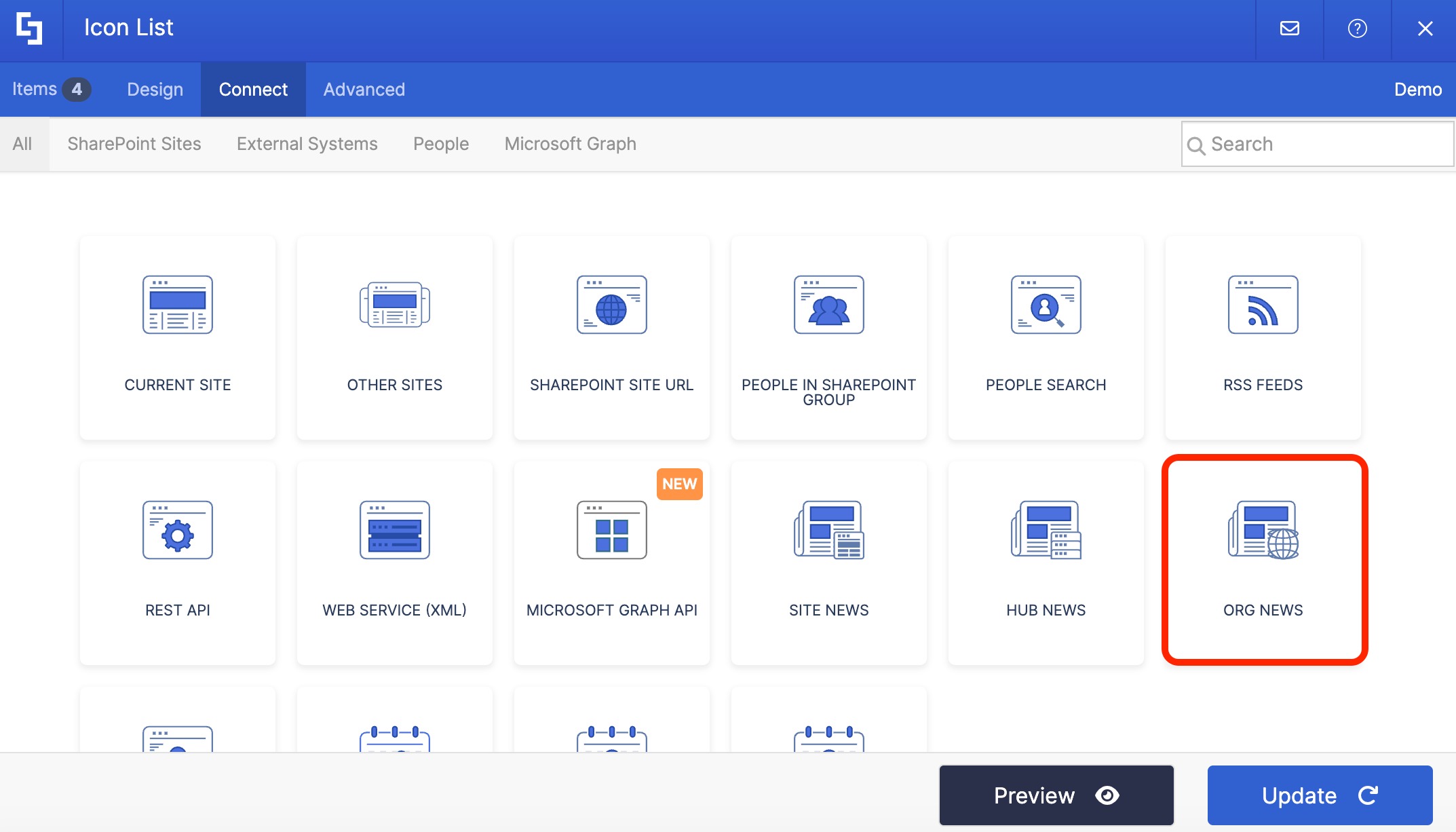
- Select Org News:
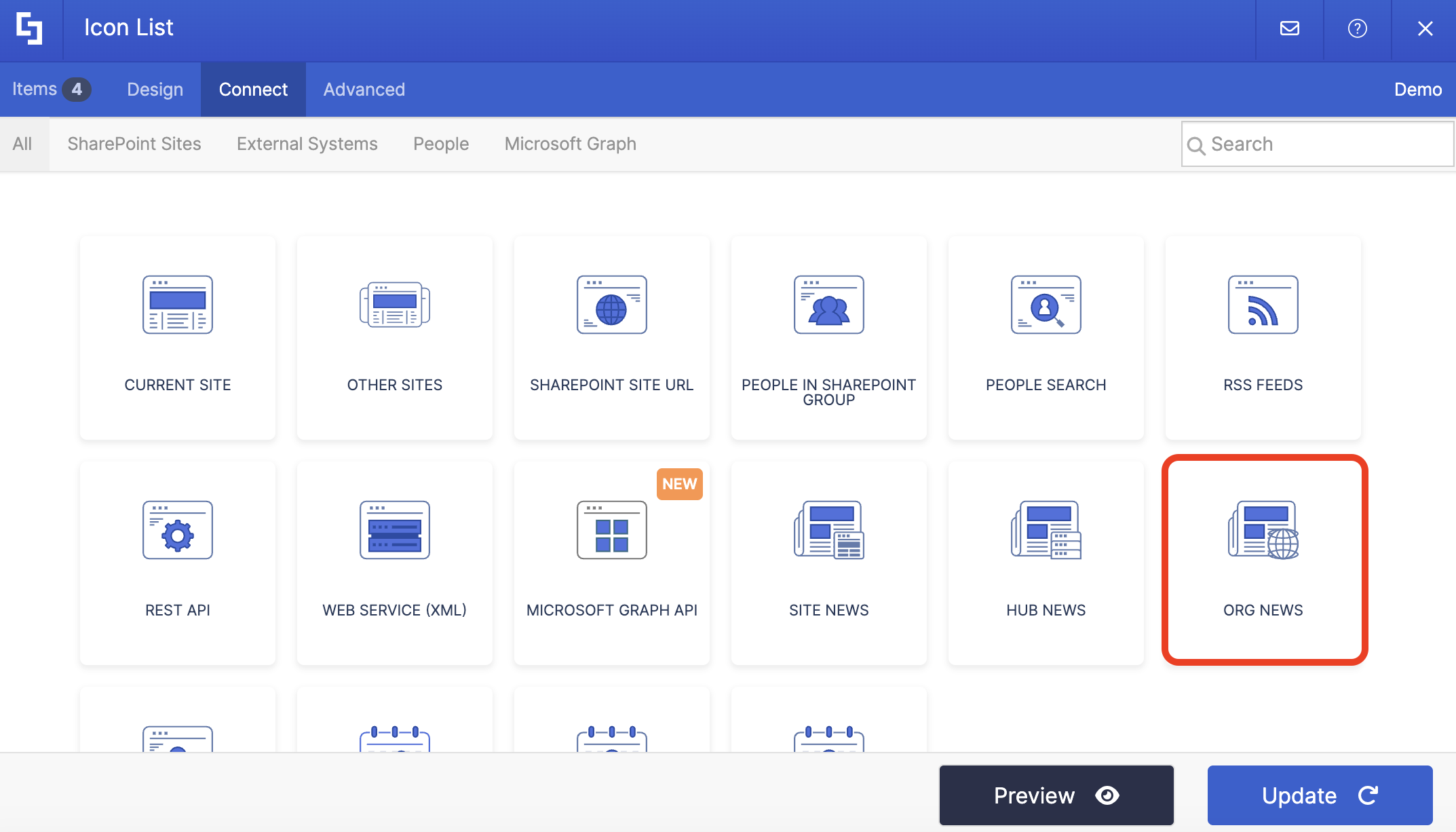
NOTETo learn more about the options you can modify, go to Org News Connection Features.
- Then, click Connect to establish the connection.
Step 4: Map Items to display
- Go to the Items tab.
- Delete all default content:
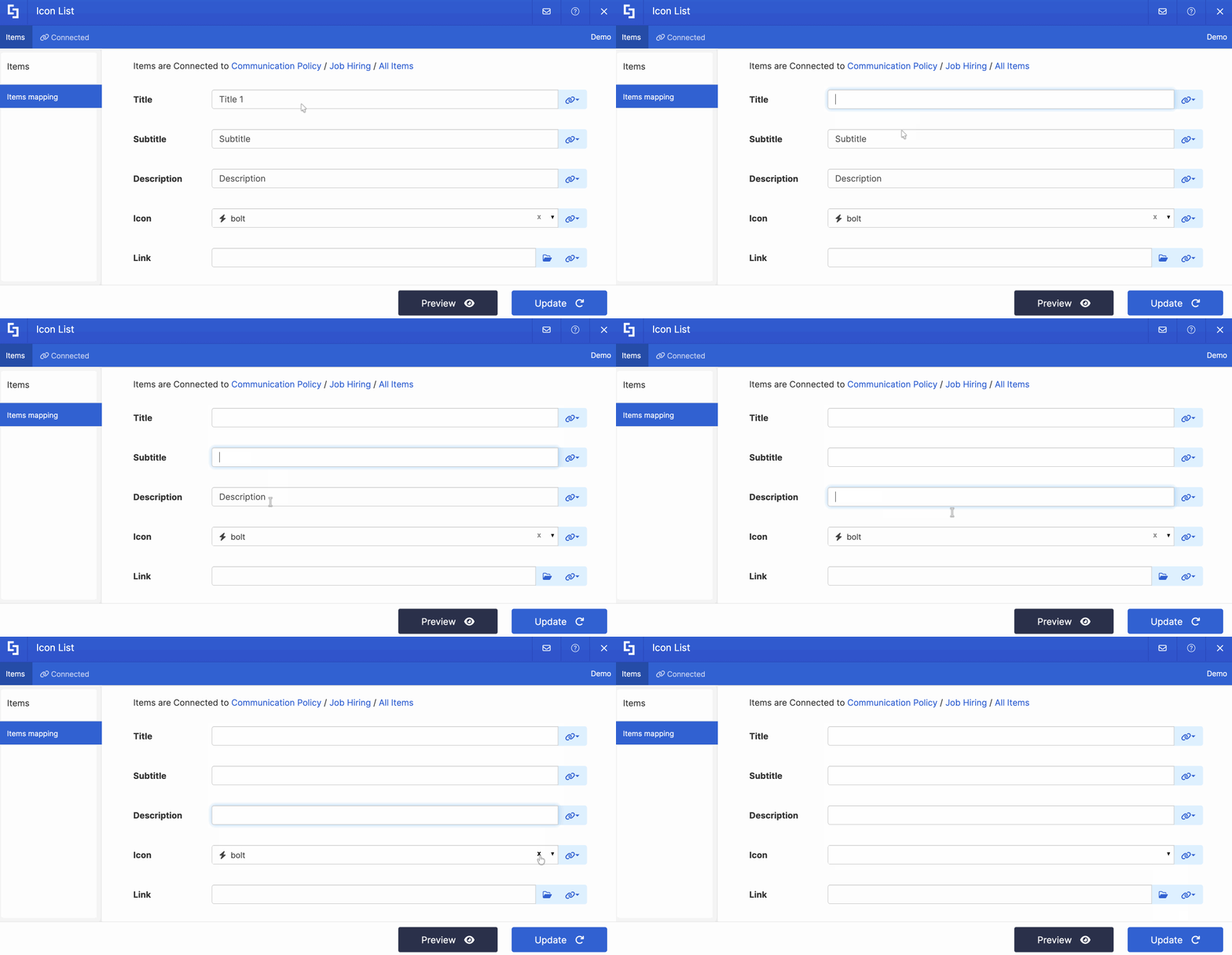
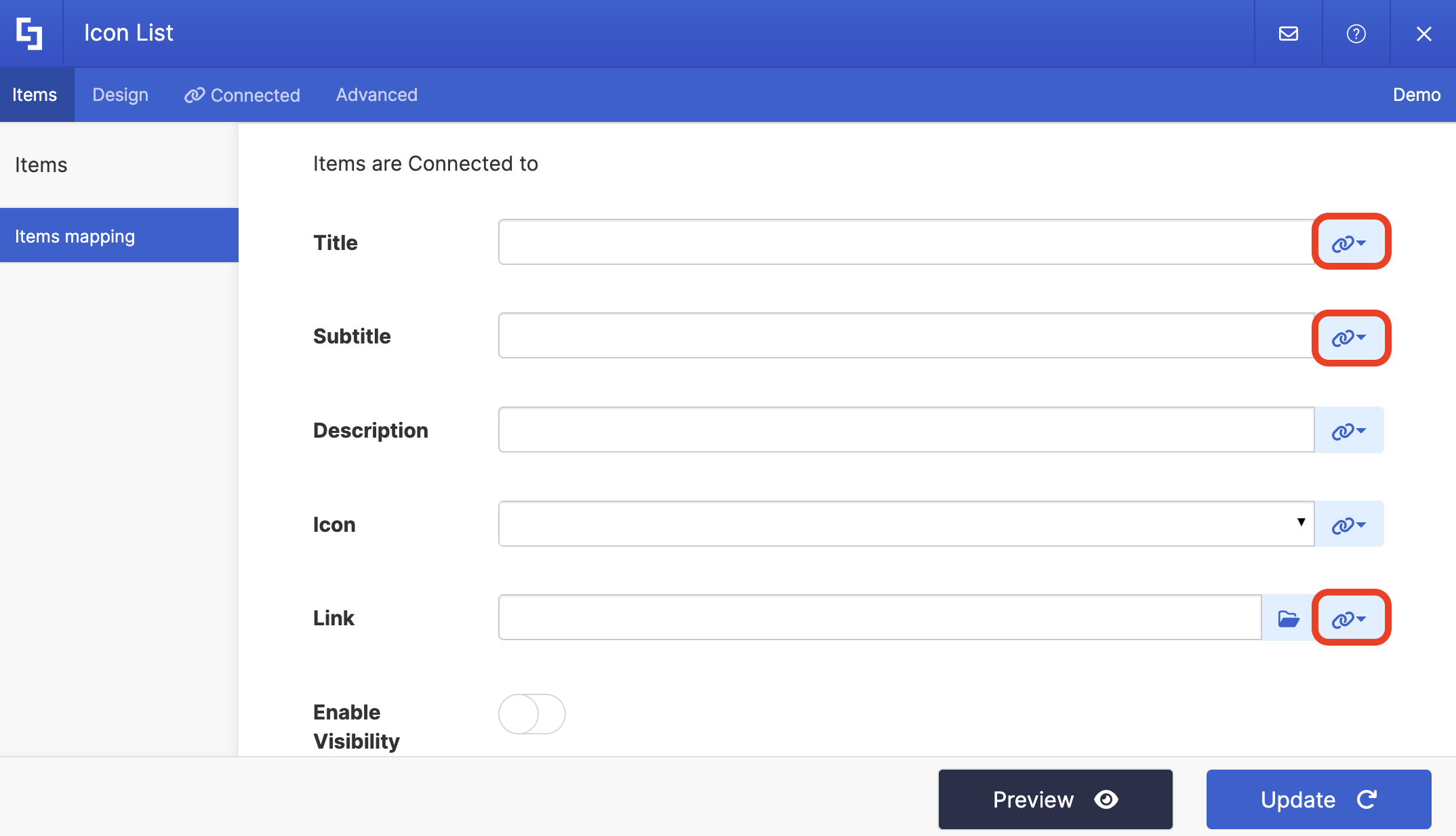
- Click the link icon to choose the properties you want to display. You can map any property you prefer. Just take note that the properties you can map depend on the information you have on your news.
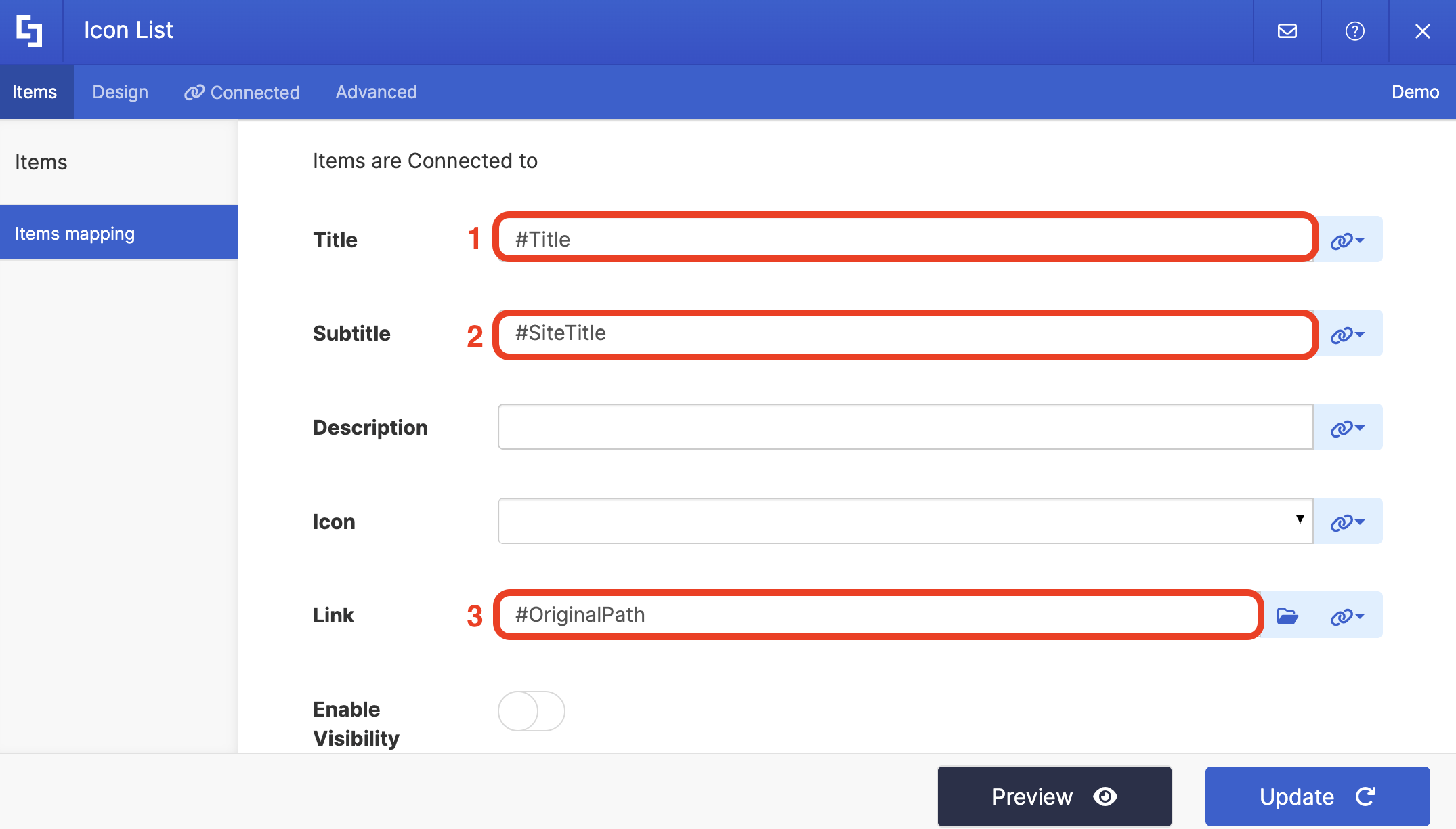
- Here’s an example of our mapped properties:
- #Title - shows the title of each news.
- #SiteTitle - shows the name of the site where the news is located.
- #OriginalPath - links to the actual news source.
NOTETo learn more about the Connect Feature and Items Mapping, check out Basic Tutorial: How to Establish Seamless SharePoint Connection with ShortPoint Connect.
Step 5: Update and Save
- Click Preview to see how the Design Element will look on your page.
- Once satisfied, click Update.
- Select the green checkmark.
- Then, click the eye icon to see how your page will look in real-time:

- Save your changes:

Congratulations! Your organization-wide news posts can now be featured on your SharePoint site pages, making it easier than ever to share important updates across your team site or communication site. This seamless integration ensures that the most important news from across multiple sites is displayed prominently, keeping your users informed and engaged.
Org News Connection Features
Let’s tackle all the features you can modify using the Org News connection in edit mode:
 | Item Limit | allows you to set the maximum number of news items to display. If this is left blank or is set to 0, all news will be shown. |
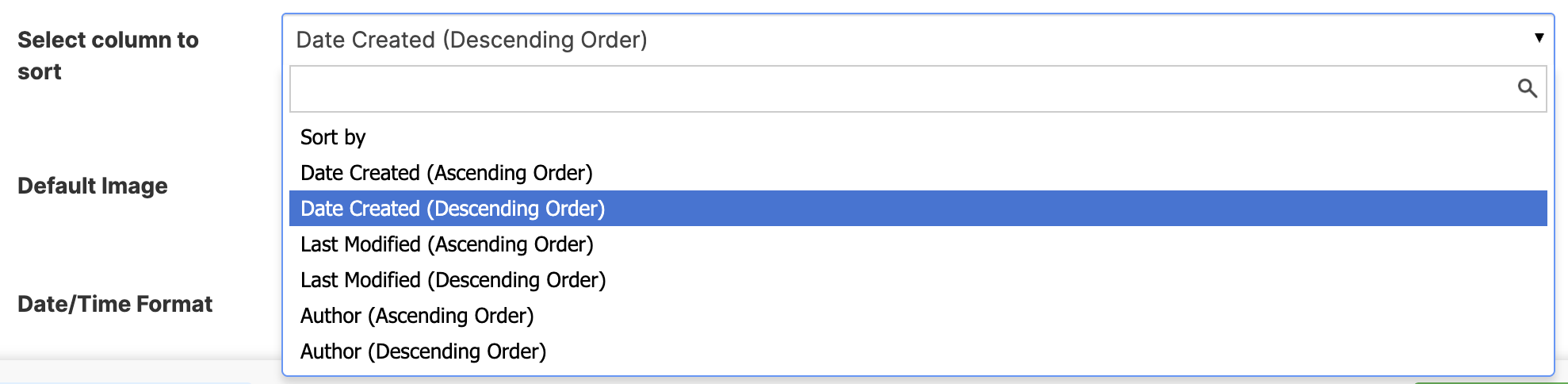 | Select column to sort | allows you to quickly sort news by Title, Date Created, Last Modified, or Author in ascending or descending order. |
 | Default Image | allows you to assign a default image. This will be shown when the news post does not have an associated image. To select an image, use the folder icon or enter a URL. |
 | Date / Time format | allows you to customize the date and time format of the news. Check out How to Use Custom Date and Time Formats with ShortPoint Design Elements for more information. |
 | Selected Properties | allows you to modify the properties to be retrieved from the SharePoint API. Click How to Map Custom Properties in News Connections to learn how to go about this. |
 | Use Cases | allows you to set up a Use Case, which is an automatic filter functionality that produces the most common outputs required by ShortPoint users. Check out Getting Started with Use Cases to learn more. |
ADVANCED SETTINGS
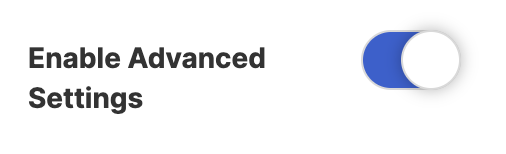 | Enable Advanced Settings | when enabled, advanced settings will be displayed. |
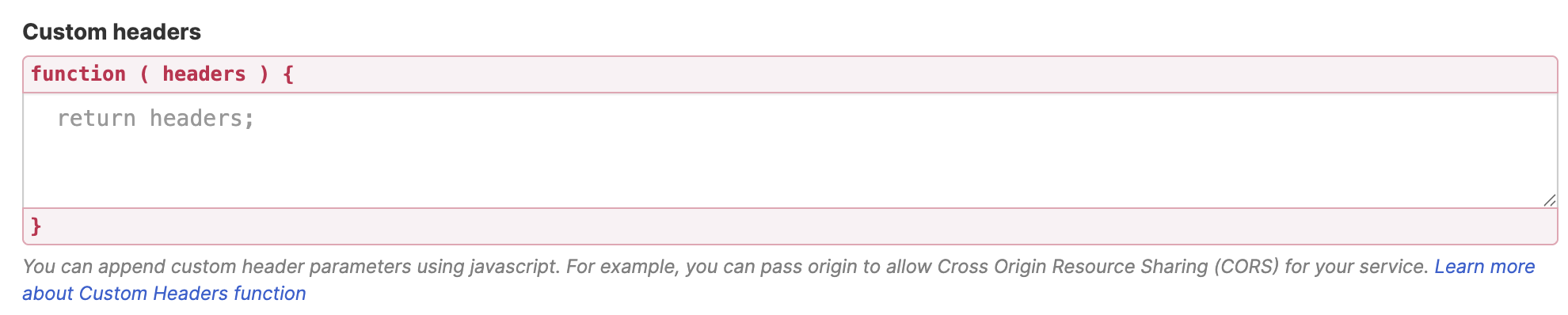 | Custom headers | allows you to append custom header parameters using JavaScript. Learn more about the Custom Headers function. |
 | Change Parameters | allows you to pass parameters to the URL with JavaScript. Learn more about the Change Parameters function. |
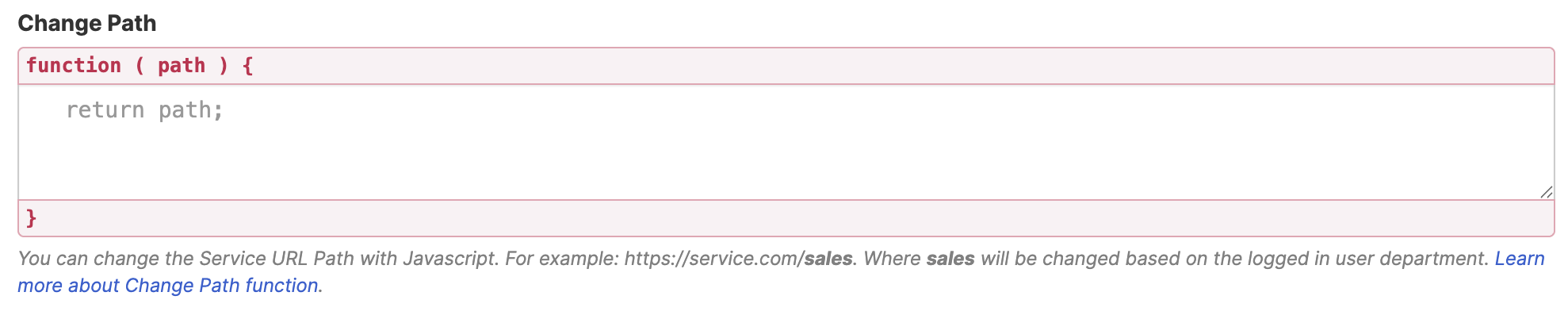 | Change Path | allows you to modify the Service URL Path using JavaScript. Learn more about the Change Path function. |
 | Map Results | If your API doesn't return an array of result items (which ShortPoint expects), you can use this function to transform the data into the proper format for ShortPoint. Learn more about the Map Results function. |
PERFORMANCE AND CACHING
 | Enable Partial Loading | This feature comes enabled by default. It allows partial loading to activate automatically when the connection returns more than 20 results. Additional results will load as the user scrolls. Learn more about the Partial Loading function. |
 | Cache Options | allows you to choose from 3 caching options. Learn more about these caching options and how to improve ShortPoint performance on your SharePoint sites.
|
Practical Use Cases
The versatility of the Org News connection type makes it valuable across various scenarios. Here are some real-world applications that can transform how your organization communicates.
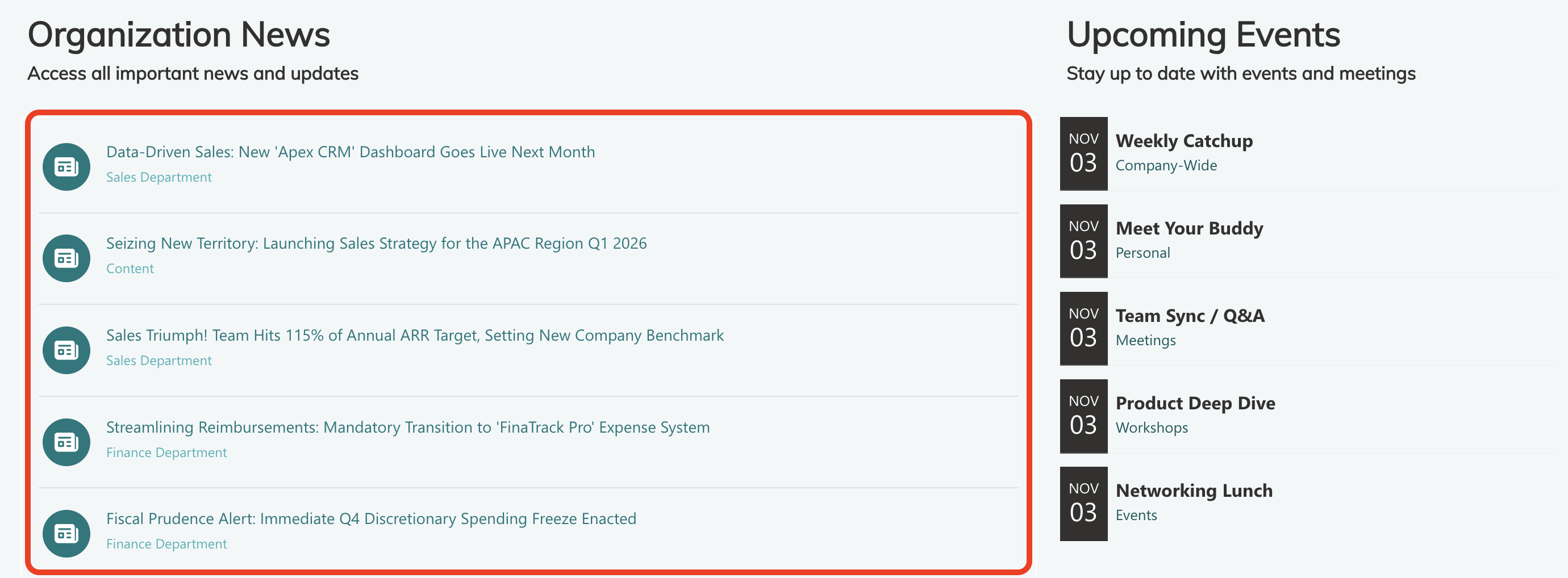
Company-Wide News Hub
Build a central news section that serves as your organization's digital bulletin board. Editors can schedule news posts without having to manually edit your SharePoint site pages. This ensures important organization news and announcements don't get lost.
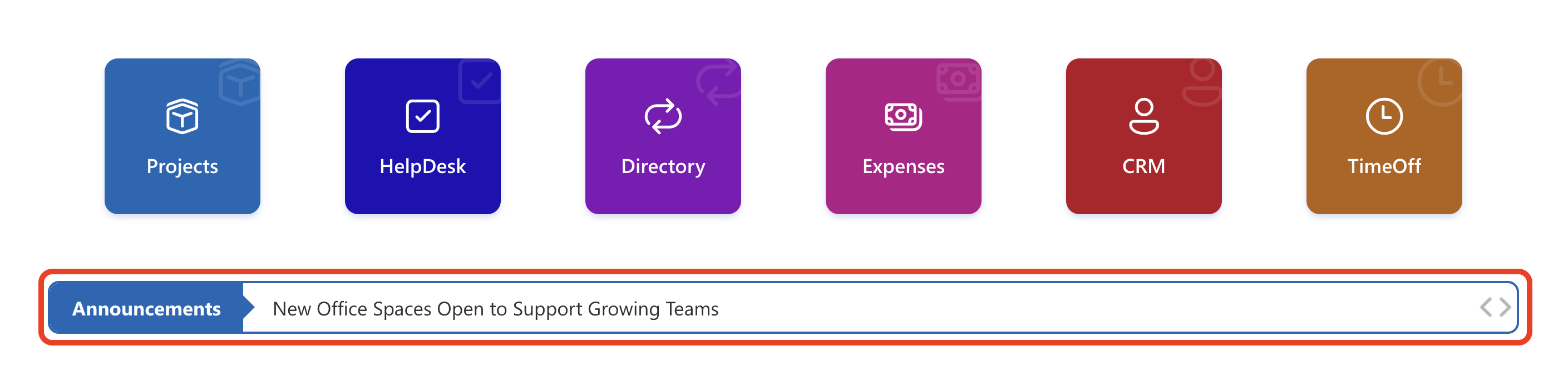
Crisis Communication and Urgent Updates
During organizational changes or emergencies, quickly disseminate information across all site collections. A centrally managed news ticker can display urgent announcements that automatically appear, ensuring the timely delivery of important news throughout your SharePoint site.
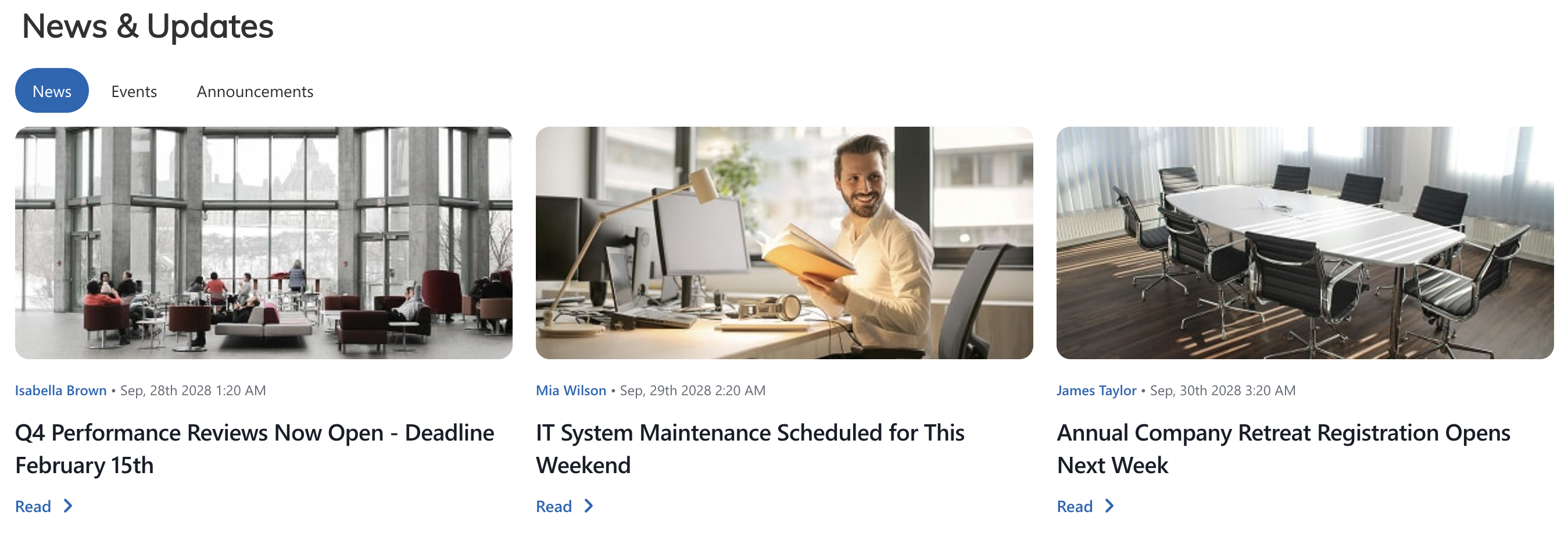
Knowledge Management
Use Org News to create comprehensive knowledge hubs where employees can access both current news pages and historical updates, building an organizational memory that's easy to search and reference within your SharePoint site.
Getting Started with Org News
The Org News connection type offers a powerful, user-friendly solution for keeping everyone informed. By automatically aggregating content from across your entire Microsoft SharePoint tenant, you'll save time, improve communication, and ensure important updates reach their intended audience.
Whether you're creating a company-wide news digest or simply trying to keep distributed teams connected, Org News provides the flexibility and automation you need. The best part? You can start using it today with just a few clicks.
Ready to transform how your organization shares information? ShortPoint Designers can get started with the interactive tutorial above. Not yet a ShortPoint Designer? Try out the Org News connection with our FREE 15-day trial. No strings attached. You can also schedule a demo with our experts to learn more about this feature.
Frequently Asked Questions
What's the difference between Org News, Site News, and Hub News?
ShortPoint offers three news connection types, each with a different scope:
- Org News: Pulls news from across your entire SharePoint tenant (all site collections)
- Site News: Displays news posts and news links from a specific SharePoint site collection
- Hub News: Shows news articles from site pages associated with a particular hub site
Choose based on how broad or targeted you want your news display to be.
Do I need special permissions to use Org News?
You need at least read permissions to access content from your organization's site collections. However, the beauty of permission-based access is that users will only see news they have permission to view. If someone doesn't have access to a particular site collection, they won't see news from that source—even if it's pulled into the Org News feed.
How current is the news displayed?
The Org News connection relies on SharePoint's search crawl to identify and retrieve content. This means news updates may not appear in real-time. There can be a delay depending on your SharePoint search crawl schedule. For most organizations, this delay is minimal and acceptable, but it's worth noting if you need instant publication.
What if a news post doesn't have an image?
You can set a default image that displays whenever a news post lacks associated visuals. This ensures your page maintains a consistent, professional appearance even when content creators forget to add images.
Can I use Org News with any ShortPoint design element?
Yes! The Org News connection works with any ShortPoint design element, giving you complete creative freedom. Whether you prefer card layouts, list views, carousels, or custom designs, you can connect them all to your organizational news.
Is coding required to set up Org News?
Not at all. You'll use point-and-click actions to establish connections, map items, and customize displays. If you can use SharePoint's standard editing tools, you'll find it easy to set up Org News.
Can I use the same Org News connection across multiple pages?
Yes, you can set up Org News connections on as many pages as you need. Each page can have different design elements, filters, and display settings while pulling from the same organization-wide news source.
What happens if someone deletes a news post?
When a news post is deleted from its source location, it will eventually stop appearing in your Org News feed once SharePoint's search index updates. The timing depends on your search crawl schedule, but removed content will disappear from connected pages automatically.
Does Org News work on mobile devices?
Yes! ShortPoint design elements are responsive and work seamlessly across desktop, tablet, and mobile devices. Your news will automatically adjust to different screen sizes, ensuring a great experience for all users regardless of how they access your SharePoint intranet.
Related articles:
- Connection Type: Site News
- Connection Type: Hub News
- Getting Started with Use Cases
- How To Use Placeholders In ShortPoint Connections
- ShortPoint Connect: Basic Tutorial
- What permissions are required to be able to view news posts and links that are dynamically inserted using any of the ShortPoint News connection types?
