 Try ShortPoint now
Love designing your intranet with ShortPoint? If you do, you're probably already familiar with its design interface: the ShortPoint Page Builder! It's optimized to provide you with a real-time live design experience on top of seamless drag-and-drop functionality that makes your life as a designer effortless.
Let's jump right into everything ShortPoint Page Builder has to offer.
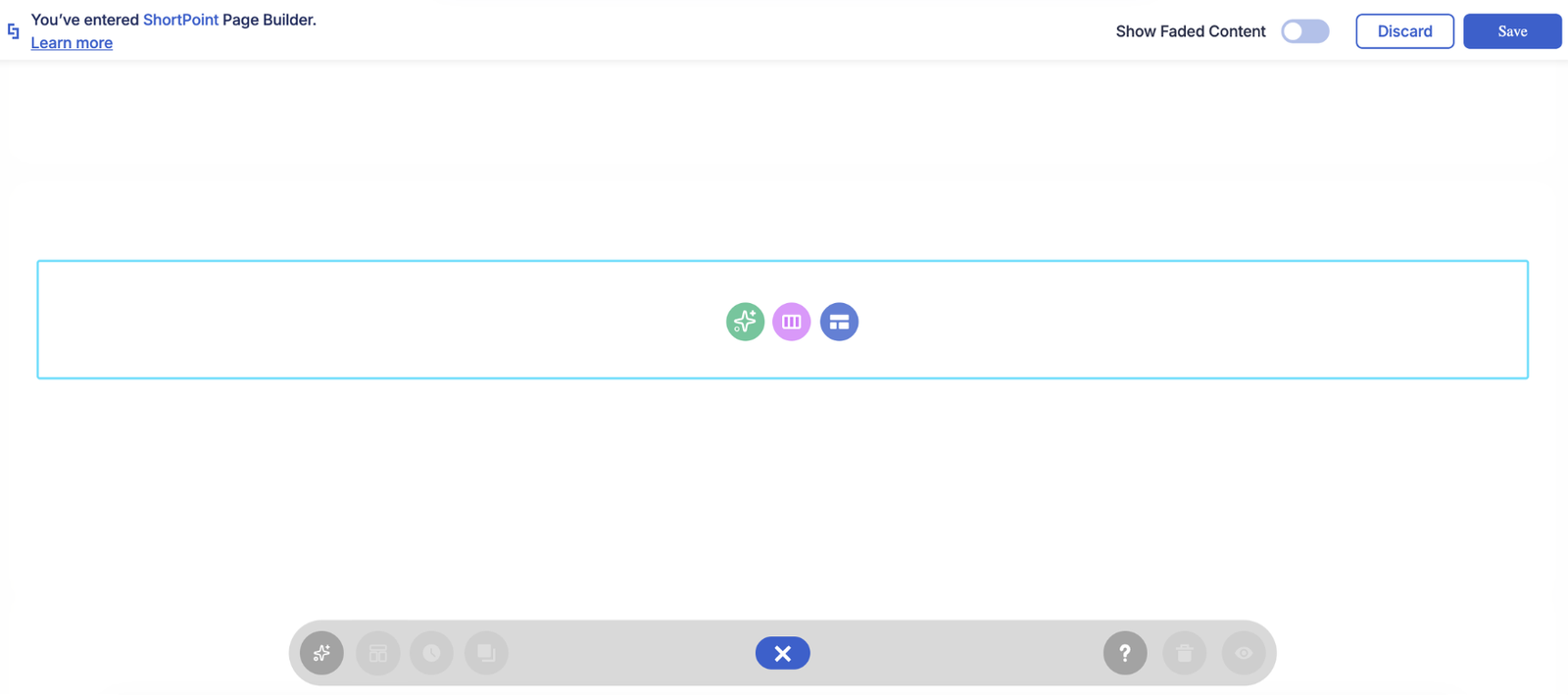
TABLE OF CONTENTS
- Prerequisites
- What is ShortPoint Page Builder?
- Start Building Your Page, Your Way
- Work Faster With the Action Toolbar
- Intelligent Editing Features
- Build With New and Modern Design Elements
- Connect Your Content to Live Data
- Control Who Sees What With Visibility
- More Improvements are Coming
Prerequisites
- You must have the latest version of ShortPoint SPFx installed.
- You must be a ShortPoint Designer with an active license.
What is ShortPoint Page Builder?
Before we dive into the amazing features Page Builder has, let's get you familiar with what it is first.
ShortPoint Page Builder is a point-and-click design interface built specifically for Microsoft SharePoint. However, rather than relying on default SharePoint web parts, ShortPoint supplies a vast toolset to structure content, customize typography, apply precise company branding, and integrate dynamic data from across your organization.
Start Building Your Page, Your Way
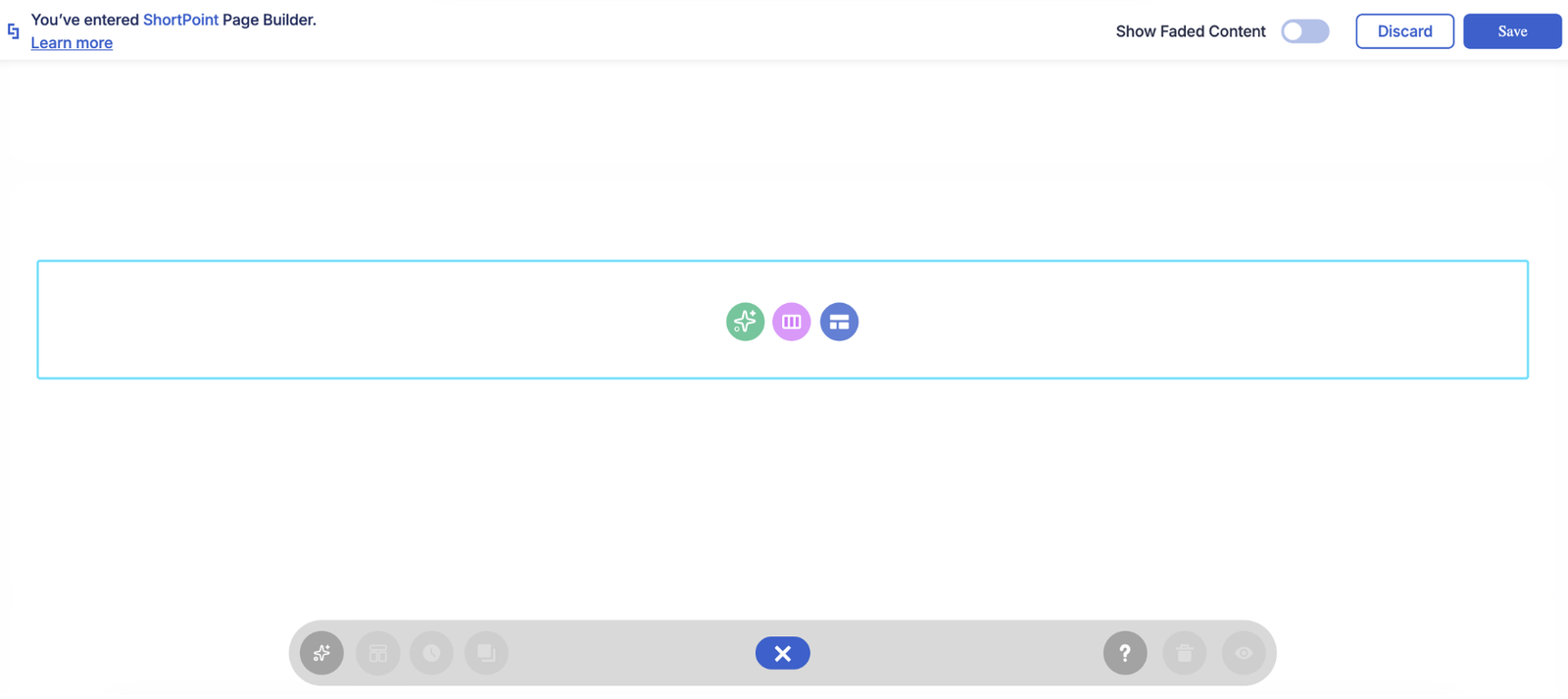
ShortPoint Page Builder Live Mode gives you seamless ways to start your design experience. Here is what meets you when you open it, and the three ways you can start a page.
Isolate Mode
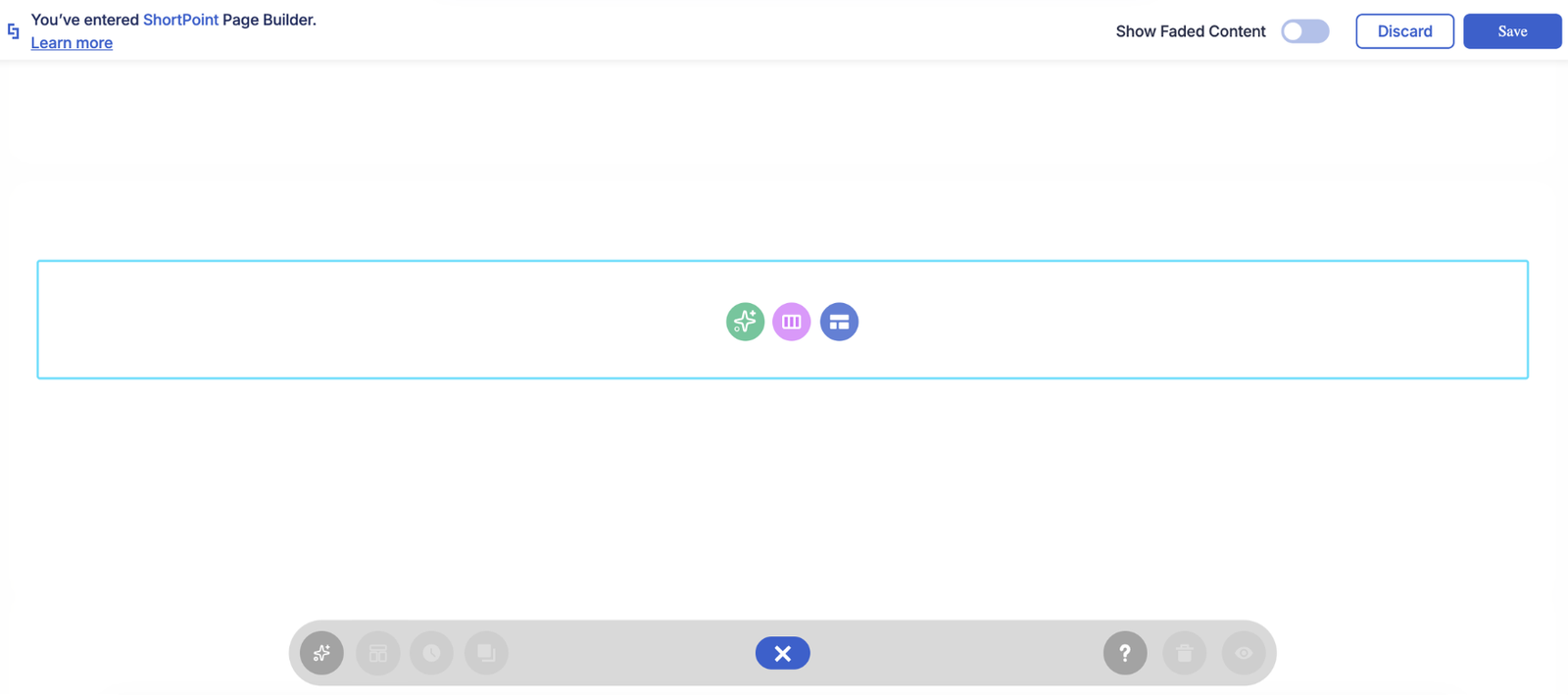
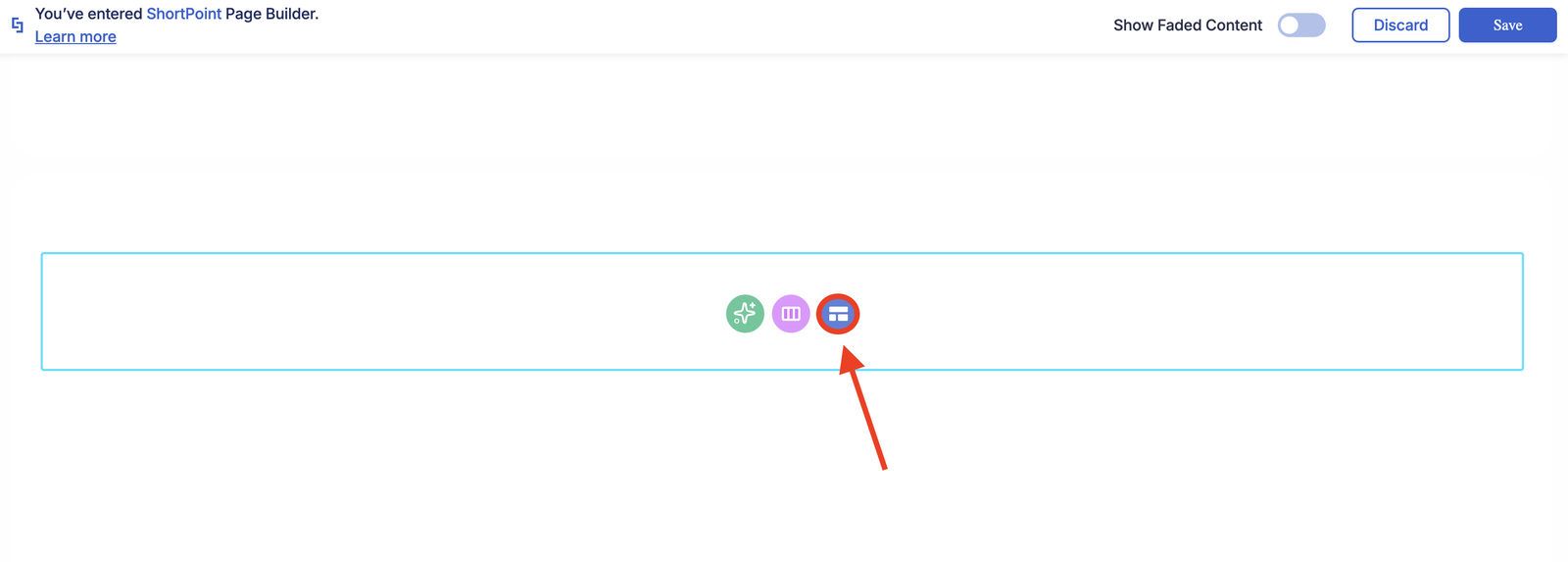
Upon adding a ShortPoint web part, you are greeted by the Isolate Mode. It distinguishes the ShortPoint interface from the rest of the SharePoint page and highlights the action buttons you need to start designing. Everything outside your web part steps back, so there is never any guesswork about which controls belong to ShortPoint and which belong to SharePoint.
ShortPoint AI Designer
Don't want to build your page from scratch? Simply describe the page you want, and ShortPoint AI Designer builds it for you. It designs the page for you out of real ShortPoint design elements, already matched to your site's branding. From there, the page is yours to edit like any other.
A few things it can do for you:
- Refine the result over a conversation. Ask for another section, a different tone, or a new color treatment, and keep going until it is right.
- Change one element at a time with Select & Edit, instead of regenerating the whole page.
- Work from a picture. Paste a screenshot or drop in an image you want the design to take after.
- Queue up several prompts so you are not waiting on each one in turn.
- Step back to an earlier version through version history, if a later idea did not land.
For more information, start with Getting Started: What Is the ShortPoint AI Designer, or jump straight to the Quickstart Guide.
Choose a Layout
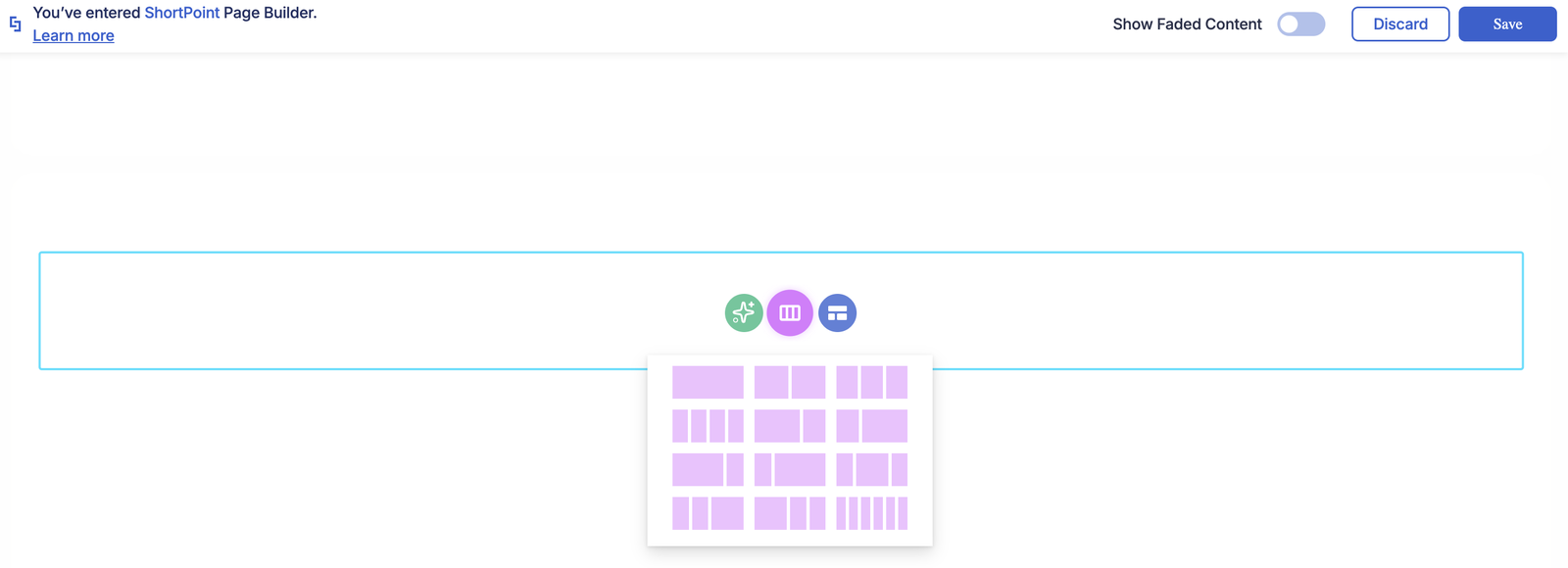
Have a clear picture in mind and want to build your page piece by piece? Select Choose Layout to begin by defining your page layout: how many columns you need in one Row, and how their widths are distributed. From there, you can add Design Elements and put together the content of your page.
Templates Library
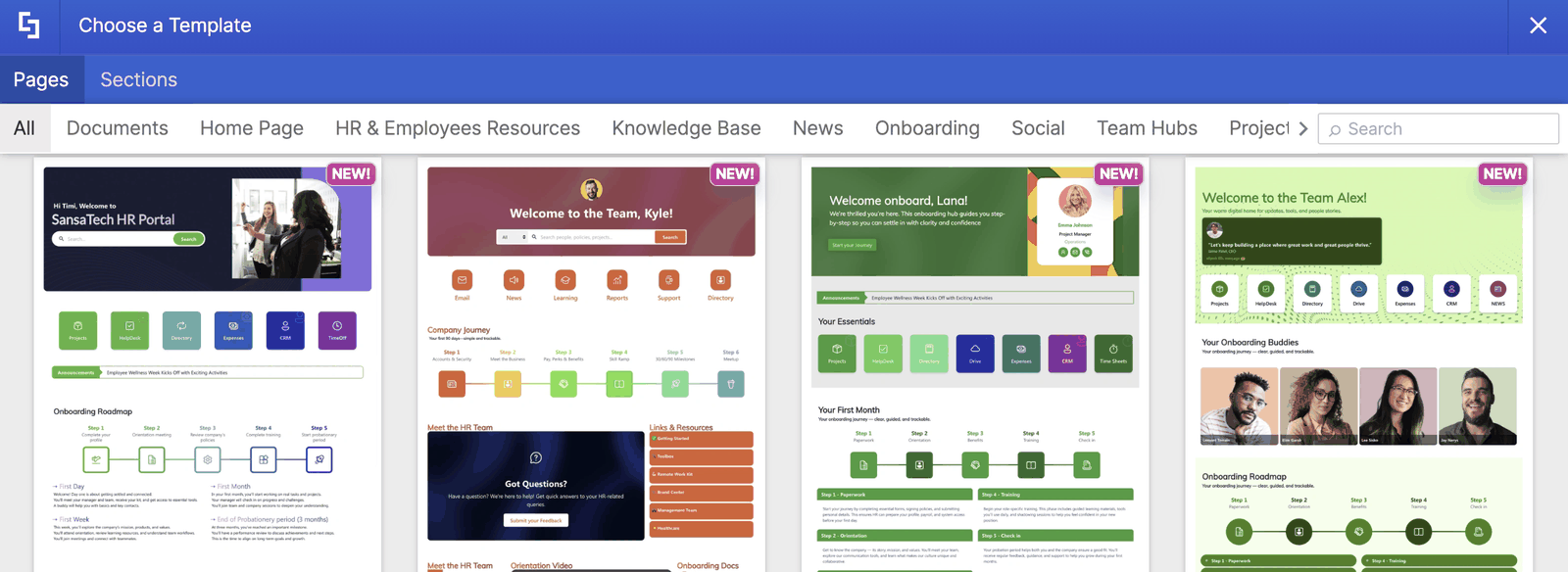
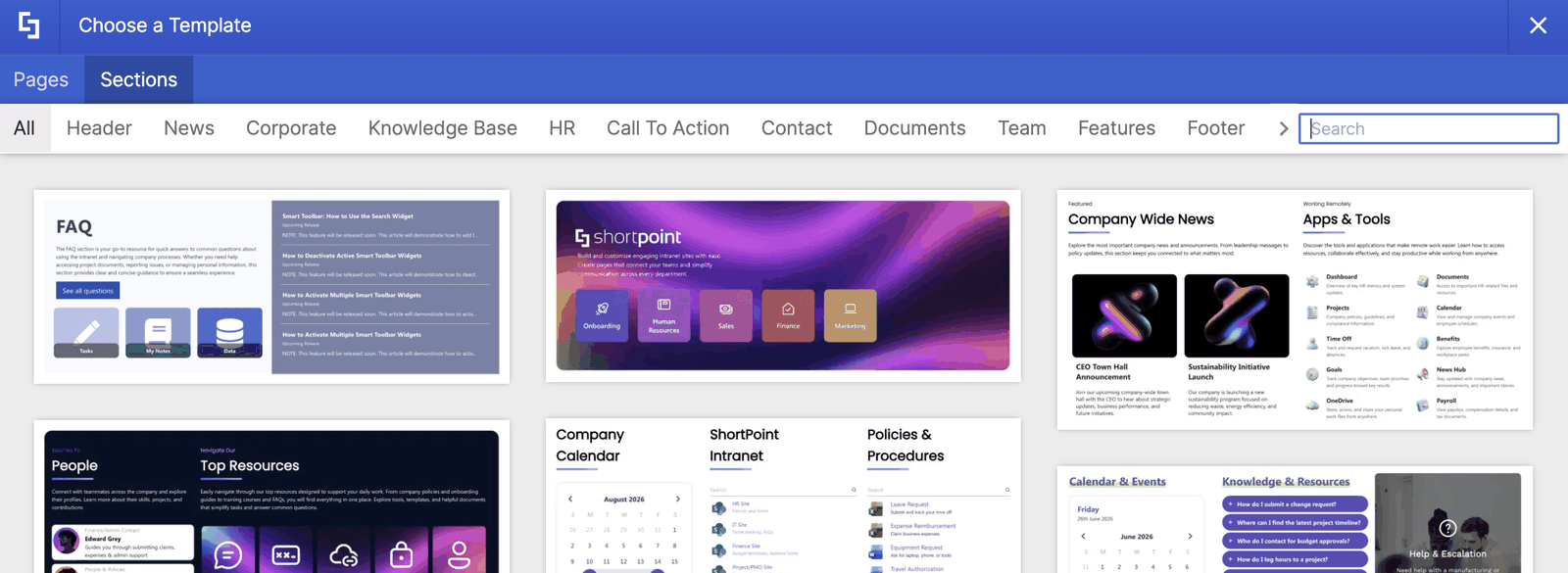
If you would rather not start from an empty section, open the Templates Library instead. The library holds more than 100 page and section designs put together by our design experts.
There are two kinds to choose from. Page templates give you a complete layout for a homepage, a department page, or a landing page.
Section templates give you a single block, such as a hero banner, a row of news cards, or a contact strip, that you can drop into a page you have already started.
Once a template lands on your page, it is yours. Every design element inside it behaves exactly as if you had added it yourself, so you can edit the text, swap the images, change the colors, rearrange the sections, and connect any element to your own data. Templates also pick up your existing site theme, which means they arrive looking like they belong on your intranet.
For the full walkthrough, see ShortPoint Templates Library: Complete Guide to Using Pre-Built SharePoint Page Designs.
Work Faster With the Action Toolbar
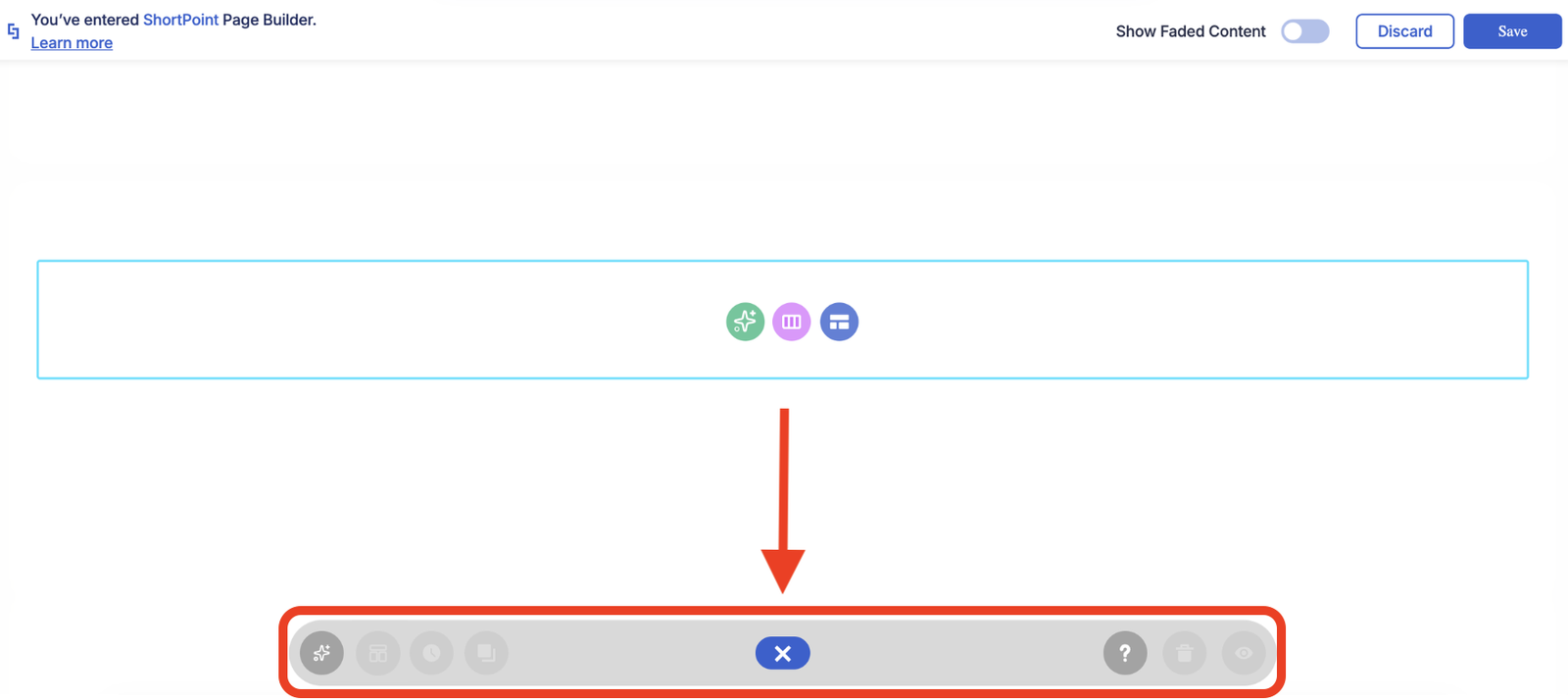
The Action Toolbar is a semi-transparent bar that floats above your page while you are editing. It holds the actions designers reach for most often, keeping them one click away no matter how far down the page you have scrolled. Here are some of its notable functions:
NOTEFor the full list of Action Toolbar buttons, check out ShortPoint Page Builder Live Mode Feature: Action Toolbar
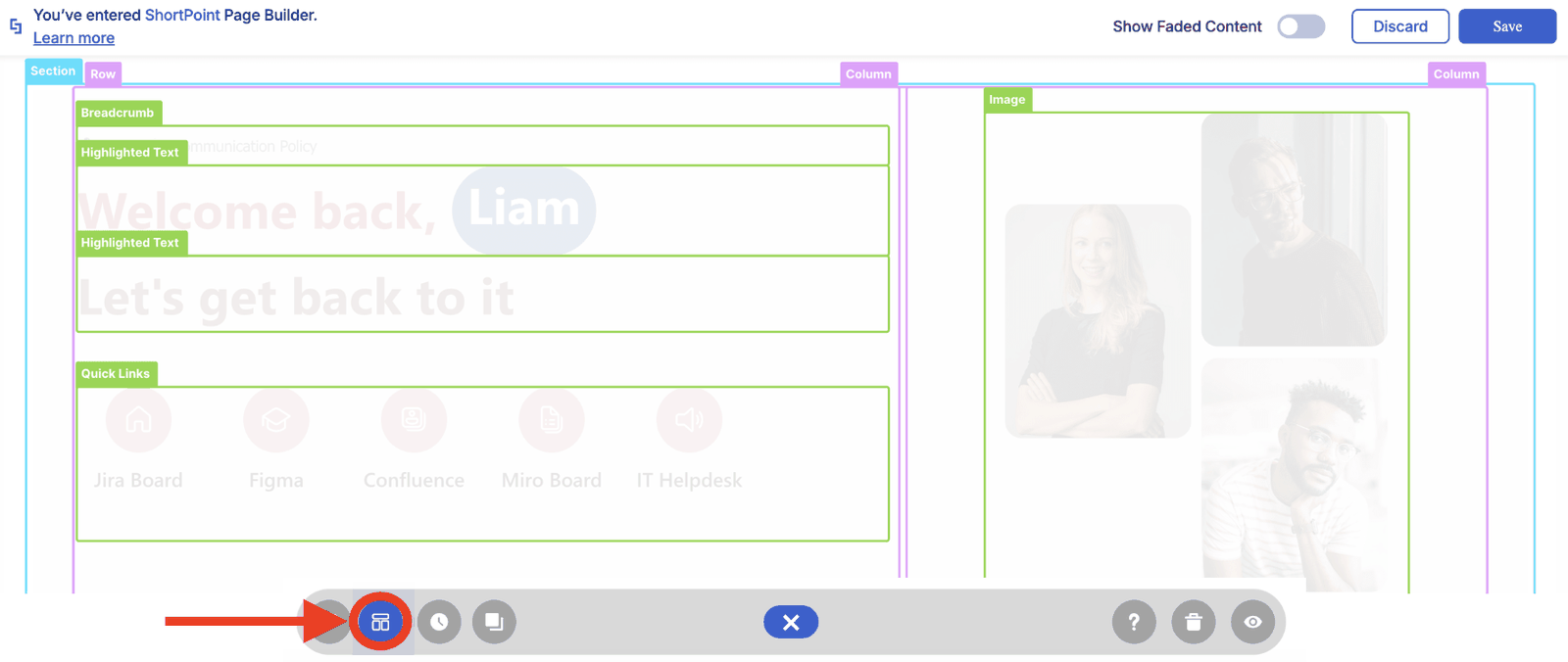
Wireframe Mode
NOTEGrid Mode will be discontinued when ShortPoint SPFx 9.5.0.0 rolls out. In the mean time, you can check out ShortPoint Says Goodbye to Grid Mode to see the upcoming changes.
The legacy Grid Mode editor just got a makeover with Wireframe Mode! With it, you no longer need to switch between Grid Mode and Live Mode. The colorful tags and frames remain, but the good news is you can now see the changes you make in real time.
For the full picture, read What is Wireframe Mode.
Web Part History
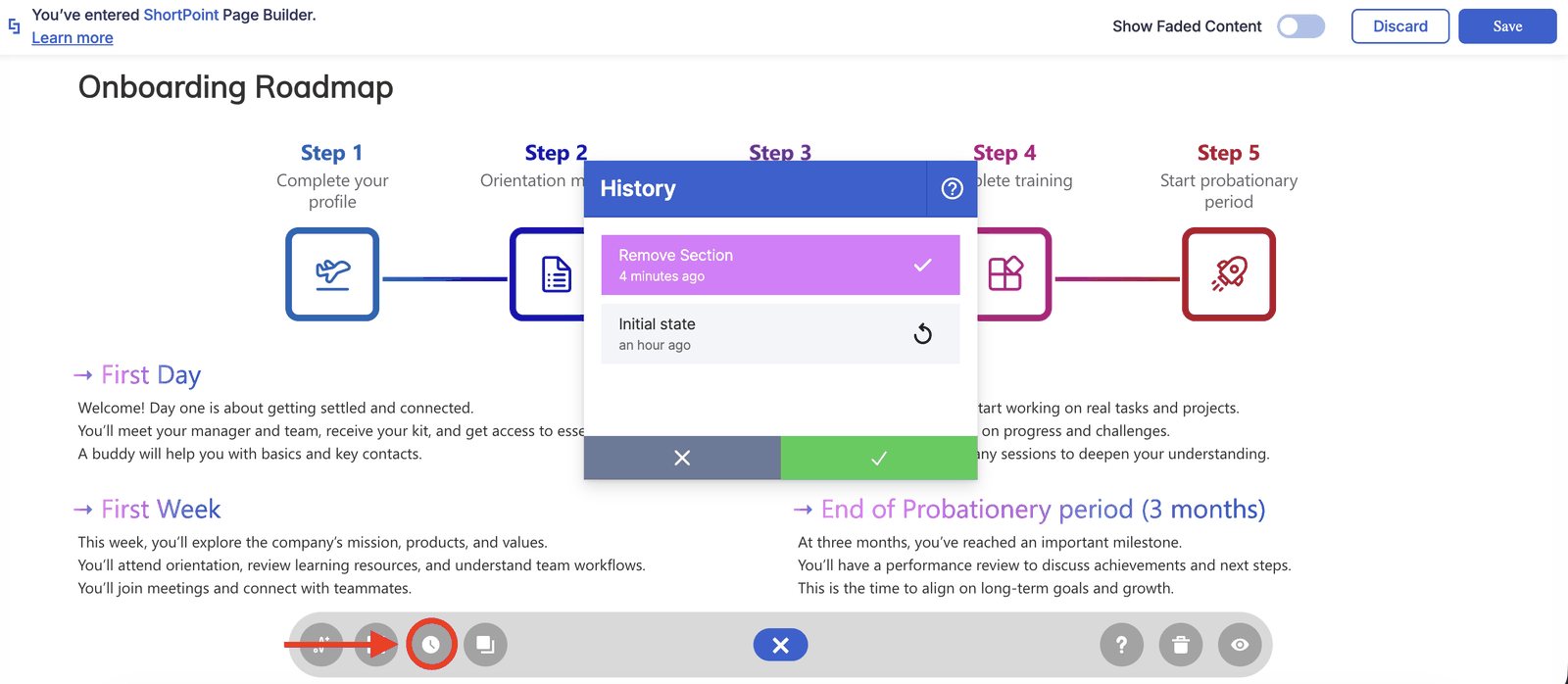
The clock icon opens the History window, where your changes are listed in the order you made them. Adding a design element, revising content, changing a setting, customizing a feature: it all gets recorded as you go.
For more, see ShortPoint Page Builder Live Mode Feature: History Window.
Preview
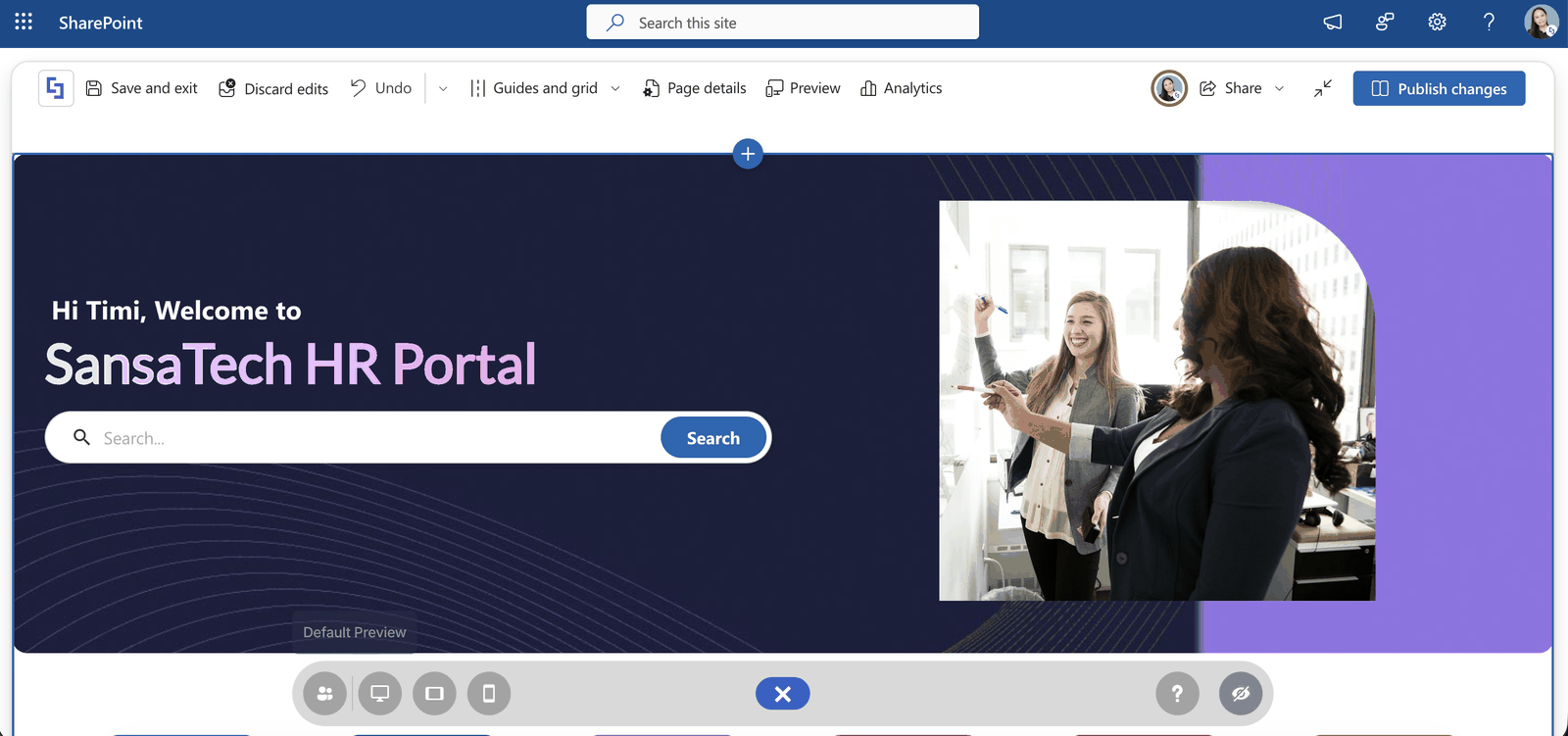
The eye icon shows you the page the way your readers will see it, without Isolate Mode and without the editing controls in the way. Your edits are kept while you look, so you can switch straight back and carry on.
While you are in Preview, a few more options appear. You can check the page on desktop, tablet, and mobile, and you can view it as a particular person or group in your organization. That is the quickest way to confirm your visibility rules are doing what you intended.
Intelligent Editing Features
Get a purely visual and seamless design experience with the tools inside ShortPoint Page Builder:
Real-Time Preview
The canvas you edit on is the page itself. Change a color, adjust a width, swap an image, and the result appears straight away. That makes the design process far easier. Instead of making a change, previewing it, going back to adjust it, and previewing again, you simply keep adjusting until the page looks right.
Drag and Drop
Rearranging a page used to mean cutting an element, pasting it somewhere else, then repeating the whole thing. Now, you can simply pick an element up and drop it where you want it.
EasyPass
EasyPass controls for individual design elements sit right on the page and give you direct access to the modification options you need.
Selecting the EasyPass of a Design Element puts you into an active mode where you are only making and seeing changes for that one element, without other controls getting in the way.

Hot Actions
Resizing design element spacing is just as straightforward with Hot Actions. Find the right spacing for an element by dragging its handles and see your changes as you do it.
Lock and Unlock
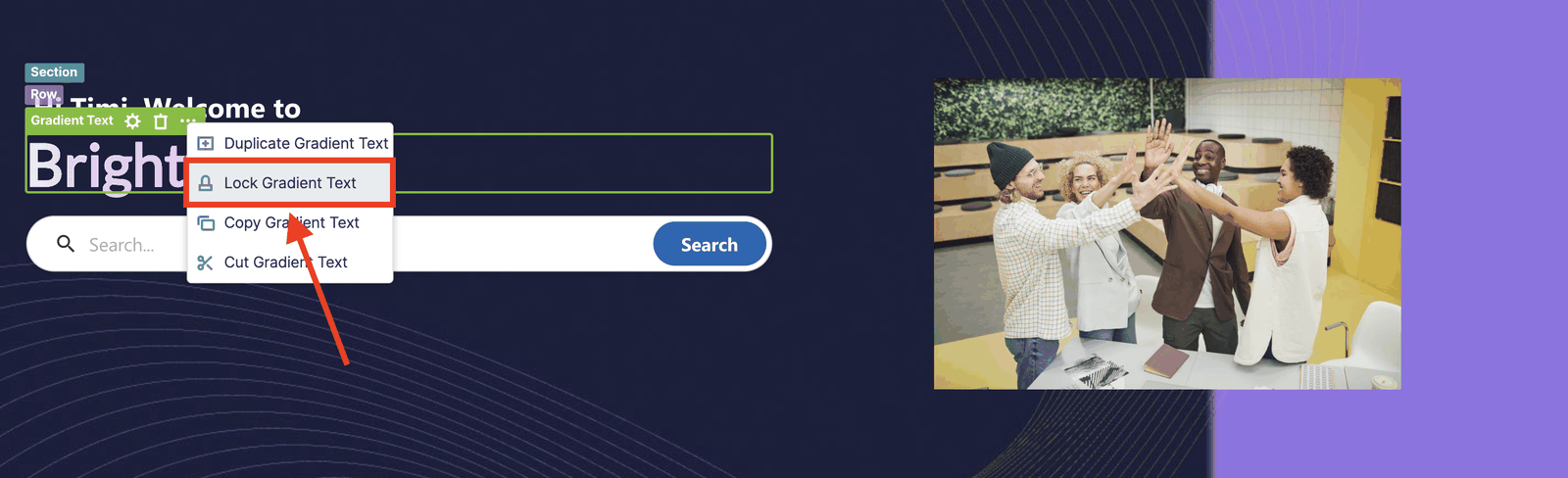
Page Builder lets you lock anything from a whole group of design elements within a section down to a single element, keeping it safe from changes while you carry on with other areas of your page.
Build With New and Modern Design Elements
Design elements are the building blocks of every ShortPoint page, and the library has grown a long way since ShortPoint started. There are now more than 80 of them!
Here's a quick look at what's new:
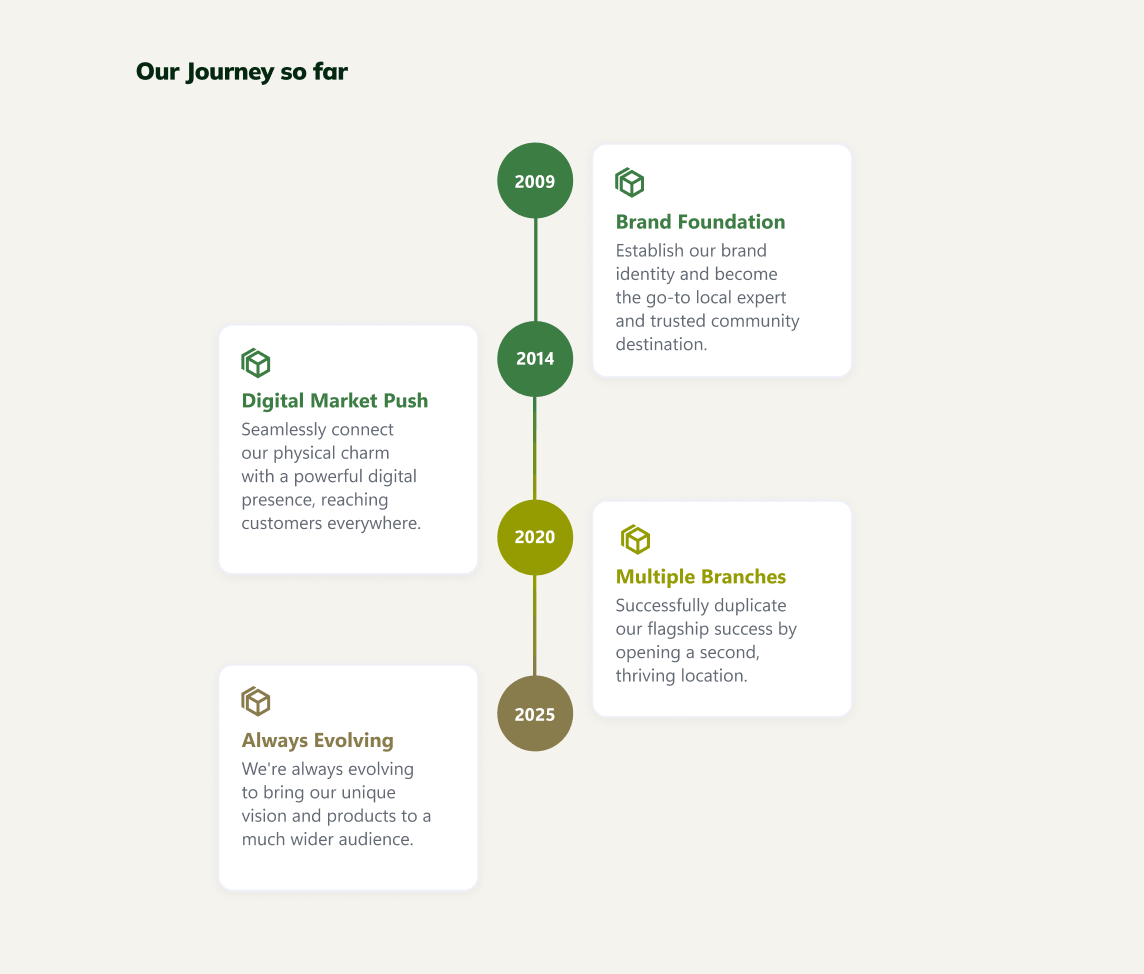
- Timeline lays out milestones, project phases, and roadmaps in order.
- Testimonial displays customer feedback, employee stories, and successes.

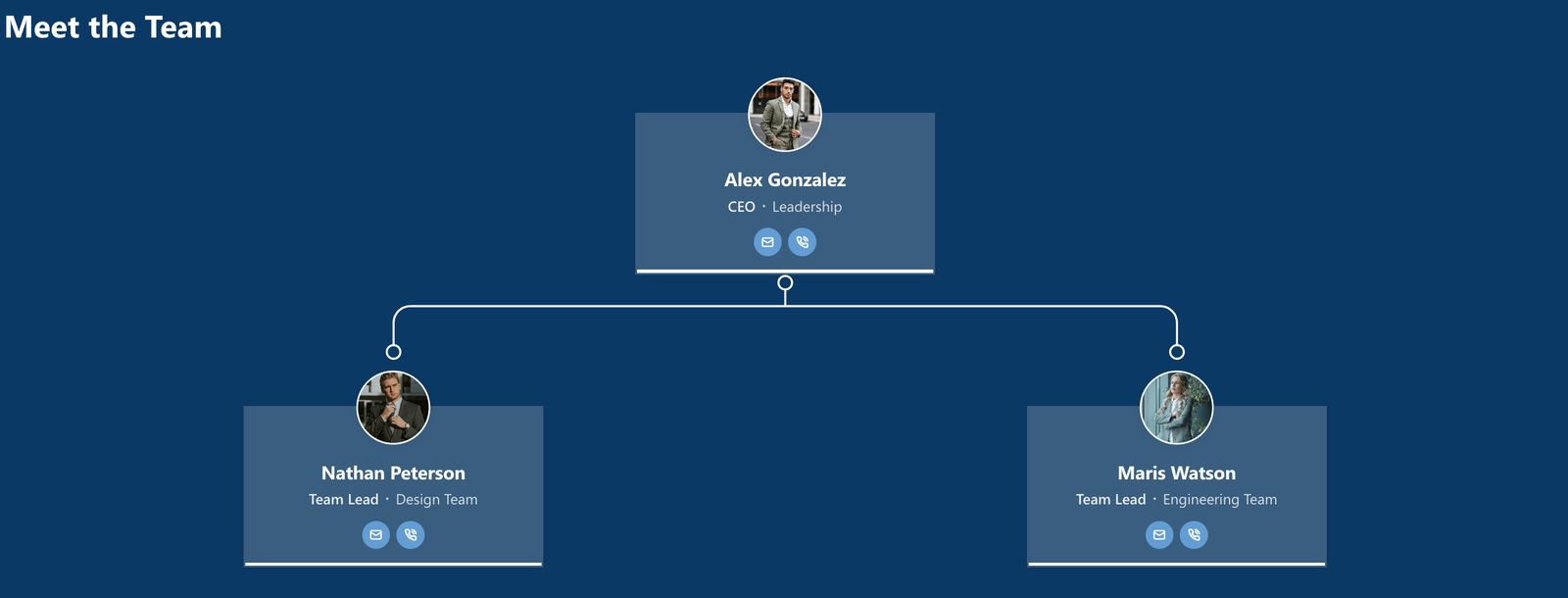
- Organization Chart brings your entire directory right on your SharePoint page.
For the full library and what each element can do, see Designing SharePoint Pages: A Complete Guide to ShortPoint Design Elements.
Connect Your Content to Live Data
A page that pulls in real content stays useful long after you publish it. News, team files, calendars, plans, and people directories all update themselves once the element is connected to a source, so nobody has to keep a page current by hand.
There are two ways to set a connection up:
AI Connect
NOTECurrently AI Connect is still in development. Stay tuned when it rolls out.
Connecting an element to live Microsoft 365 data used to call for details most designers do not keep on hand, such as a Team ID, a Channel ID, or a List ID. AI Connect removes that step. Open the Connect tab on a design element, describe the data you want in plain language, and the assistant works out which Microsoft Graph source it belongs to and maps the fields for you.
Before anything touches your page, you get a live preview of the real data, so you can check it is the right list, the right team, or the right set of people.
Ready to give it a try? Check out What is AI Connect.
Manual Mode
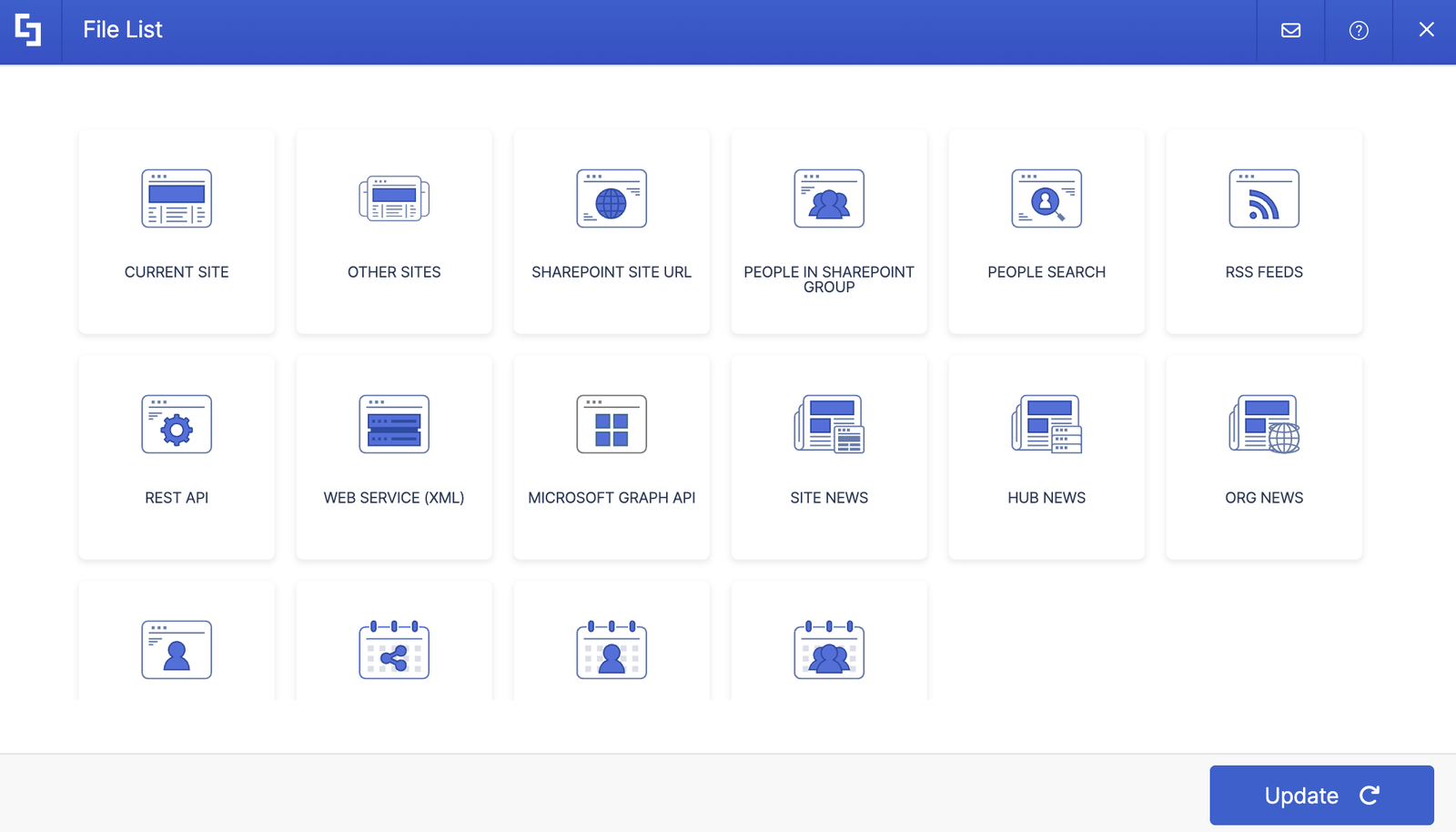
If you would rather set a connection up yourself, Manual Mode is still there and works the way it always has. Choose your use case, point it at your source, and map the fields by hand.
It remains the right choice when you know exactly which source you want or when you simply prefer the control of doing it step by step.
Control Who Sees What With Visibility
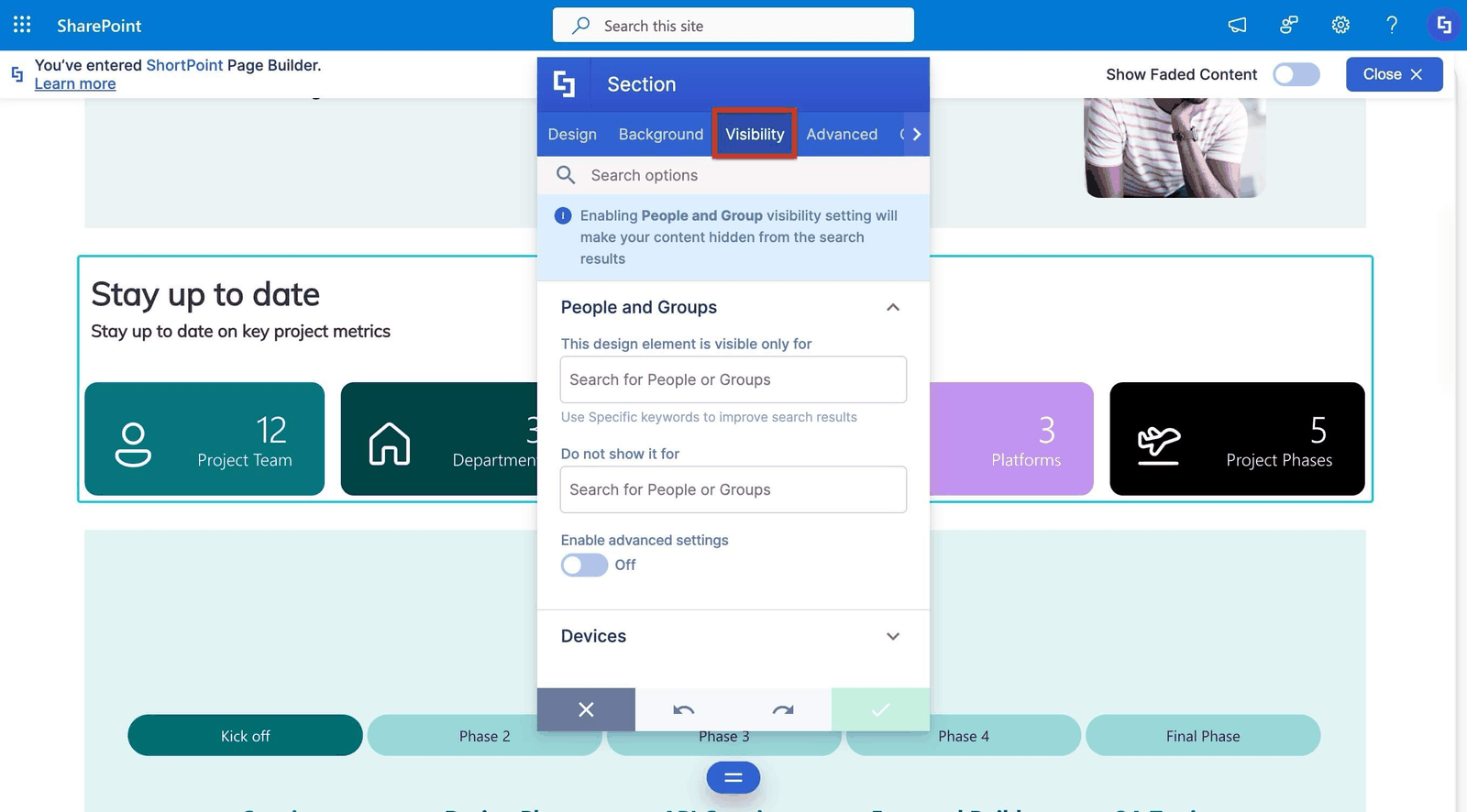
Not every part of a page is meant for everyone. Visibility rules let you decide who sees a design element and where it appears. You can target by audience and by device.
Check out the full walkthrough in Introducing the New User Experience for ShortPoint Visibility.
More Improvements are Coming
We are continually looking for the best solutions to address and satisfy your needs. Live Mode keeps growing because of what you tell us. Some of our new features started as feedback from ShortPoint Designers, building real intranets.
There is more on the way. If something in Live Mode would make your work easier, let us know through our support team, and keep an eye on this space for what comes next.
Related Articles
- Getting Started: The Basics of ShortPoint Live Mode
- ShortPoint Templates Library: Complete Guide to Using Pre-Built SharePoint Page Designs
- Designing SharePoint Pages: A Complete Guide to ShortPoint Design Elements
- ShortPoint Page Builder Live Mode Feature: EasyPass
- ShortPoint Page Builder Live Mode Feature: Hot Actions
- ShortPoint Page Builder Live Mode Feature: Action Toolbar
- Effortlessly Drag and Drop in SharePoint: Introducing Drag and Drop for ShortPoint Live Mode
- Introducing the New User Experience for ShortPoint Visibility
- Getting Started: What Is the ShortPoint AI Designer
- ShortPoint Says Goodbye to Grid Mode: Welcome to a Faster, Seamless Live Mode Experience
- ShortPoint Page Builder Live Mode: Known Issues and Limitations
