 Try ShortPoint now
SharePoint Online has become the heart of how teams stay connected and share ideas. One of the most effective ways to bring a department’s culture to life is by putting a spotlight on the very people who make things happen, helping to showcase teams effectively on your home page or department site.
In this guide, we’ll explore how you can easily showcase employees from specific departments using the ShortPoint People Search Connection, a simple way to turn a basic directory into a vibrant, people-first experience. Let's dive right in!
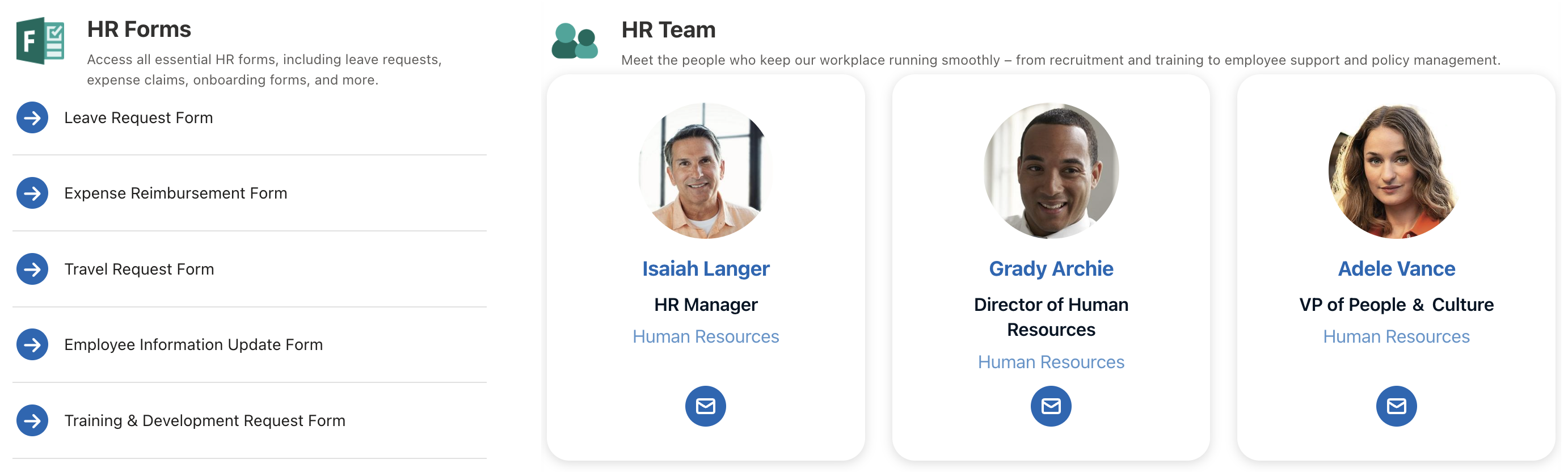
TABLE OF CONTENTS
- Prerequisites
- What is the People Search Connection?
- Step-by-step Tutorial
- Practical Use Cases
- Start Showcase Team Departments on Your Page
- Frequently Asked Questions
Prerequisites
- You must have the latest version of ShortPoint SPFx installed.
- You must be a ShortPoint Designer with an active license.
- You must already have the Design Element you want to use for the connection on your SharePoint page.
What is the People Search Connection?
People Search in Microsoft 365 is all about making connections. It gathers user profiles from Microsoft Entra ID (which you might know as Azure AD) using Microsoft Graph. This means all those important details (like job titles, departments, office locations, and skills) are stored in one central spot, ready for SharePoint to find them.
The ShortPoint People Search Connection acts as a bridge to that data. It taps into those search capabilities and links them directly to ShortPoint Design Elements. Rather than spending your afternoon manually typing in names and emails, you simply set up a connection that pulls live data straight from your Microsoft 365 tenant.
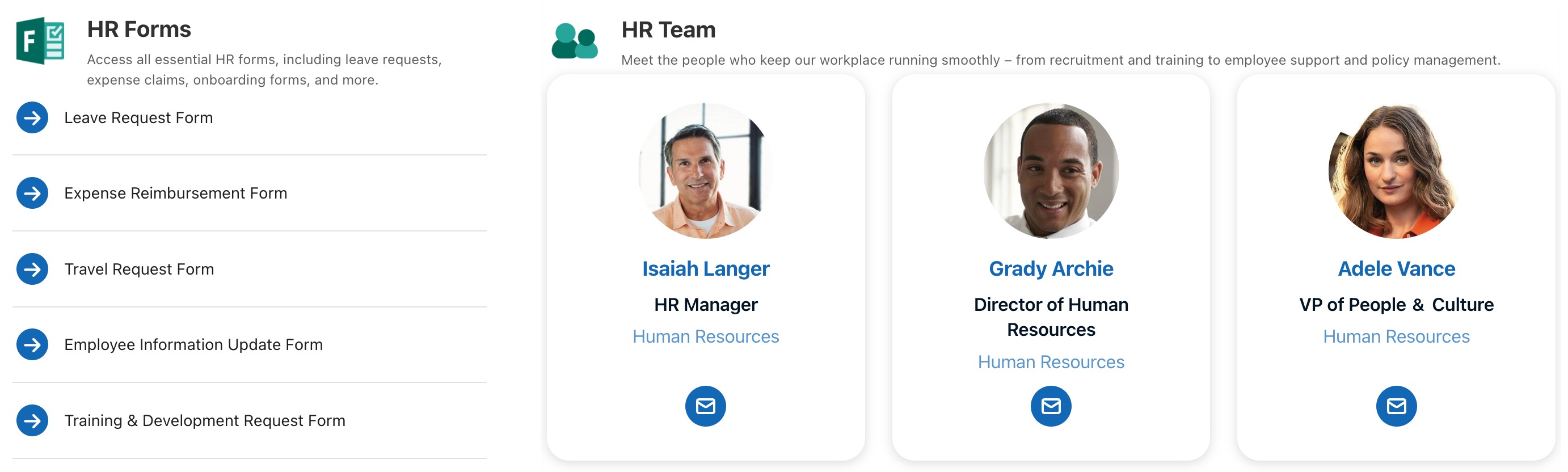
The best part? You can set up specific department filters to create team showcases. Because the connection is completely dynamic, any updates made to an employee’s profile in Microsoft 365 will automatically flow through to your page, keeping everything fresh and accurate without you lifting a finger.
Step-by-step Tutorial
Copy the refinement filter below before starting the interactive tutorial:
&refinementfilters='Department:equals("Department Name")'Step 1: Edit the ShortPoint Web Part
- Go to the SharePoint page you want to use and click Edit.
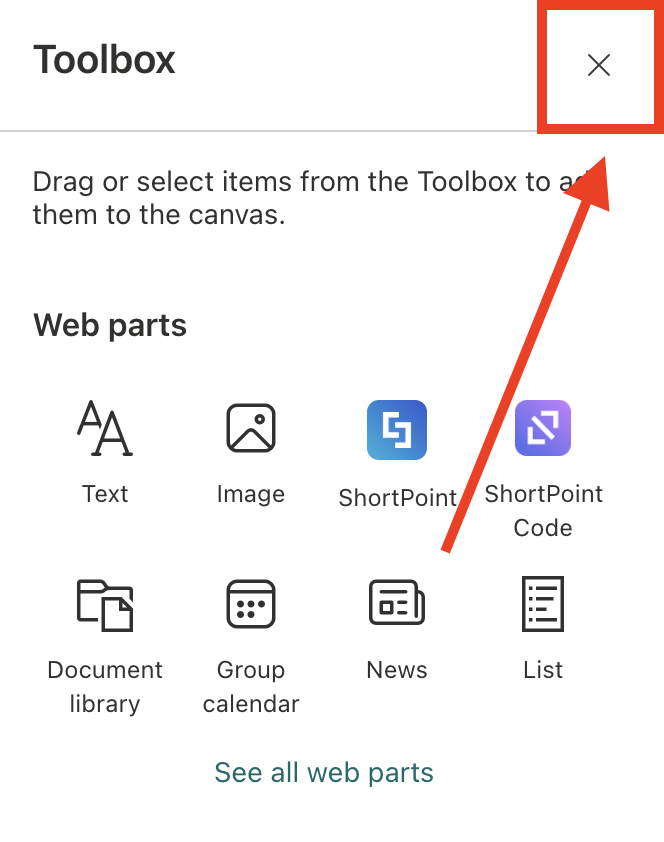
- Close the Toolbox:
- Edit the ShortPoint web part:

Step 2: Edit the Design Element
NOTEBefore proceeding, make sure you already have the Design Element you want to use for the connection on your SharePoint page. In our case, we'll use Person Cards.
- Click the EasyPass tag of the Design Element:
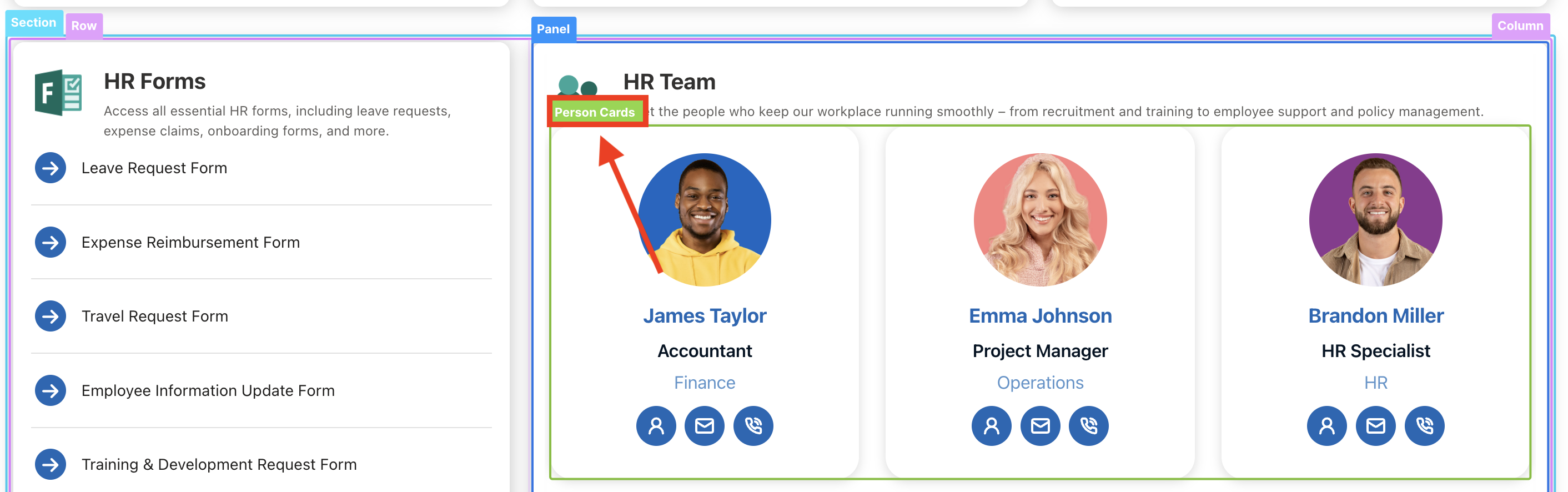
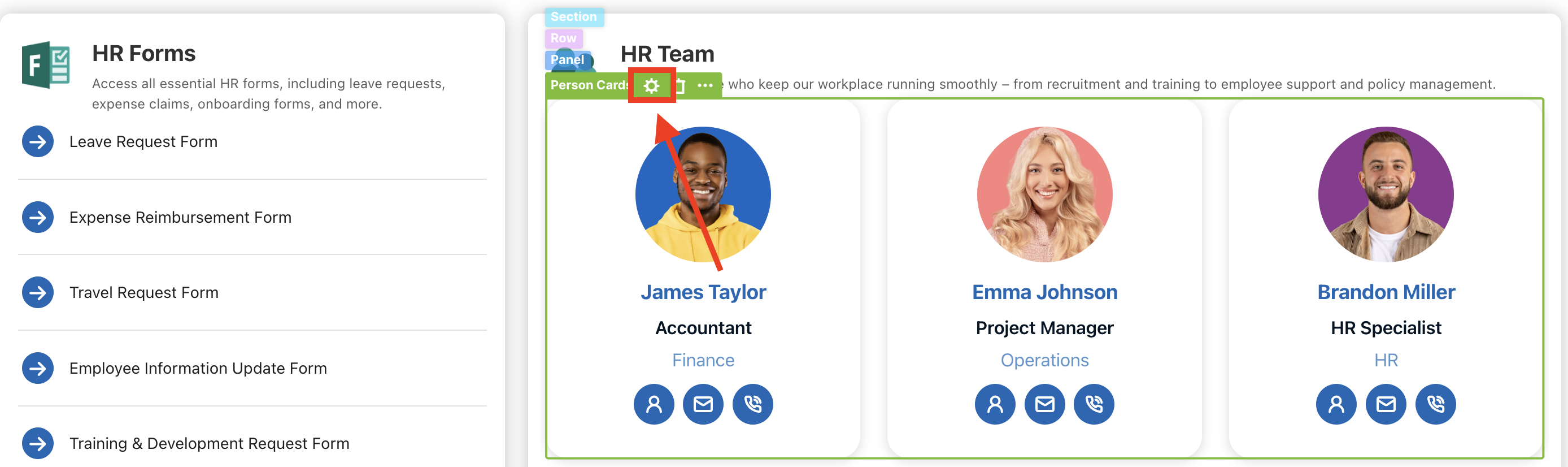
- Select the cogwheel icon:
Step 3: Connect
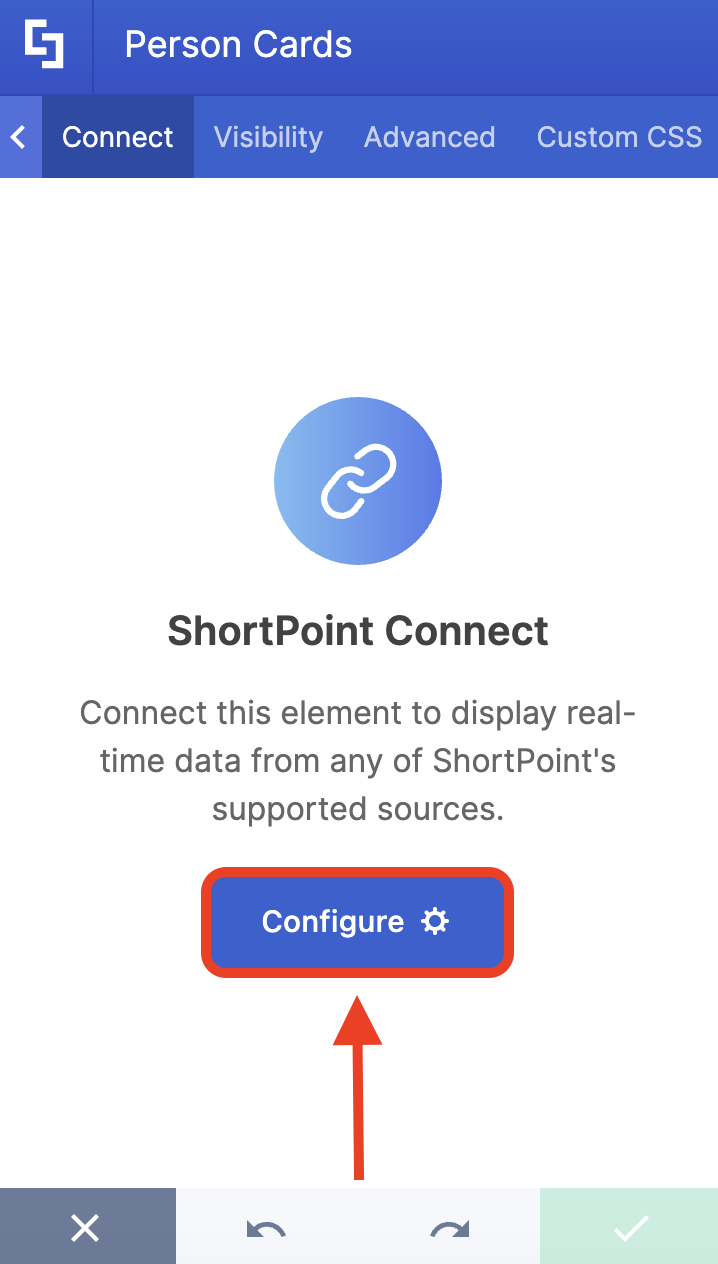
- Go to the Connect tab.
- Click Configure:
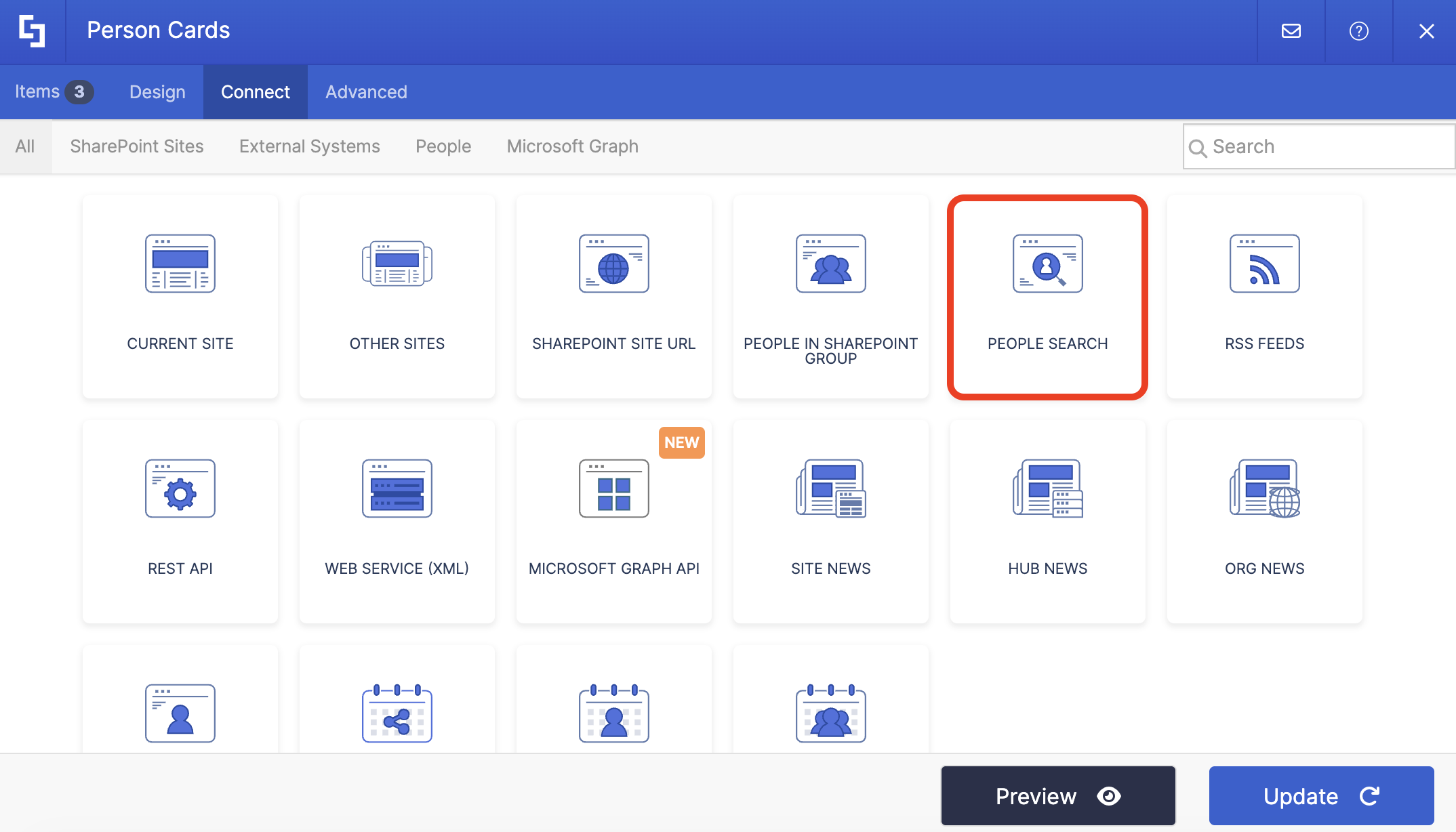
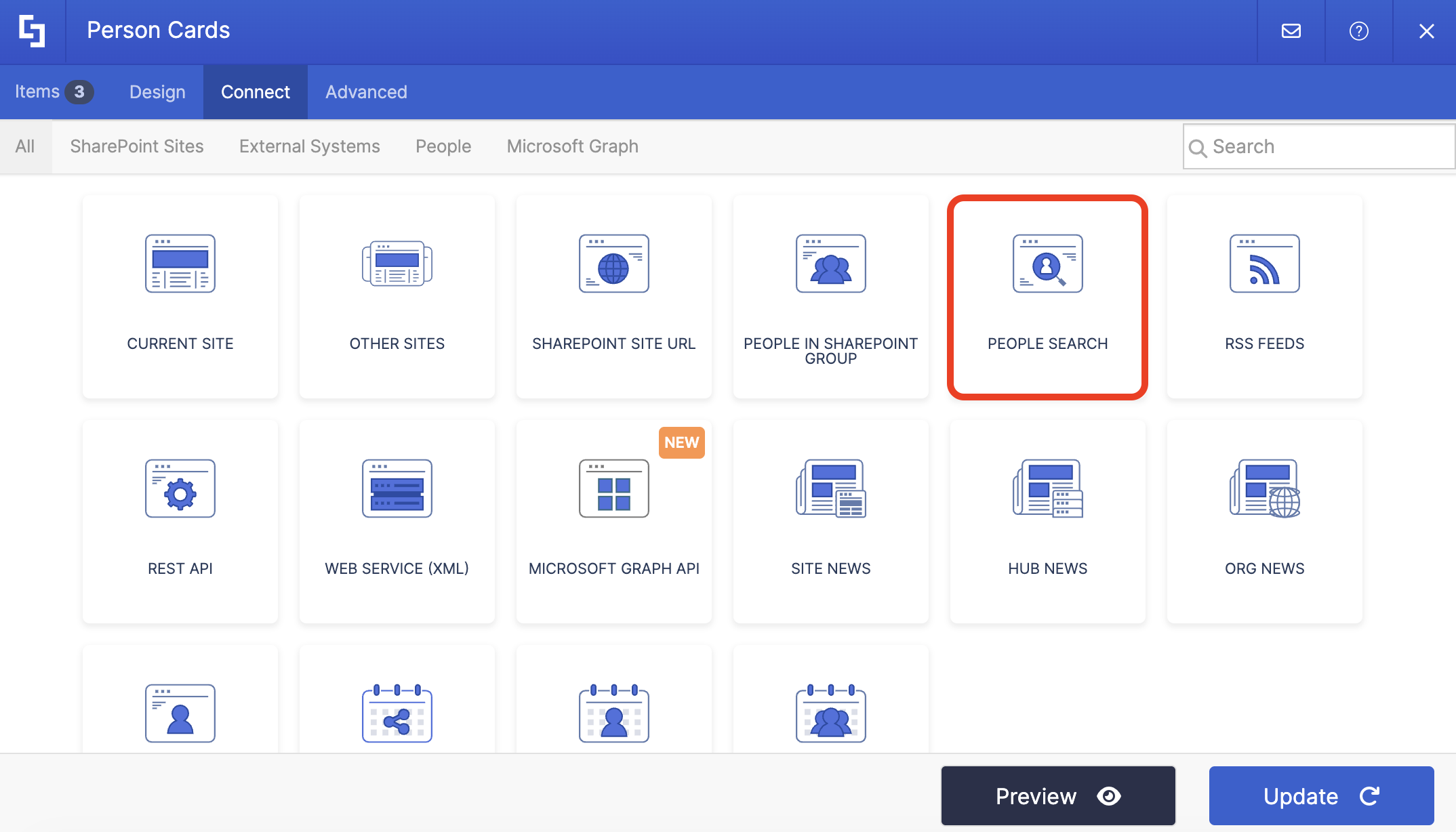
- Select the People Search connection:
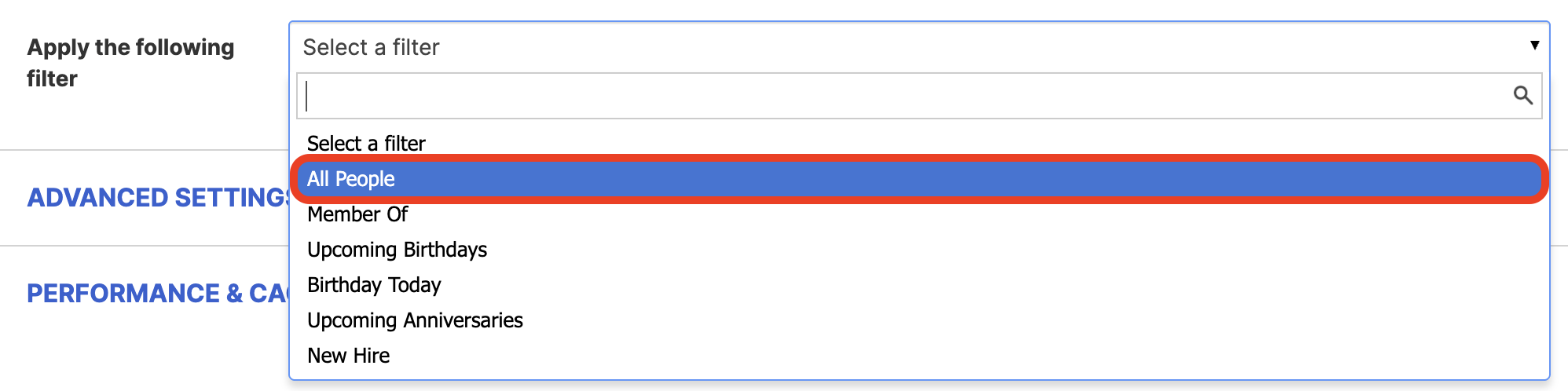
- Choose the All People filter:
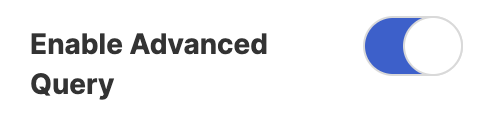
- Toggle on Enable Advanced Query:
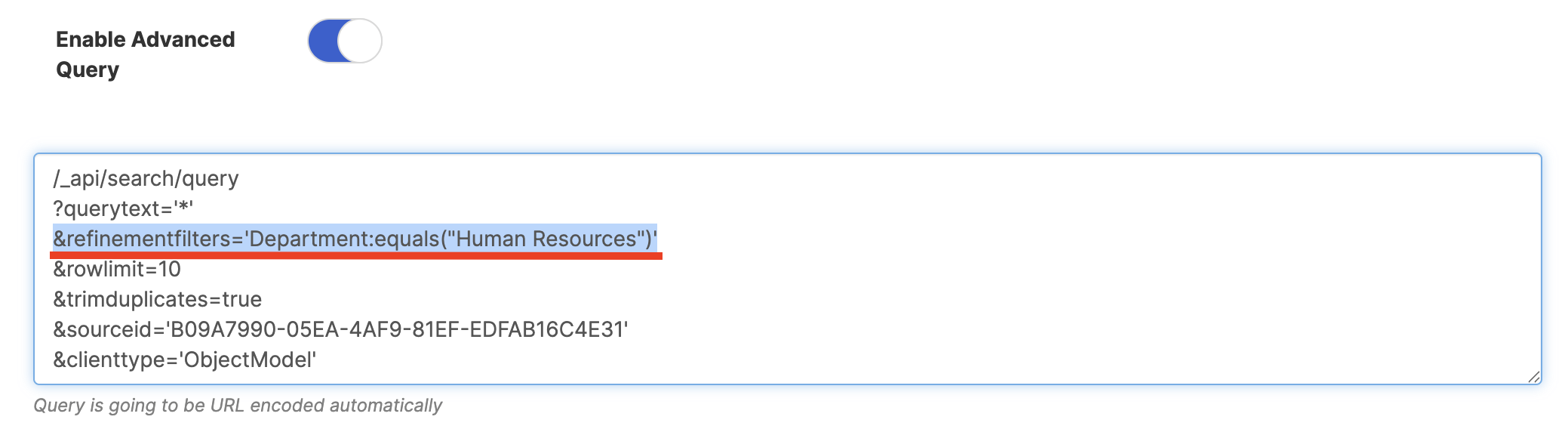
- Copy the refinement filter below and replace 'Department Name' with the department you want to showcase:
&refinementfilters='Department:equals("Department Name")'- Paste the refinement filter after ?querytext='*':
- Click Connect.
Step 4: Map Items
- Go to the Items tab.
- Delete all default content.
- Use the link icon to map the properties you want to be shown.
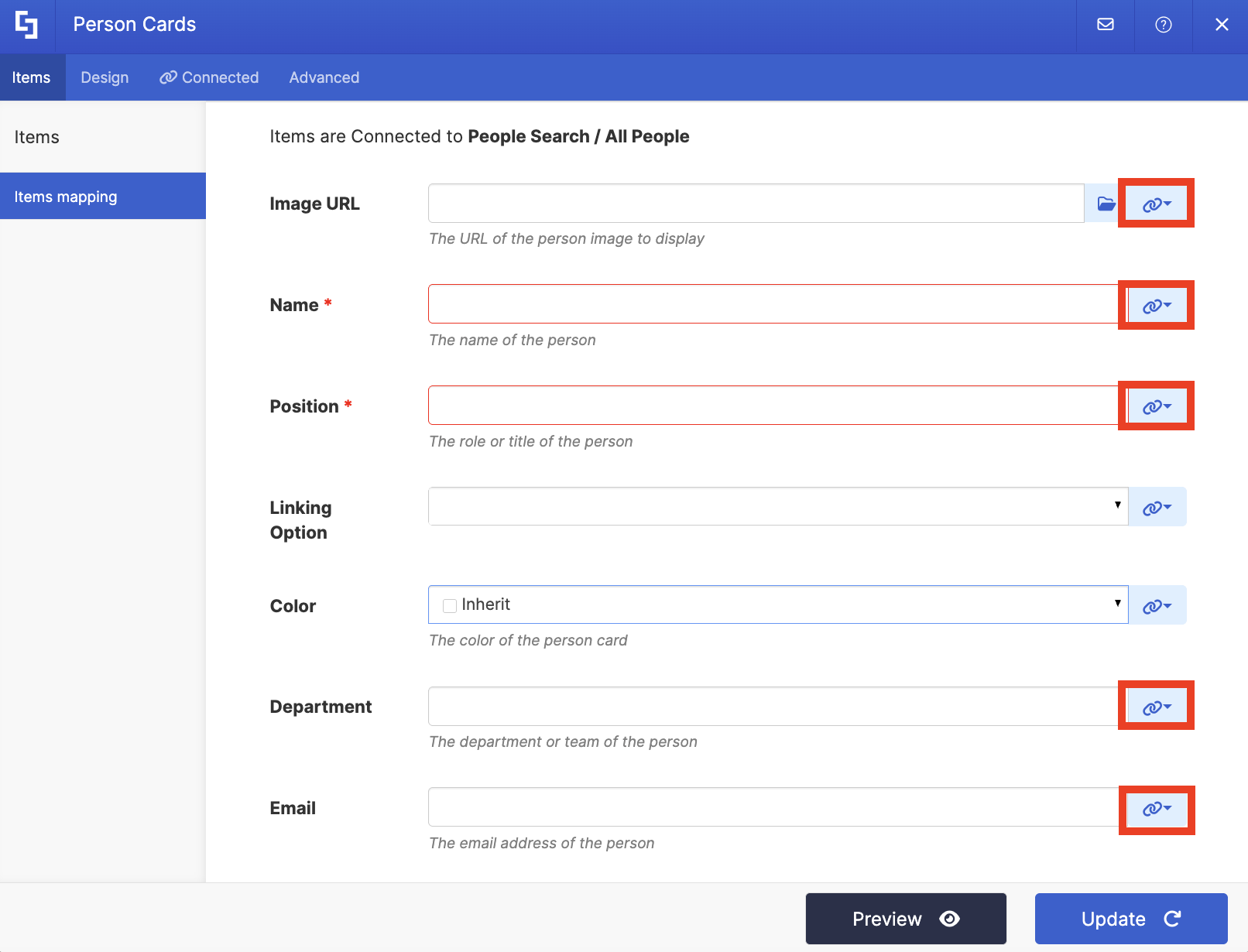
- You can use the same mapping as below or map your own:
- #_SHORTPOINT_SharePoint_Photo - shows the photo of the employee.
- #PreferredName - shows the name of the employee.
- #JobTitle - shows the work title of the employee.
- #Department - shows the department of the employee.
- #WorkEmail - shows the email address of the employee.
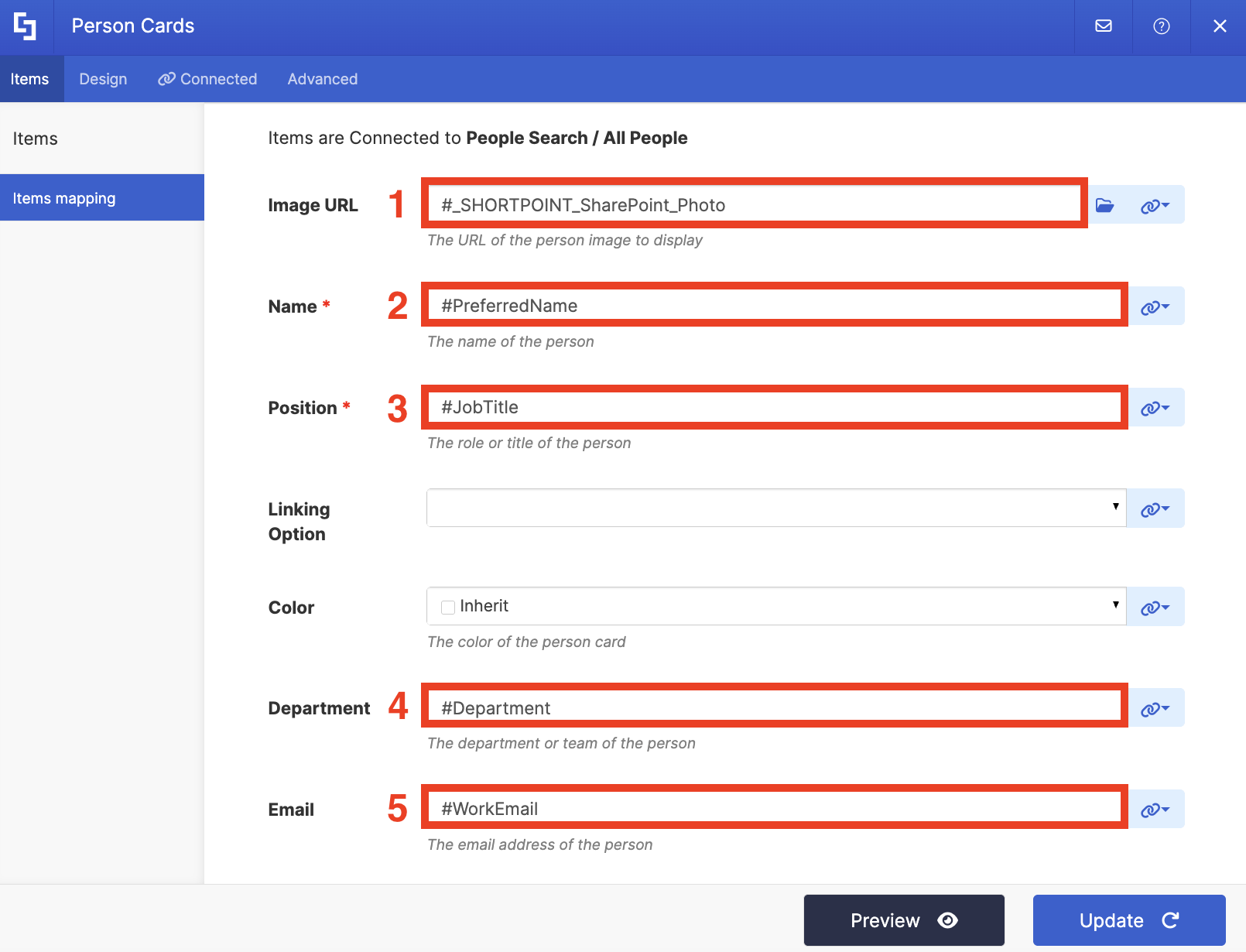
- Once done, click Update.
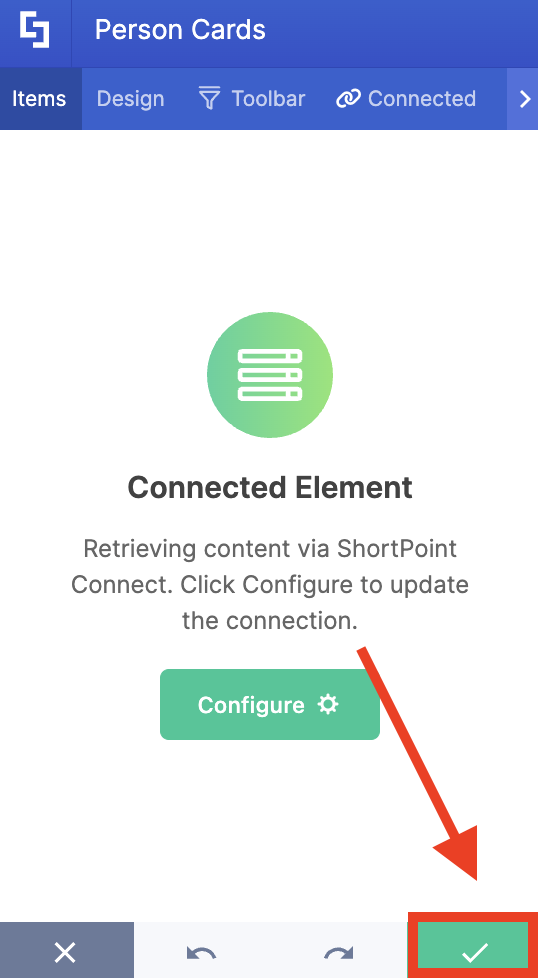
- Click the green check mark:
Step 5: Save
- Save your changes:

- Publish your page:

Congratulations! You can now display specific departments on your SharePoint site, showcasing your organization's team members in a user-friendly and creative way.
Practical Use Cases
Here are a few creative ways you can use the People Search Connection to build a more connected workplace:
Celebrating Work Anniversaries
Nothing beats a well-timed "congrats!" from a colleague. By setting a filter to highlight upcoming work anniversaries, you can create a self-updating "Celebrations" section right on your website or homepage. It’s an effortless way to keep the whole group in the loop and make sure everyone feels valued on their special day.
Honoring Long-Term Milestones
Reaching a one-year mark is great, but a 10-year "work-versary" is a huge achievement that deserves an extra spotlight. You can use the connection to filter for specific milestones, like 5, 10, or 20 years of service, to give your veteran team members a more prominent shout-out. For organizations with formal service awards, this is a total lifesaver; your intranet handles the recognition automatically, so you never have to worry about a milestone slipping through the cracks. This helps establish a strong sense of commitment and leadership within your business.
Celebrate Employee Birthdays
Everyone loves getting a birthday shoutout on their special day. You can use the birthday today and upcoming birthday filter to create a celebration corner on your SharePoint sites. With this in place, your teammates are bound to feel special and loved on their birthdays, enhancing team performance and morale.
Start Showcase Team Departments on Your Page
Modern intranets have evolved into a collaborative space for everyone in your team. By showcasing team members on your page, you’re building a genuine sense of community.
Ready to add that personal touch to your intranet? If you’re already a ShortPoint Designer, you can jump right in and start playing with the connection today.
If you’re new to the ShortPoint family, we’d love to have you! You can start a free 15-day trial to explore the possibilities, or schedule a one-on-one demo with our experts to see it in action.
Frequently Asked Questions
How can I showcase a specific department on my SharePoint site?
You can use the People Search Connection with a refinement filter targeting a specific department. By applying the filter &refinementfilters='Department:equals("Department Name")', you can display team members from that department dynamically, keeping the information accurate and up to date.
Can I customize the layout and design of the employee showcase?
Yes, using ShortPoint Design Elements like Person Cards, you can customize the layout and appearance to fit your organization's theme and branding, creating a vibrant and engaging view of your teams.
What are some practical use cases for People Search Connection?
You can celebrate work anniversaries, honor long-term milestones, or highlight employee birthdays by setting filters to display these events on your SharePoint site. This helps build a connected workplace culture and keeps everyone informed about important dates and celebrations.
Does the People Search Connection update automatically?
Yes, because it pulls live data from Microsoft 365 profiles, any changes made to an employee’s information, such as job title or department, are automatically posted and reflected on your SharePoint page without manual updates.
How do I get started with ShortPoint People Search?
If you are a ShortPoint Designer, you can start using the connection on your SharePoint pages right away. New users can start a free 15-day trial or schedule a demo to explore its features and support options.
Related articles:
