 Try ShortPoint now
One of the first things you will learn when building an intranet page with ShortPoint is how to insert a Design Element to display your content. This article walks you through how to do it, whether you are starting a new page or adding to a page that already has ShortPoint content.
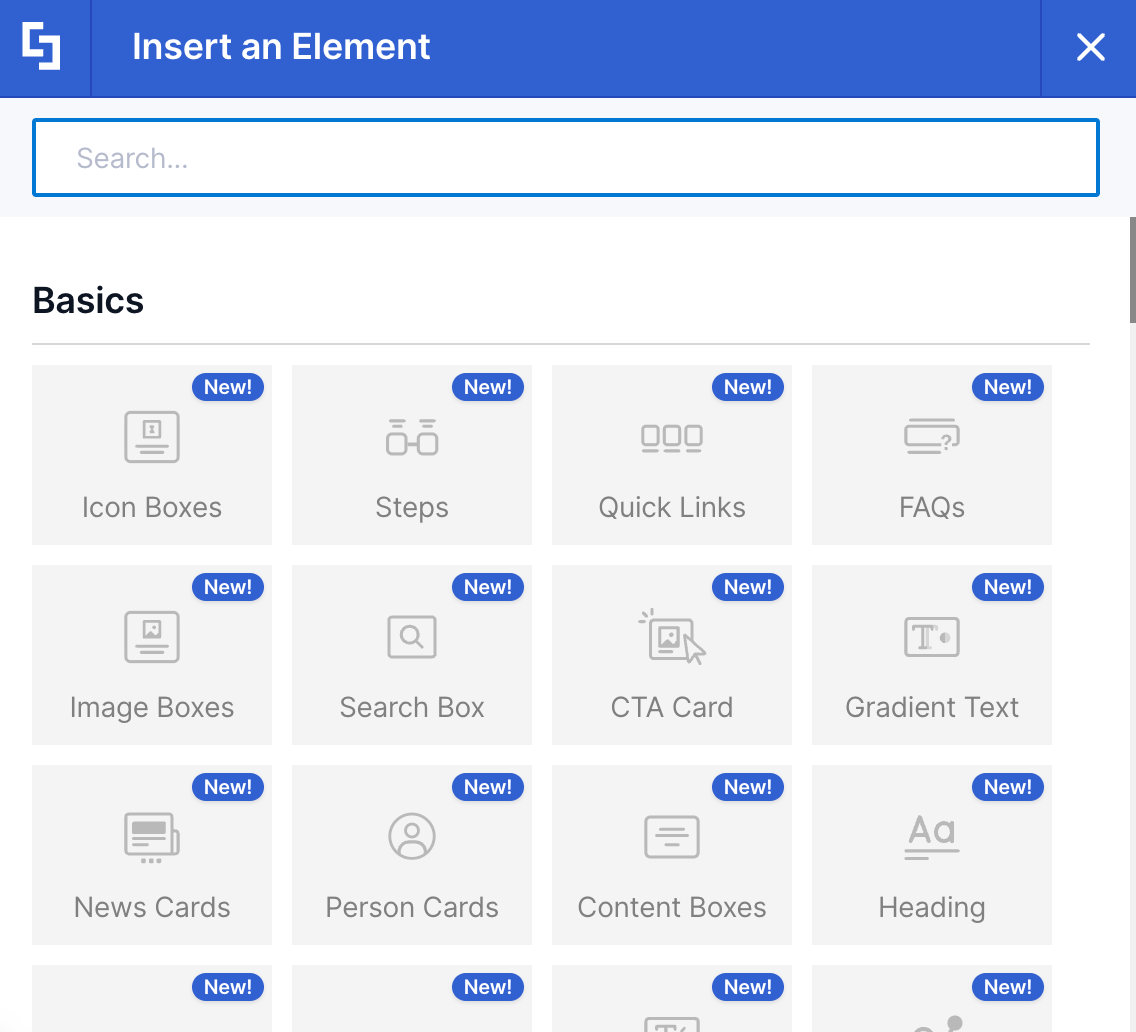
TABLE OF CONTENTS
- Prerequisites
- Interactive Tutorial
- Step-by-step Tutorial
- Design Element Features
- Ready to Add Design Elements?
- Frequently Asked Questions
Prerequisites
- You have the latest ShortPoint SPFx version installed.
- You are designing a Modern page in SharePoint. Live Mode is not available for Classic pages.
- You are a ShortPoint Designer with an active license.
Interactive Tutorial
Click Get Started to learn how to insert a Design Element:
Step-by-step Tutorial
Choose the option that suits your needs:
Option 1: Insert a Design Element on a new page
Use this option when your page doesn't have a ShortPoint web part yet.
Step 1: Add a ShortPoint Web Part
- Go to the SharePoint page you want to use and click Edit.
- The SharePoint Toolbox opens on the right side of the page. Click the X icon to close it.
- Click the blue plus icon to add a new SharePoint section.
- Choose Full-width section.
- From the options in the new section, select ShortPoint. This opens ShortPoint Page Builder.
NOTE: For more ways to add the ShortPoint web part, check out How to Add a ShortPoint Web Part.
Step 2: Choose a layout
- Click the Choose Layout icon.
- From the drop-down, select the Row layout you'd like to use.
Step 3: Insert a Design Element
- Click the pink plus icon inside the column to open the Insert an Element window.
- Use the search bar to look for the Design Element you want to use, then select it. There are over 80 Design Elements to choose from. In this example, we added Person Cards.
Step 4: Add your content and customize the design
- The Design Element settings panel opens on the right. Customize the content and design to your liking.
NOTEThe tabs and options you see depend on the Design Element you added. Check the dedicated support article for each Design Element to learn more about its settings. We've also listed in Design Element Features the tabs you'll commonly find for Design Elements.
Step 5: Apply changes and save
- Once you're happy with it, click the green checkmark to apply your changes.
That's it! Your Design Element is now on the page. Repeat steps 3-4 to add more.
Option 2: Insert a Design Element on a page with existing ShortPoint content
Use this option when your page already has a ShortPoint web part with content in it.
Step 1: Edit the ShortPoint web part
- Go to your SharePoint page and click Edit.
- Then, click the X icon to close the Toolbox.
- Click the Edit web part icon on the ShortPoint toolbar.
Step 2: Add a new Row
- Design Elements live inside Rows. Select any Row tag.
- Click the plus icon to add a new Row.
Step 3: Insert a Design Element
- Inside your new Row, click the pink plus icon (Add Design Element).
- Use the search bar to find the Design Element you want and select it. In this example, we used Person Cards.
Step 4: Add your content and customize the design
- Edit the content and design to your liking using the tabs and item icons in the settings panel. The options available depend on the Design Element you added.
NOTEThe tabs and options you see depend on the Design Element you added. Check the dedicated support article for each Design Element to learn more about its settings. We've also listed in Design Element Features the tabs you'll commonly find for Design Elements.
Step 5: Apply changes
- Click the green checkmark to apply your changes.
That's it! Your new Design Element now appears on the page alongside your existing content. You can add more depending on the needs of your page.
Design Element Features
Each ShortPoint Design Element has different tabs inside its settings window. We've listed the most common ones to help you learn their functions:
NOTEThe options found inside each tab will vary depending on the Design Element you're using.
A. Items tab
The Items tab is typically found in Design Elements that display multiple items (Person Cards, File List, Icon Boxes, etc.). It allows you to edit the content of each item.
B. Content Tab
The Content tab has the same function as the Items tab. It allows you to edit the content of the selected Design Element. The main difference is that it's commonly found on Design Elements that highlight only one main content (Text, Panel, Note, etc.).
C. Design Tab
The Design Tab allows you to customize the style and look of the Design Element.
D. Spacing Tab
The Spacing tab allows you to adjust the padding and margins around the selected Design Element.
E. Background Tab
The Background Tab is typically found on Design Elements that allow you to add background images, colors, or videos.
F. Toolbar Tab
The Toolbar tab allows you to add Search & Filter widgets to the Design Element. With it, you can add a search bar, filter and sort content, and so much more. For more information, check out Getting Started: The Basics of the Search & Filter Toolbar.
G. Metadata Tab
The Metadata tab goes hand in hand with the Toolbar tab. It allows you to add detailed labels or tags that provide additional context to your content. For more information, go to How to Add SharePoint Metadata Tags to Organize Content.
H. Connect Tab
Connect tab allows you to integrate the selected Design Element to an internal (SharePoint List, Document Library, etc.) or external source (RSS Feeds, REST API, etc.). To learn more, go to How to Establish Seamless Connection.
I. Visibility Tab
The Visibility tab allows you to modify who gets to see the Design Element and from which devices. Check out Visibility Experience for more details.
J. Advanced Tab
The Advanced tab contains settings that allow you to further modify how the Design Element looks.
K. Custom CSS
The Custom CSS tab allows you to add Custom CSS to the Design Element, giving way to advanced customizations. Check out Custom CSS for Design Elements to learn more.
Ready to Add Design Elements?
You now know the basics of adding Design Elements to your SharePoint pages. If you're ready to start using them, we've prepared a comprehensive guide on all the Design Elements ShortPoint offers. You'll also find practical ways to use them.
Frequently Asked Questions
What is a ShortPoint Design Element?
A Design Element is a ready-made building block you add to your SharePoint page to display content, such as text, images, people profiles, or links. ShortPoint has over 80 Design Elements to choose from, and you can find them all in the Insert an Element window.
Where can I place a Design Element on my page?
Design Elements are placed inside Rows. On a new page, choose a layout first to create a Row. On a page that already has ShortPoint content, select any Row tag and click the plus icon to add a new Row (see Option 2).
How do I add more than one Design Element?
Repeat the steps for inserting a Design Element. Click the pink plus icon in an empty column or a new Row, then search for and select the next Design Element you want to add.
Why do I see different tabs for different Design Elements?
Each Design Element has its own settings, so the tabs and options change depending on the element you choose. For example, Person Cards has an Items tab, while Text has a Content tab. See Design Element Features for the most common tabs.
Can I edit a Design Element after inserting it?
Yes. You can change its content and design at any time. To learn how, check out ShortPoint Basics: How to Edit a Design Element in Live Mode.
Related Articles:
