 Try ShortPoint now
A well-placed quote on your SharePoint intranet can say a thousand words about your organization. Think about it, a good word from your clients or your teammates can surely bring trust to your services.
This is what makes the ShortPoint Blockquote Design Element great! It can turn any piece of original text into something that pops. In this article, you'll learn the basics of block quotes, including what they are, how to use them, and how you can make them work in real-world scenarios.

TABLE OF CONTENTS
- Prerequisite
- What is the ShortPoint Blockquote Design Element?
- Interactive Tutorial
- Step-by-step Tutorial
- Blockquote Features
- 4 Practical Use Cases for Your Intranet
- Start Designing with Blockquote
- Frequently Asked Questions
Prerequisite
- You have the latest version of ShortPoint SPFx installed on your SharePoint environment.
- You are a ShortPoint Designer with an active license.
What is the ShortPoint Blockquote Design Element?
The Blockquote Design Element is a tool used to emphasize specific sections of quoted text, typically citations or direct quotes from other sources. While standard SharePoint text can sometimes feel like a "wall of words," the Blockquote breaks up the layout by adding distinct visual cues.
To top it off, it offers flexibility. You can customize the colors, typography, and spacing to match your company's branding perfectly. It’s designed to draw the eye toward meaningful statements, making your content more digestible and professional.
TIPRemember to use block quotations sparingly to enhance the intended impact of the long quotations or important points you want to highlight.
Interactive Tutorial
Click Get Started to learn how to customize the Blockquote Design Element:
NOTECheck out Blockquote Features to learn more about the OOTB options you can customize.
Step-by-step Tutorial
Follow the steps below for a detailed guide on how to customize the Blockquote Design Element:
Step 1: Edit the ShortPoint Web Part
- Go to the SharePoint page you want to use and click Edit.

- Click the ShortPoint tag.
- Select the pencil icon.
Step 2: Insert the Blockquote Design Element
- Click the plus icon.
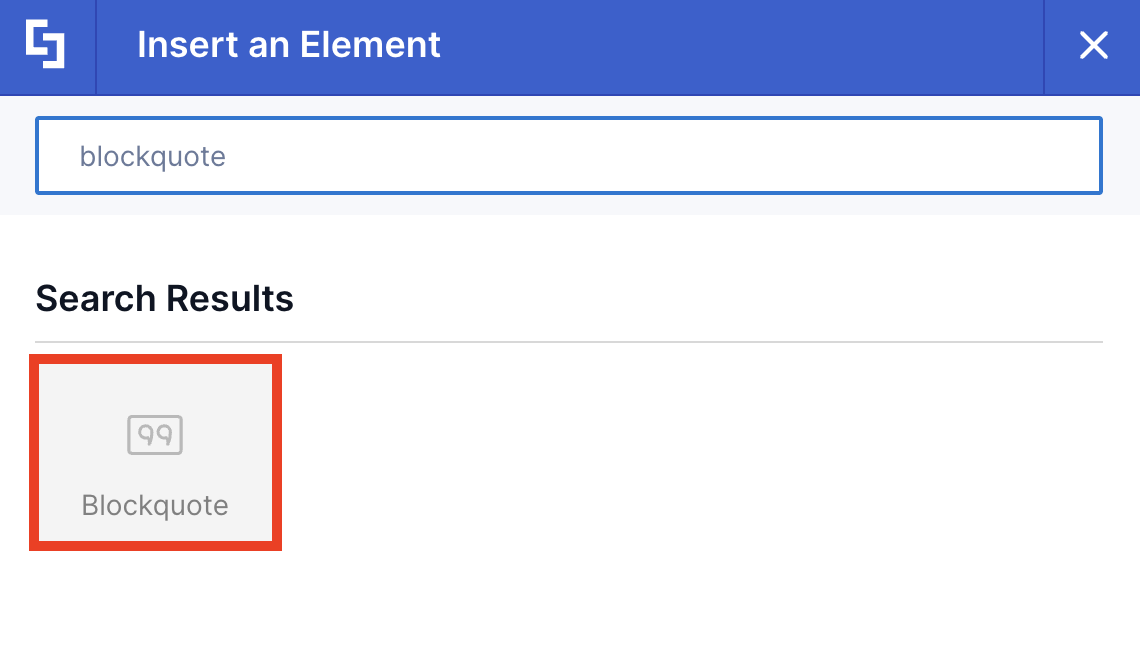
- Use the search box to look for Blockquote and click it.
Step 3: Add content
- Add a Quote.
- Add the name of the Quote’s Author.
Step 4: Customize the Map’s Design
- Navigate to the Design tab.
- Customize the Blockquote’s design according to your preferences.
- Click the green check mark once you are satisfied.
NOTECheck out Blockquote Features to learn more about the OOTB options you can customize.
Step 5: Save
- Then, click the eye icon to see your page in real-time.

- Click Save to apply all your changes.

Congratulations! You can now add block quotation format in your SharePoint sites to highlight important information effectively.
Blockquote Features
Below are the options you can find in the Blockquote Settings window:
A. Content tab
The Content tab allows you to edit the quote inside the Blockquote Design Element. It has the following options:

 | Quote | allows you to modify the quote displayed inside the Blockquote Design Element. |
 | Author | allows you to modify the author of the quote. |
B. Design tab
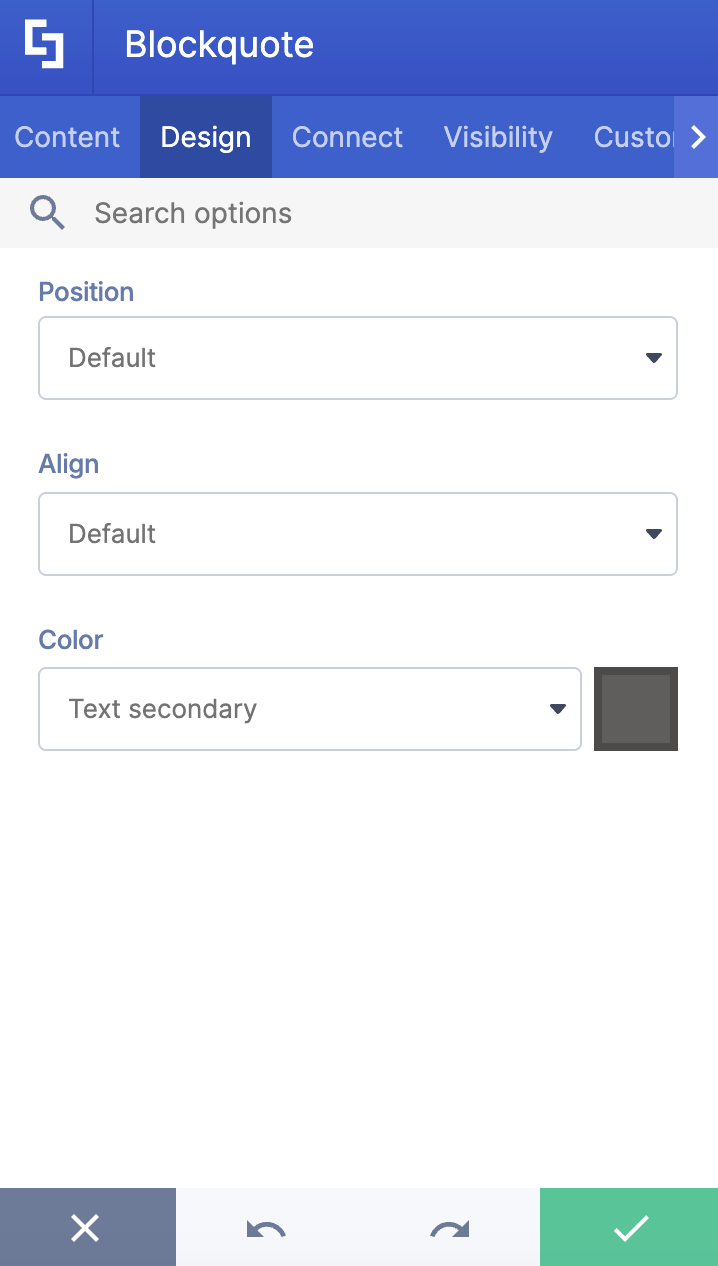
The Design tab allows you to customize the design of the Blockquote Design Element. It has the following options:

 | Position | allows you to modify the placement of the Blockquote. You can choose from Default, Left, or Right. |
 | Align | allows you to change the text alignment of the quote. You can choose from Default, Left, or Right. |
 | Color | allows you to choose the color of the Blockquote. You can do so by [1] writing the HEX code, [2] using the drop-down, or [3] using the color picker. |
C. Connect Tab
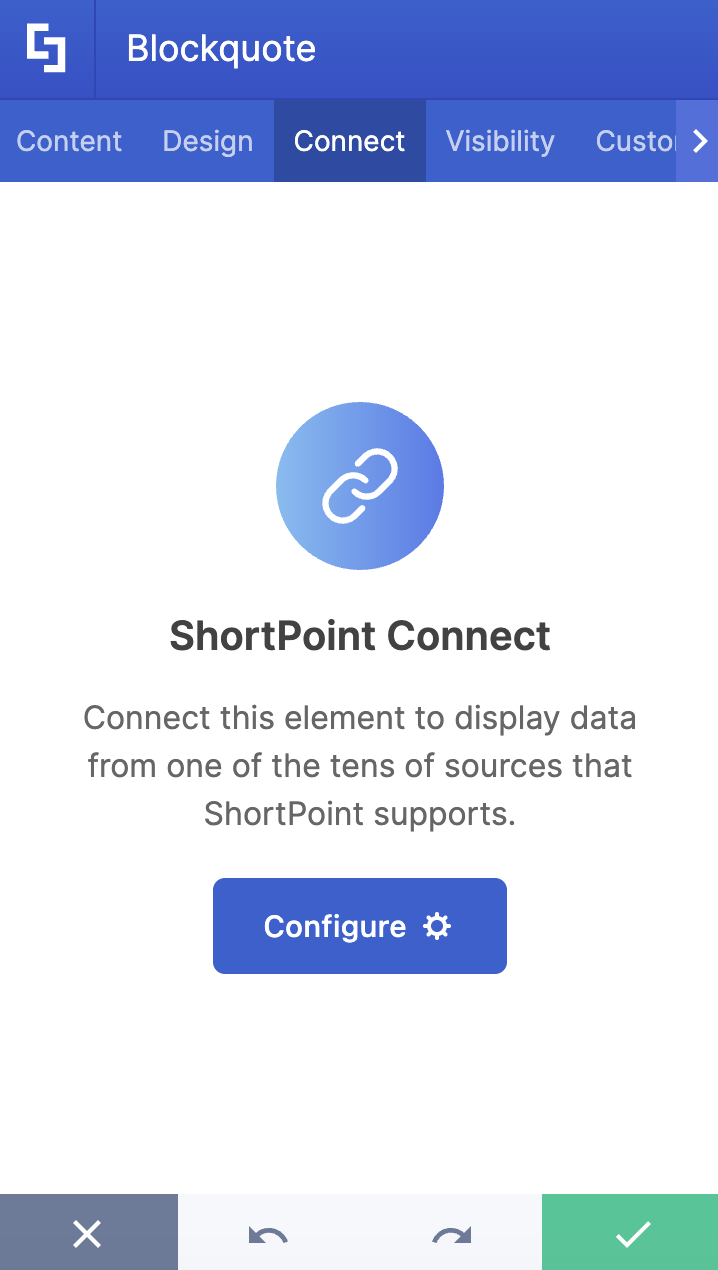
The Connect tab allows you to link the Design Element to SharePoint sources (List, Document Library, News, etc.) and other external sources (Microsoft Graph API, Teams, Outlook, etc.). For more details about ShortPoint Connect, check out Basic Tutorial: How to Establish Seamless SharePoint Connection with ShortPoint Connect.
D. Visibility Tab
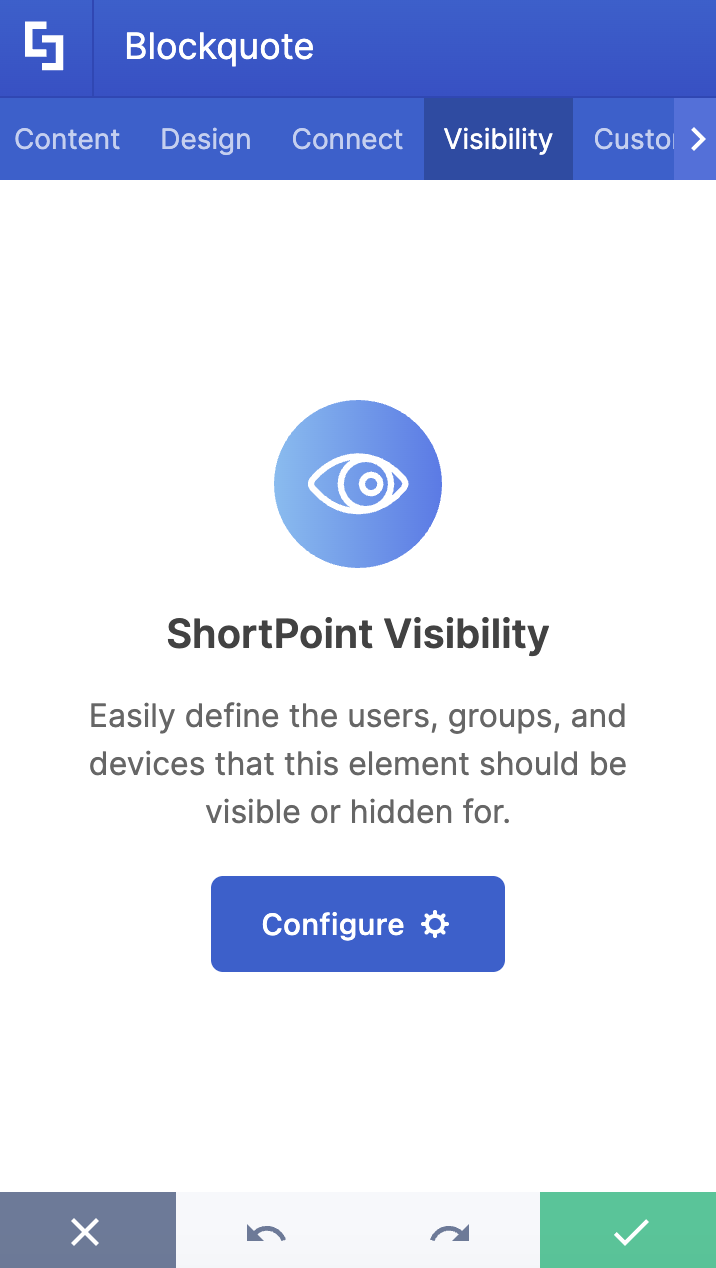
The Visibility tab allows you to specify who can see the Design Element and what type of devices it can be shown on. For more details, check out How to Use the ShortPoint Visibility Feature for Effective SharePoint Access Management.
E. Custom CSS Tab
This tab allows you to use your own CSS, HTML, and Javascript code to customize the Blockquote Design Element.
NOTECheck out our support article on How to Insert Custom CSS into a Page Builder Element? (Basic Tutorial) to know more about Custom CSS.

4 Practical Use Cases for Your Intranet
How do you use this in the "real world"? Here are four ways the Blockquote can level up your SharePoint pages:
Executive Leadership Insights
When sharing a "Message from the CEO" or a company-wide update, use a Blockquote to highlight the most inspiring or critical sentence. It ensures that even the busiest employees catch the "gold nuggets" of the message while scrolling.
Customer or Client Testimonials
Social proof is powerful. If you have a page dedicated to project successes or client feedback, use Blockquotes to showcase praise. The distinct formatting separates the client's voice from your internal documentation, giving the testimonial the "stage" it deserves.
Highlighting Core Policies or Values
On your HR or "About Us" pages, use Blockquotes to display your company's mission statement or a key safety policy. By setting these apart from the rest of the text, you signal to the reader that this part is important.
Expert References and Industry Citations
If you’re writing a technical guide or a news article for your intranet, you might need to reference industry standards or expert opinions. A Blockquote provides a clean, academic-style format that credits the source while maintaining a high-end design aesthetic.
Start Designing with Blockquote
The Blockquote is a simple yet effective way to transform your SharePoint pages. Whether you're highlighting a client's kind words or a leader's vision, this element ensures your most important lines are never missed.
Already a ShortPoint Designer? You can give the Blockquote Design Element a try right now! Simply follow the steps in the interactive tutorial to get started.
New to ShortPoint? Our experts have your back! You can schedule a one-on-one demo with them or get a FREE 15-day trial with us. We look forward to the amazing designs you'll be able to build using ShortPoint.
Frequently Asked Questions
Can I customize the color of the Blockquote to match my brand?
Absolutely! ShortPoint allows you to easily adjust the color of the text and the accent elements (like the side border) through the element settings, making it easy to maintain your company's branding and style consistency.
Does this work on mobile devices?
Yes. Like all ShortPoint elements, the Blockquote is fully responsive. It will automatically adjust its width, indent, and margin to ensure it looks great on smartphones and tablets.
Can I use the Blockquote element to pull content dynamically?
Yes! One of ShortPoint's best features is the "Connect" capability. You can connect your Blockquote element to a SharePoint list (like a "Quote of the Day" list), and it will automatically update whenever the list changes, providing fresh content every day.
Is it difficult to set up?
Not at all. You can add it through the ShortPoint Page Builder by simply selecting the Blockquote element, pasting your text, and hitting "Insert." No coding or CSS knowledge is required.
Related articles:
