 Try ShortPoint now
When you’re building a SharePoint site, first impressions are everything. You often have just a few seconds to grab a reader’s attention before they scroll past. While standard text gets the job done, sometimes you need a little more bold formatting to make your message land.
Enter the ShortPoint Lead Design Element. It’s a simple yet powerful tool designed to give your text the spotlight it deserves. In this article, we’ll dive into what it is, how to use it, and answer some common questions to help you master your intranet design.

TABLE OF CONTENTS
- Prerequisite
- What is the ShortPoint Lead Design Element?
- Interactive Tutorial
- Step-by-step Tutorial
- Lead Features
- 4 Practical Use Cases for Your Intranet
- Start Designing with the Lead Design Element
- Frequently Asked Questions
Prerequisite
- You have the latest version of ShortPoint SPFx installed on your SharePoint environment.
- You are a ShortPoint Designer with an active license.
What is the ShortPoint Lead Design Element?
The Lead Design Element is a specialized text formatter and typography tool that allows you to highlight a specific sentence or paragraph on your SharePoint page. It typically features larger, more prominent styling than standard body text, making it perfect for introductions or key takeaways.
Rather than wrestling with complex CSS or manually formatting text adjustments, the Lead element lets you apply professional styles with a few clicks. You can easily adjust the color to match your brand and ensure it stands out against your page background. It’s built to be responsive, meaning it looks just as crisp on a mobile device as it does on a 27-inch monitor.
Interactive Tutorial
Click Get Started to learn how to customize the Lead Design Element:
NOTECheck out Lead Features to learn more about the OOTB options you can customize.
Step-by-step Tutorial
Follow the steps below for a detailed guide on how to customize the Lead Design Element:
Step 1: Edit the ShortPoint Web Part
- Go to the SharePoint page you want to use and click Edit.

- Click the ShortPoint tag.
- Select the pencil icon.
Step 2: Insert the Lead Design Element
- Click the plus icon.
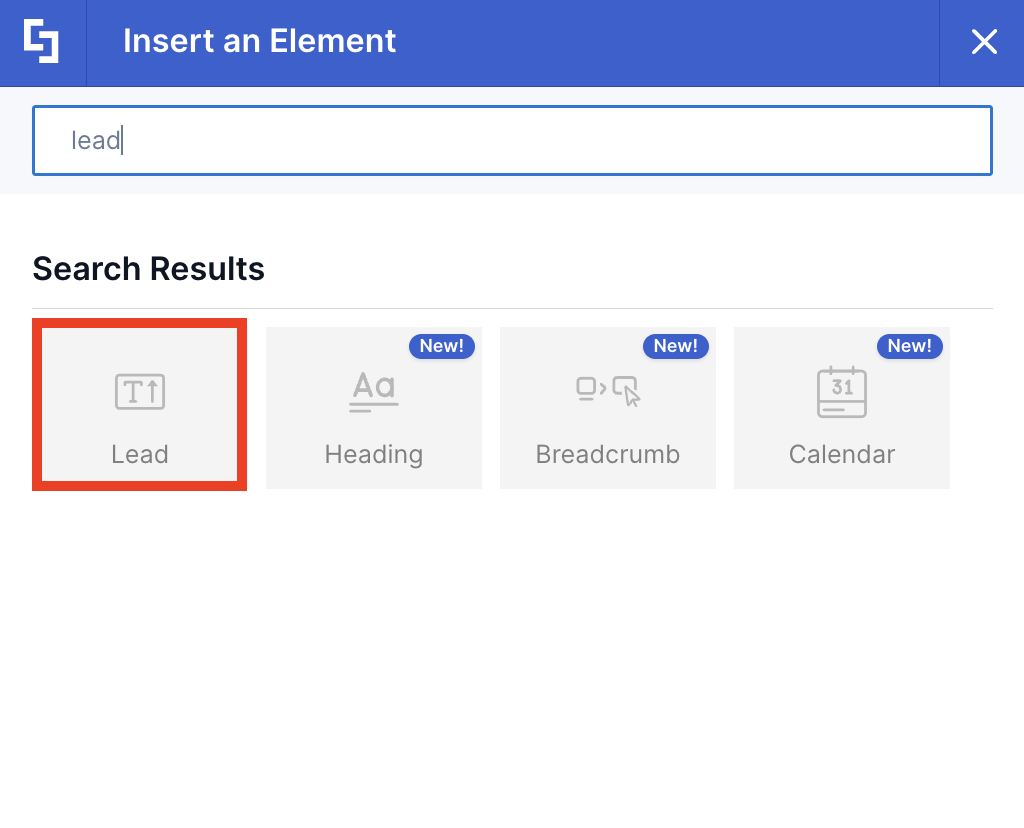
- Use the search box to look for Lead and click it.
Step 3: Add Content
- Add Lead Content.
Step 4: Customize the Lead’s Design
- Navigate to the Design tab.
- Customize the look of the Lead Design Element according to your preference.
- Once done, click the green check mark.
NOTECheck out Lead Features to learn more about the OOTB options you can customize.
Step 5: (Optional) Add Text Design Element
NOTEYou have the option to insert regular Text after your Lead content. Follow along to learn how.
- Click the plus icon.
- Use the search box to look for Text and click it.
- Edit the content and the look of the Text Design Element according to your needs.
- Once satisfied, click the green check mark.
Step 6: Save
- Then, click the eye icon to see your page in real-time.

- Click Save to apply all your changes.

Congratulations! You've successfully changed the text format in SharePoint using the Lead Design Element, creating a clean and readable format that enhances your page's visual appeal and user experience.
Lead Features
Below are the options you can find in the Small Settings window:
A. Content tab
The Content tab allows you to add Lead Content.

B. Design Tab
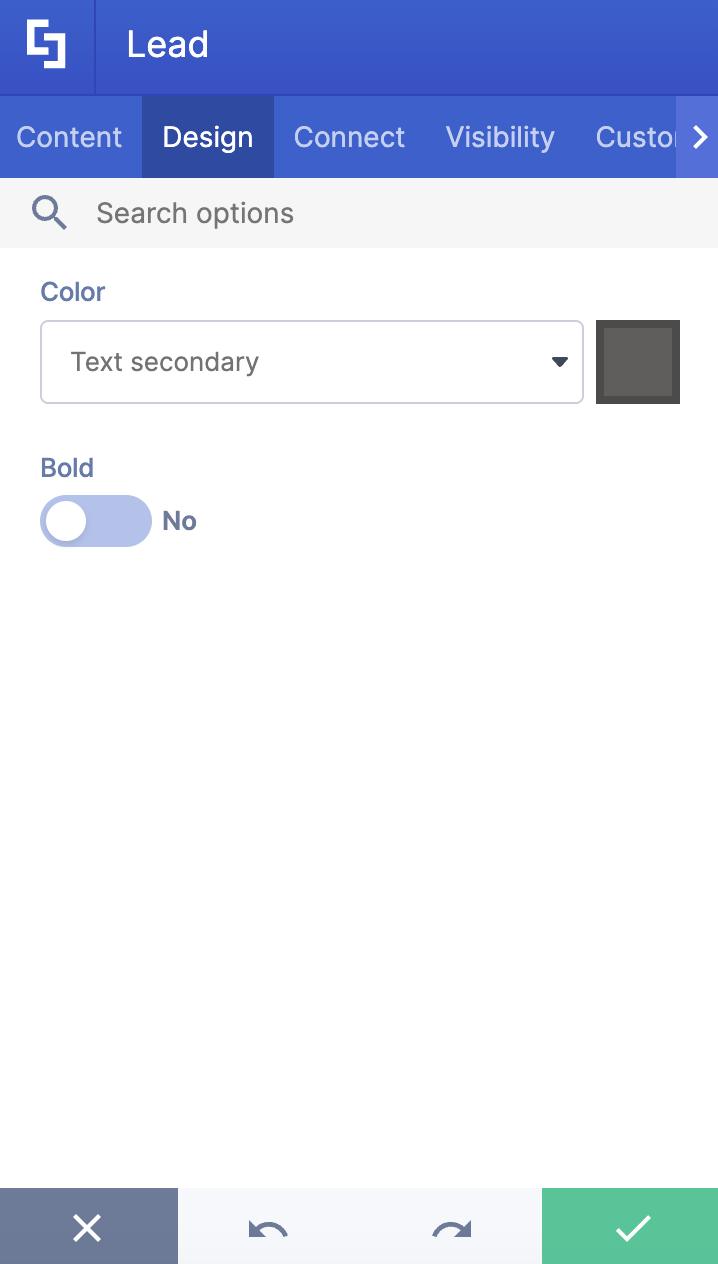
The Design tab allows you to customize the look of the Lead Design Element. Below are the options you can modify:

 | Color | allows you to change the font color of the Lead content. You can do so by [1] writing the HEX code, [2] using the drop-down, or [3] using the color picker. |
 | Bold | when enabled, the text will be in bold style. |
C. Connect Tab
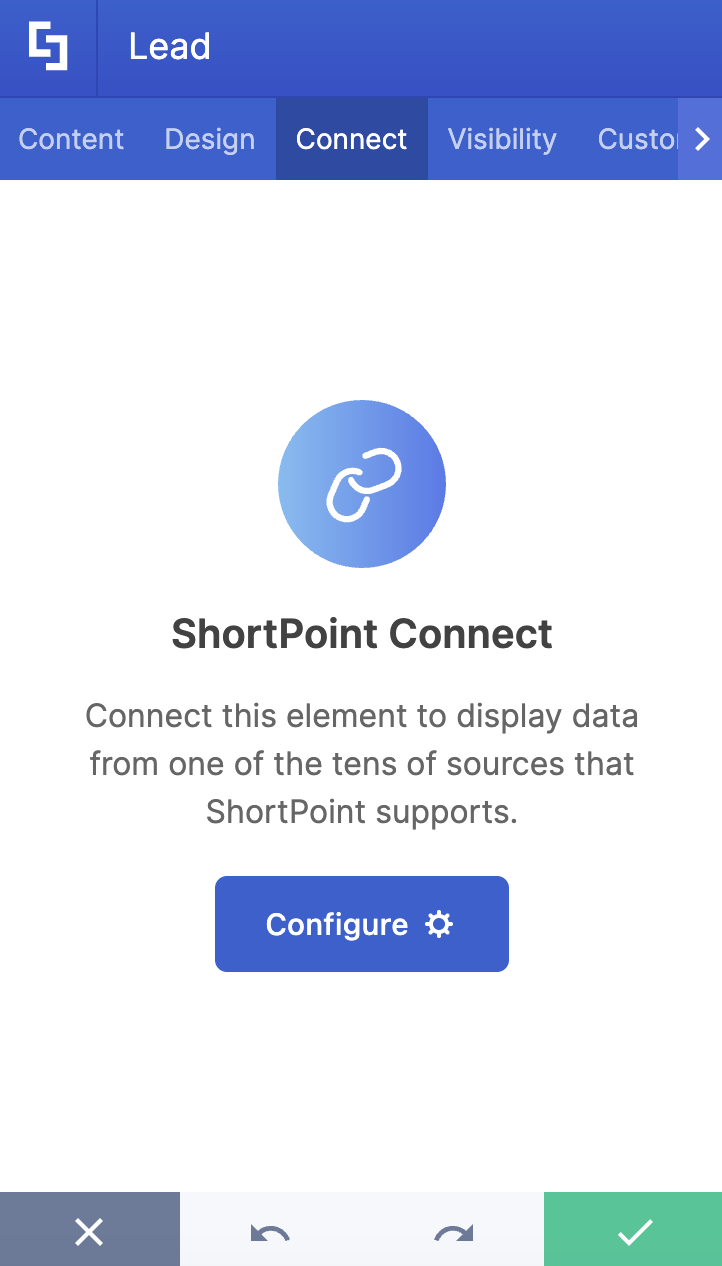
The Connect tab allows you to link the Design Element to SharePoint sources (List, Document Library, News, etc.) and other external sources (Microsoft Graph API, Teams, Outlook, etc.). For more details about ShortPoint Connect, check out Basic Tutorial: How to Establish Seamless SharePoint Connection with ShortPoint Connect.
D. Visibility Tab
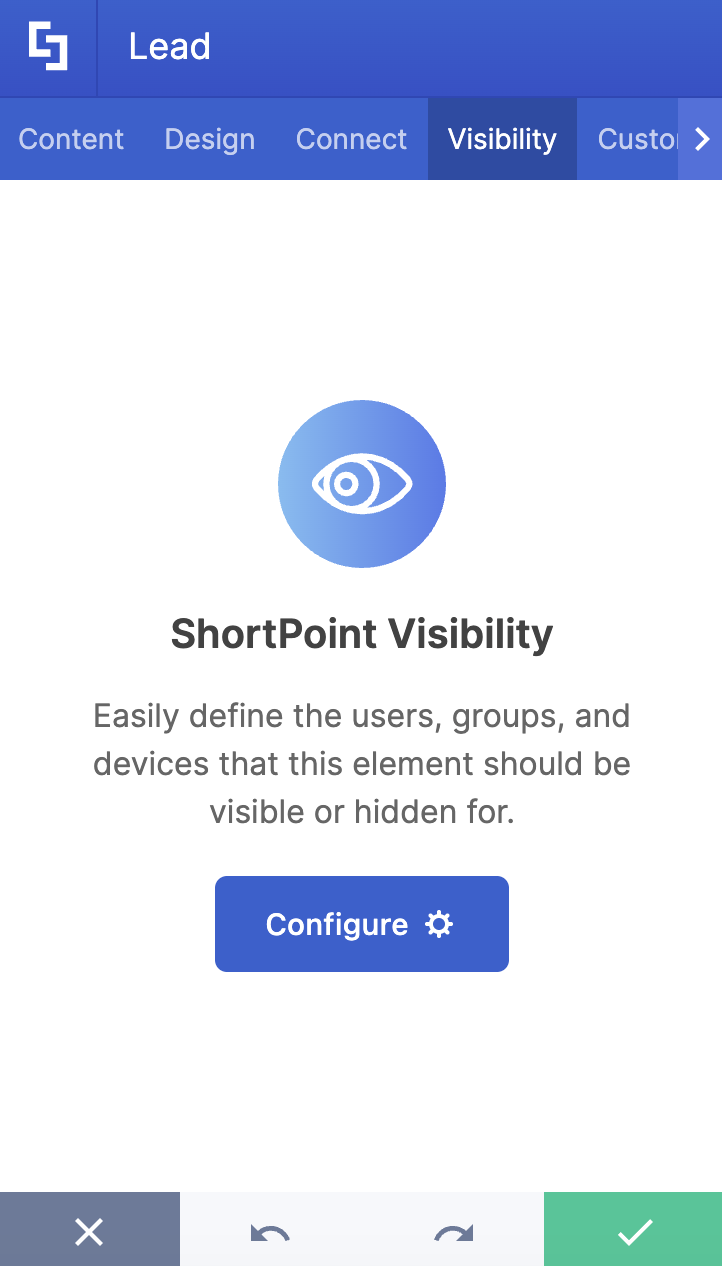
The Visibility tab allows you to specify who can see the Design Element and what type of devices it can be shown on. For more details, check out How to Use the ShortPoint Visibility Feature for Effective SharePoint Access Management.
E. Custom CSS Tab
This tab allows you to use your own CSS, HTML, and JavaScript code to customize the Lead Design Element.
NOTECheck out our support article on How to Insert Custom CSS into a ShortPoint Design Element (Basic Tutorial) to know more about Custom CSS.

4 Practical Use Cases for Your Intranet
How do you actually use the Lead element in a real-world setting? Here are four ways to elevate your pages:
The Perfect Page Opener
Use the Lead element at the very top of a news article or department landing page. By placing your most important introductory sentence here, you provide a clear "hook" that tells readers exactly what the page is about before they dive into the details.
Highlighting Executive Quotes
When sharing a message from your CEO or a department head, standard quotes can sometimes get lost. Use the Lead element to format a powerful statement. The increased size and customizable colors ensure that the "voice" of your leadership is heard loud and clear.
Summarizing Complex Data
If you have a page filled with technical jargon or long lists, use a Lead element at the start of each section to provide a "TL;DR" (Too Long; Didn't Read) summary. This helps busy employees scan the page and find the information they need in seconds.
Call-to-Action (CTA) Precursors
Before you hit users with a "Submit" button or a "Register Now" link, use a Lead element to explain the value of taking that action. A bold, beautifully formatted sentence like "Join over 500 colleagues in our annual wellness challenge" creates much more impact than a simple text label.
Start Designing with the Lead Design Element
Turn your boring text formats into something that stands out with the Lead Design Element. Whether you're aiming to create a perfect page opener or summarize complex data, it's the best Design Element to use.
Ready to give your SharePoint pages a professional edge? If you're already a ShortPoint Designer, great news, you can just follow the interactive tutorial and get started.
If you're not yet a ShortPoint Designer, we're happy to give you a tour. You can get a FREE 15-day trial with us or schedule a one-on-one demo with our expert. We look forward to having you with us!
Frequently Asked Questions
How do I change the color of the Lead text?
It’s easy! When editing the Lead element in the ShortPoint Page Builder, go to the Design tab. There, you’ll find color options where you can pick from your brand palette, use a color picker, or enter a specific Hex code to customize the text format and ensure it matches your website style perfectly.
Can I use the Lead element inside other elements like Rows or Columns?
Absolutely. The Lead element is highly flexible. You can drop it into any column or section to create a structured, professional layout with clean text formatting that improves readability and user experience.
Does the Lead element support dynamic content?
Yes! Like most ShortPoint elements, you can use the Connect feature to pull text dynamically from SharePoint lists or other data sources. This is great for displaying "Message of the Day" updates automatically, ensuring your content is always fresh and present.
What is the difference between the "Lead" element and the standard "Text" element?
While the Text element is your "workhorse" for general paragraphs, the Lead element is specifically tuned for emphasis. It defaults to a larger font size and optimized line spacing, saving you the time of manually styling introductory text every time and helping you automate consistent rich text formatting.
Related articles:
