 Try ShortPoint now
SharePoint pages often contain thousands of data points, resulting in lengthy lists of information. For example, you might have an Image List displaying all your employees, a File List containing all your documents, or a Date List showing all your company events:
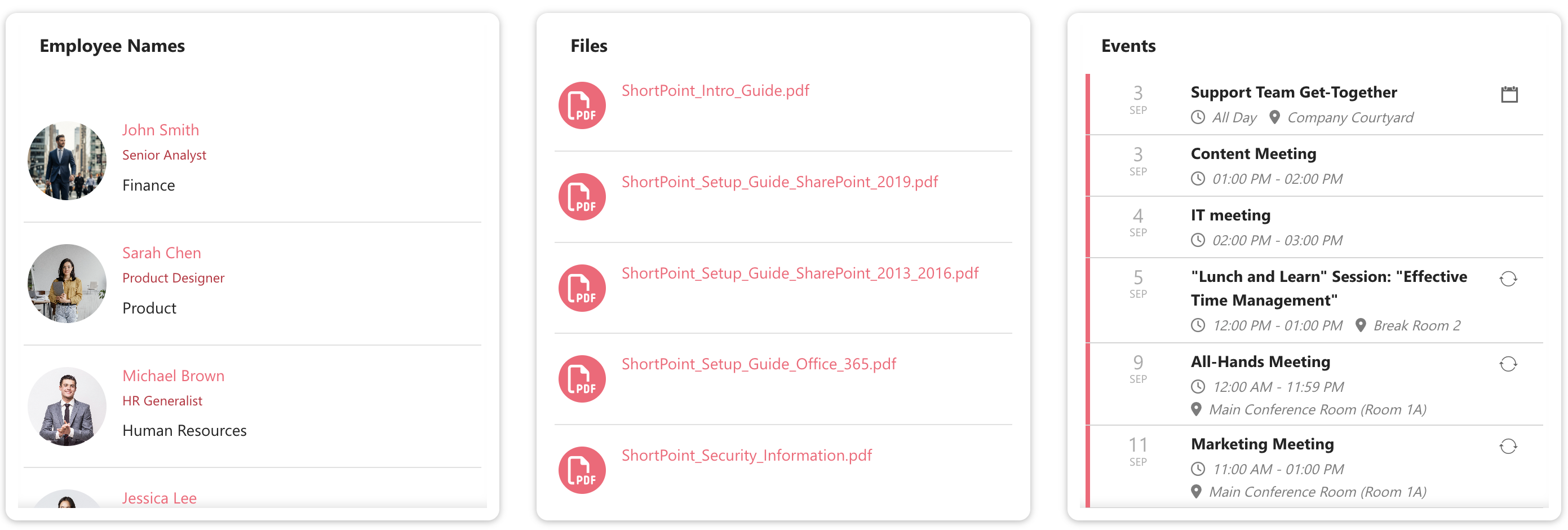
But when you have tons of information on your page, finding exactly what you need can feel like another time-consuming task. That's where ShortPoint's awesome Search & Filter Toolbar comes in!
This handy tool lets you add Search, Filter, Sort, Pagination, Tabs, and Date Filter widgets to your Design Elements, making it so much easier for everyone to find exactly what they're looking for. No more endless scrolling or frustrating searches. Instead, your users will experience quick and effortless navigation that they will absolutely love.
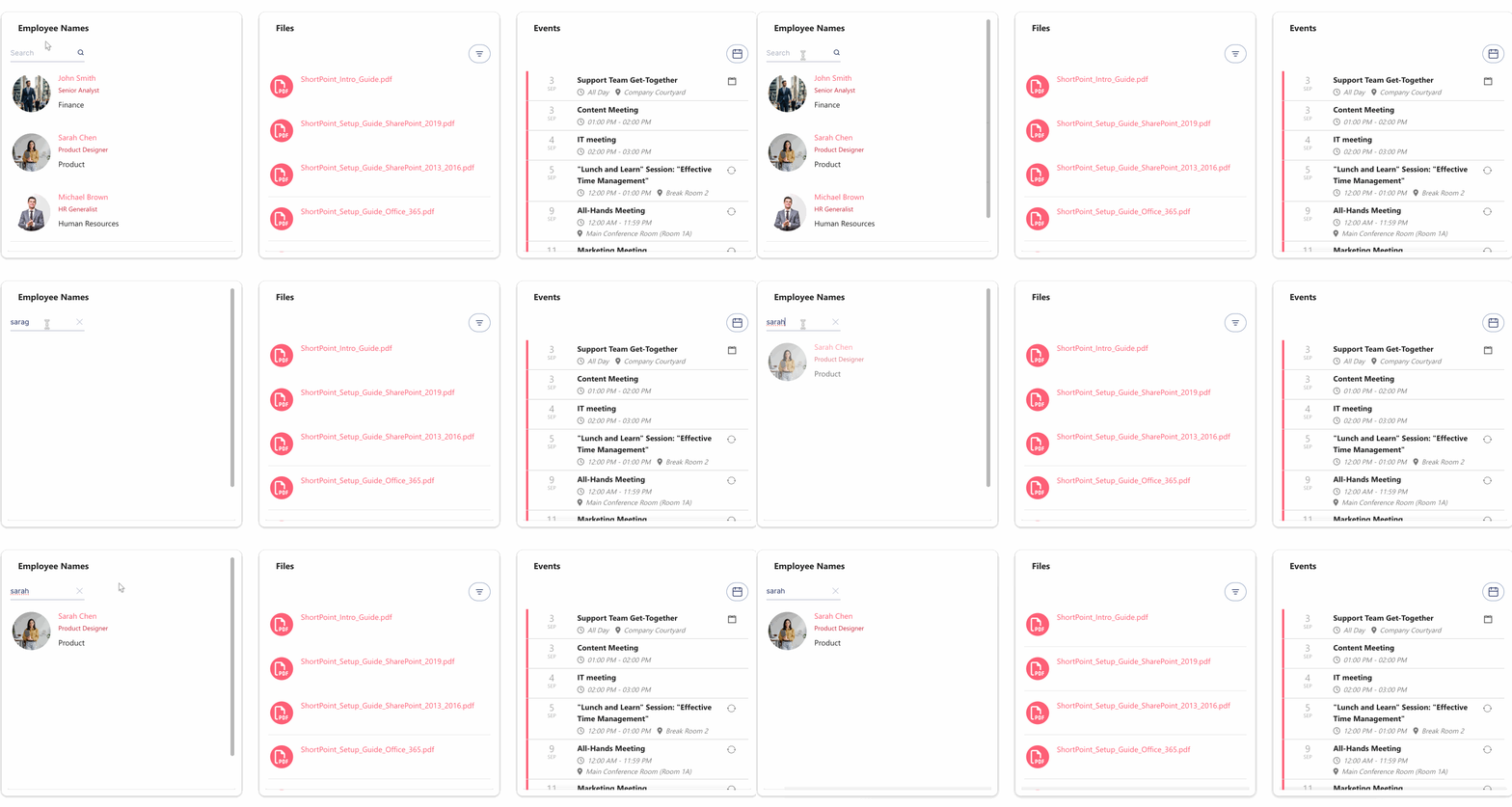
TABLE OF CONTENTS
- Prerequisites
- Video Tutorial
- What is the Search & Filter Toolbar?
- Search & Filter Toolbar Widgets
- Activating Multiple Search & Filter Toolbar Widgets
- Deactivating Search & Filter Toolbar Widgets
- Adding Metadata
Prerequisites
- To access the Search & Filter Toolbar, you must have ShortPoint version 8.8.2.0 or above installed on your SharePoint environment.
- You must be a ShortPoint Designer with an active license.
Video Tutorial
Watch the video below to get an overview of the Search & Filter Toolbar:
What is the Search & Filter Toolbar?
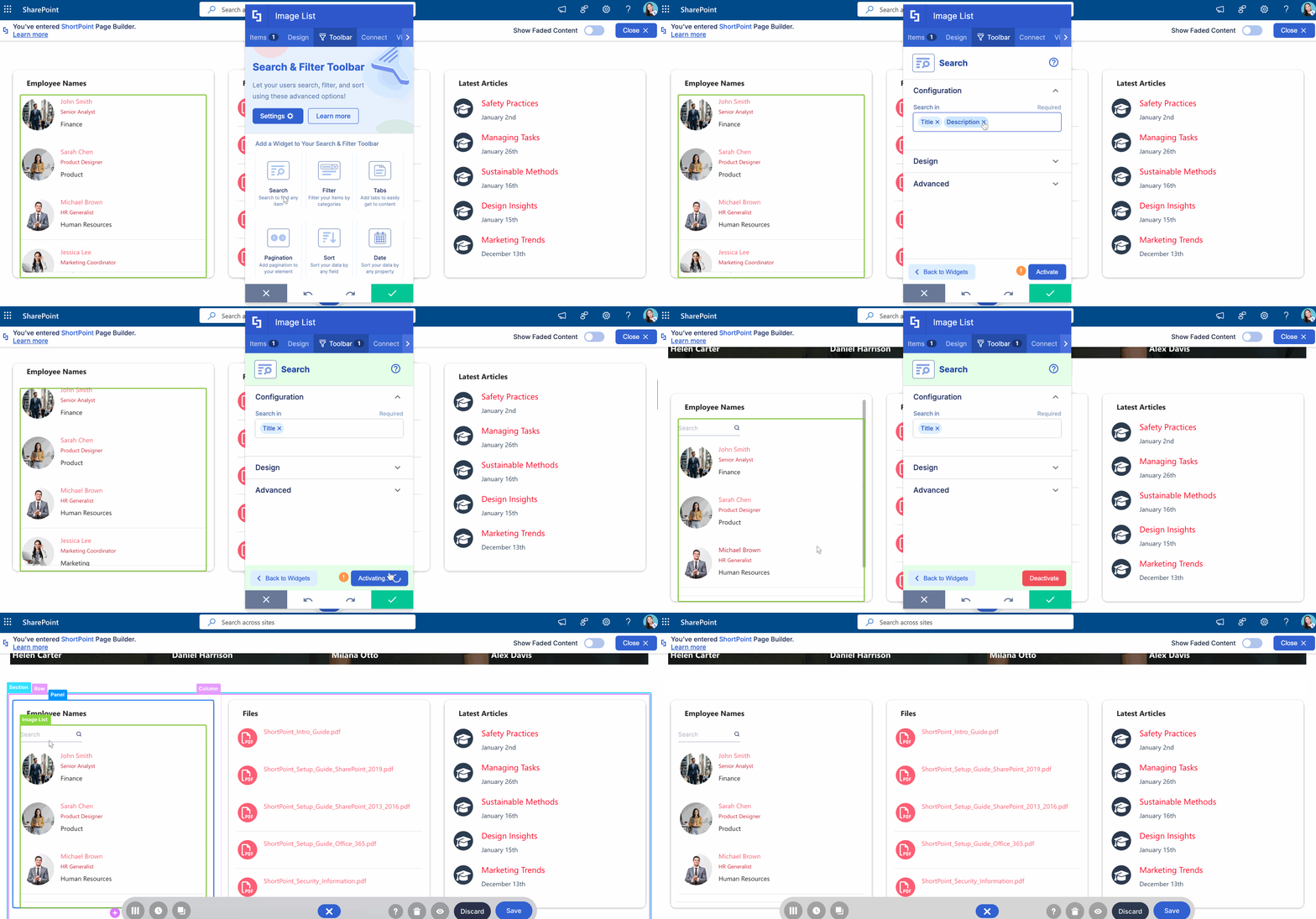
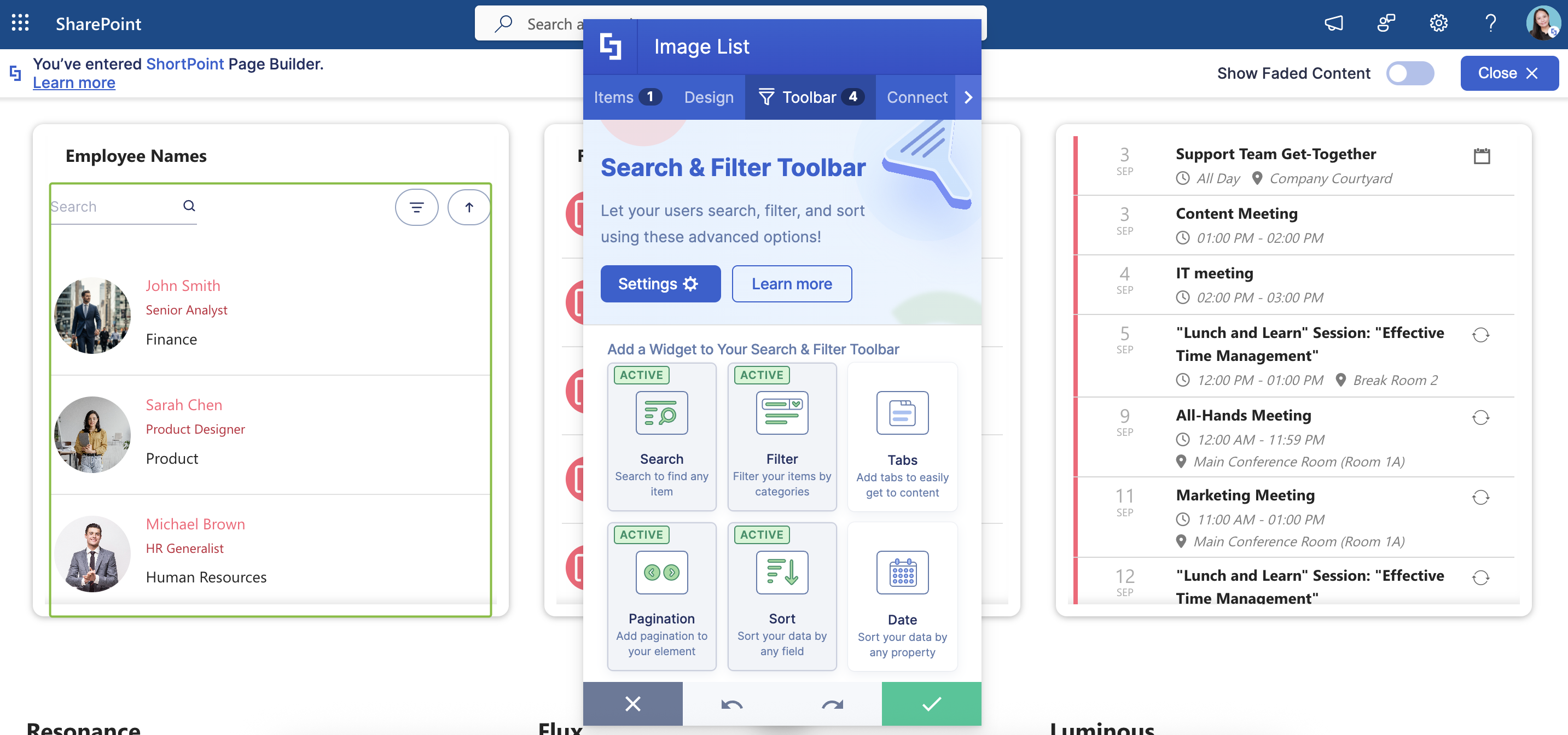
The Search & Filter Toolbar is a new ShortPoint feature that lets you add widgets (Sort, Filter, Search, Tabs, Pagination, and Date Filter) to selected ShortPoint Design Elements. These widgets enable users to find the information they need on your page easily.
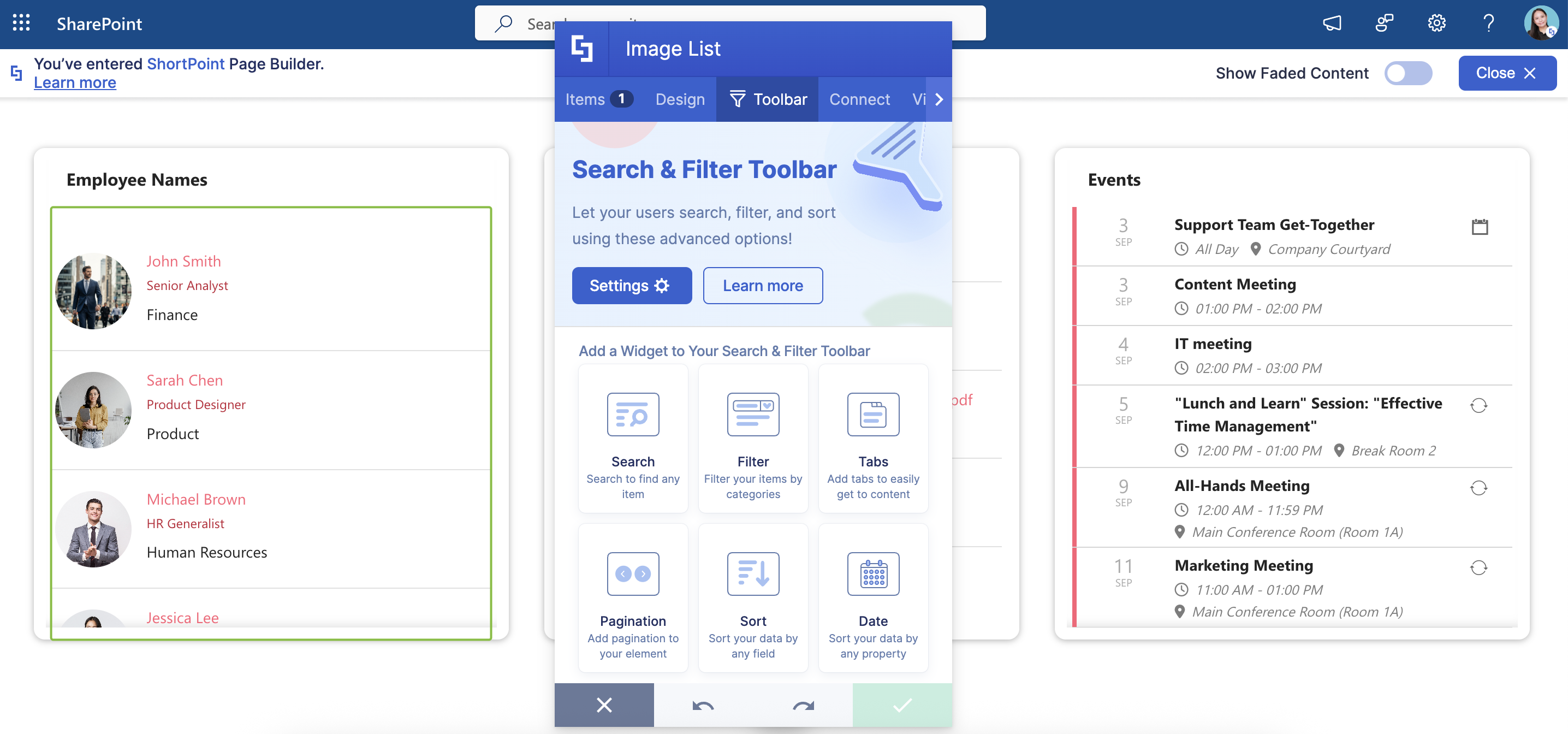
The Search & Filter Toolbar is currently only available for these Design Elements: Date List, File List, Icon List, Image List, Events, Image Titles, Simple List, Tiles, Tabs, Toggles, Accordions, Icon Boxes, Quick Links, FAQs, News Cards, and Person Cards. To access it:
- Click the Easy Pass tag of your chosen Design Element.
- Select the cogwheel icon to open the Settings window.
- Navigate to the Toolbar tab.
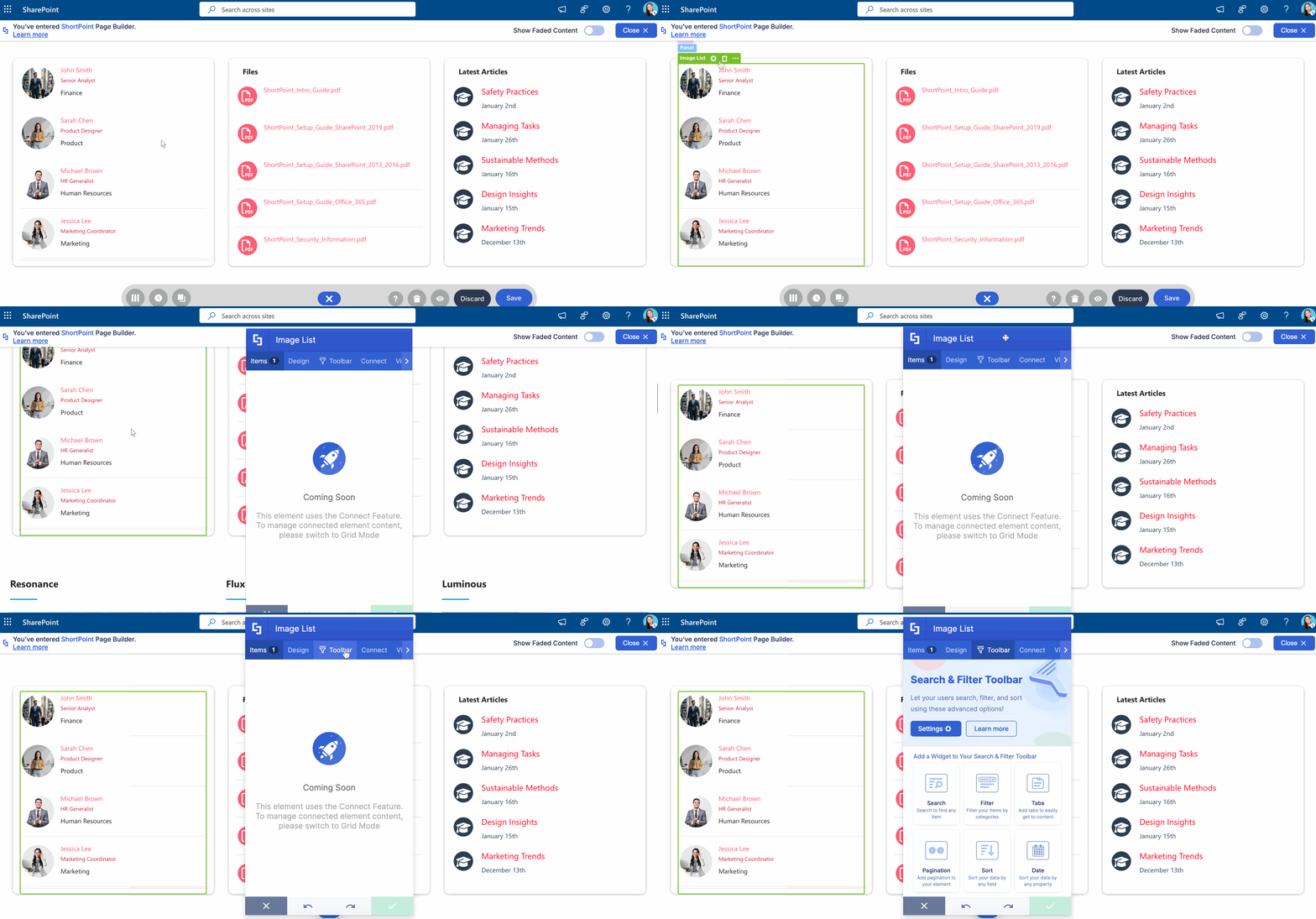
In the Toolbar tab, you'll see all available widgets. To add a widget:
- Click the widget you want to use.
- Customize it to your liking.
- Select Activate.
- Click the green check mark.
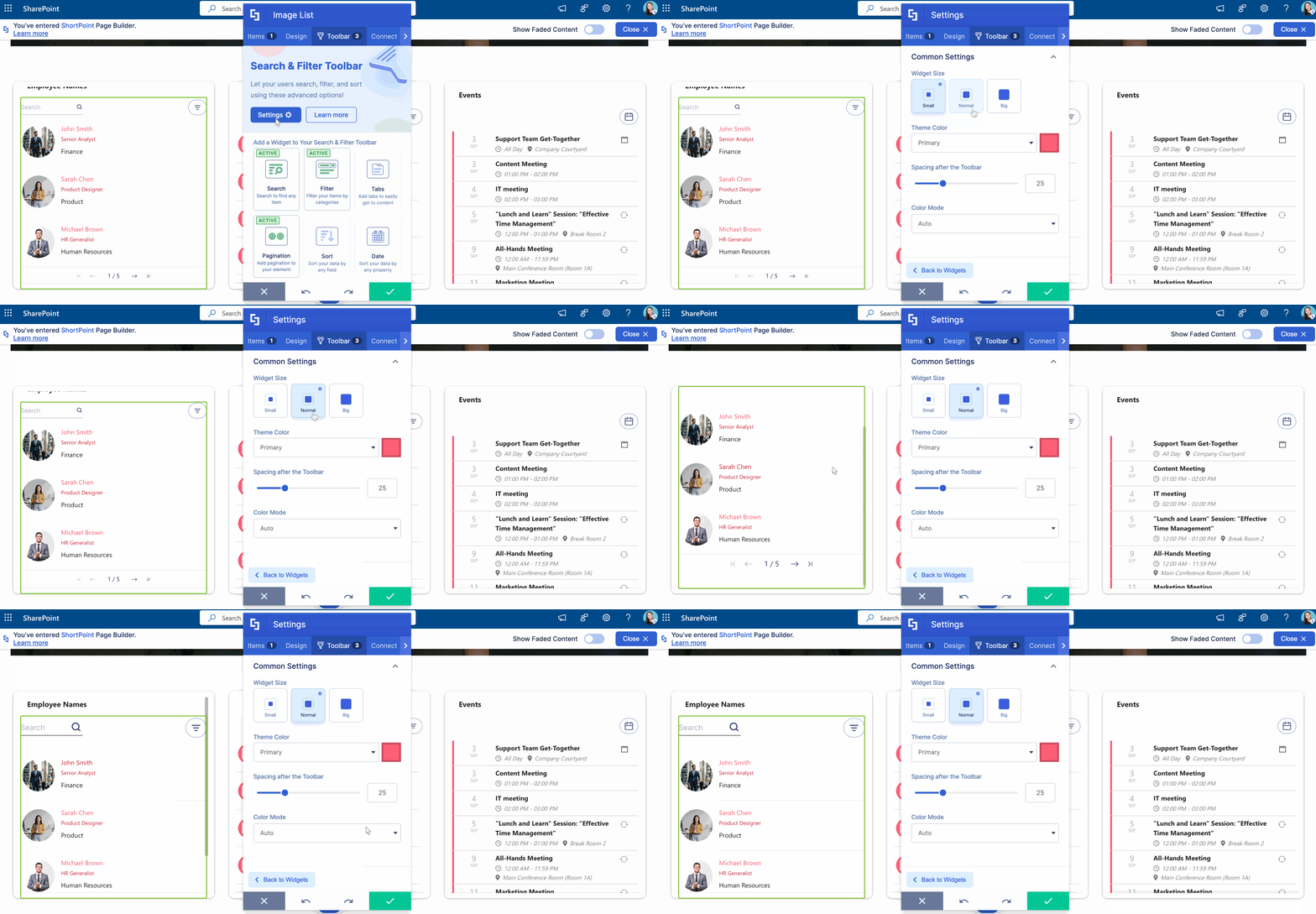
Additionally, the Search & Filter Toolbar features a Settings button that allows you to further customize the widgets’ appearance. You can change the size, theme color, spacing, and color mode of active widgets. To learn more about it, check out How to Use Settings to Customize the Look of Active Search & Filter Toolbar Widgets.
If you don't have access to the Search & Filter Toolbar yet, make sure that you have upgraded to the latest ShortPoint SPFx version. The Search & Filter Toolbar is available for ShortPoint Designers with ShortPoint SPFx version 8.5.0.0 and above.
Search & Filter Toolbar Widgets
Here are all the widgets you can use to search, filter, and sort your data:
Search
The Search widget is a handy little widget that adds a search bar to your Design Element. It makes it super easy for your users to quickly find what they're looking for within your content. For example, instead of scrolling through a long list, someone could simply type "Sarah" and find that specific entry in seconds.
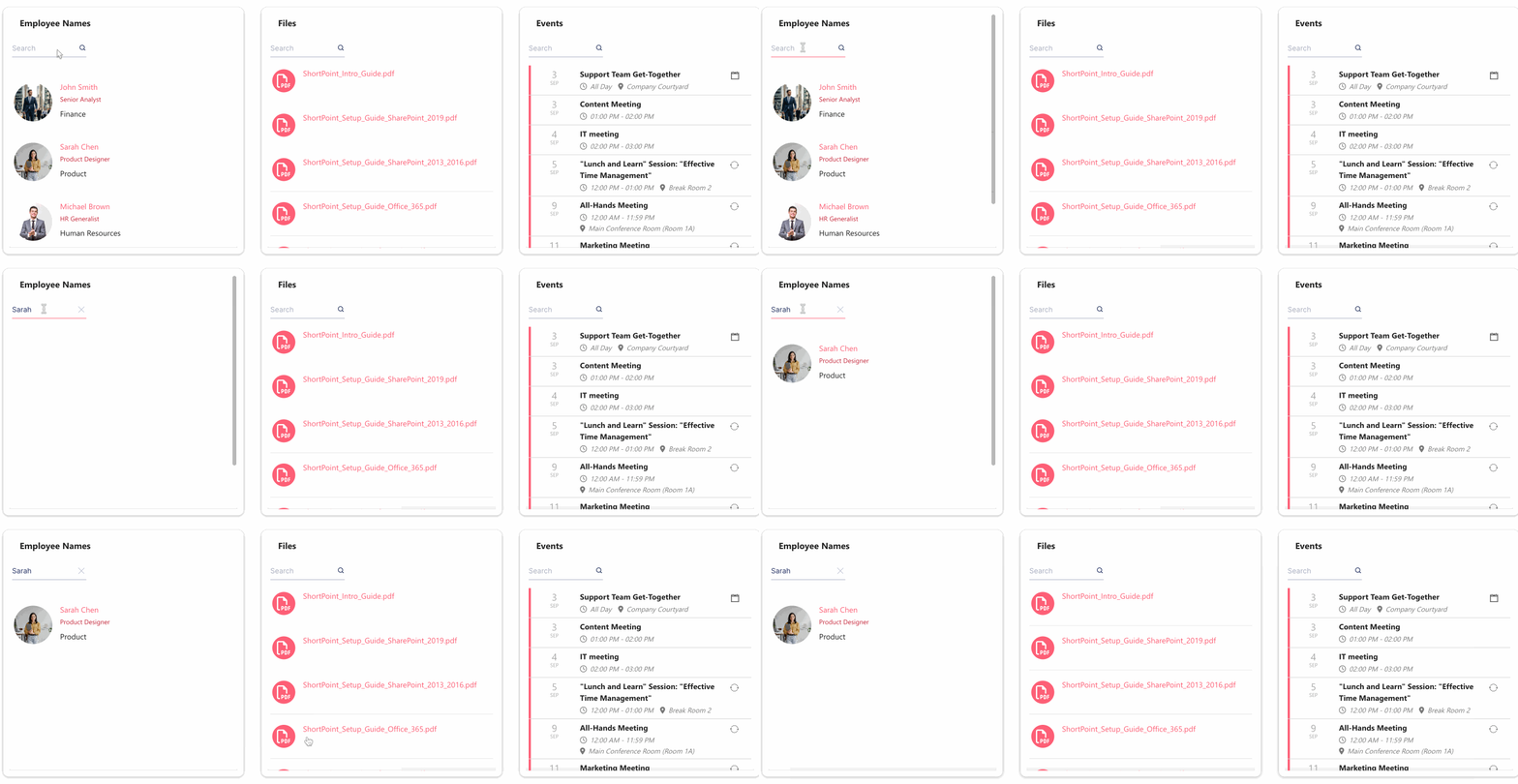
To learn more about the features you can customize using the Search widget, check out How to Search on SharePoint using the Search Widget.
Filtration
The Filtration / Filter widget is a great way to help your users organize and find content quickly. It adds customizable filters to your Design Elements based on the properties you've set up (like Titles, Subtitles, Descriptions, and more).
Here's a simple example: Let's say you have an Image List showing your team members, with employee names as titles, job titles as subtitles, and departments as descriptions. You can create a filter for those departments, making it super easy for visitors to sort through your team by their different departments. It's like having a smart organizing system that does all the work for your users.
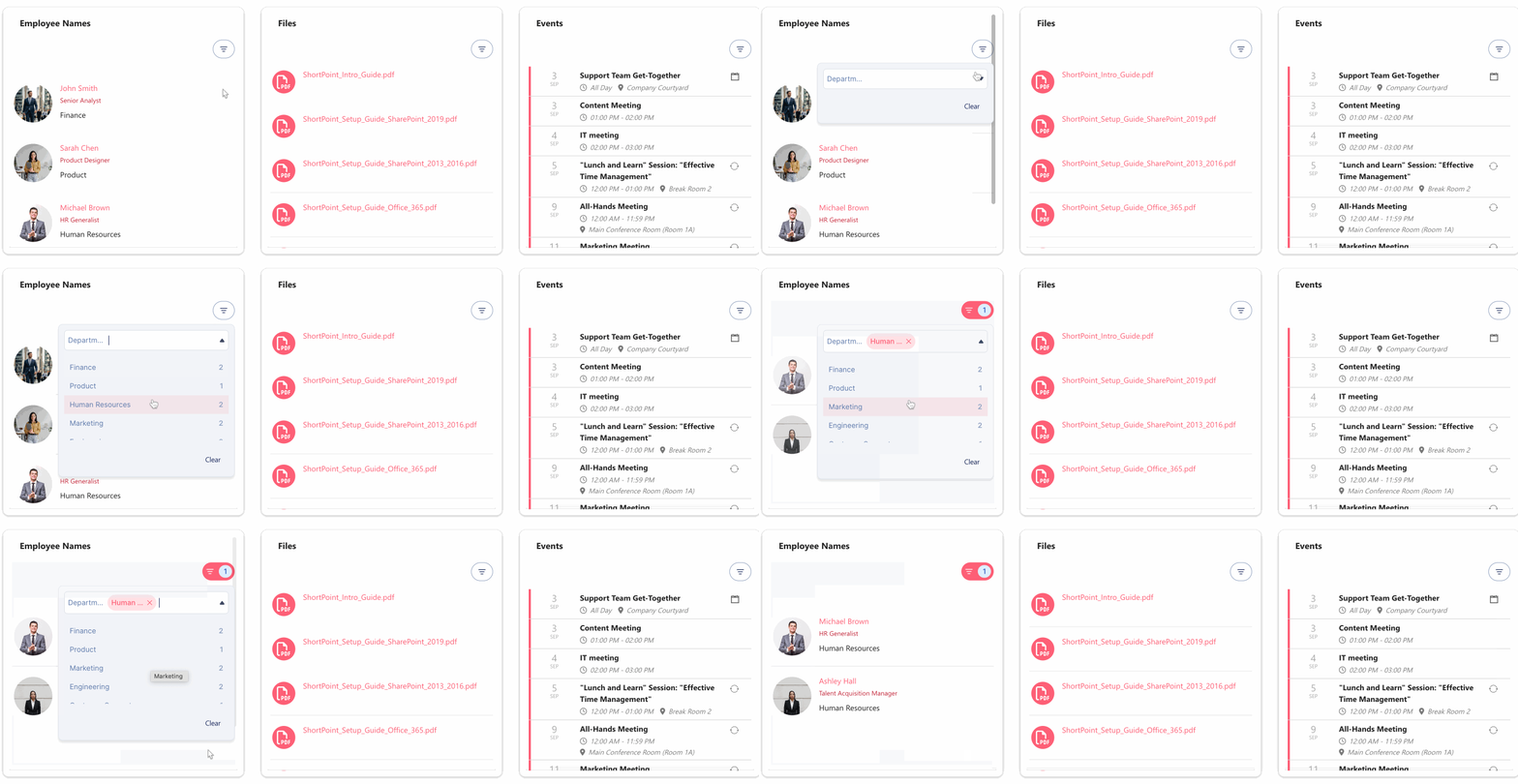
To learn more about the features you can customize using the Filter widget, check out How to Add a SharePoint List Filter Using the Filter Widget.
Sort
The Sort Widget makes organizing your content a breeze! It lets you arrange everything in either ascending or descending order based on any of your Design Element properties – whether that's Title, Subtitle, Description, or anything else you've set up.
In our example, we sorted by title in descending order. It's a simple way to keep your content organized exactly how you and your users need it.
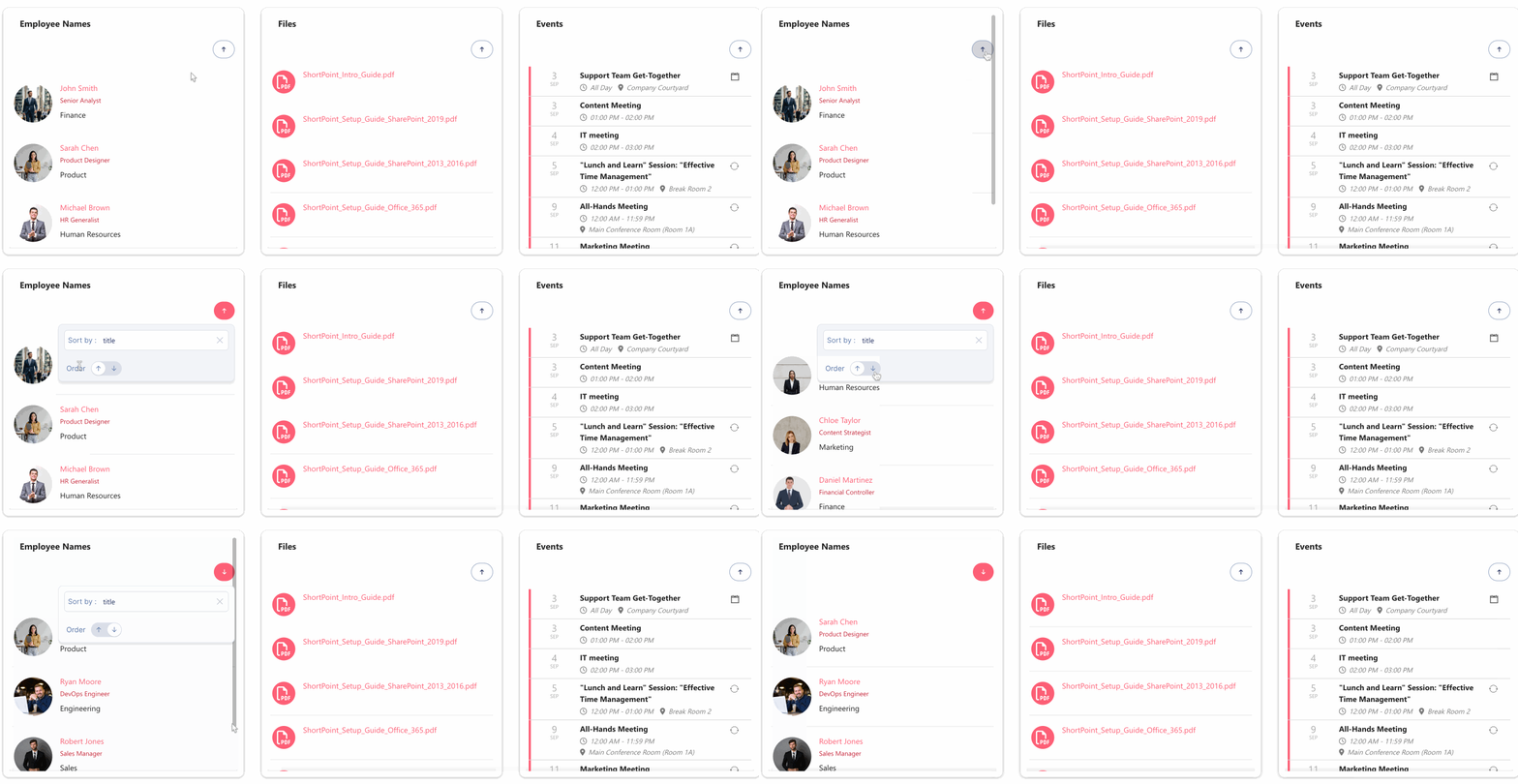
To learn more about the features you can customize using the Sort widget, check out How to Use the Sort Widget to Implement Content Management with SharePoint.
Tabs
The Tabs widget is a fantastic way to keep your content neat and organized. It adds handy tabs to your Design Element, automatically sorting your content into different categories based on whatever properties you choose.
In our example, we used the employees' departments (which were stored as descriptions) to create the tabs. This way, visitors can easily click between different departments to find exactly who they're looking for. It's like having a well-organized filing system that's super easy to navigate
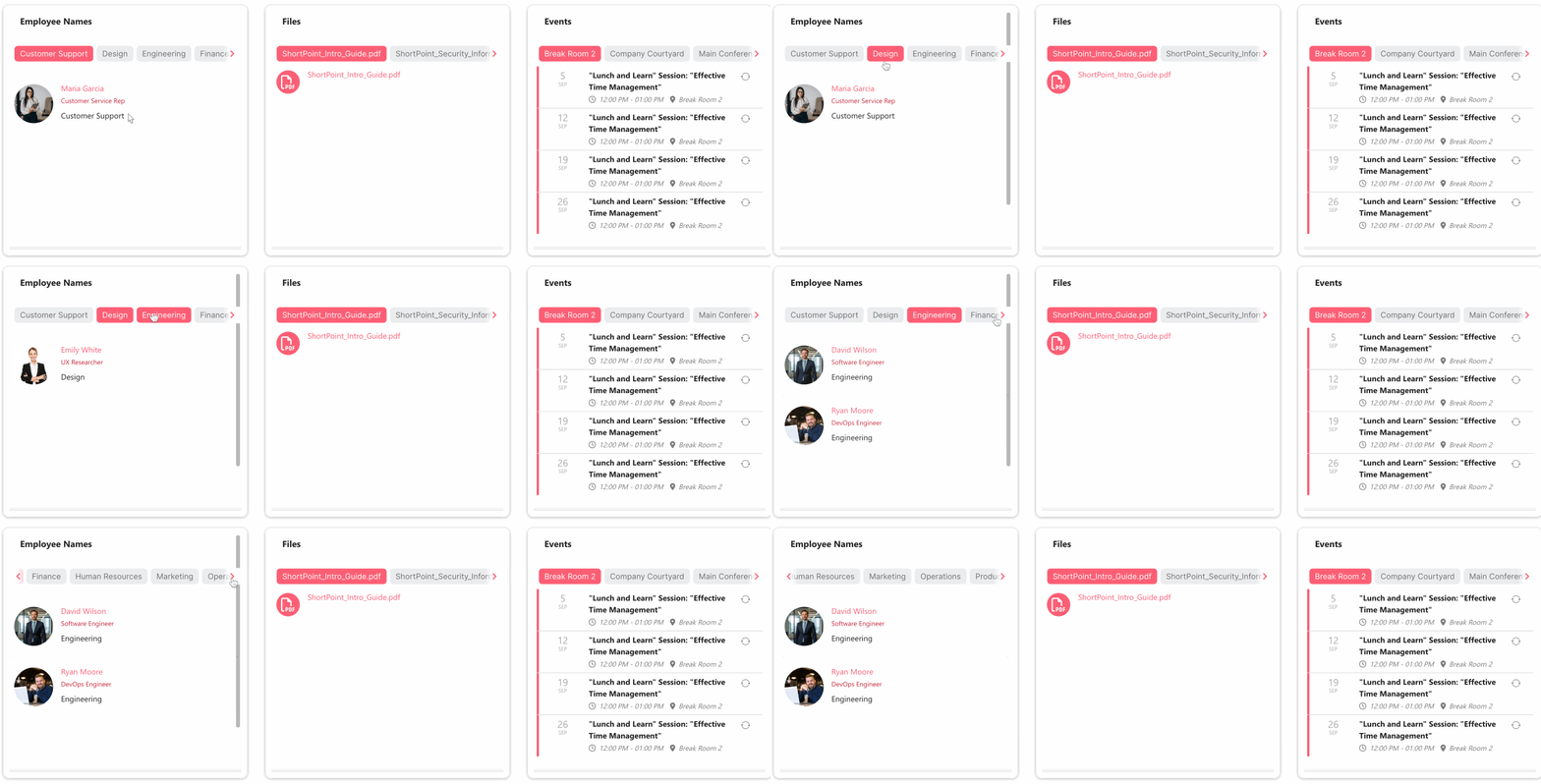
To learn more about the features you can customize using the Tabs widget, check out How to Create Tabs in SharePoint Using the Tabs Widget.
Pagination
The Pagination widget is perfect when you have lots of content to display. It lets you decide how many items to show at once, which is super helpful for keeping your pages clean and easy to navigate. Instead of overwhelming visitors with everything at once, they can browse through your content at their own pace.
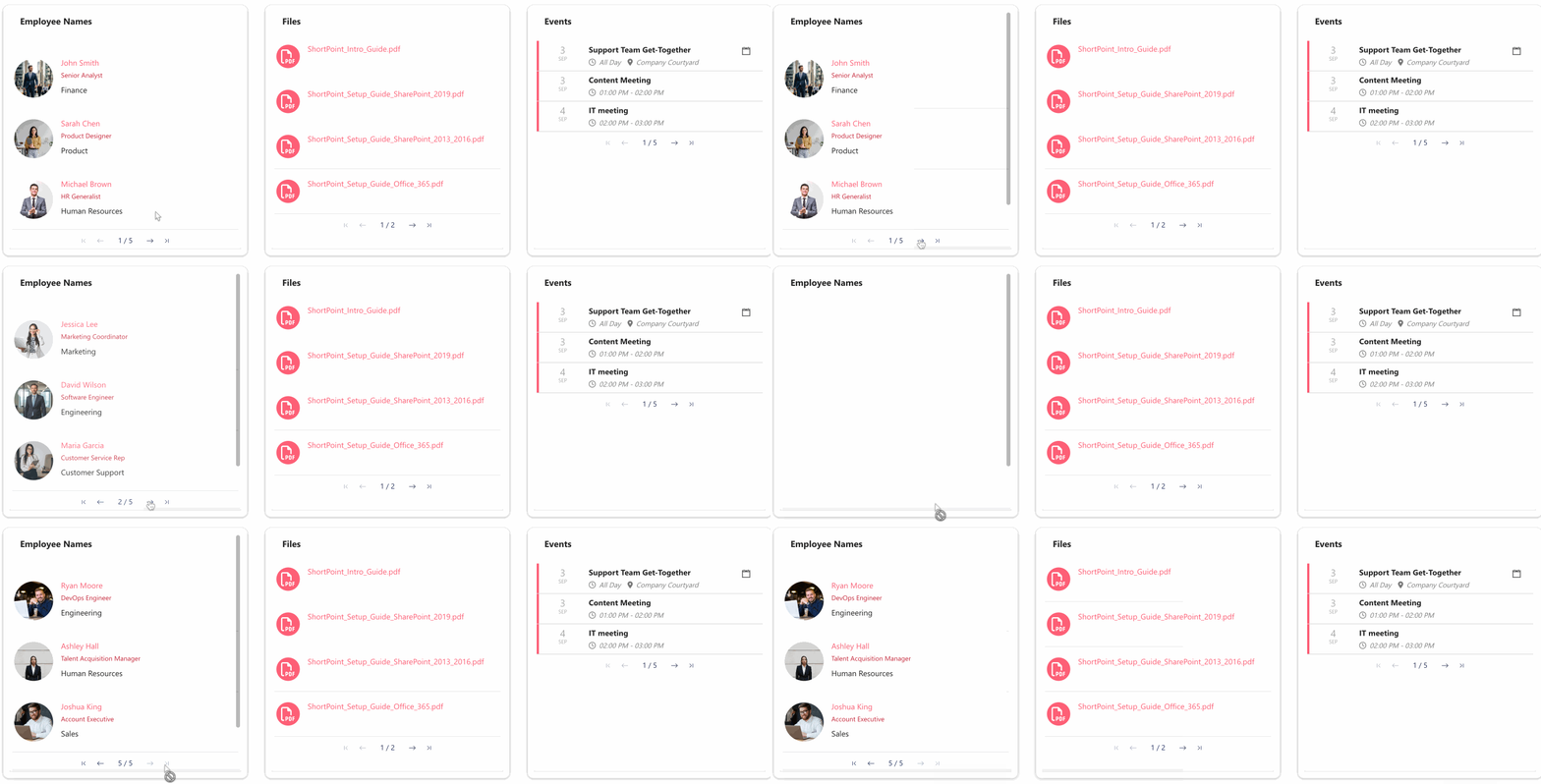
To learn more about the features you can customize using the Pagination widget, check out How to Apply SharePoint List Indexing Using the Pagination Widget.
Date Filter
The Date Filter widget is absolutely perfect for keeping your content organized by date. It lets you filter through all your data with ease, so whether you're looking for what's happening this week, next month, or any specific time period, you can find exactly what you need in just a few clicks
NOTEFor static Design Elements, you can only use the Date Filter widget for the Date List and Events Design Elements. For connected Design Elements, you can only use it for the following Design Elements: Image List, Date List, File List, Icon List, Events, Image Titles, Simple List, or Tiles.
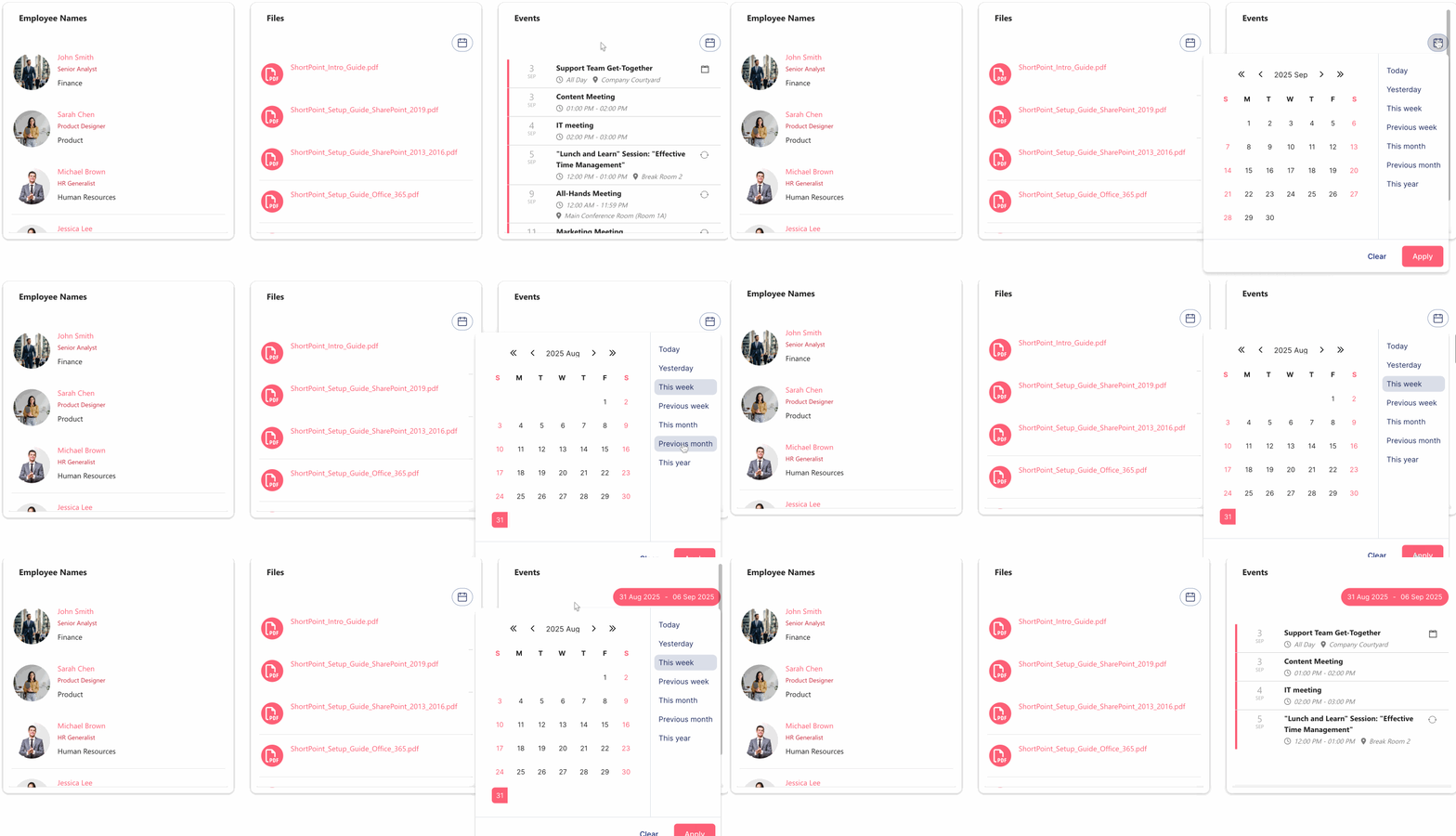
To learn more about the features you can customize using the Date Filter widget, check out How to Filter SharePoint List by Date Range Using the Date Filter Widget.
That's it! You now know the basics of the Search & Filter Toolbar. You can now use all these amazing widgets to improve the organization of data on your SharePoint pages.
Activating Multiple Search & Filter Toolbar Widgets
You can activate multiple Search & Filter Toolbar Widgets for a Design Element. For more details about this, check out How to Activate Multiple Search & Filter Toolbar Widgets.
Deactivating Search & Filter Toolbar Widgets
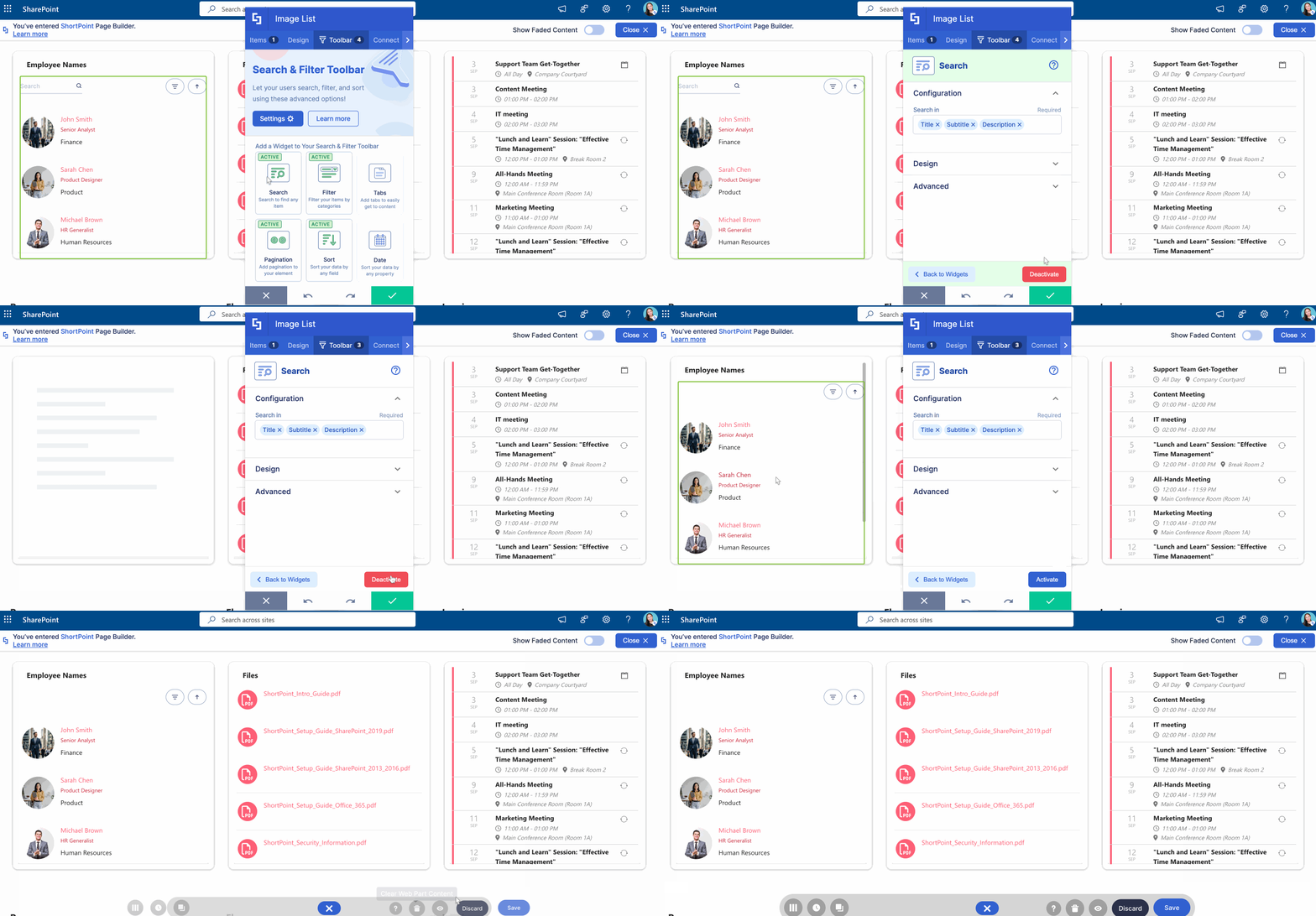
To deactivate active Search & Filter Toolbar Widgets, you can simply click the Deactivate button. For more details, check out How to Deactivate Active Search & Filter Toolbar Widgets.
Adding Metadata
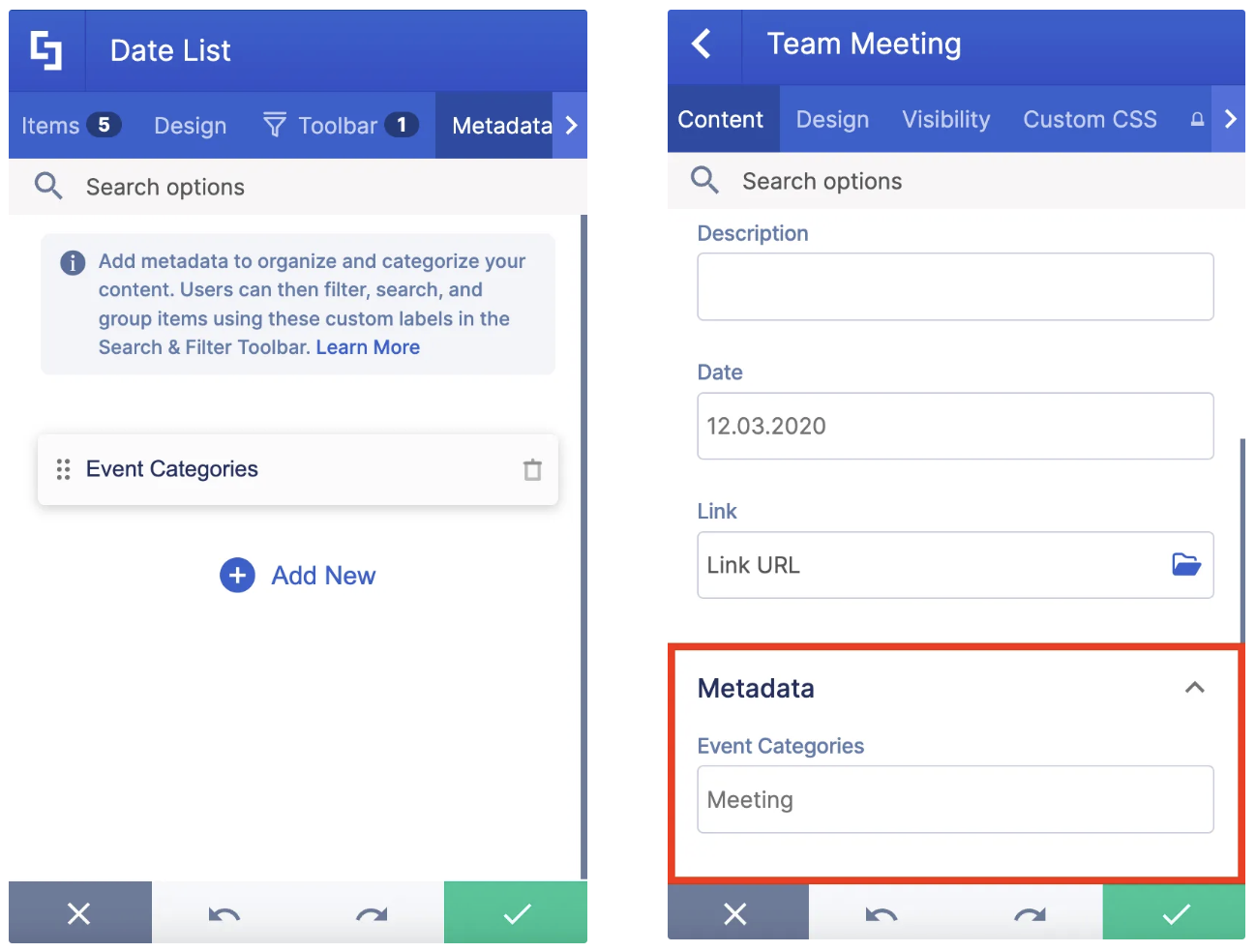
Starting with ShortPoint SPFx version 8.5.4.0 or later, you can add Metadata to your content. This is extremely useful for organizing and sorting Design Elements that require grouping logic. For more information, check out How to Add SharePoint Metadata Tags to Organize Content.
Related articles:
- Search & Filter Toolbar: How to Use the Search Widget
- Search & Filter Toolbar: How to Use the Filter Widget
- Search & Filter Toolbar: How to Use the Sort Widget
- Search & Filter Toolbar: How to Use the Tabs Widget
- Search & Filter Toolbar: How to Use the Pagination Widget
- Search & Filter Toolbar: How to Use the Date Filter Widget
- How to Activate Multiple Search & Filter Toolbar Widgets
- How to Deactivate Active Search & Filter Toolbar Widgets
