 Try ShortPoint now
This article will demonstrate how to activate multiple Search & Filter Toolbar widgets:
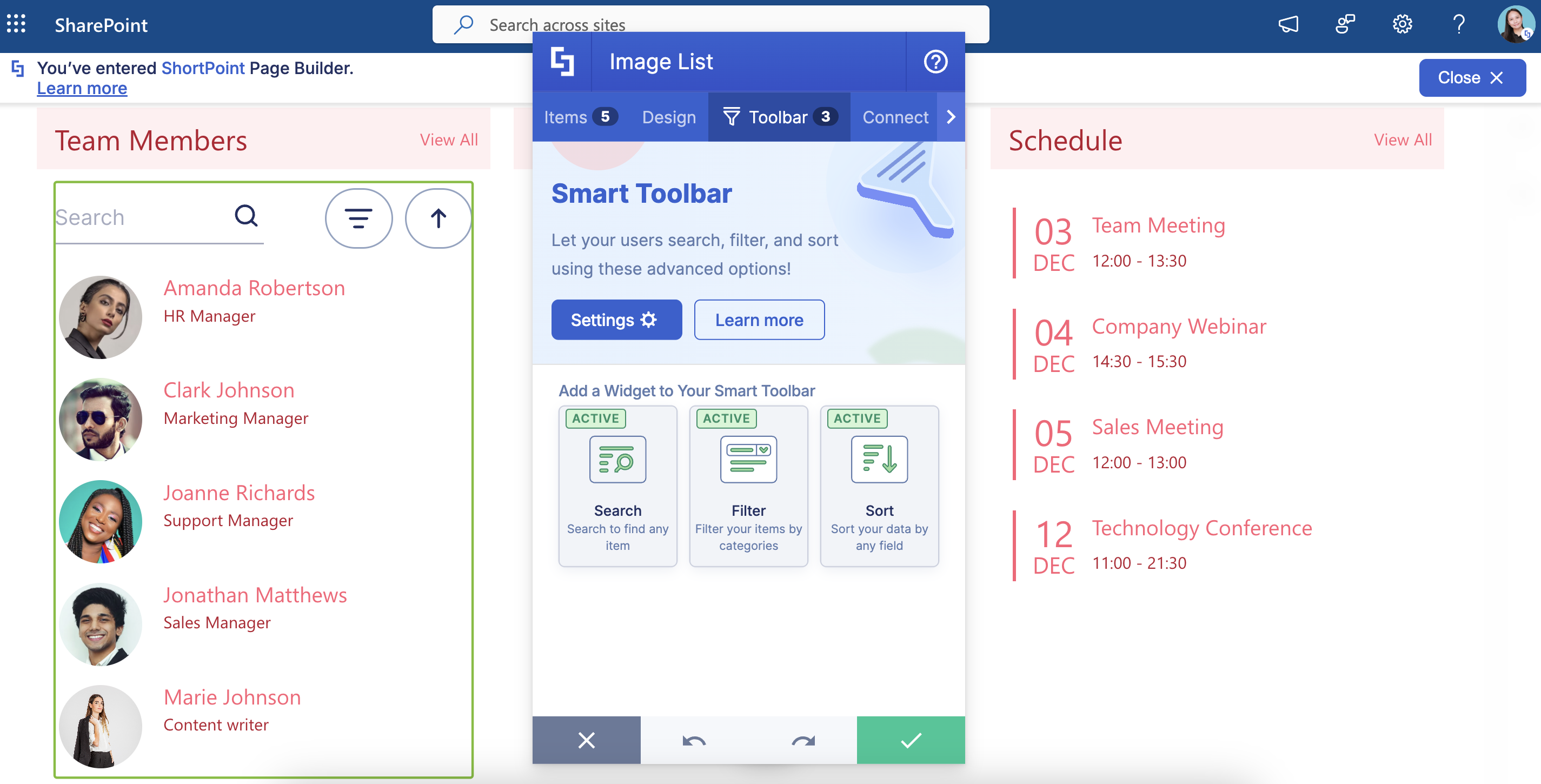
NOTEYou can only add Search & Filter Toolbar widgets to the following Design Elements: Image List, Date List, File List, Icon List, Events, Image Titles, Simple List, Tiles, Tabs, Toggles, Accordions, Icon Boxes, Quick Links, FAQs, News Cards, or Person Cards.
TABLE OF CONTENTS
Prerequisites
- You must have ShortPoint version 8.8.2.0 and above installed on your SharePoint environment.
- You must be a ShortPoint Designer with an active license.
- You must already have any of these Design Elements on your page: Image List, Date List, File List, Icon List, Events, Image Titles, Simple List, or Tiles.
Interactive Tutorial
Click Get Started to activate multiple widgets:
Step-by-step Tutorial
Follow the detailed guide below to activate multiple widgets:
Step 1: Edit the ShortPoint Web Part
- Go to the SharePoint page you want to use and click Edit:

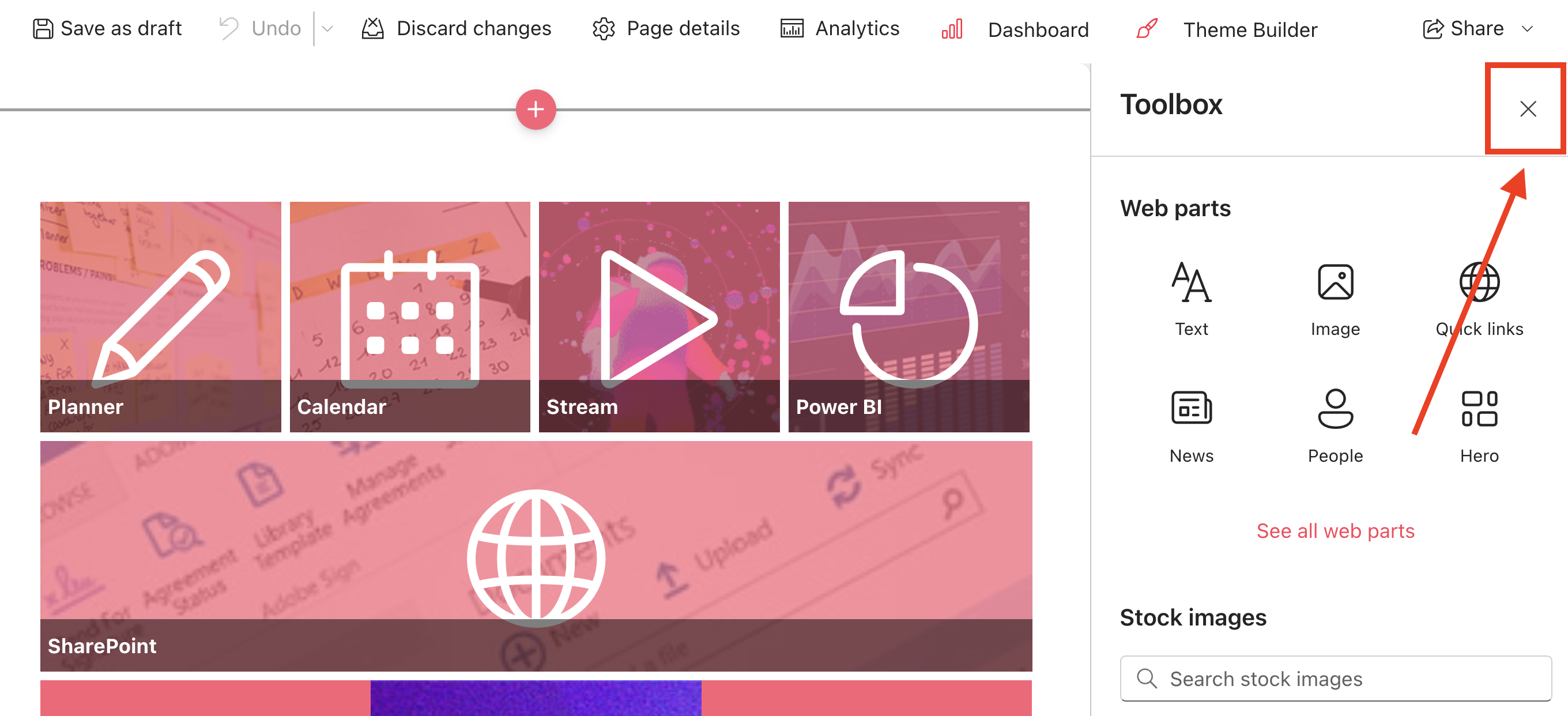
- Click the close icon to close the Toolbox:
- Click the ShortPoint tag.
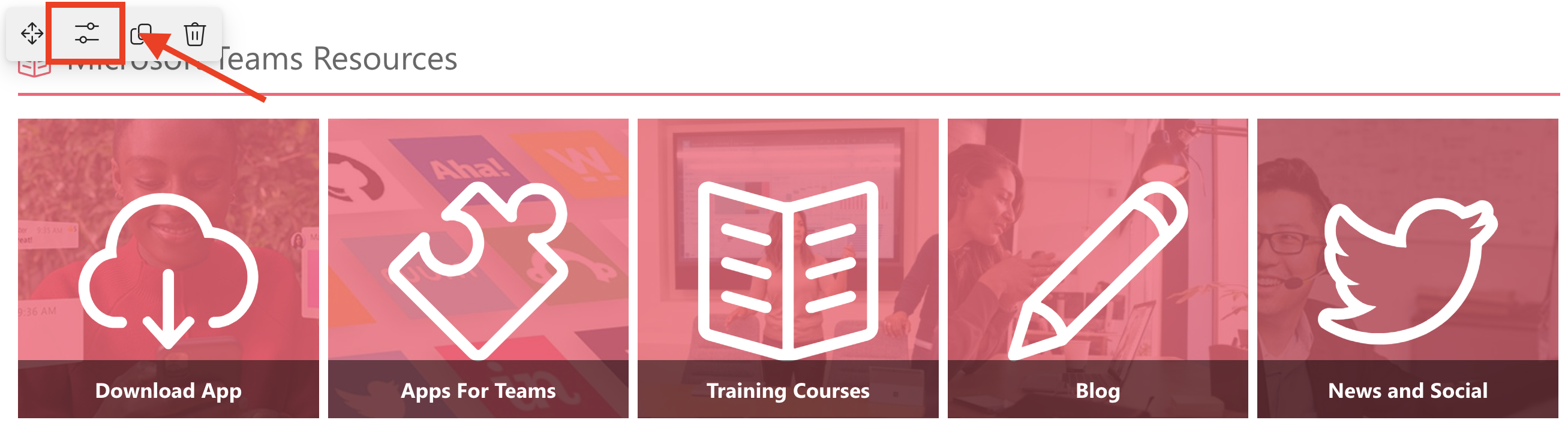
- Select the Edit properties icon:
Step 2: Edit the Design Element
NOTEYou must already have any of these Design Elements on your page: Image List, Date List, File List, Icon List, Events, Image Titles, Simple List, Tiles, Tabs, Toggles, Accordions, Icon Boxes, Quick Links, FAQs, News Cards, or Person Cards.
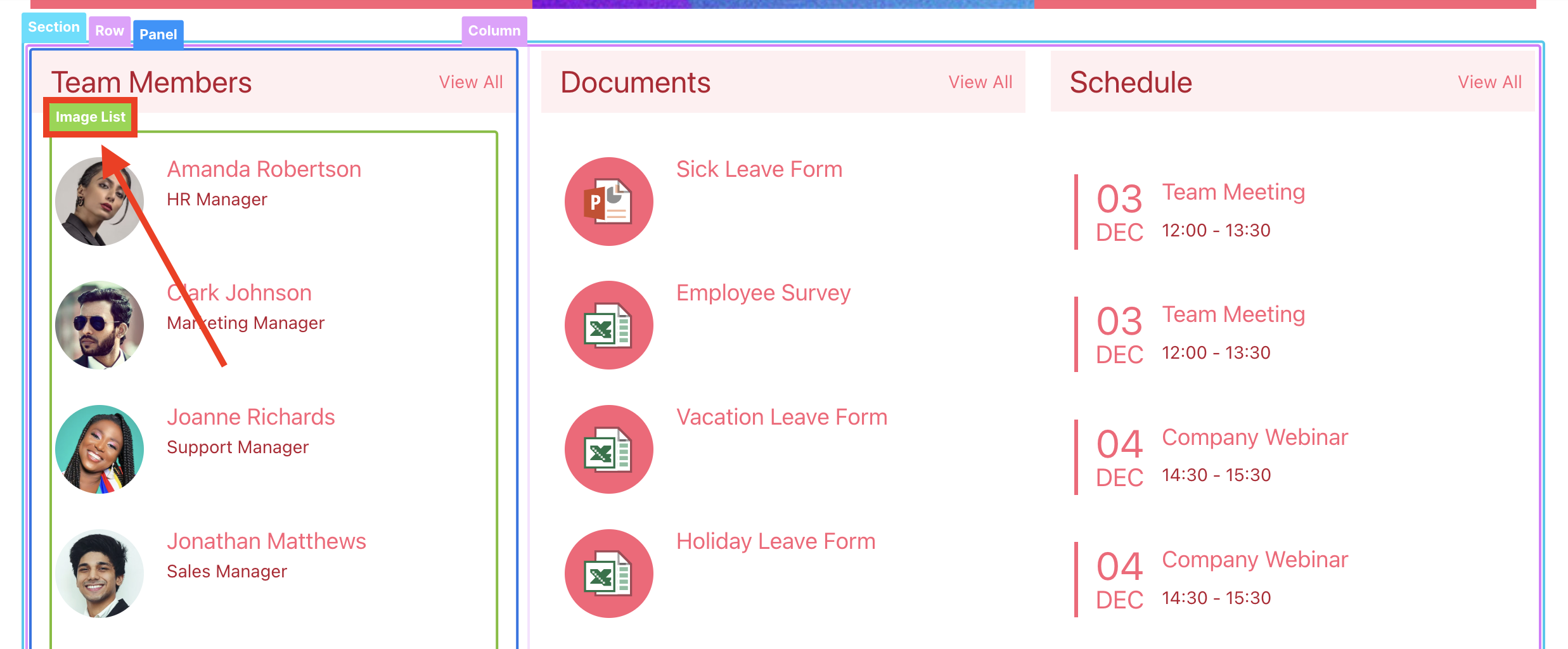
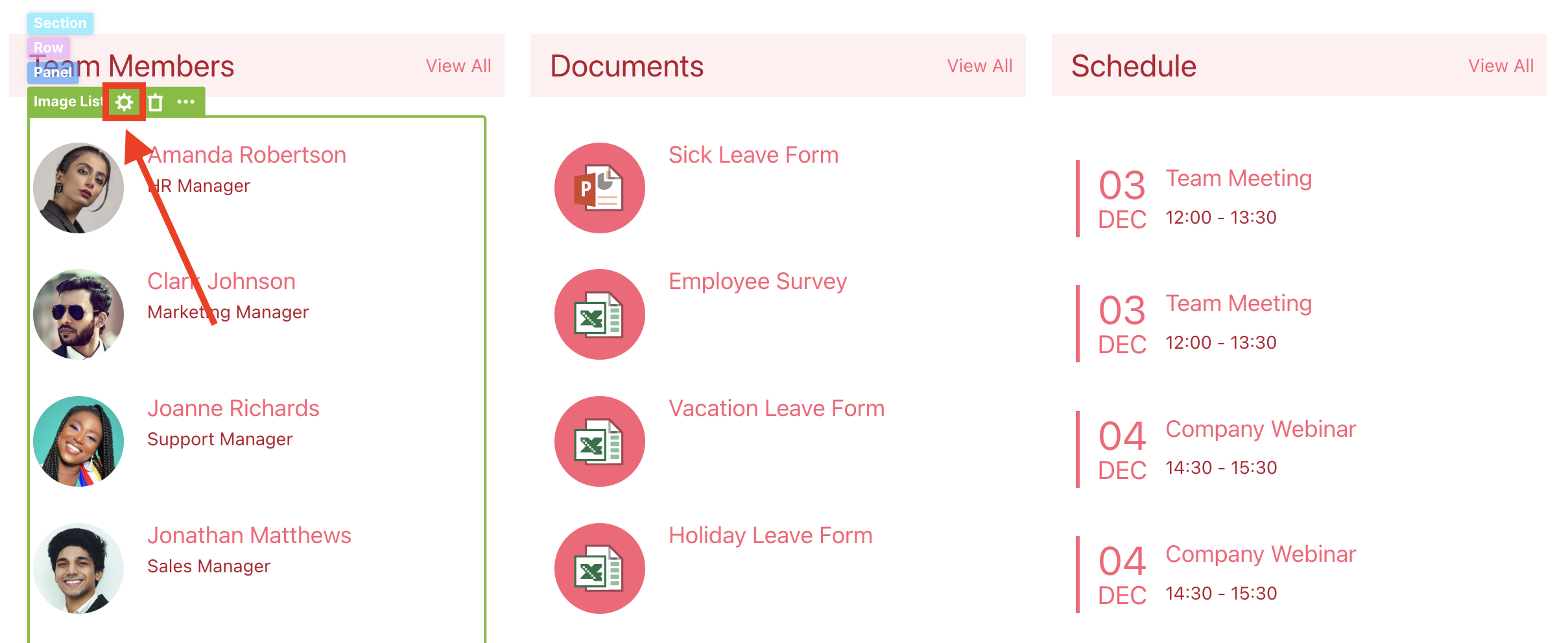
- Click the Easypass tag of the Design Element you want to use. For this guide, we will use the Image List Design Element:
- Select the cogwheel icon:
Step 3: Activate Search & Filter Toolbar Widgets
- Navigate to the Toolbar tab:
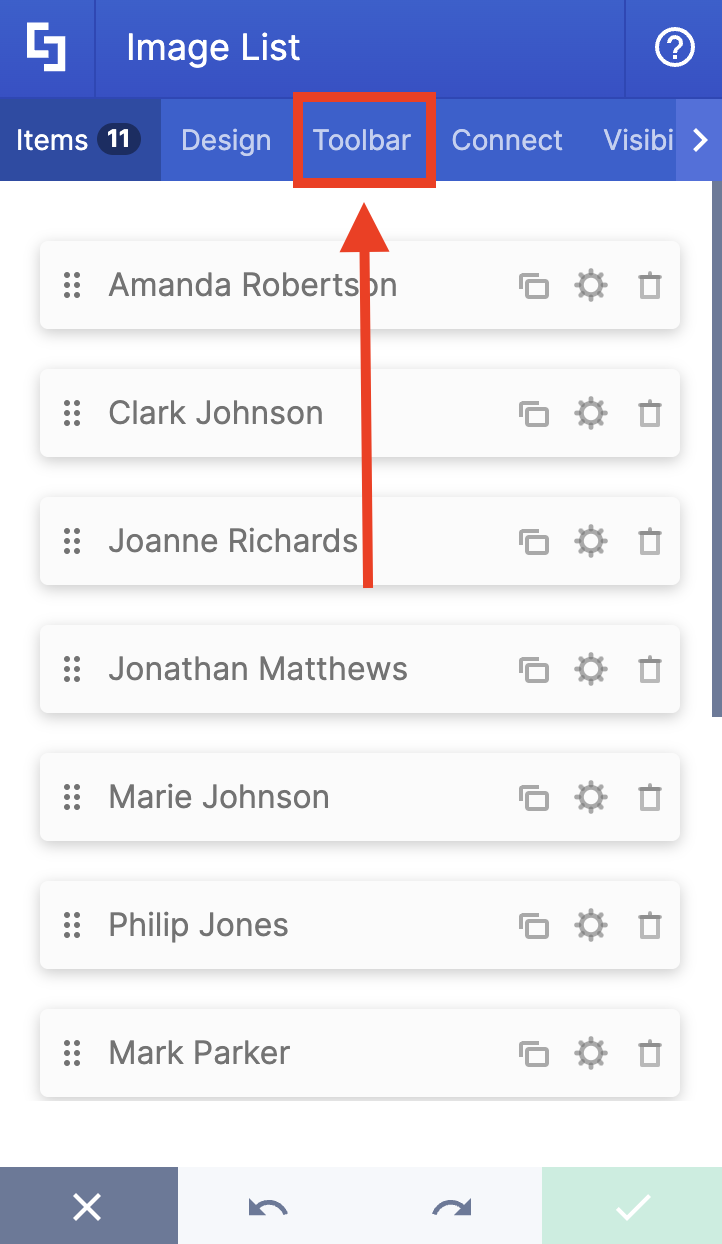
- Select the widget you want to activate.
NOTECheck out Getting Started: The Basics of the Search & Filter Toolbar to see an overview of all the widgets you can use.
- Customize it according to your liking.
- Click Activate.
- Click Back to Widgets:
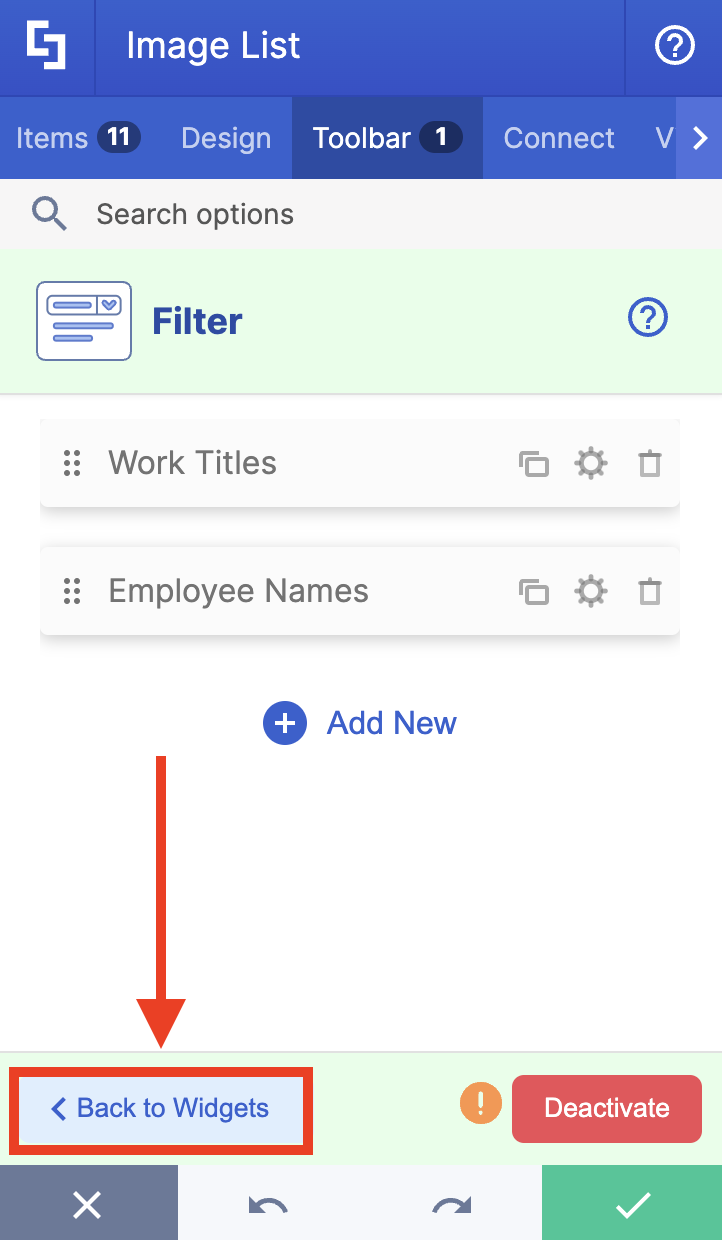
- Repeat the steps above.
- Once you’ve activated all the widgets you want to use, click the green check mark to apply all changes.
Step 4: Save
- Click the eye icon to see your page in real time:

- Click Save to keep your changes:

That’s it! You have now activated multiple Search & Filter Toolbar widgets.
NOTEIf you want to remove a widget, check out How to Deactivate Active Search & Filter Toolbar widgets.
Related articles:
- Getting Started: The Basics of the Search & Filter Toolbar
- Search & Filter Toolbar: How to Use the Search Widget
- Search & Filter Toolbar: How to Use the Filter Widget
- Search & Filter Toolbar: How to Use the Sort Widget
- How to Activate Multiple Search & Filter Toolbar Widgets
