 Try ShortPoint now
This tutorial demonstrates how to add a Vimeo playlist to a SharePoint page using the Code Design Element.
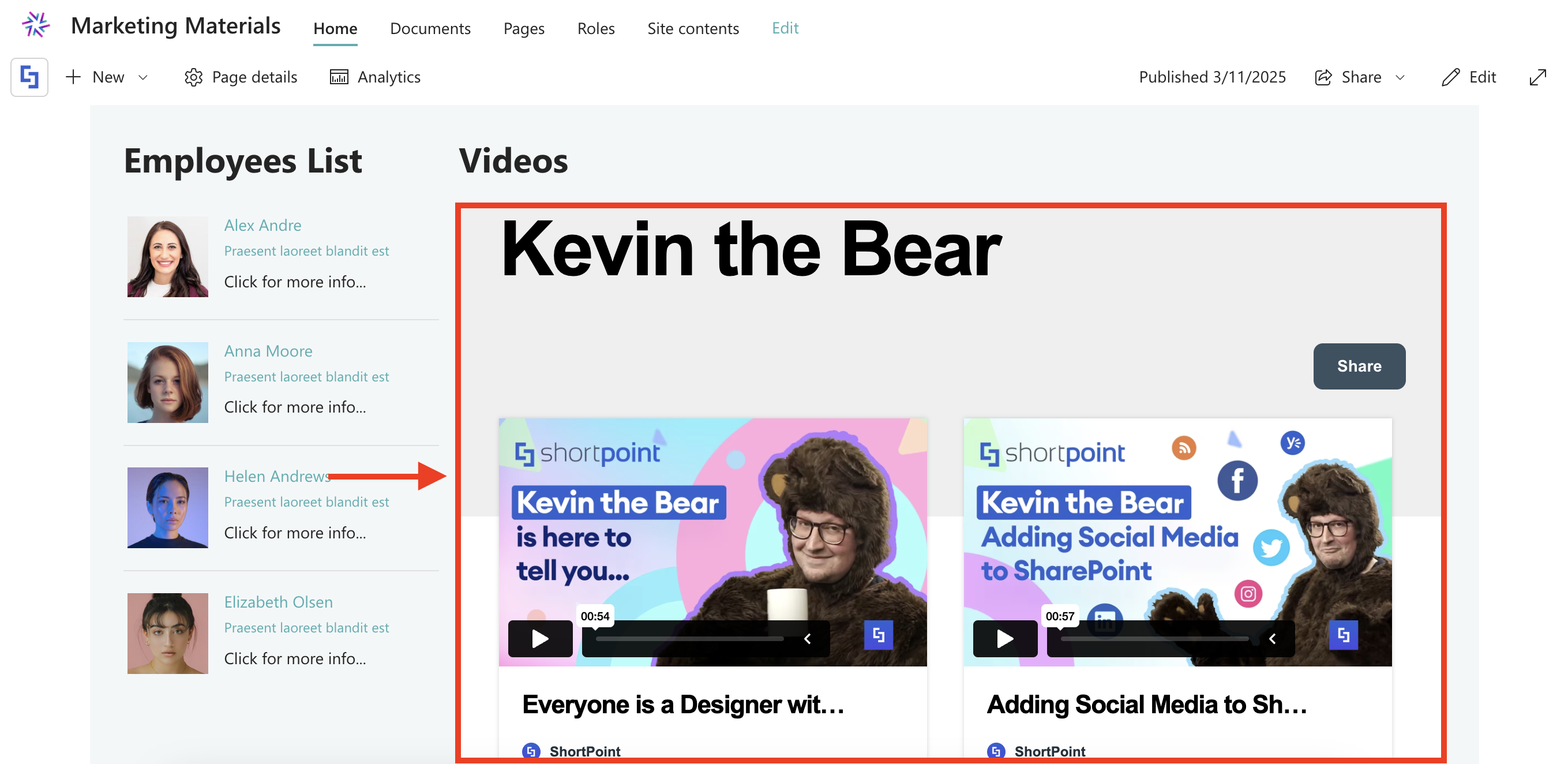
Quick Walkthrough
- Go to the Vimeo playlist you want to embed into your SharePoint page, customize it, and copy the embed code.
- Go to the SharePoint page where you want to add the playlist and edit the ShortPoint Web Part.
- Click the plus icon and insert the Code Design Element.
- Paste the code in the HTML field and customize it.
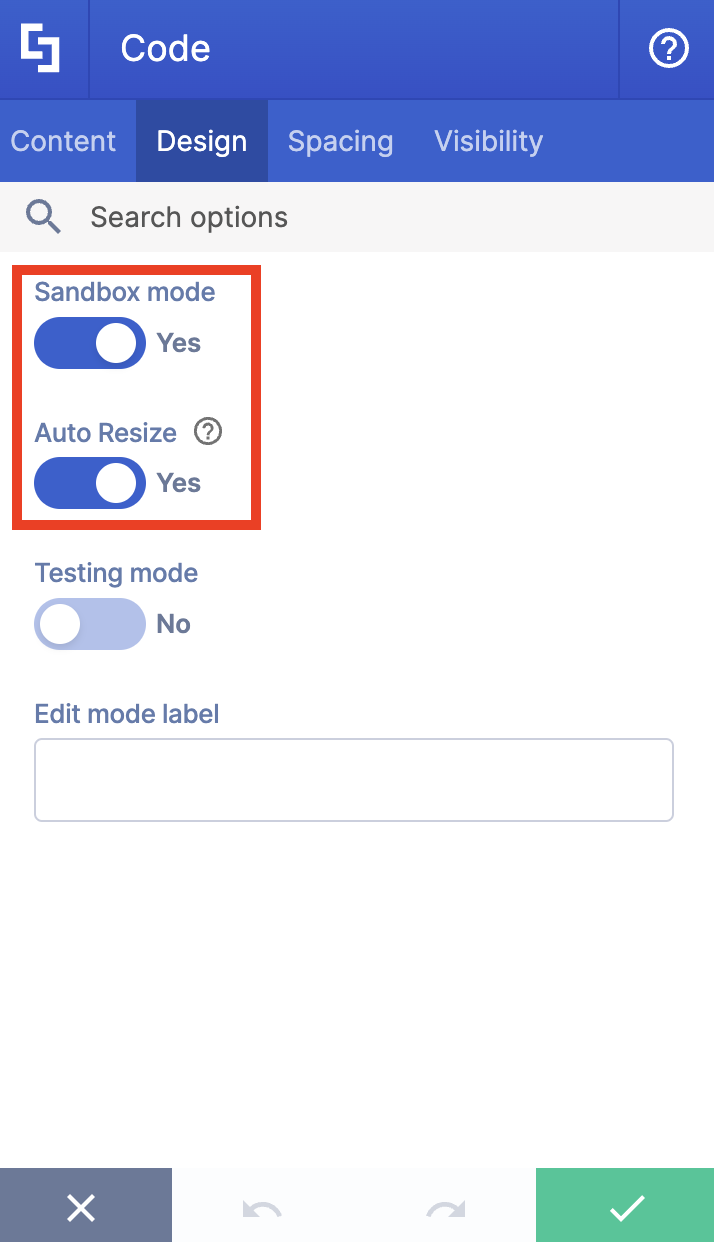
- Go to the Design tab, enable Sandbox mode and Auto Resize.
- Click the green check mark to apply your changes.
- Click Save to keep your changes.
TABLE OF CONTENTS
Prerequisites
- You must have the latest version of ShortPoint SPFx installed in your SharePoint environment.
- You must be a ShortPoint Designer with an active license.
- You must already have a Vimeo Playlist / Showcase ready to embed.
Interactive Tutorial
Start the interactive tutorial to learn how to embed a Vimeo playlist into SharePoint:
Step-by-step Tutorial
Follow the detailed guide below to learn how to embed your Vimeo playlist on your SharePoint page using the ShortPoint Code Design Element:
Step 1: Customize Vimeo Playlist
- Go to the Vimeo playlist you want to embed:
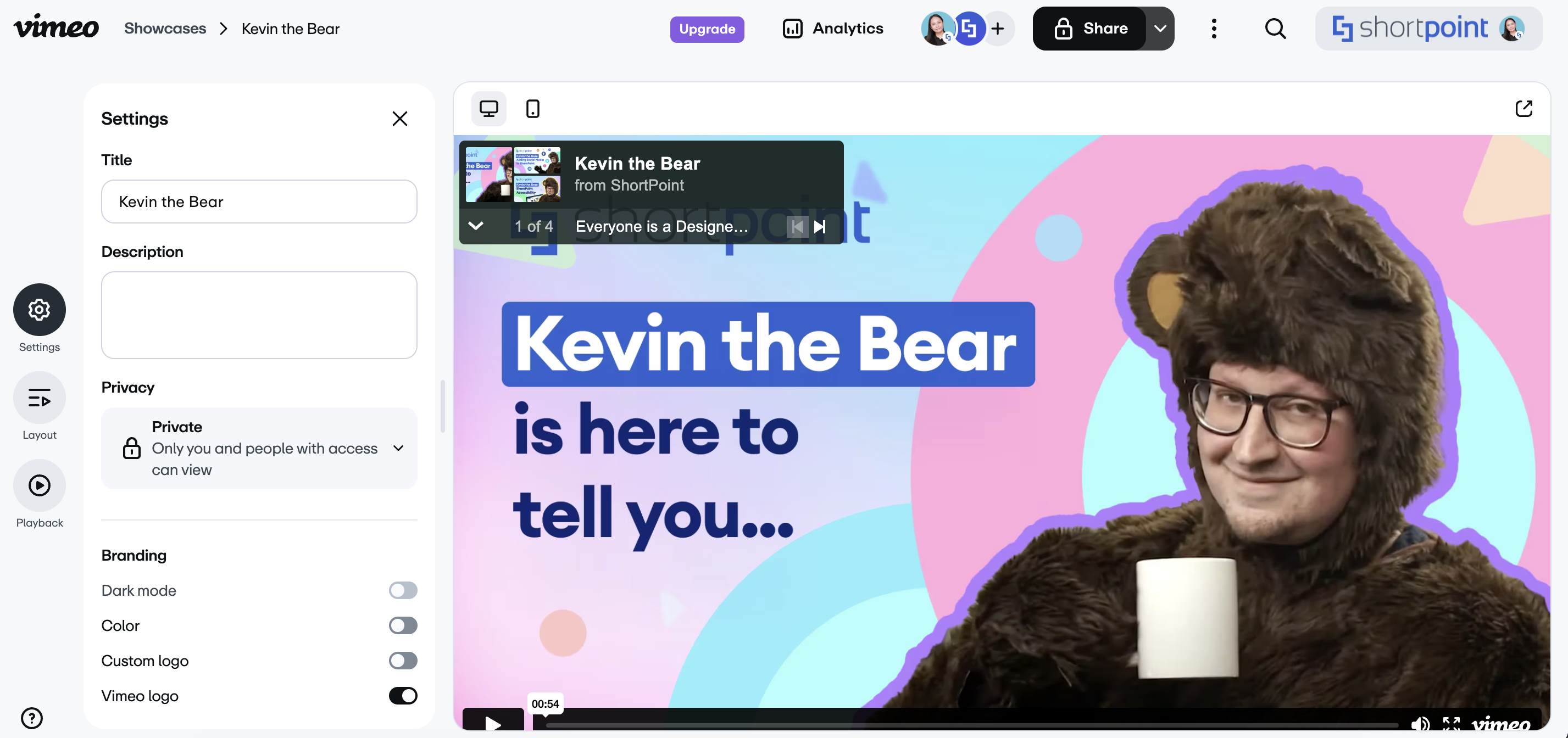
NOTEIf you don’t have a Vimeo playlist yet, you can check out Embeddable Playlists to learn how to create one.
- Go to the Layout tab:
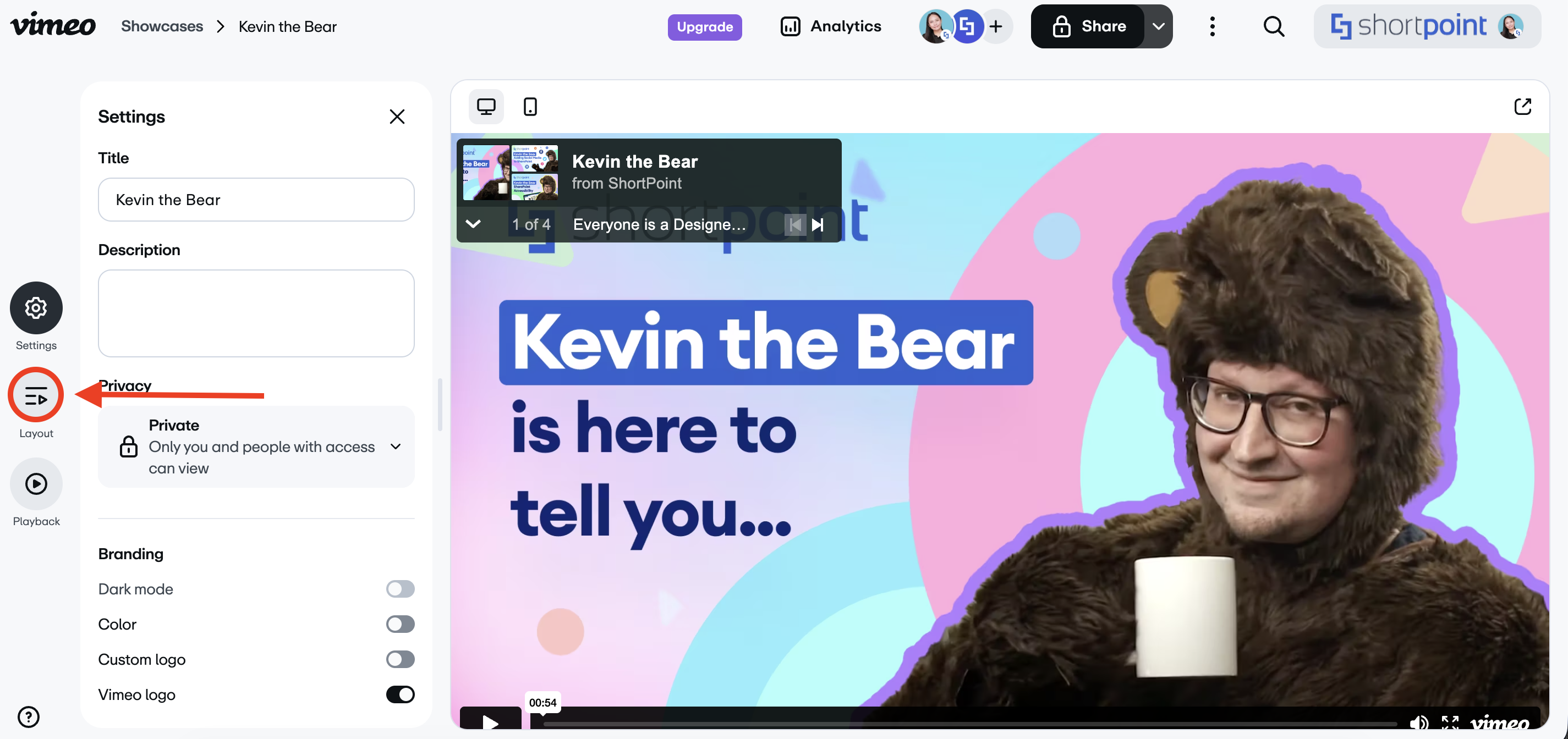
- Customize the look of the Vimeo playlist according to your preferences:

NOTEIf you want to know more about Vimeo playlists, check out How to customize my showcase.
- Once you’re satisfied with your customizations, click Save:
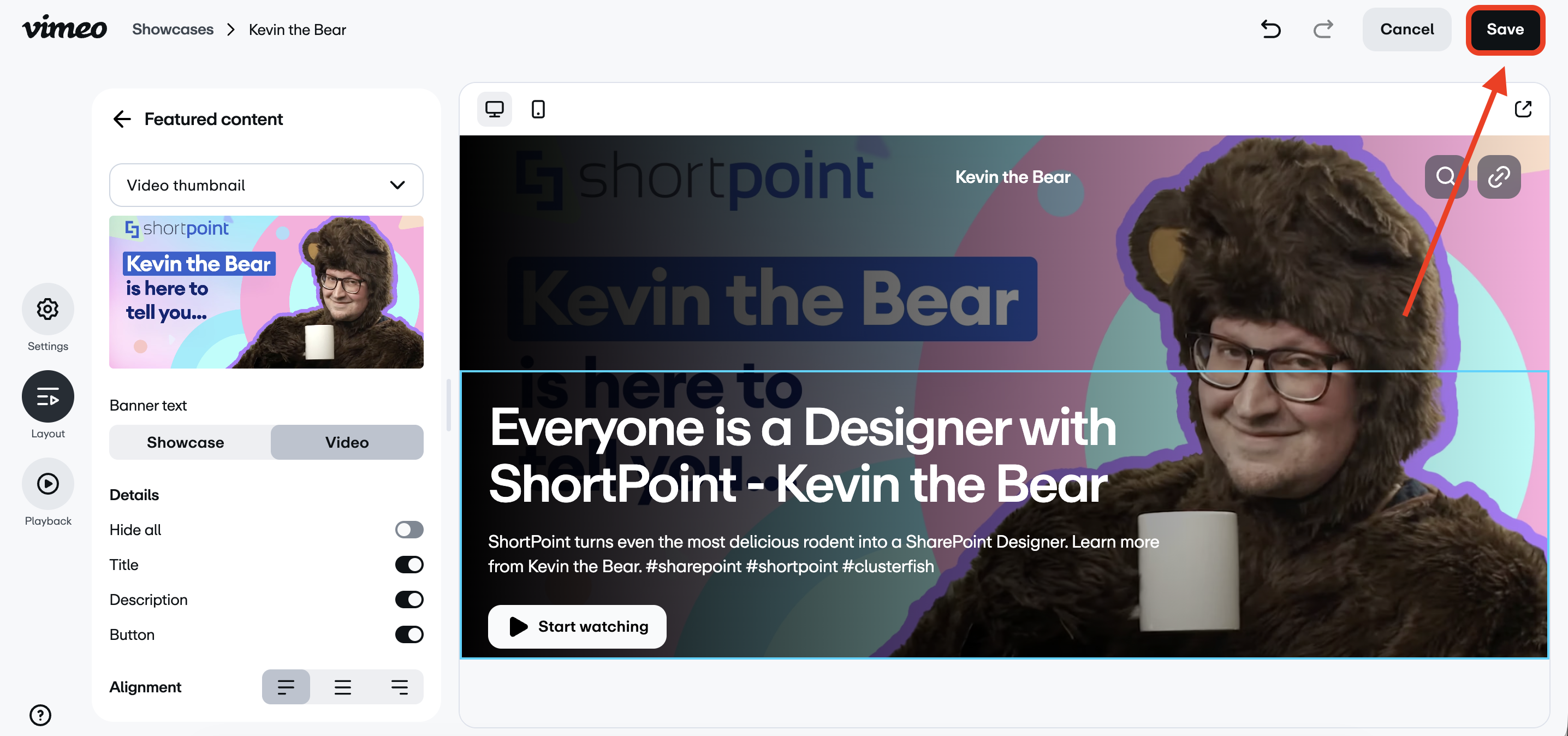
Step 2: Copy the Embed Code
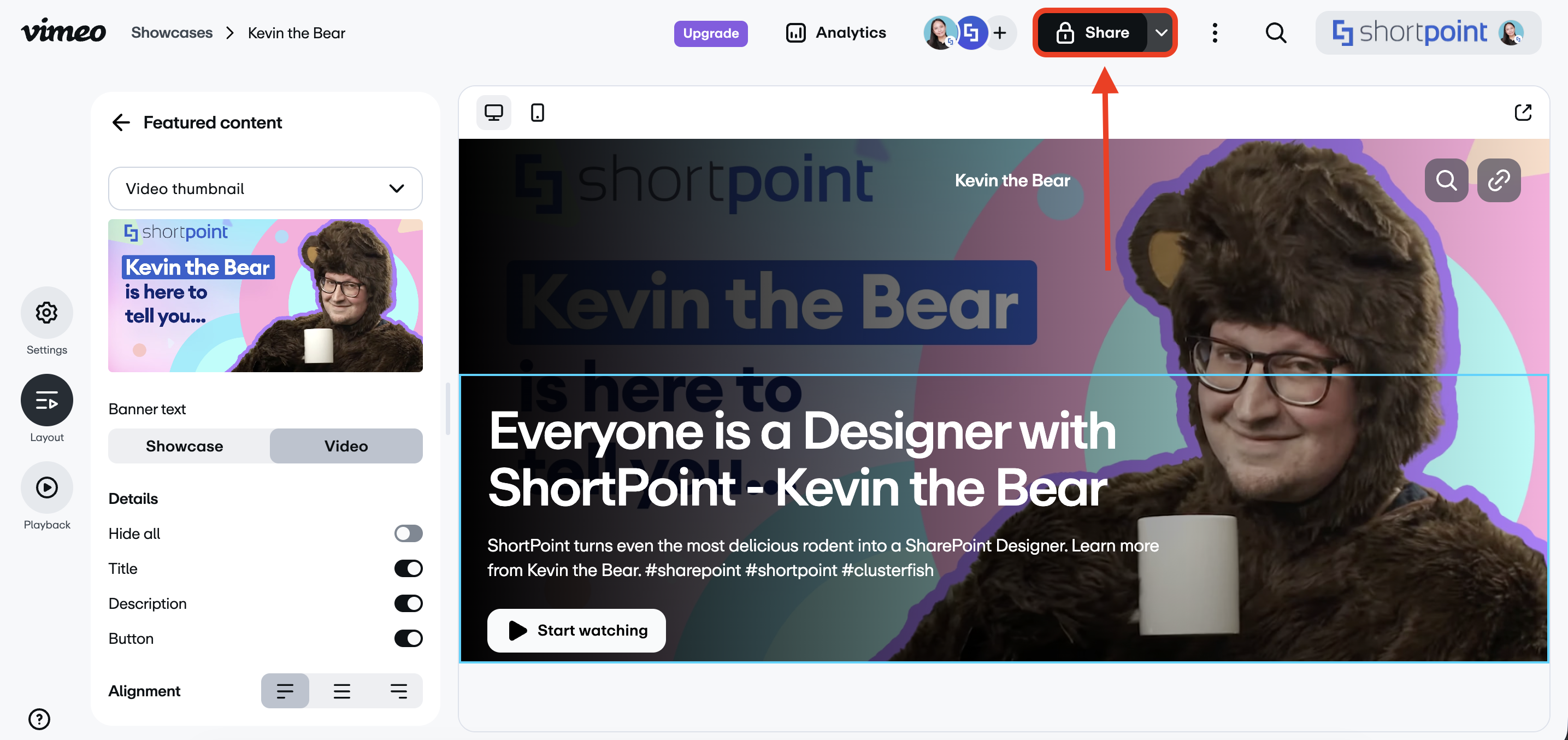
- Then, click Share:
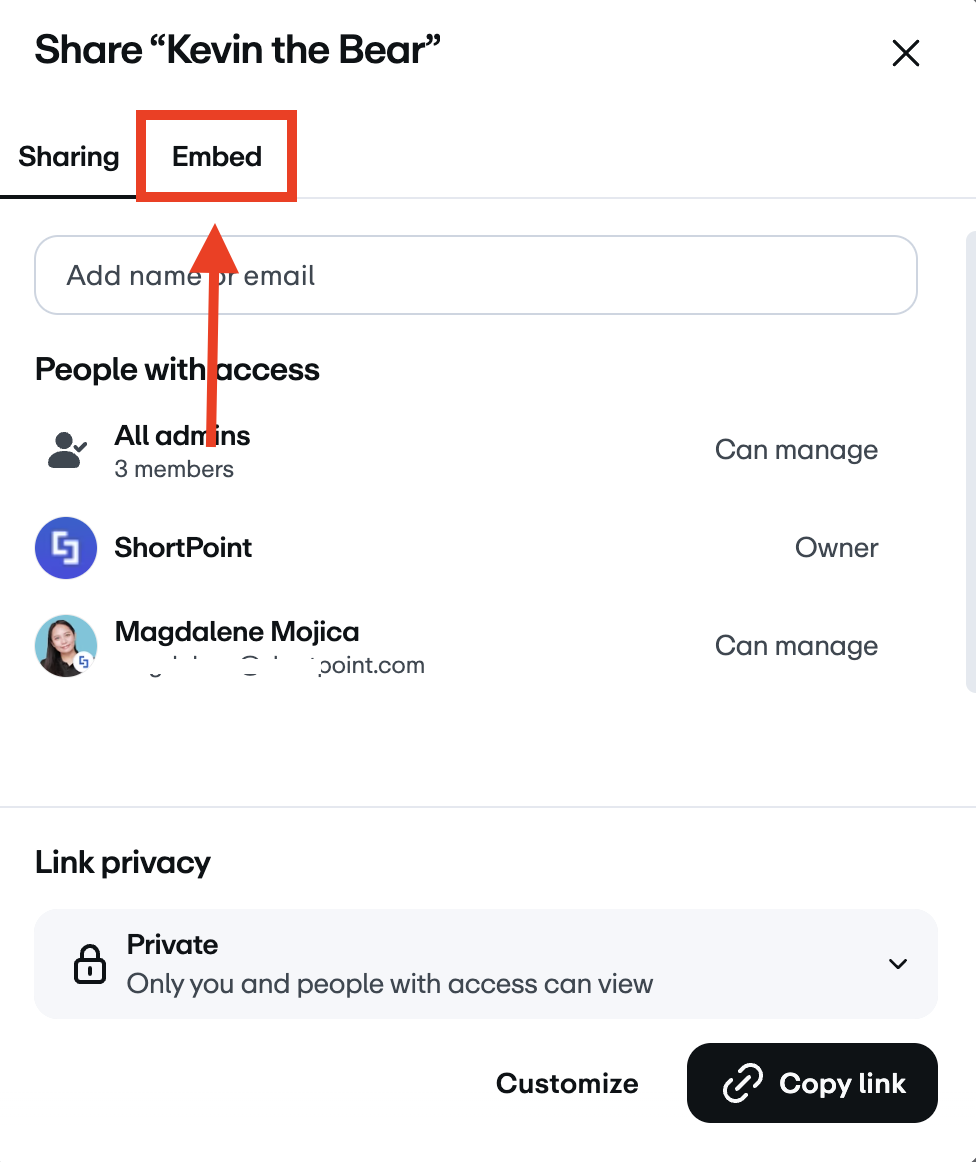
- Go to the Embed tab:
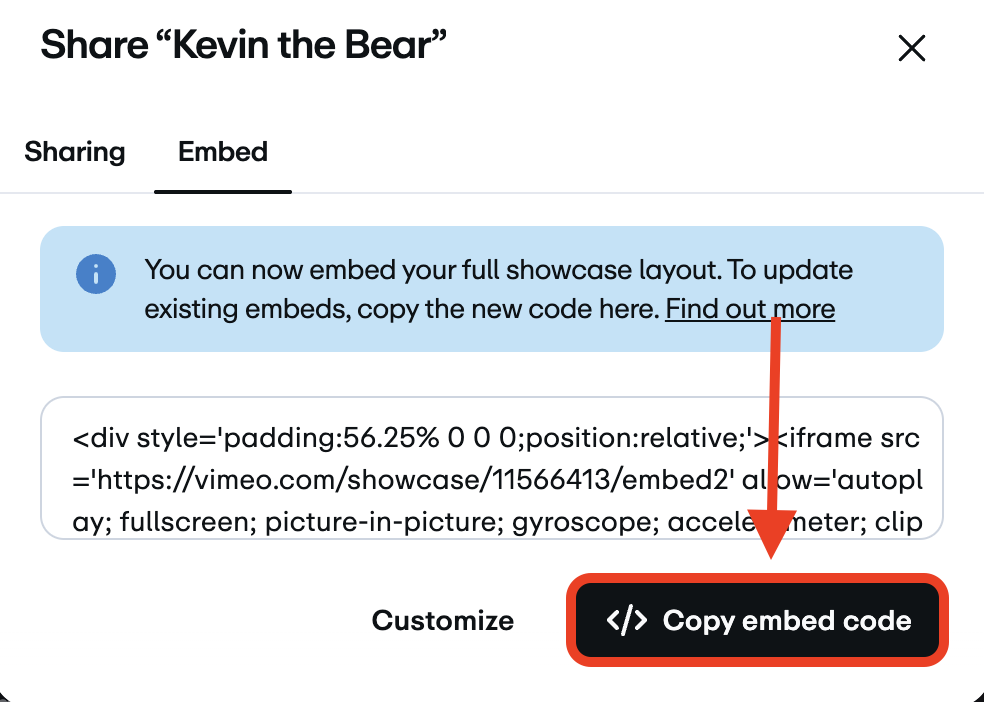
- Click Copy embed code:
Step 3: Edit the ShortPoint Web Part
- Go to the SharePoint page where you want to add the Vimeo playlist and click Edit:

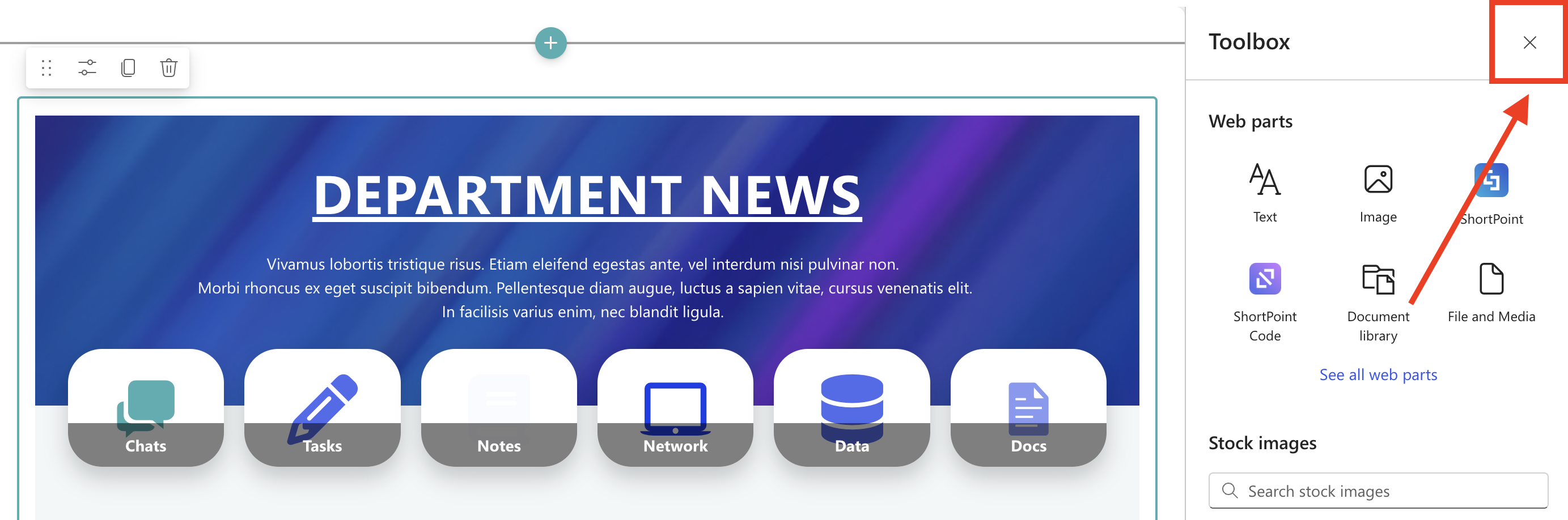
- Close the Toolbox:
- Click the ShortPoint tag.
- Select the Edit Properties icon:
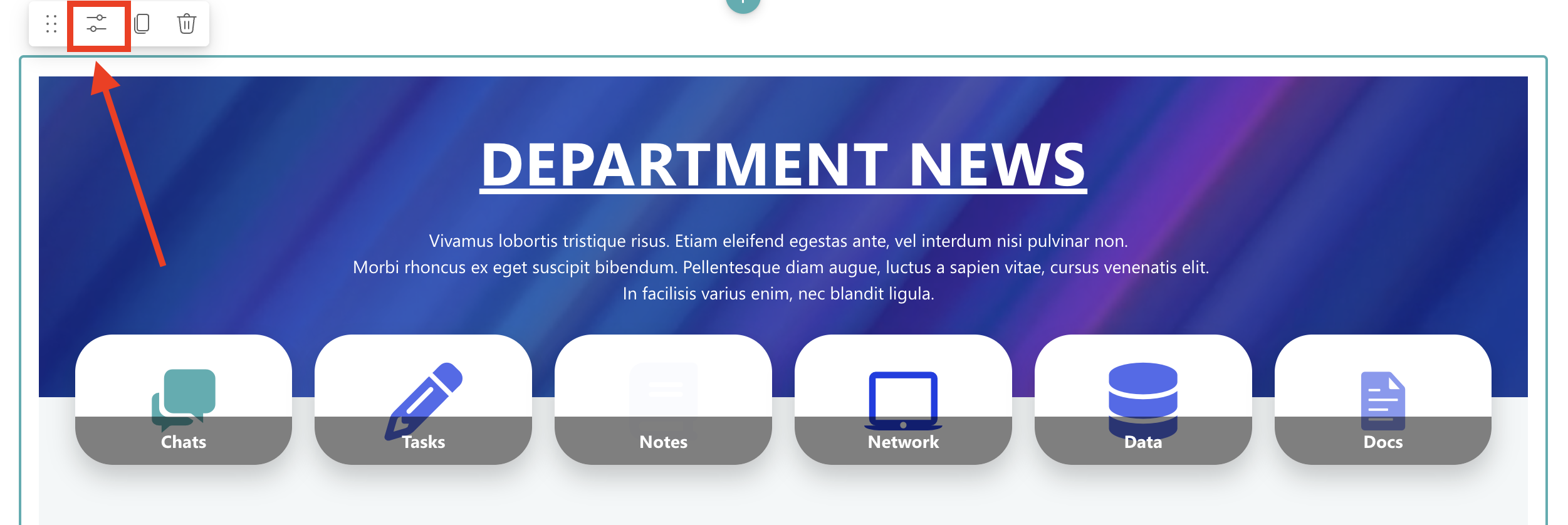
Step 4: Insert the Code Design Element
- Choose where you want to add the Code Design Element and click the plus icon to see the library of Design Elements:
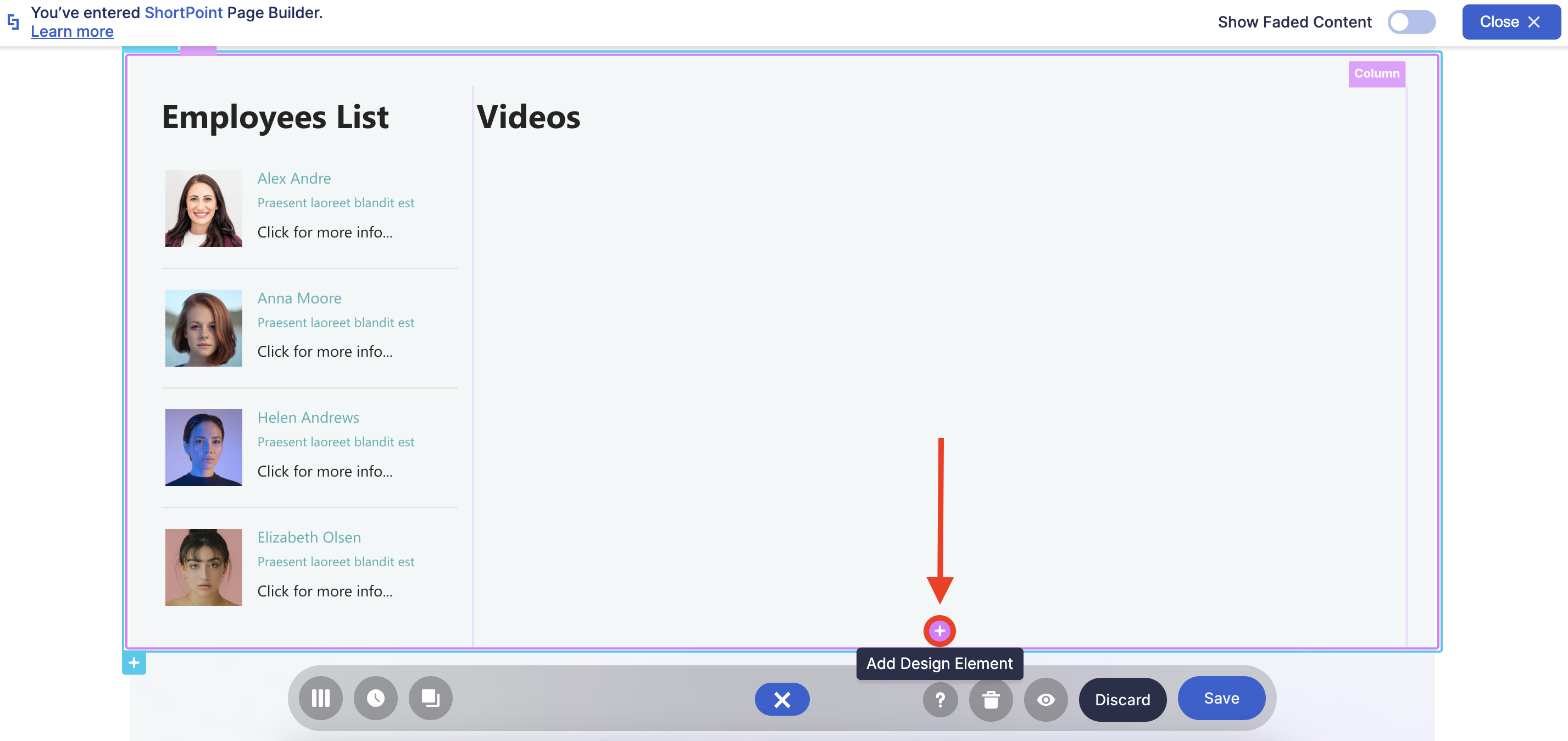
- Look for Code using the search bar and select it.
Step 5: Paste Embed Code
- Paste the code in the HTML field and customize it according to your needs:
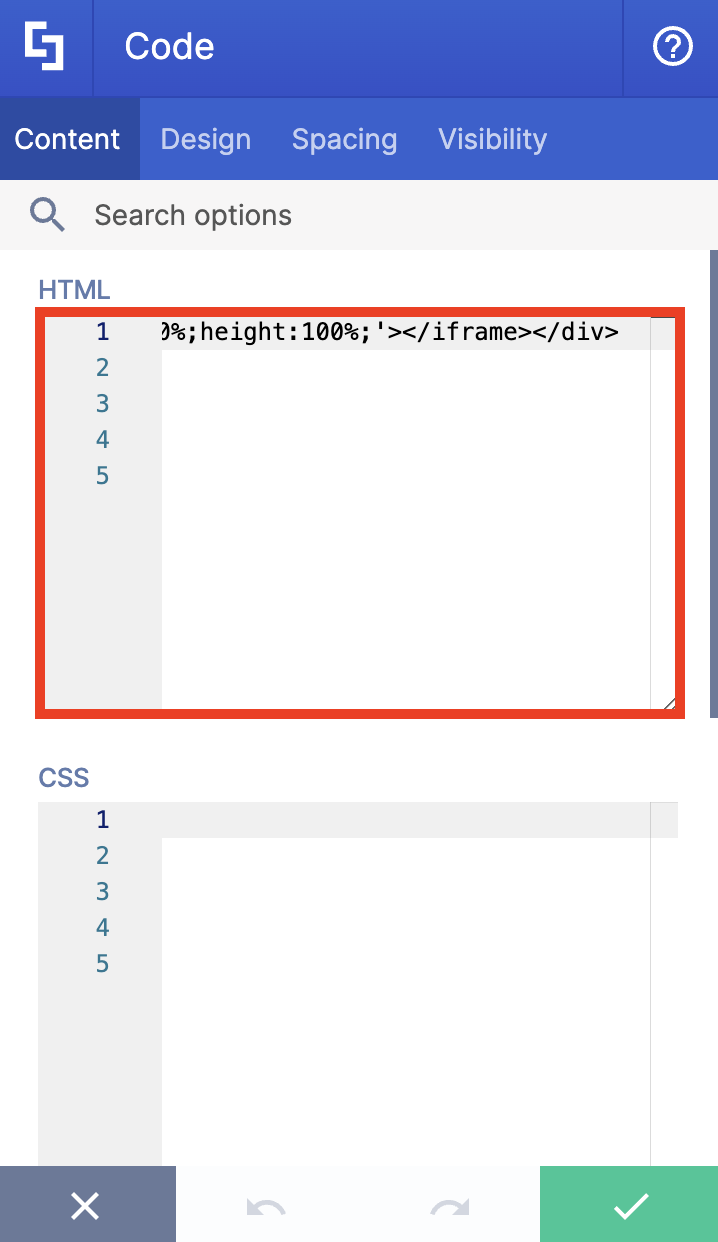
Step 6: Enable Sandbox Mode and Auto Resize
- Enable Sandbox mode and Auto Resize to fit the video inside the container.
Step 7: Save
- Click the green check mark to apply your changes.
- Click the eye icon to see your page in real-time:

- Click Save to keep your changes:

Congratulations! You can now add Vimeo video playlists to your SharePoint page using the ShortPoint Code Design Element.
Related articles:
- How to use jQuery with the ShortPoint Code Design Element
- How to Add a Background Image to the Page Header Using the ShortPoint Code Design Element
- How to Embed a Chat Widget Using the ShortPoint Code Design Element
- How to Insert a Weather Widget Using the ShortPoint Code Design Element
- How to Embed a YouTube Video Playlist into a Modern SharePoint Page Using the Code Design Element
- How to Embed the Microsoft Stream Video into a SharePoint Page
