 Try ShortPoint now
Using the Microsoft Graph API connection, you can retrieve and display a group’s information in your SharePoint sites.
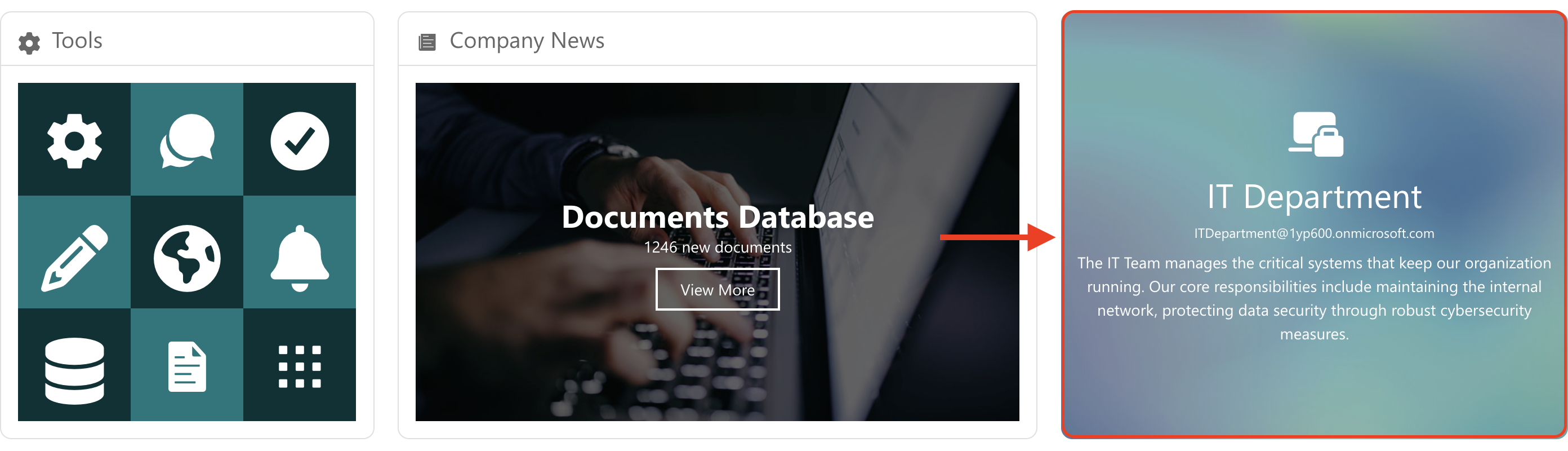
To do this, simply use the “Group Details” use case. Let’s go through the steps below to help you establish this connection.
TABLE OF CONTENTS
Prerequisites
- You must have ShortPoint SPFx version 8.6.0.0 and up installed on your SharePoint environment.
- You also need to be a ShortPoint Designer with either a Pro or Enterprise license. For more details, check out Licensing Options.
- You must have the Microsoft Graph API connection enabled. Go to How to Enable Microsoft Graph Integration for MS Graph API Connections to learn how.
- You must authorize the necessary permissions (GroupMember.Read.All, Directory.Read.All, and Group.Read.All) in the API access page. To check, go to your SharePoint Admin Center > Advanced > API access.
- You must have the Design Element you want to use to connect on your SharePoint page.
What is the “Group Details” Use Case?
The Group Details use case utilizes a Microsoft Graph API GET query to fetch all information linked to a specific group.
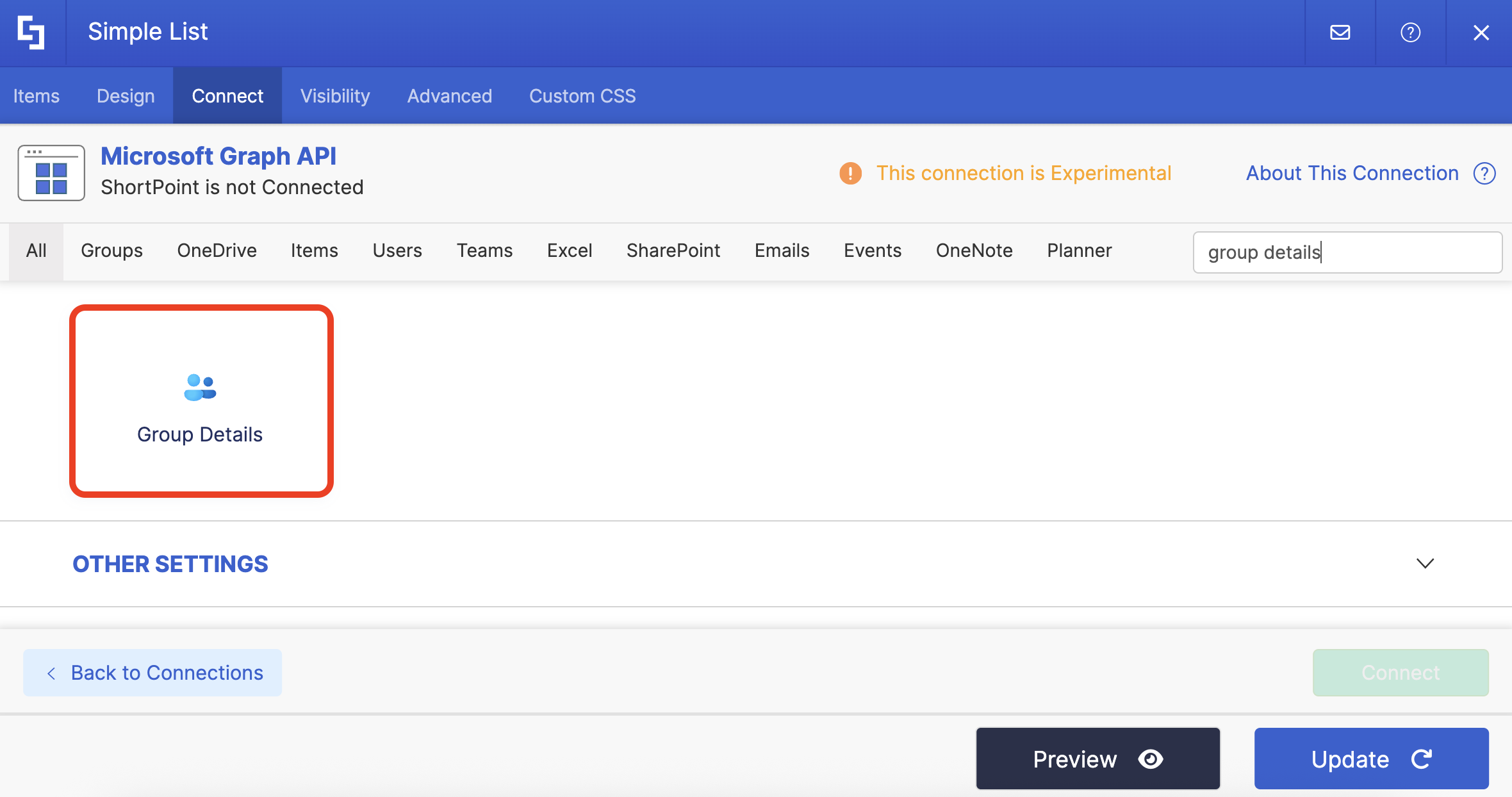
The typical structure of this use case is:
https://graph.microsoft.com/v1.0/groups/[%_spPageContextInfo('groupId')%]Where you need to get the following parameters:
- #groupId - this is a unique identifier associated with a specific group. You can check out How to Get Your SharePoint Group ID to learn more about it.
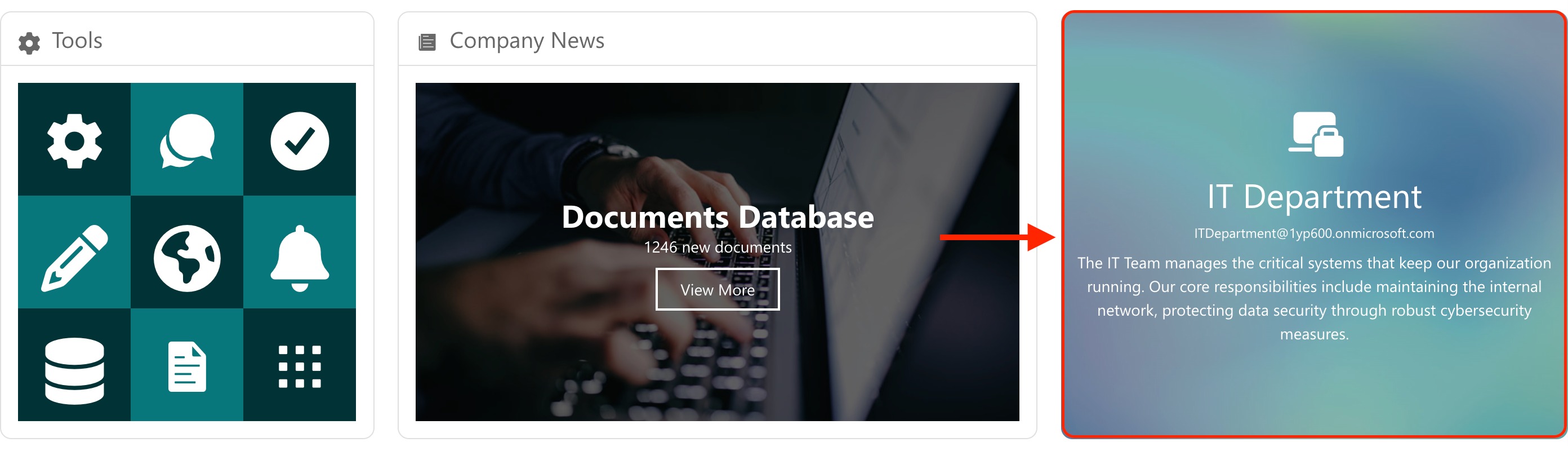
Connecting via 'Group Details' allows you to display a particular group’s information, making it easier for your page viewers to see important details.
You must enable the following permissions in the SharePoint Admin Center to use it:
- GroupMember.Read.All - this permission allows the app to list groups, read basic group properties, and read membership of all your groups.
- Group.Read.All - this permission allows the app to retrieve all groups and read their properties and memberships. It can also retrieve calendars, conversations, files, and other group content that the signed-in user has access to.
- Directory.Read.All - this permission allows the app to read data in your organization's directory.
NOTEIf you haven’t given access to the permissions above, go to your SharePoint Admin Center > Advanced > API access.
Step-by-step Tutorial
Follow the steps below to learn how to use the Group Details use case:
Step 1: Edit the ShortPoint Web Part
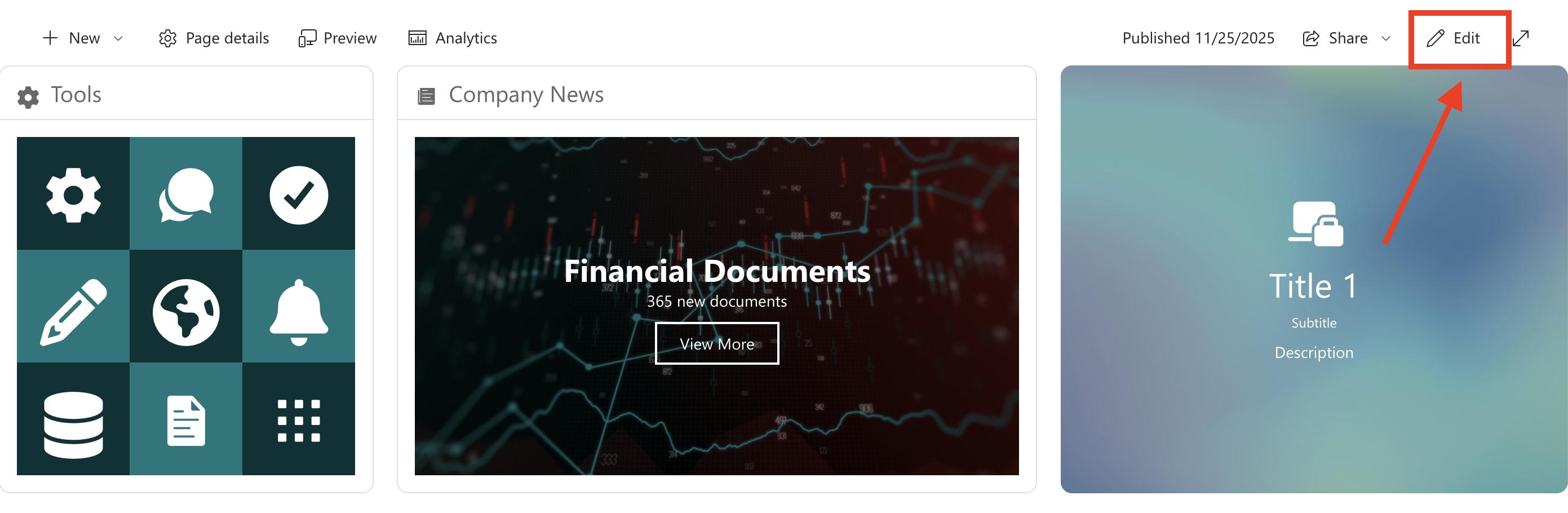
Go to the SharePoint page you want to use and click Edit:
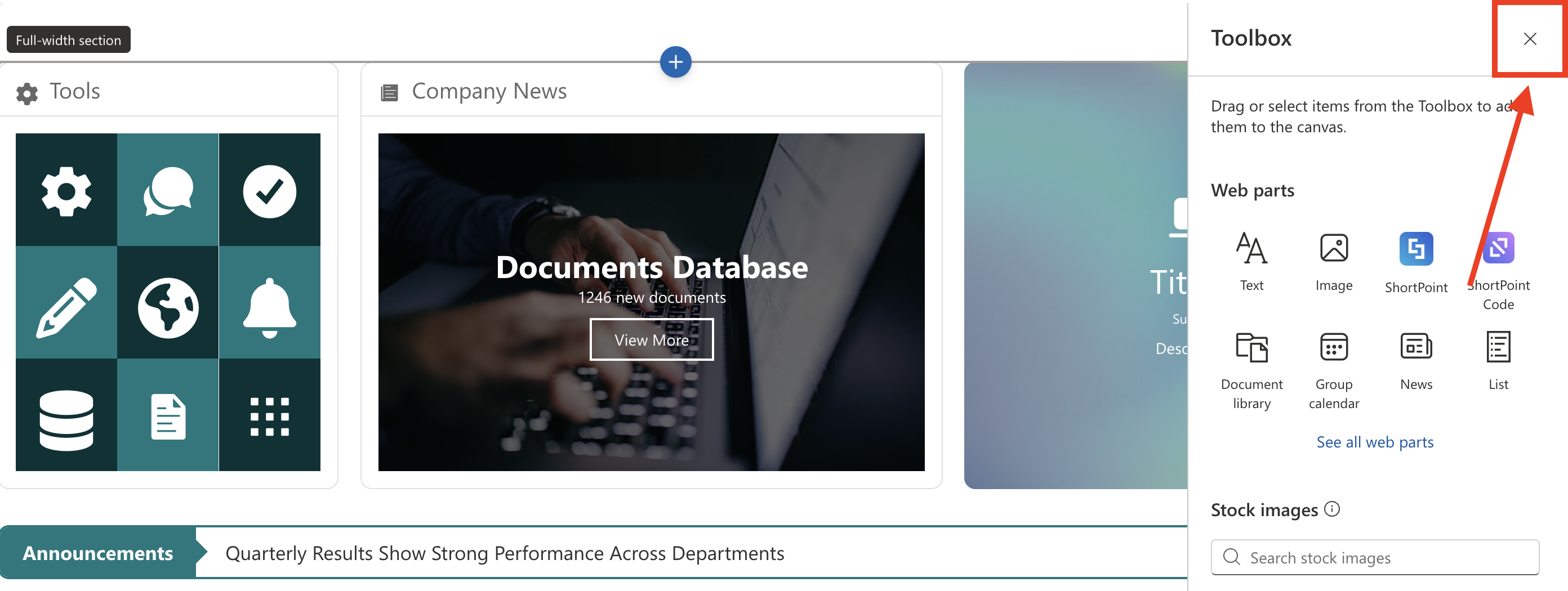
Close the Toolbox:
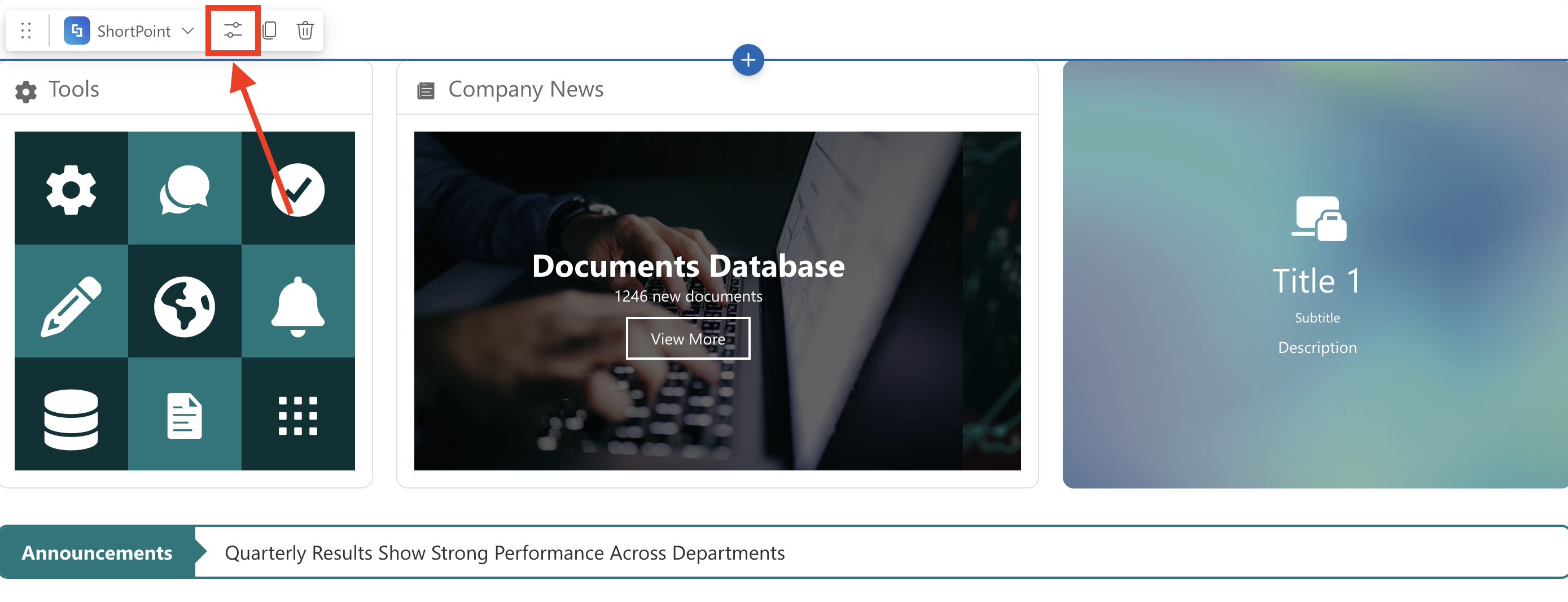
Select the ShortPoint web part and click the Edit Properties icon:
Step 2: Edit the Design Element
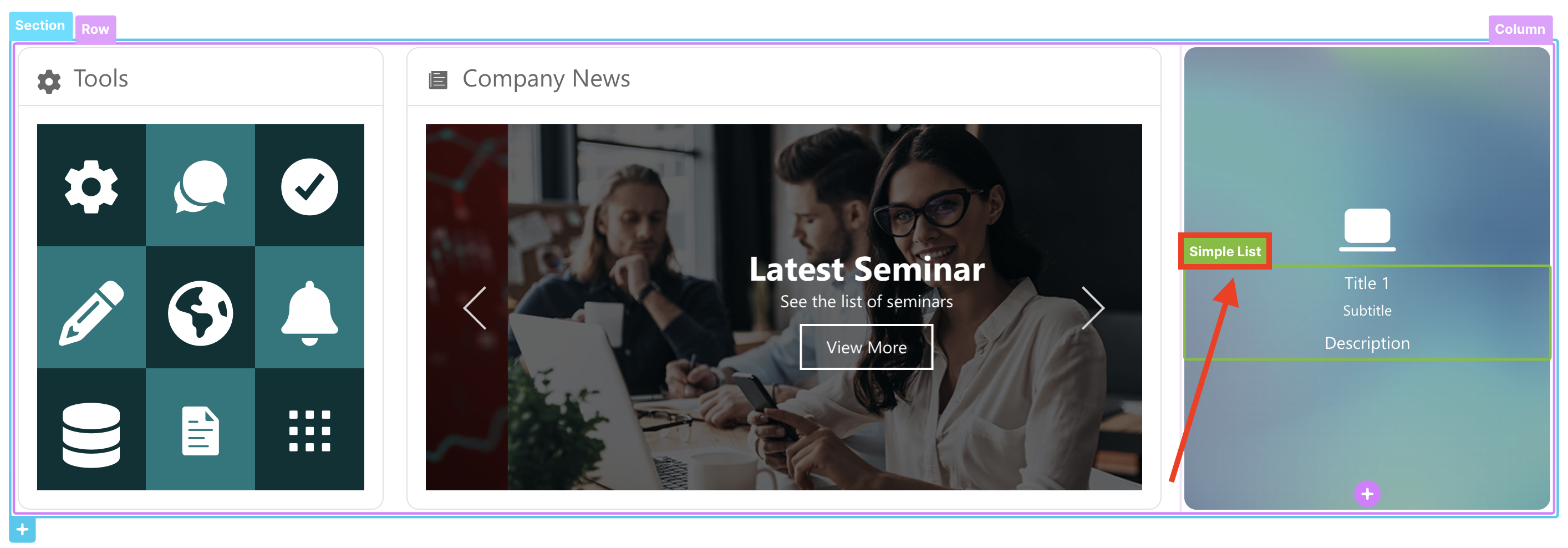
NOTEYou can use any Design Element you want. For this guide, we’ll use Simple List.
Select the EasyPass tag:
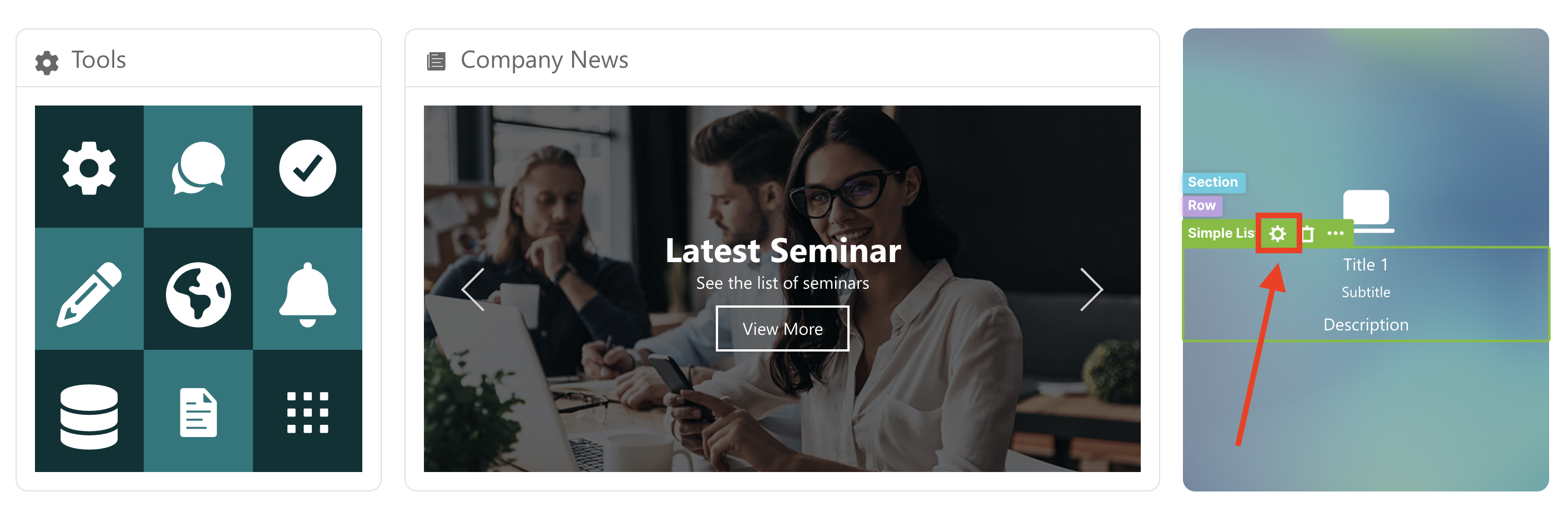
Click the cogwheel icon of the Design Element you’ll use:
Step 3: Connect to Microsoft Graph API
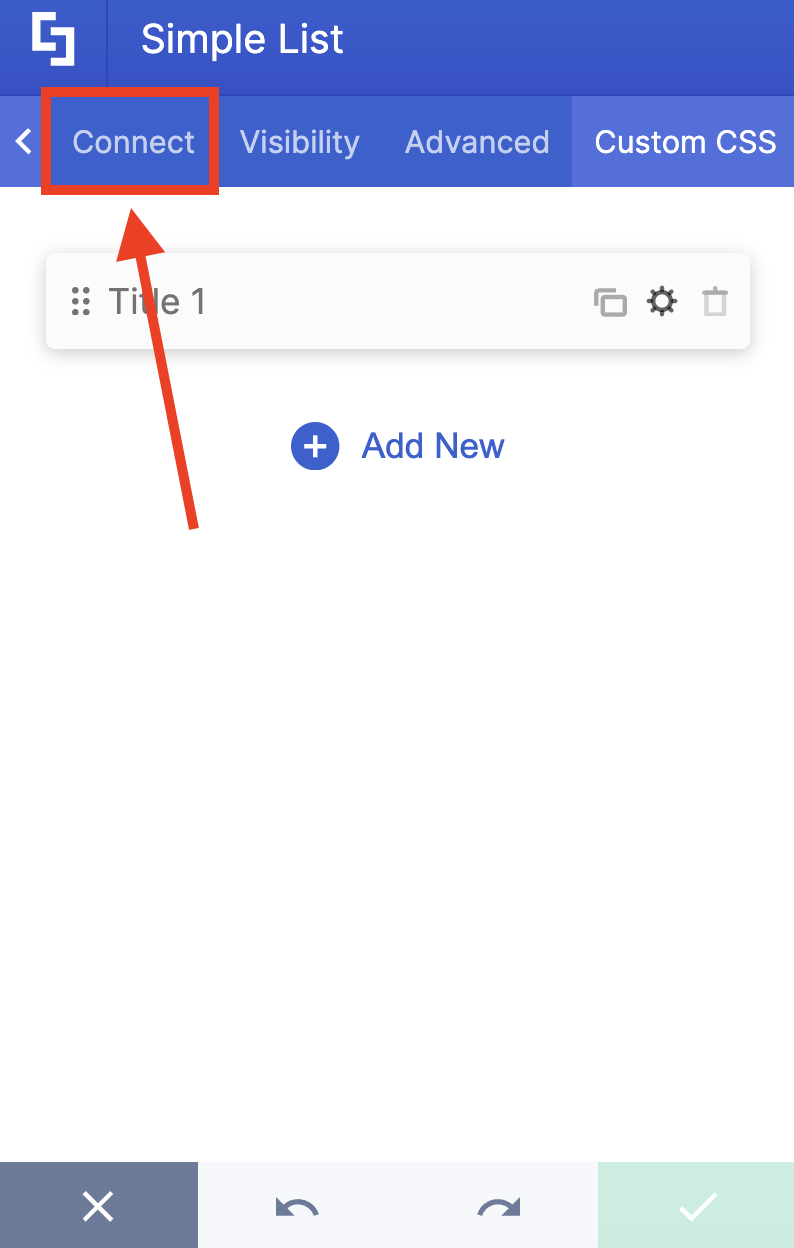
Go to the Connect tab:
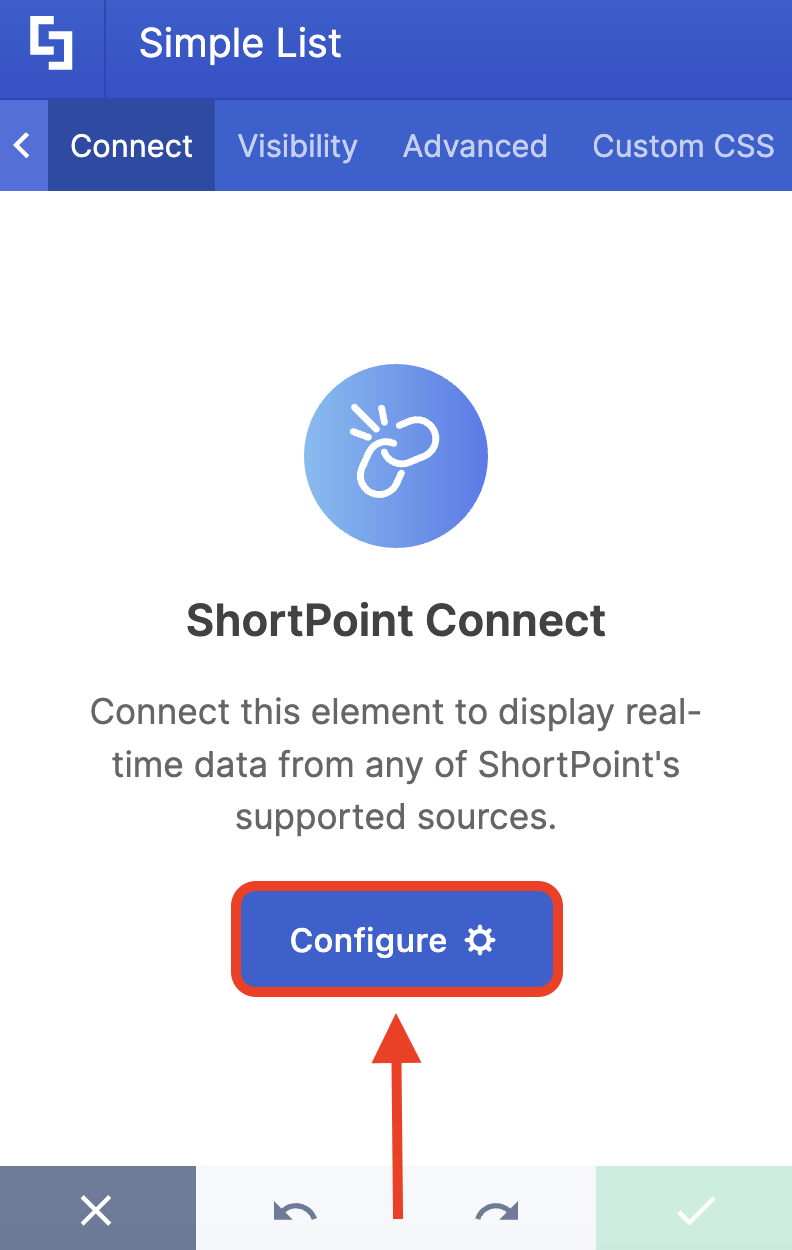
Click Configure:
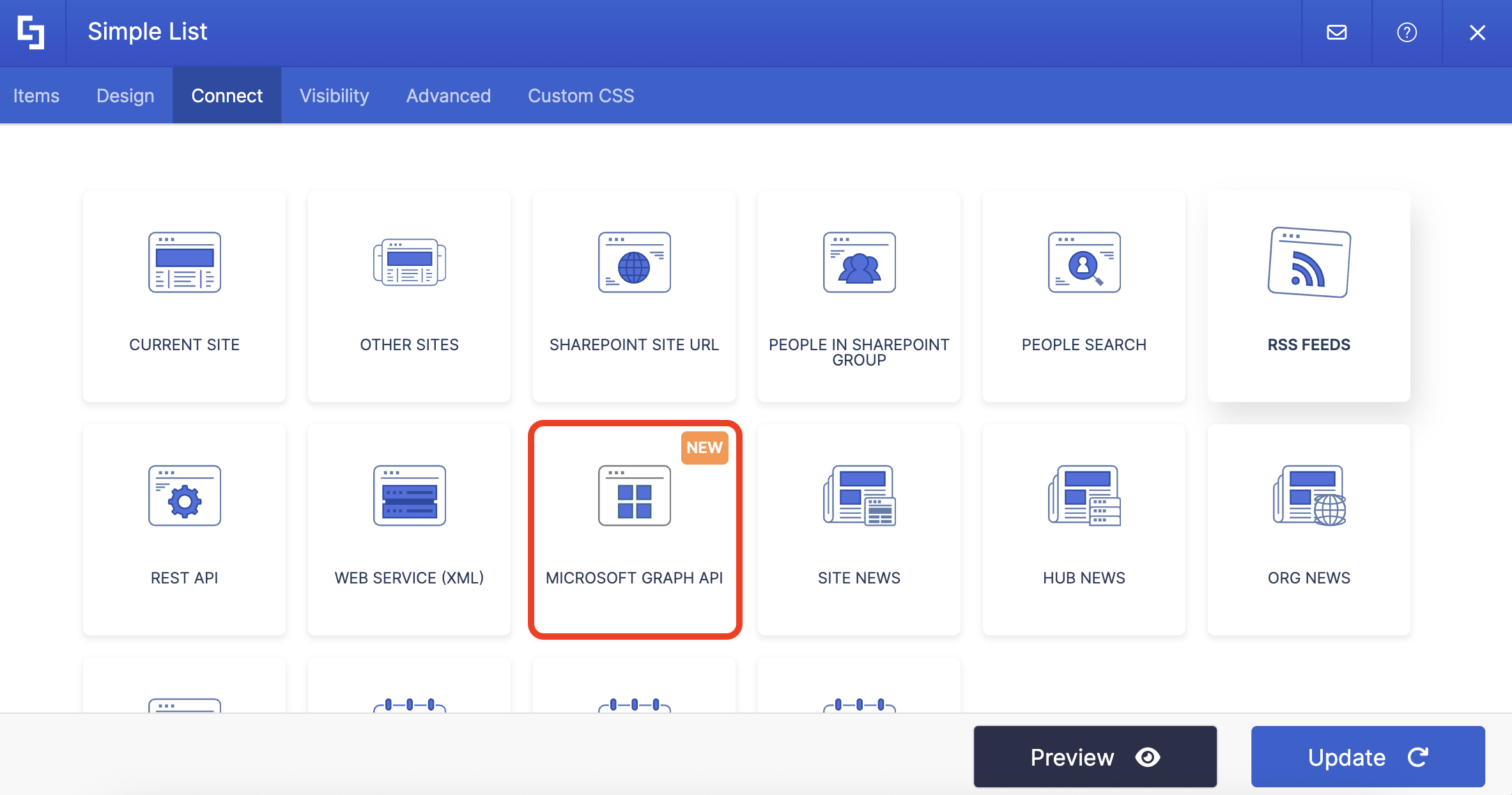
Select Microsoft Graph API:
NOTEYou need to enable the Microsoft Graph API connection before using it. Learn more about it in How to Enable Microsoft Graph Integration for MS Graph API Connections.
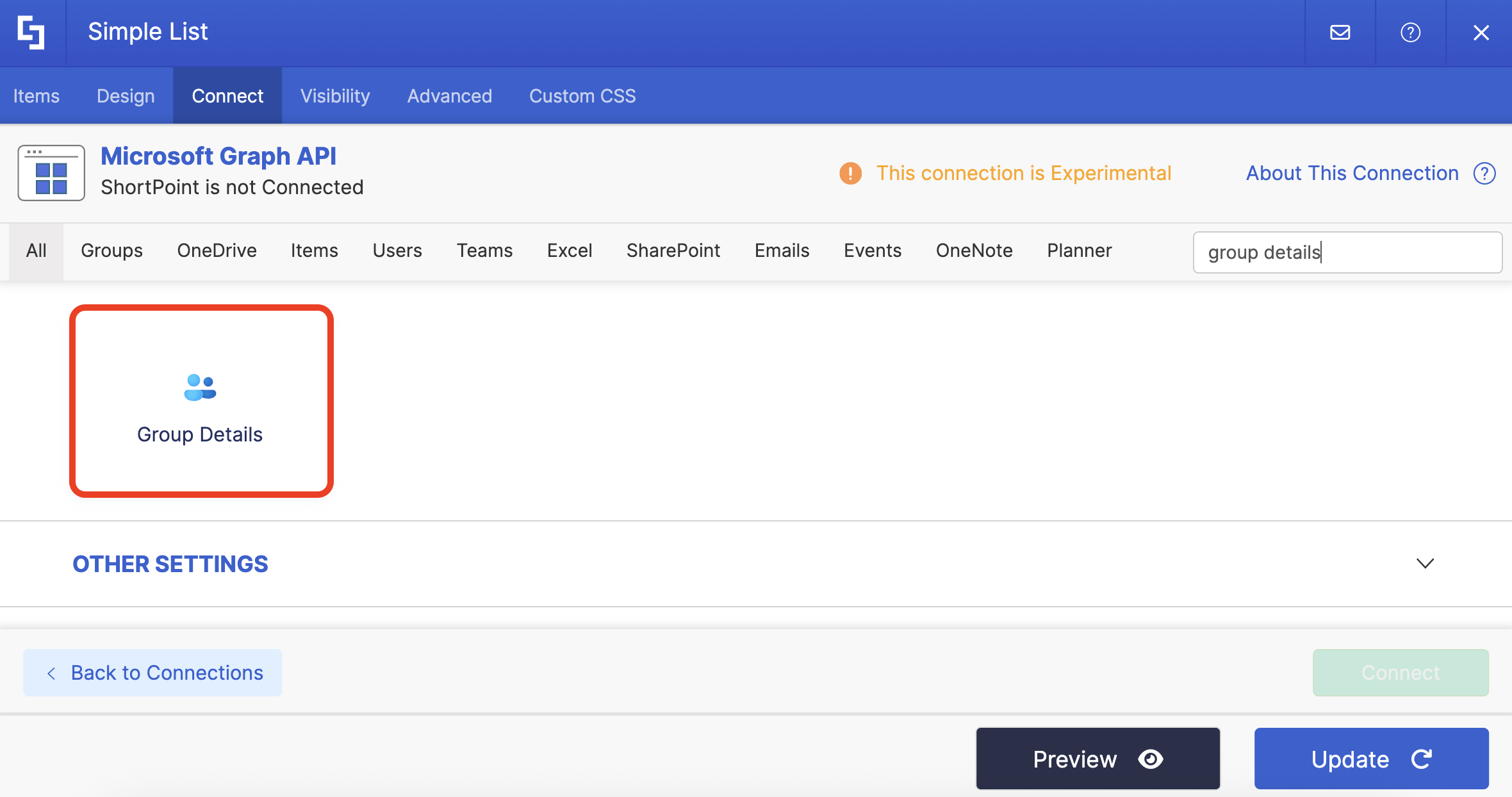
Step 4: Use the Group Details Use Case
Search for Group Details and select it:
Step 5: Get Group ID
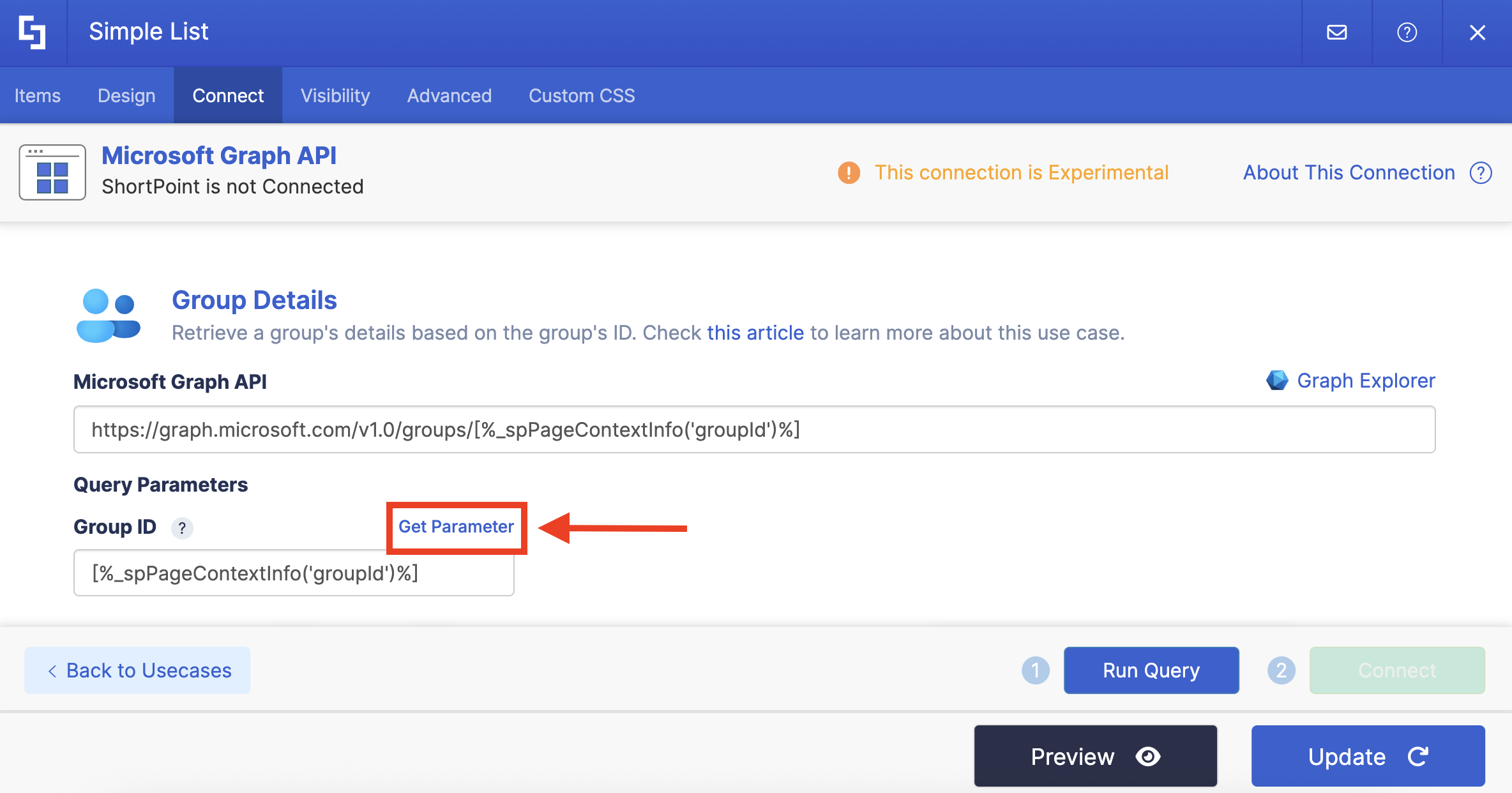
Under Query Parameters, you will need to get the Group ID. To do this, click Get Parameter:
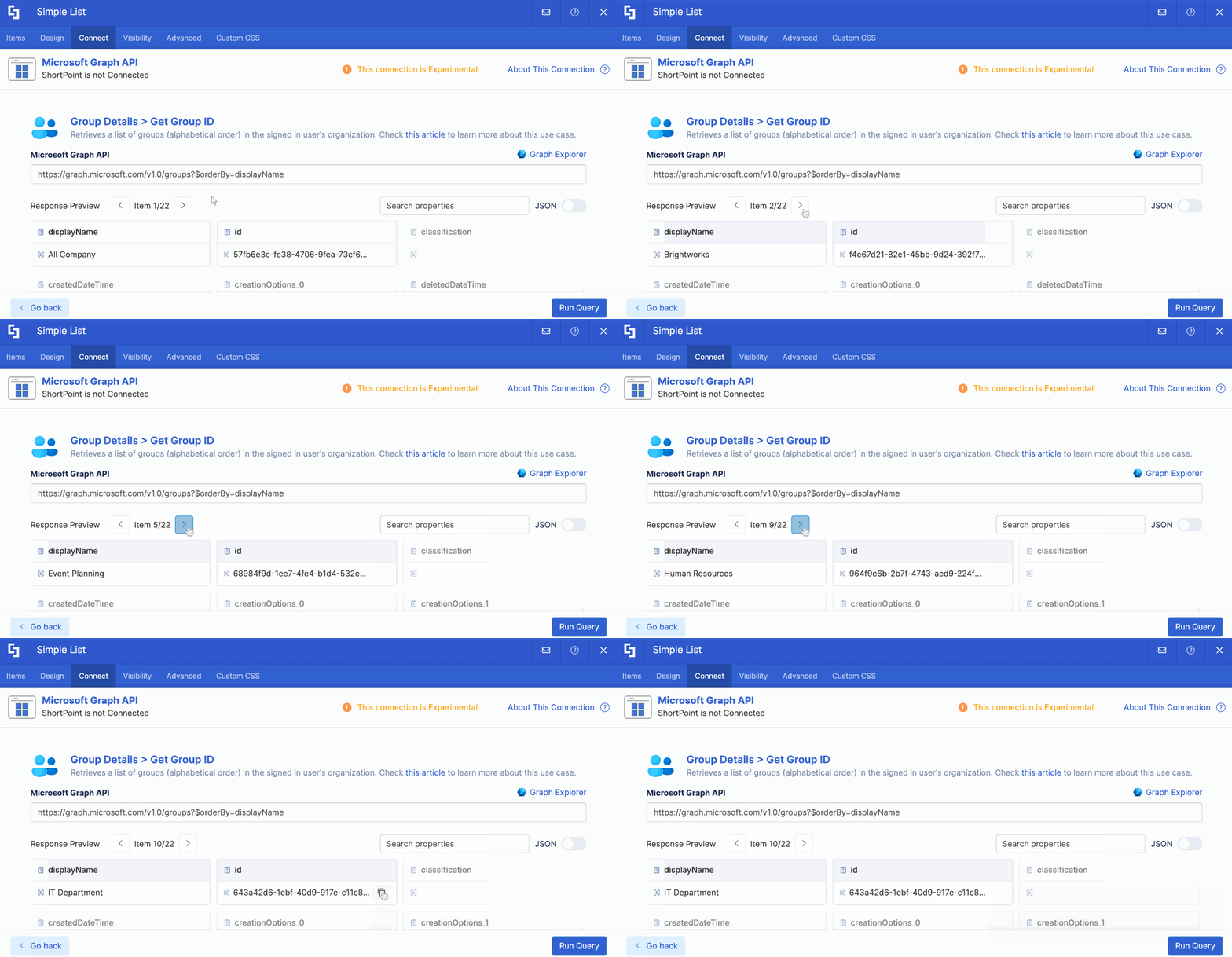
Look for the group you want to use and copy its ID:
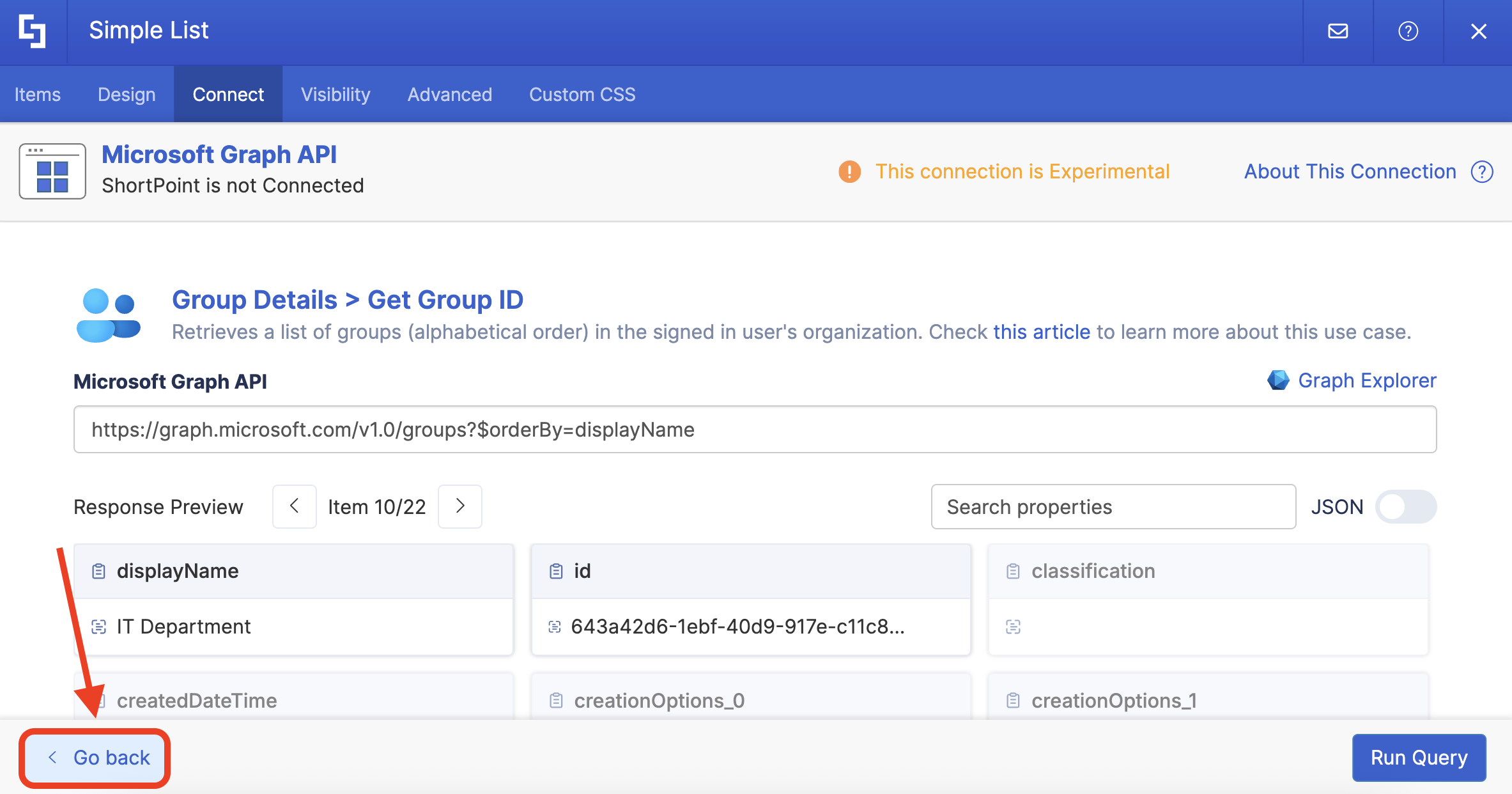
Click Go back:
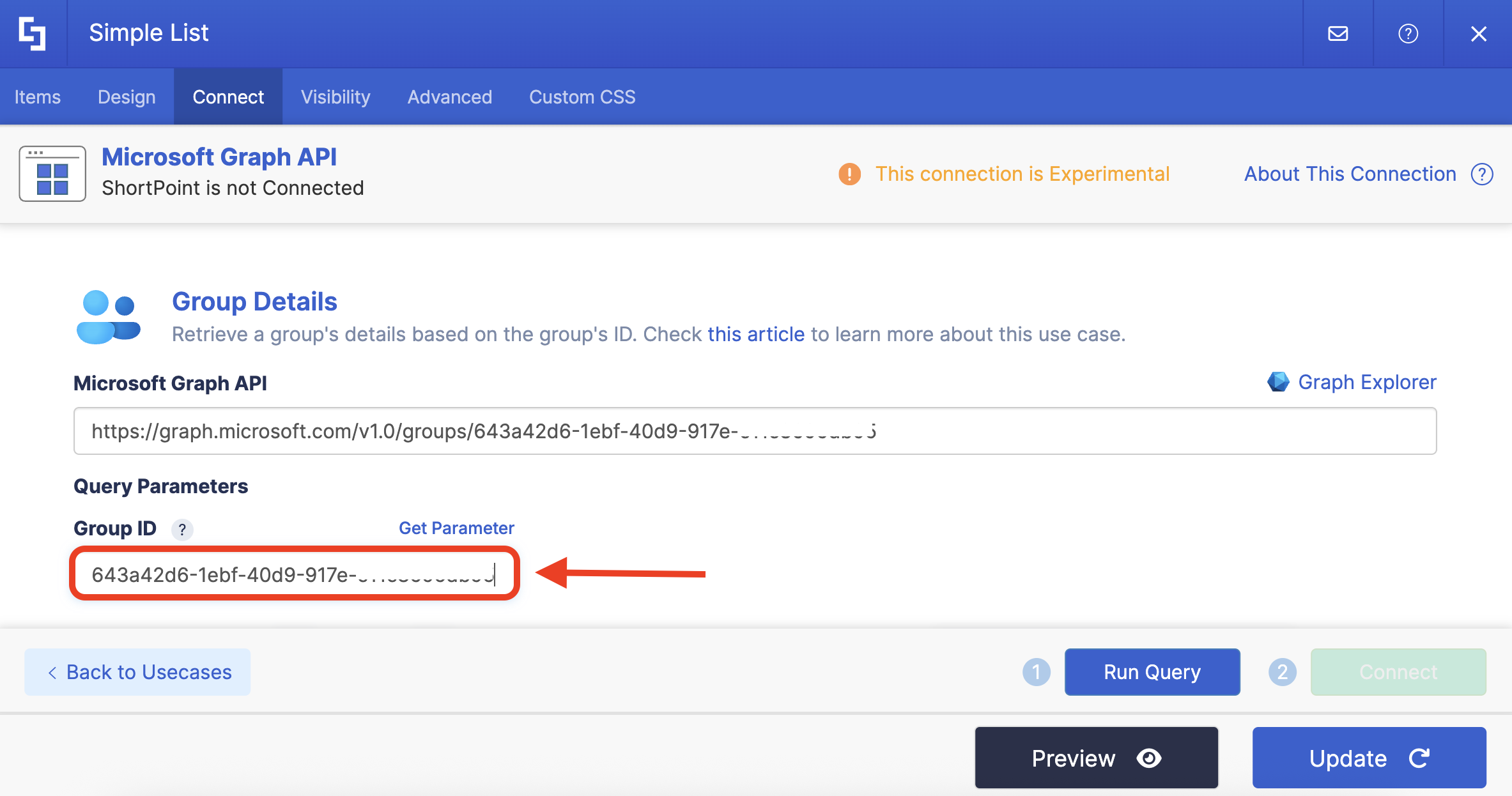
Paste the copied ID in the field provided:
Step 6: Connect
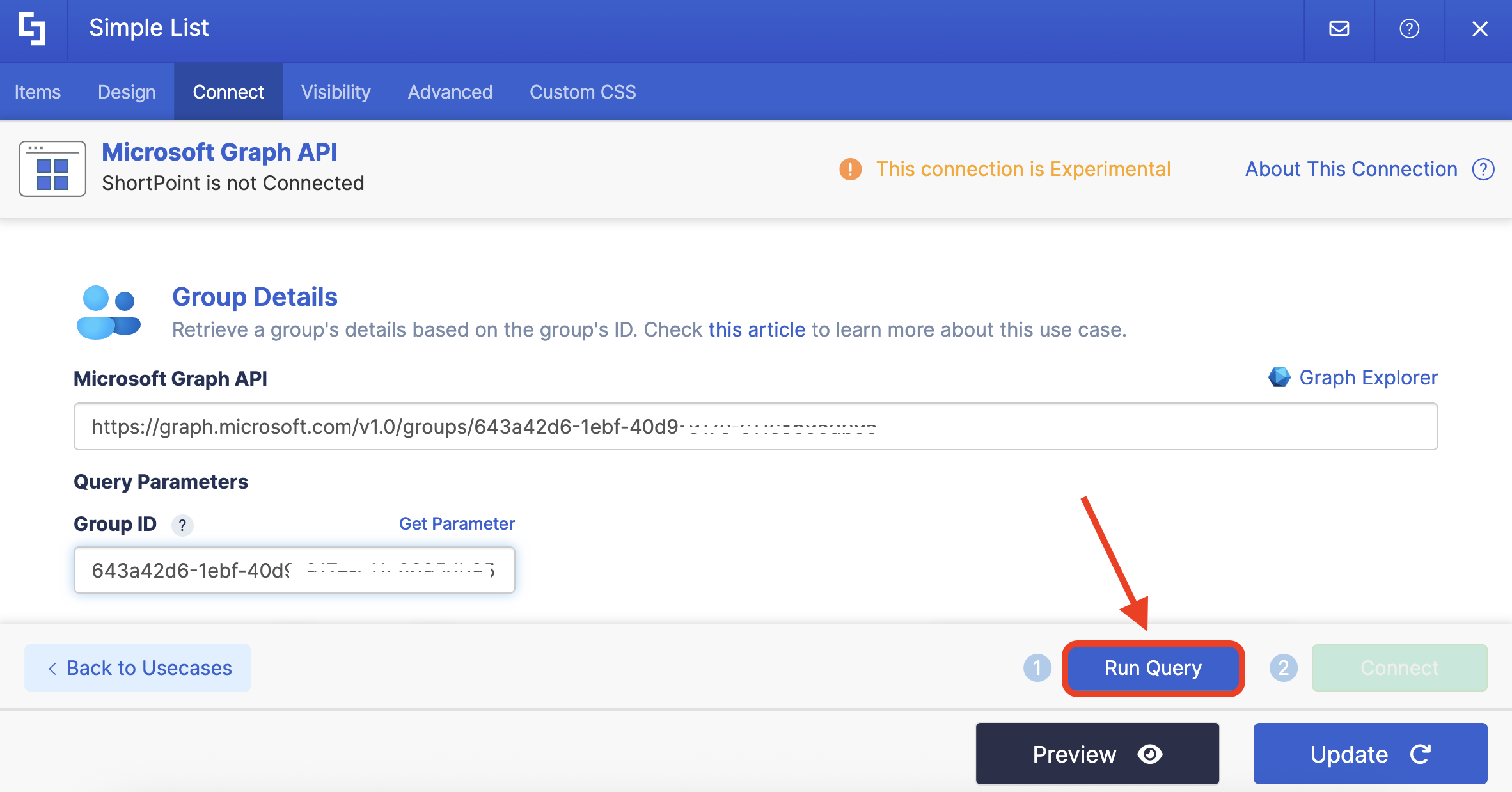
Click Run Query:
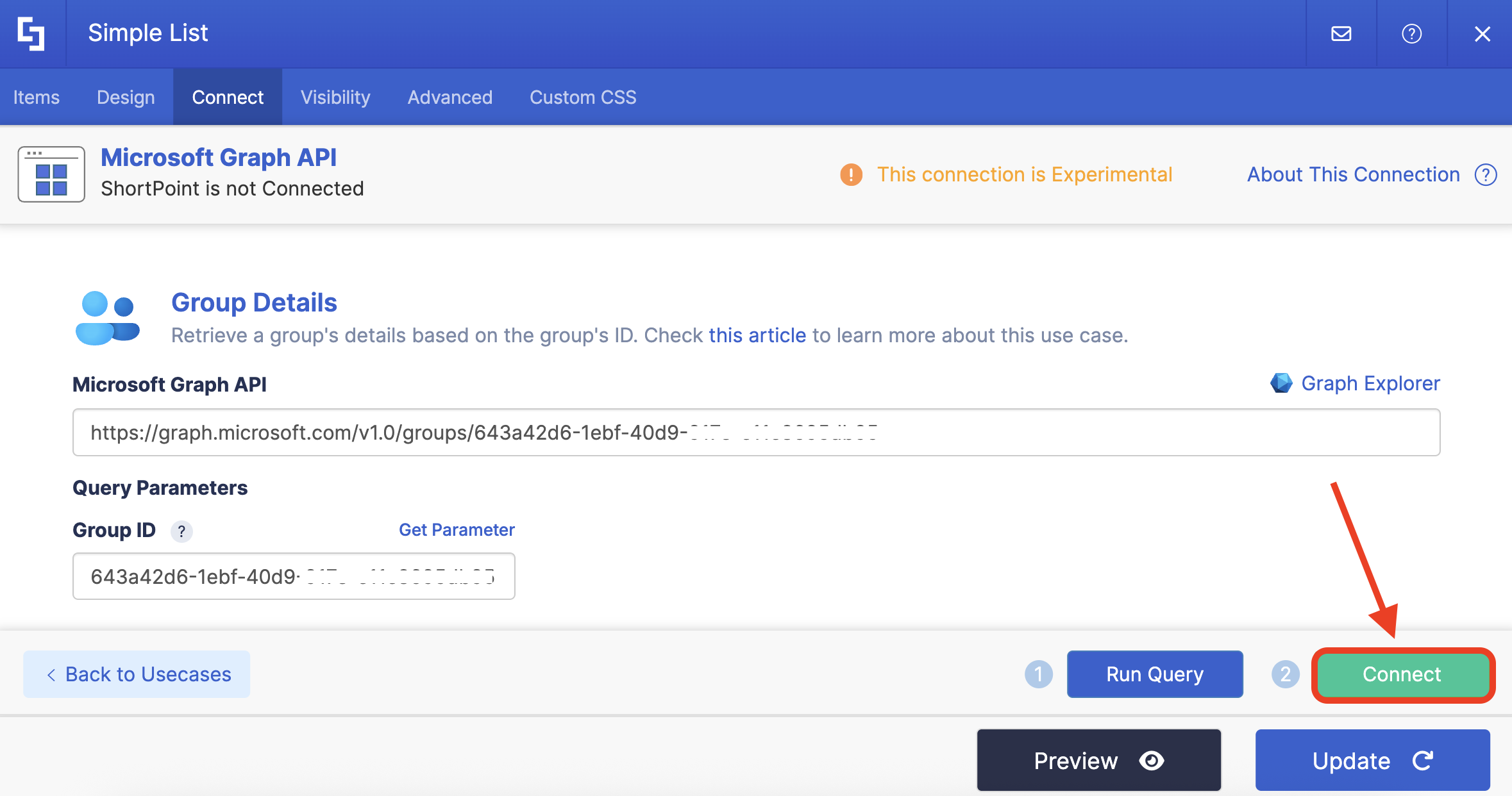
Select Connect:
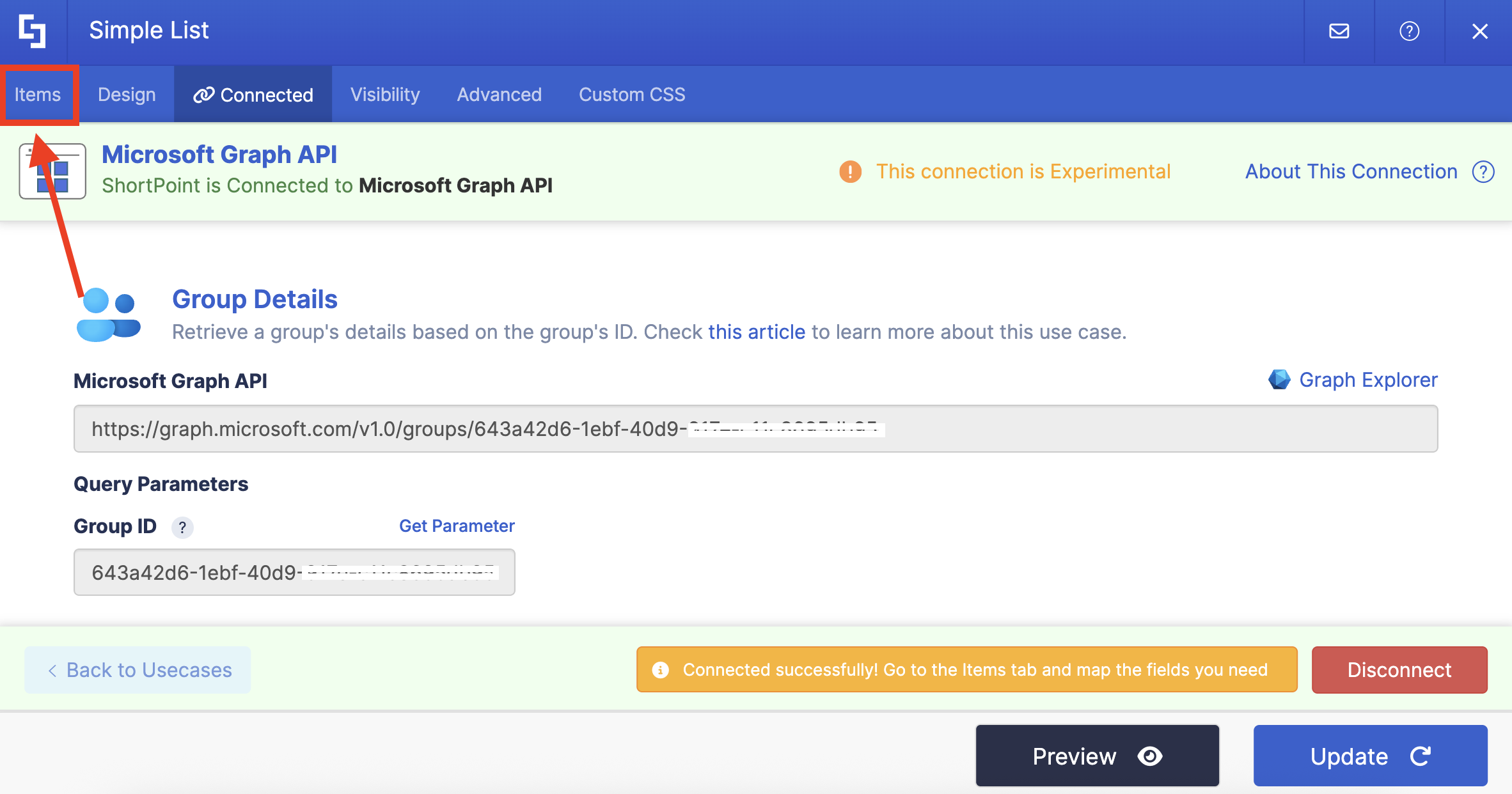
Step 7: Map Items
Go to the Items tab:
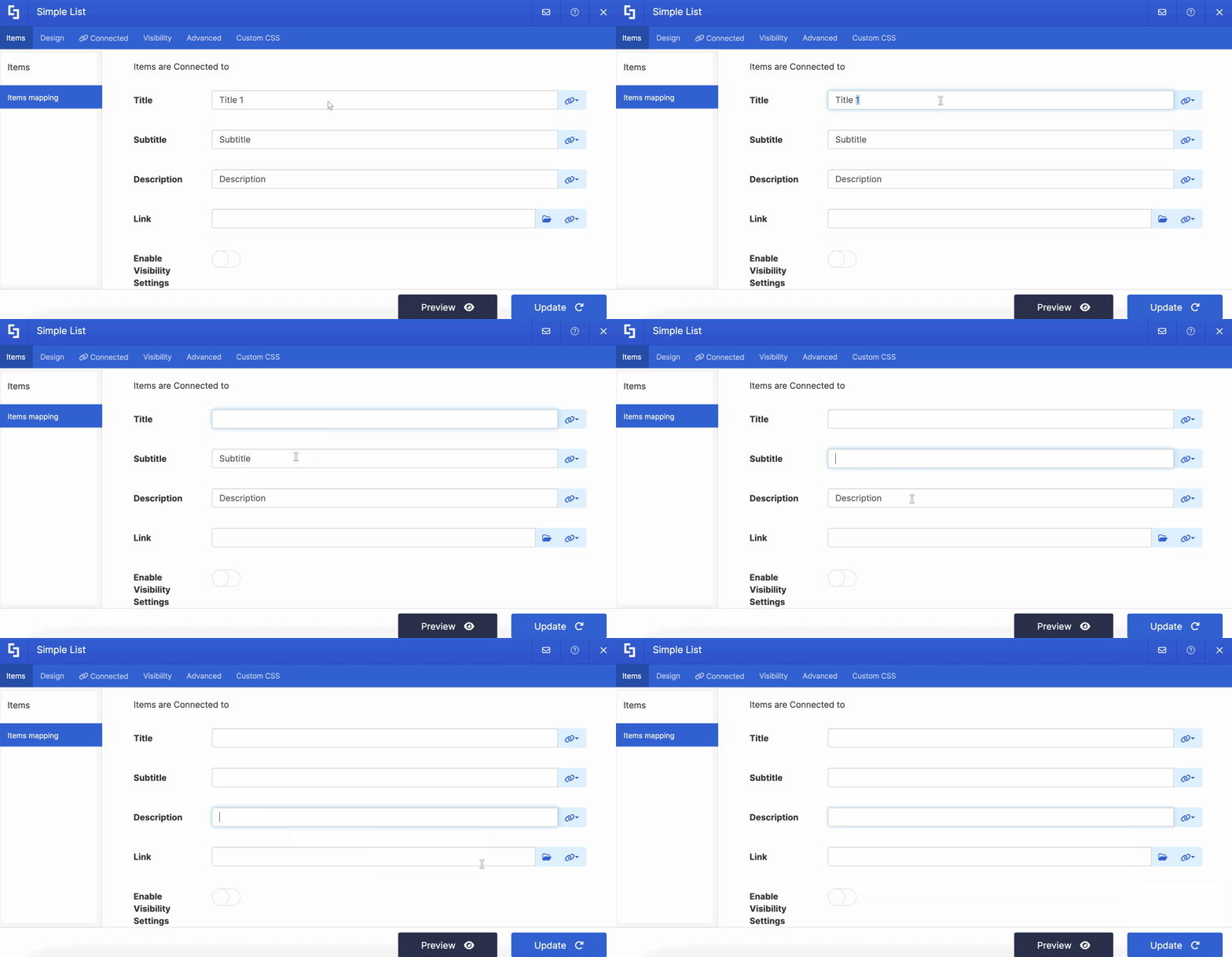
Delete default content:
Use the link icon to map the properties you want to be displayed:
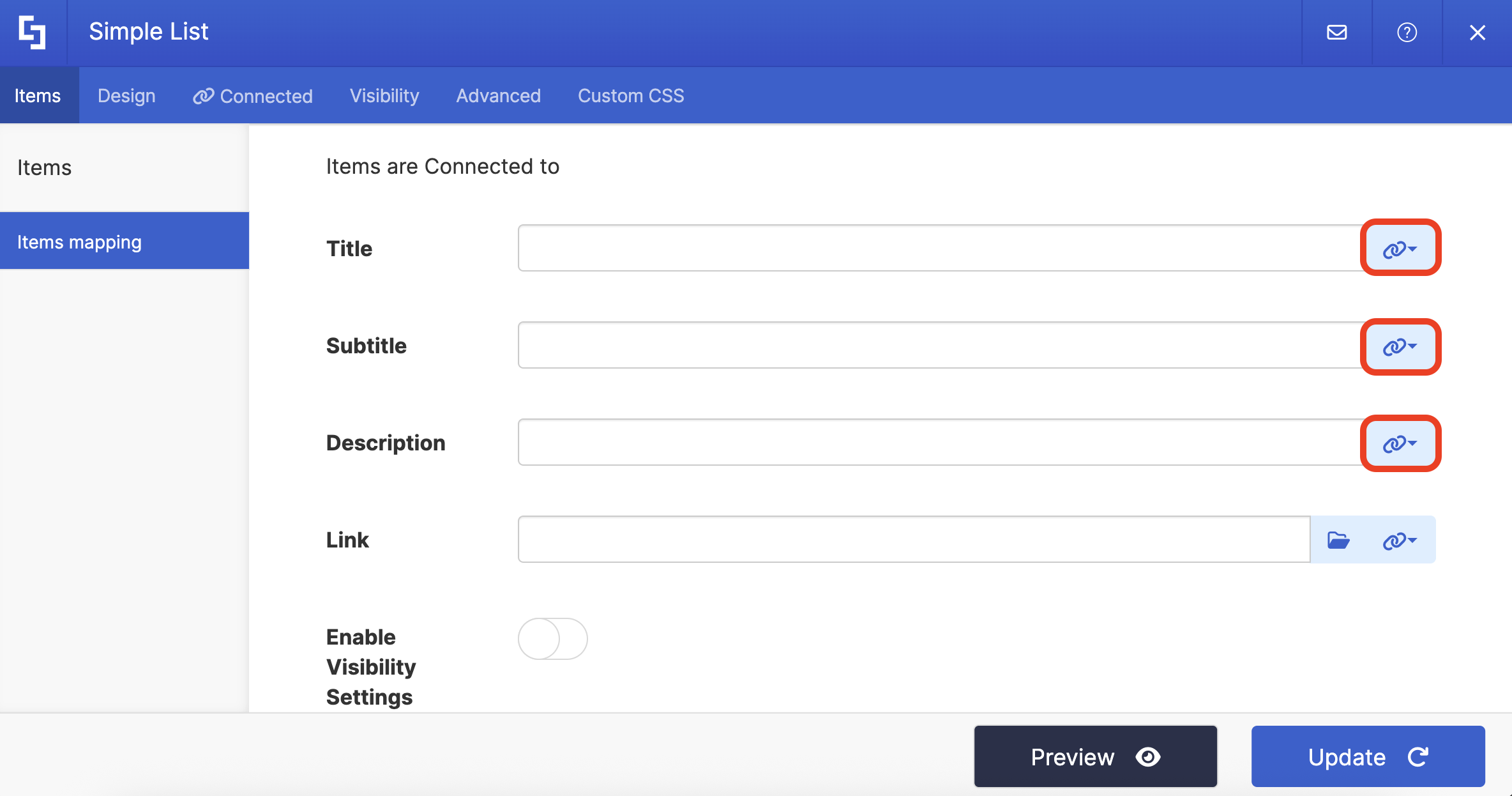
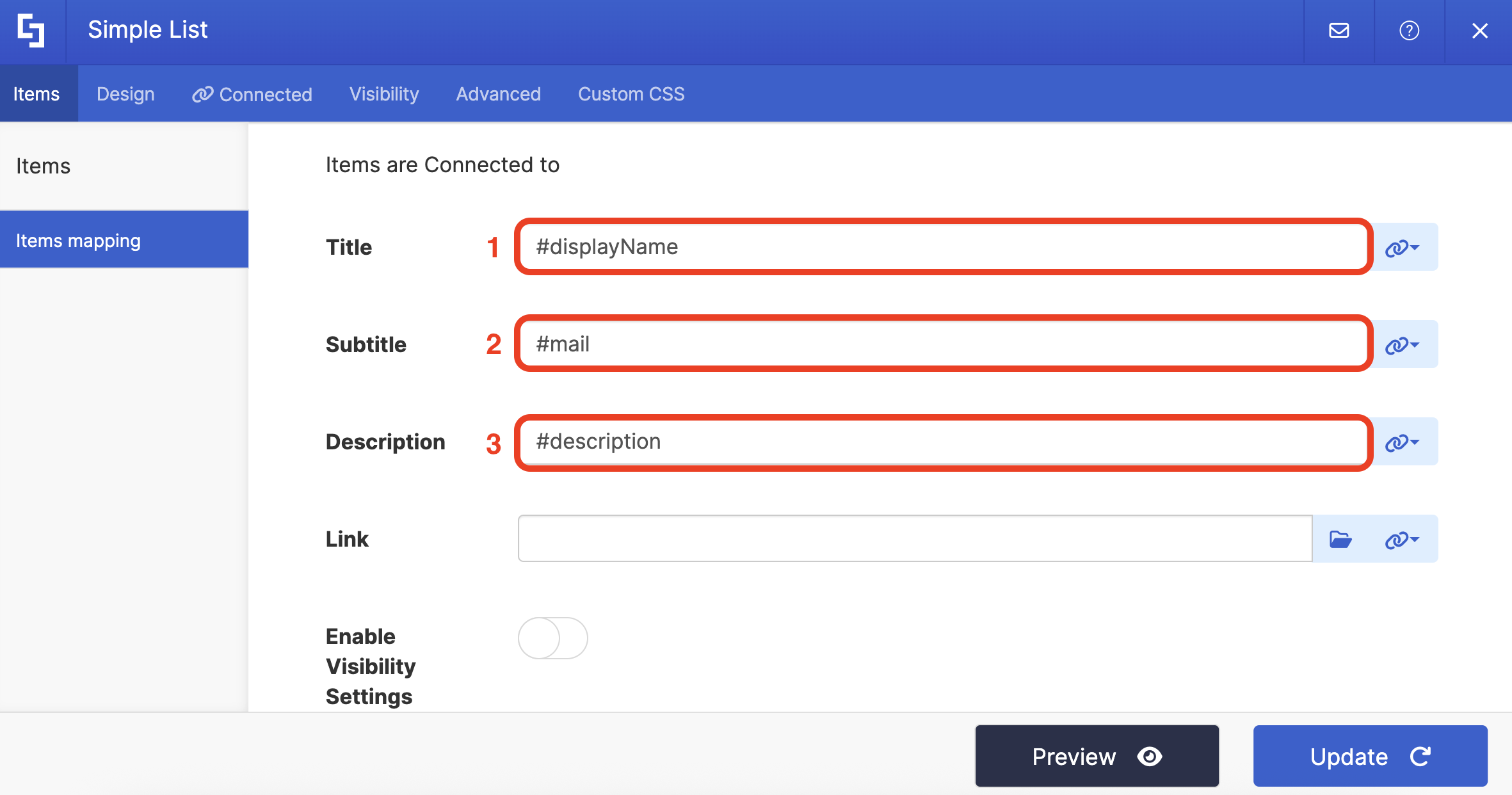
You can map any property you want. In our case, we used the following properties:
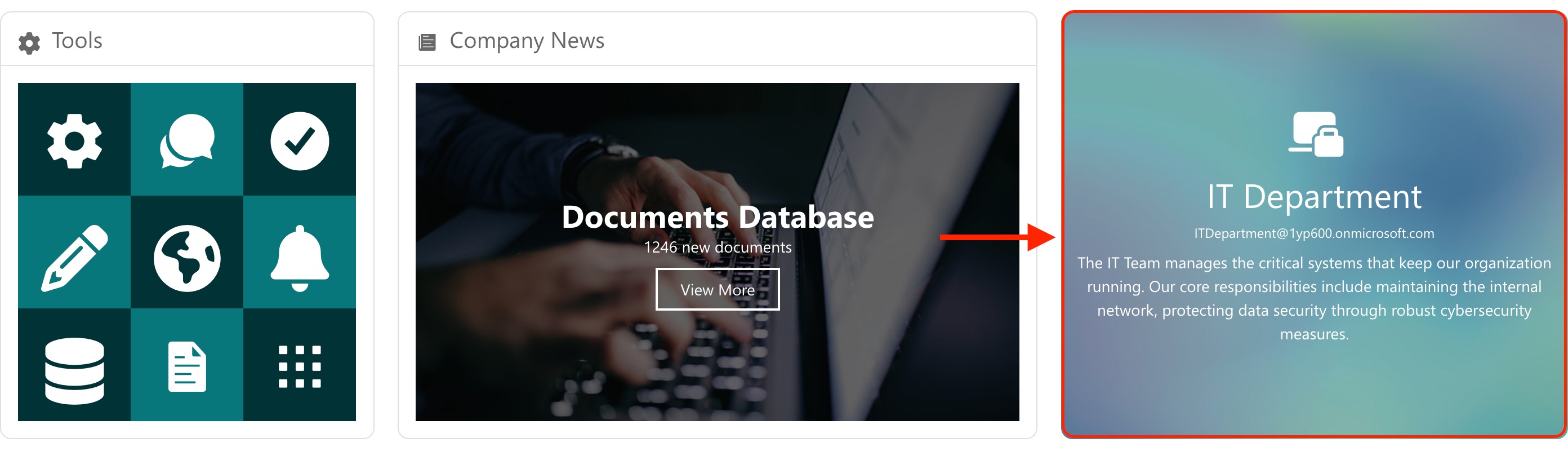
- #displayName in the Title field - shows the name of the group as the title.
- #mail in the Subtitle field - shows the email linked to the group as the subtitle.
- #description in the Description field - shows the description of the group.
NOTECheck out ShortPoint Connect: Basic Tutorial to learn more about mapping properties.
Step 8: Save
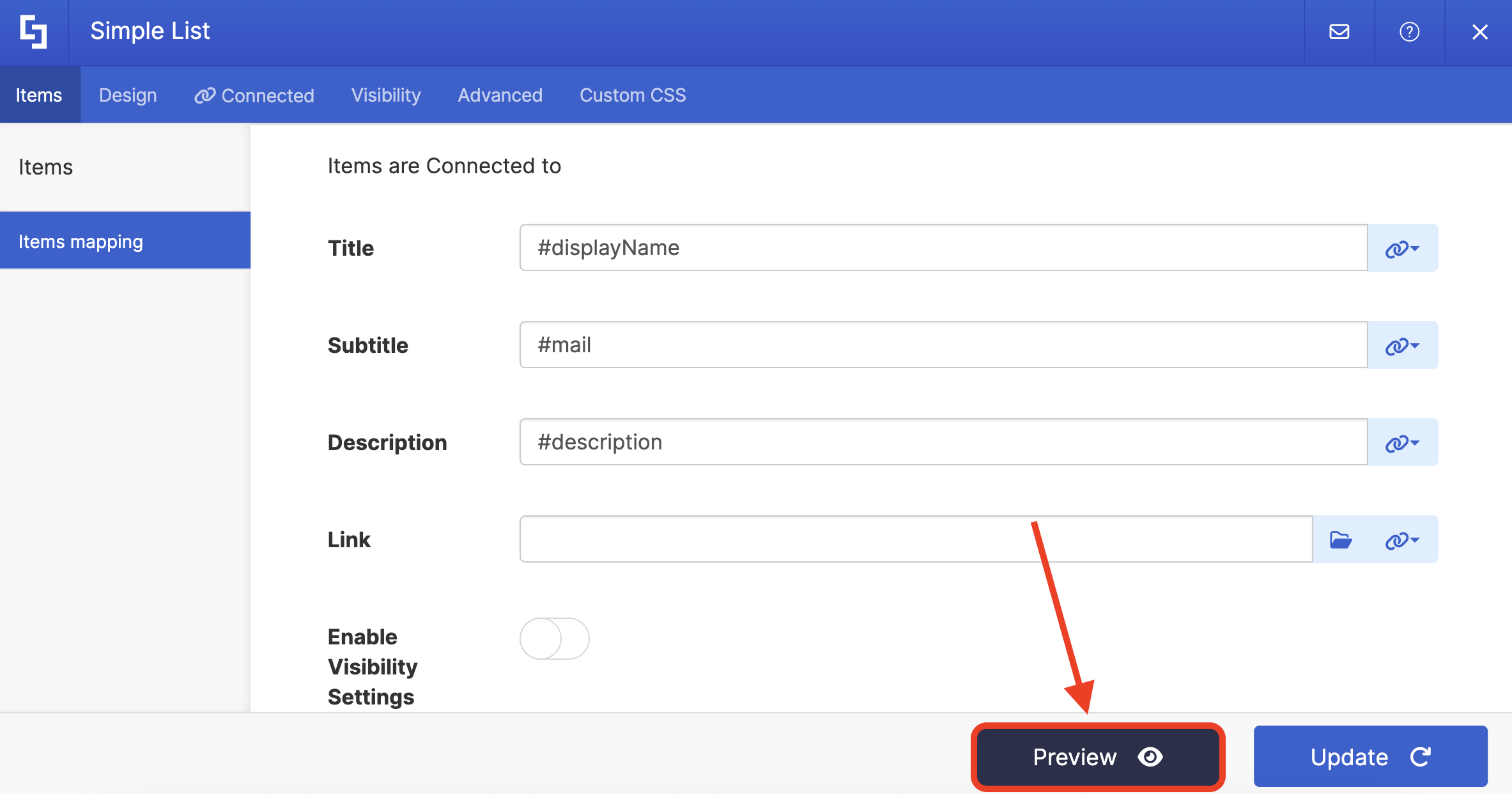
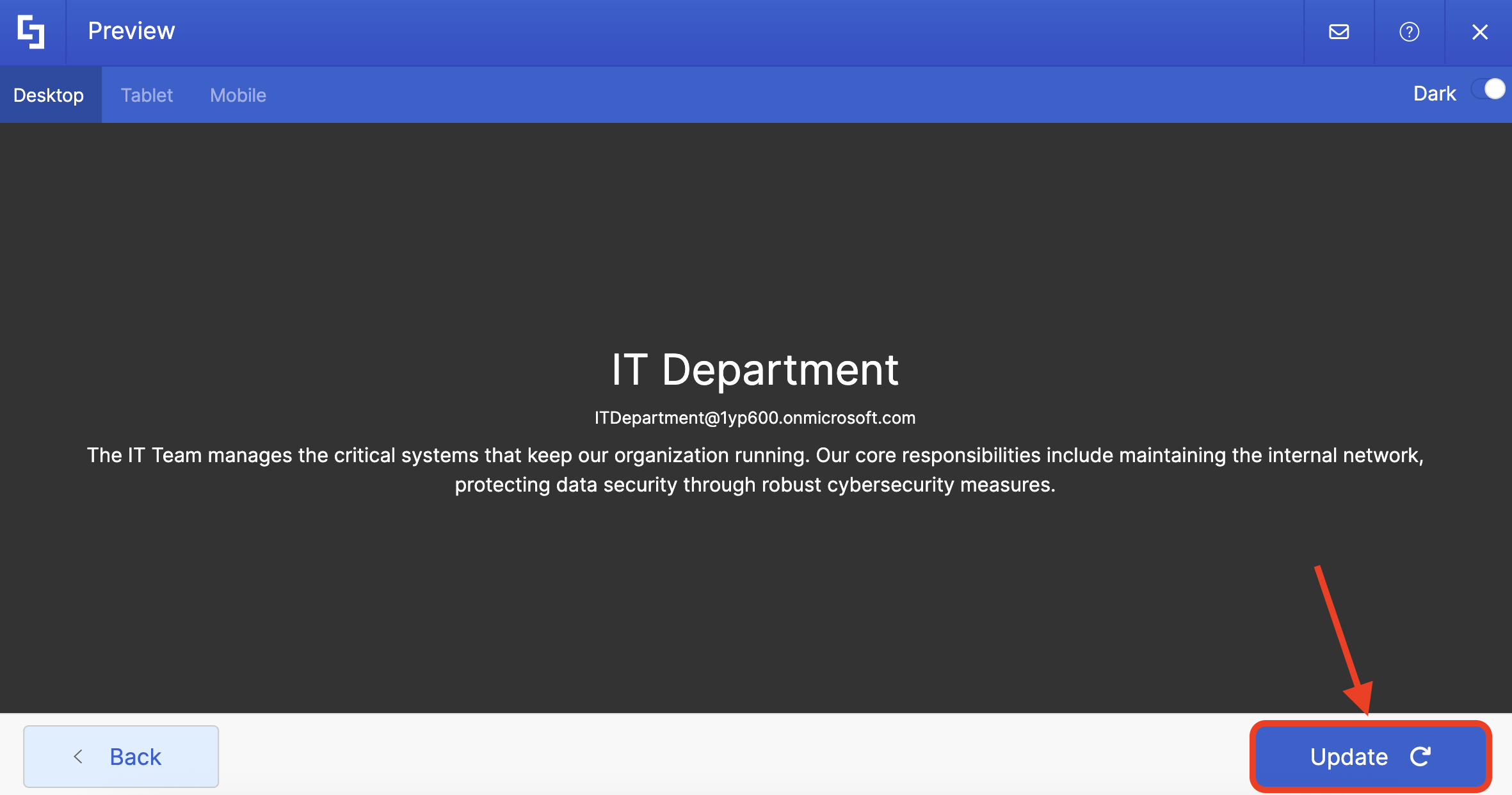
Click Preview to see how the Design Element will look:
Click Update to apply your changes:
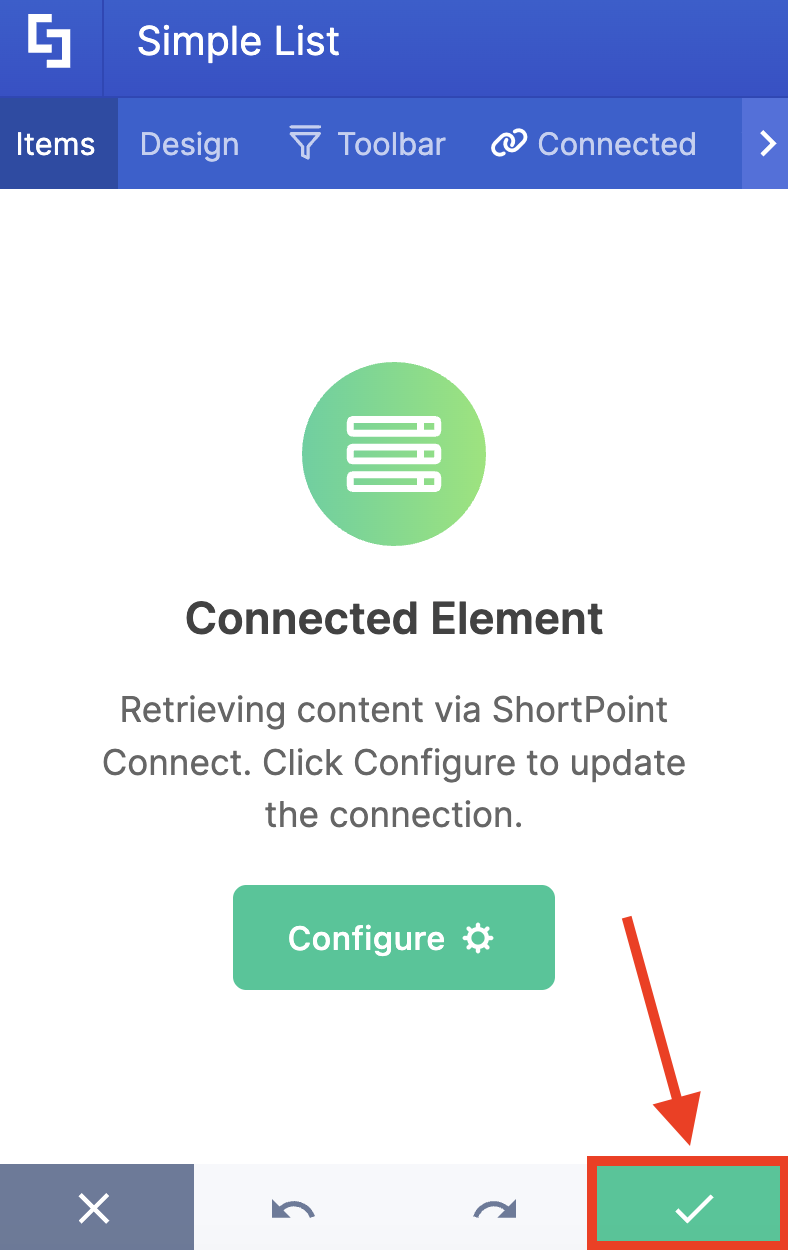
Click the green checkmark:
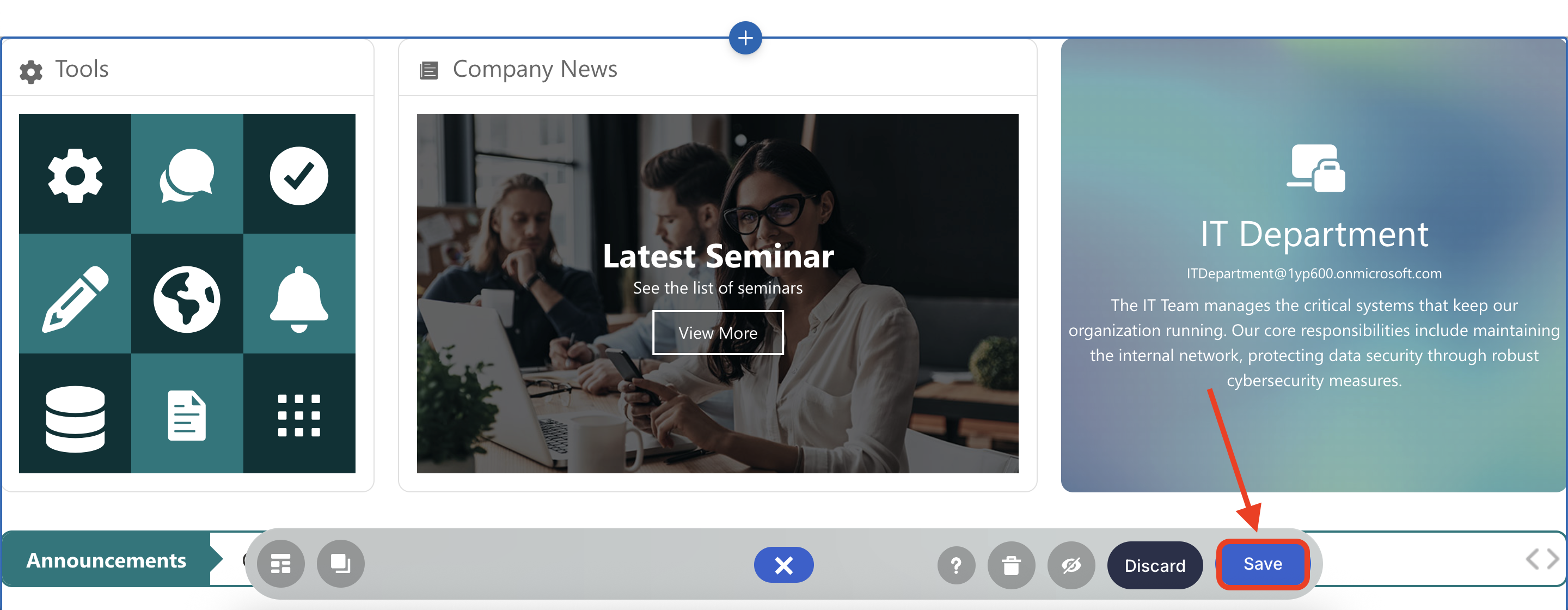
Once satisfied, click Save:
Well done! You and your page viewers now have streamlined access to your group’s information.
Related articles:
