 Try ShortPoint now
When things go wrong, it’s nice to have a fallback. And we made sure you have that in ShortPoint AI Designer!
With the version history feature, you can revert to any previous prompt result at ANY TIME. It’s super simple to do. Just follow the steps in the interactive tutorial.
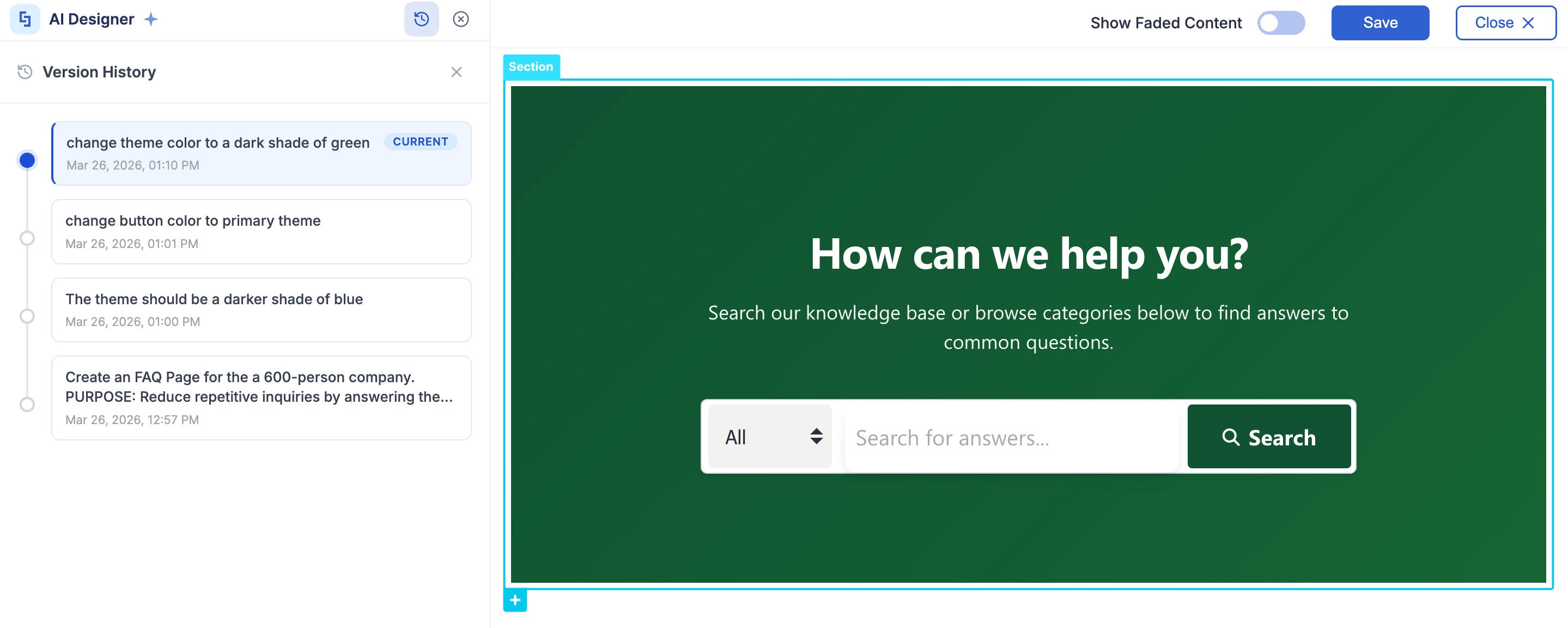
TABLE OF CONTENTS
- What are the Prerequisites?
- What Is the Version History Feature?
- How to Use Version History
- Frequently Asked Questions
What are the Prerequisites?
You must have the latest version of ShortPoint SPFx installed.
You must be a ShortPoint Designer with a Pro or Enterprise License.
You must have ShortPoint AI Designer enabled in the ShortPoint Admin page and have AI credits available. For more information, go to How to Enable/Disable the ShortPoint AI Designer.
What Is the Version History Feature?
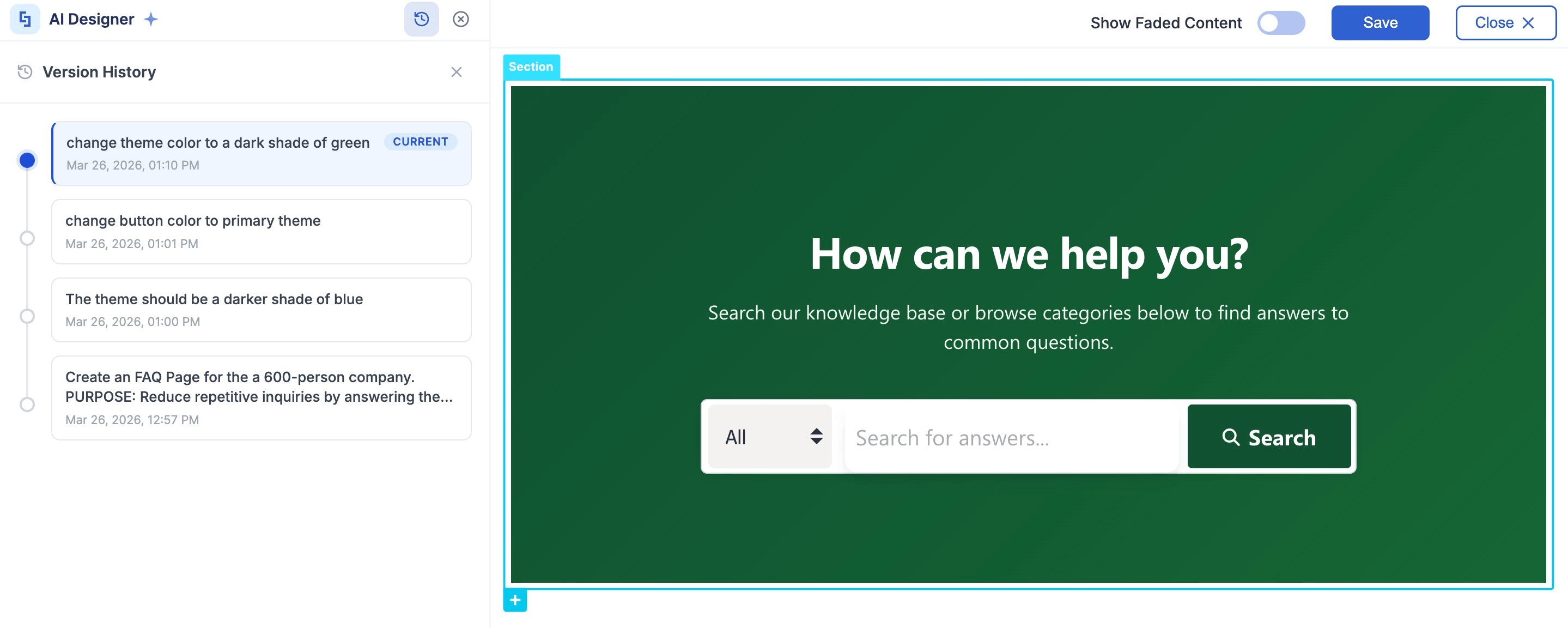
Version History is a ShortPoint AI Designer feature that allows you to keep track and even go back to a previous prompt result version.
Every prompt you enter in ShortPoint AI Designer is saved. You can browse, preview, and revert to any previous design at any time. All it takes is a single click.
How to Use Version History
Here’s an easy-to-follow guide on how to use the version history feature:
Step 1: Edit the ShortPoint Web Part
- Go to the SharePoint page you want to use and click Edit.
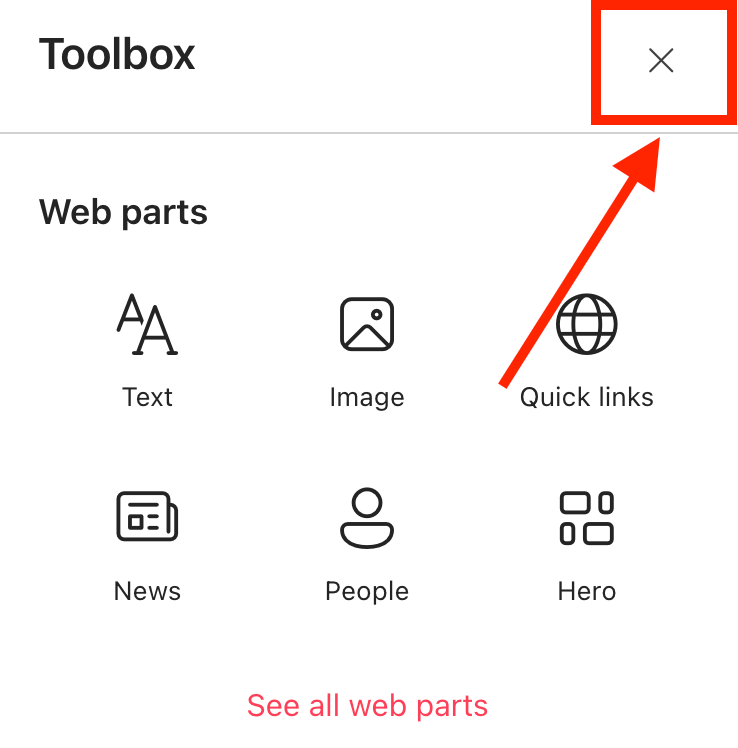
- Close the Toolbox.
- Edit the ShortPoint web part.

Step 2: Open Version History
- Click the AI Designer icon in the floating bar:

- Select the Version History icon:

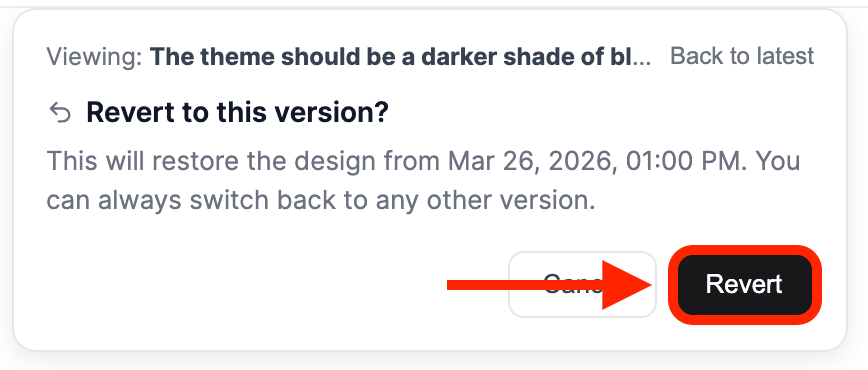
Step 3: Browse & Revert
- Choose the version you want to revert to:
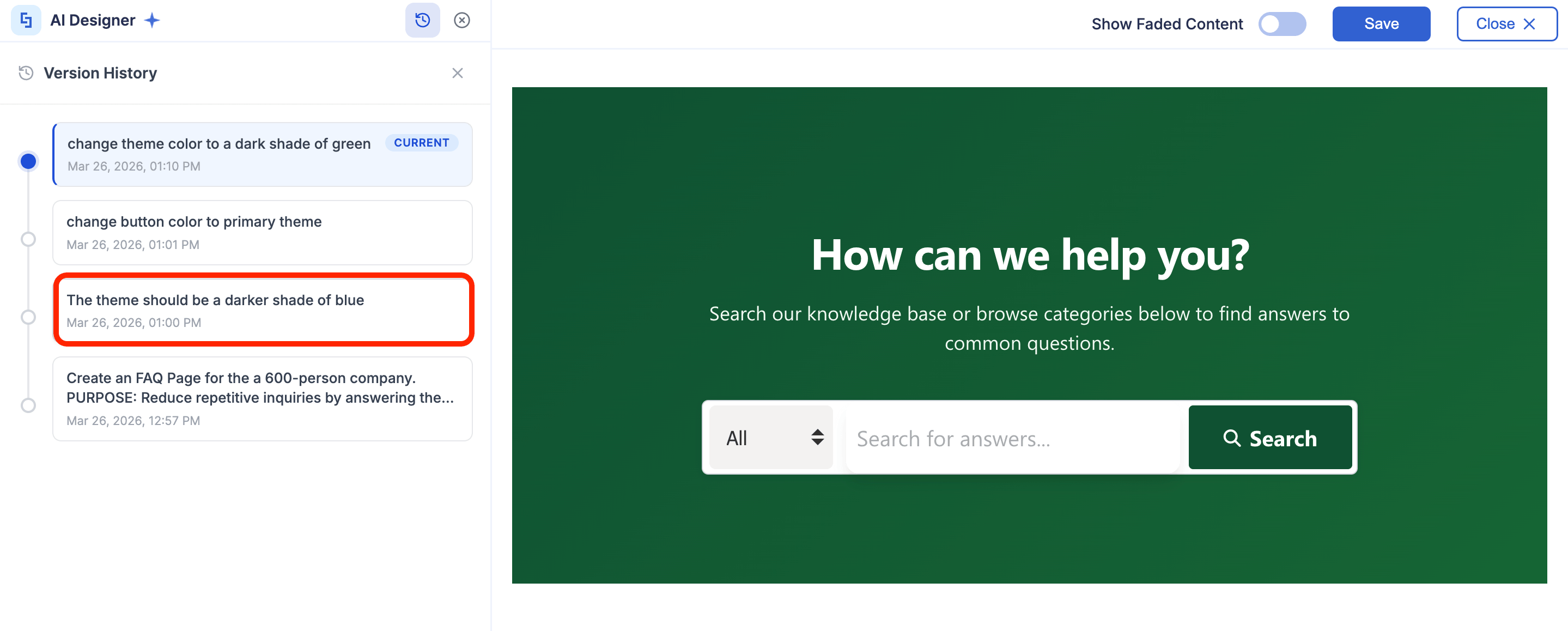
- Click Revert:
Step 4: Save
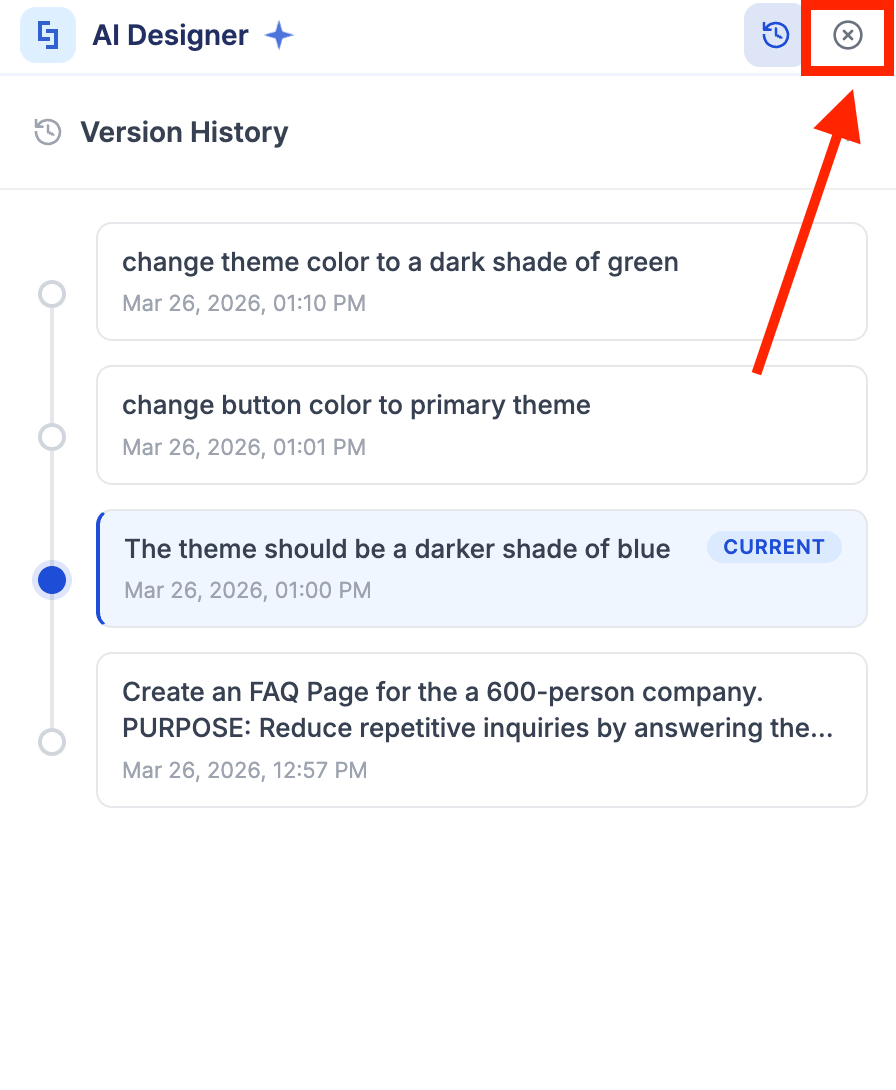
- The previous prompt version will now be applied. Close the AI Designer panel:
- Save your changes:

- And Publish your page:

Well done! You can now go back to any previous prompt result anytime.
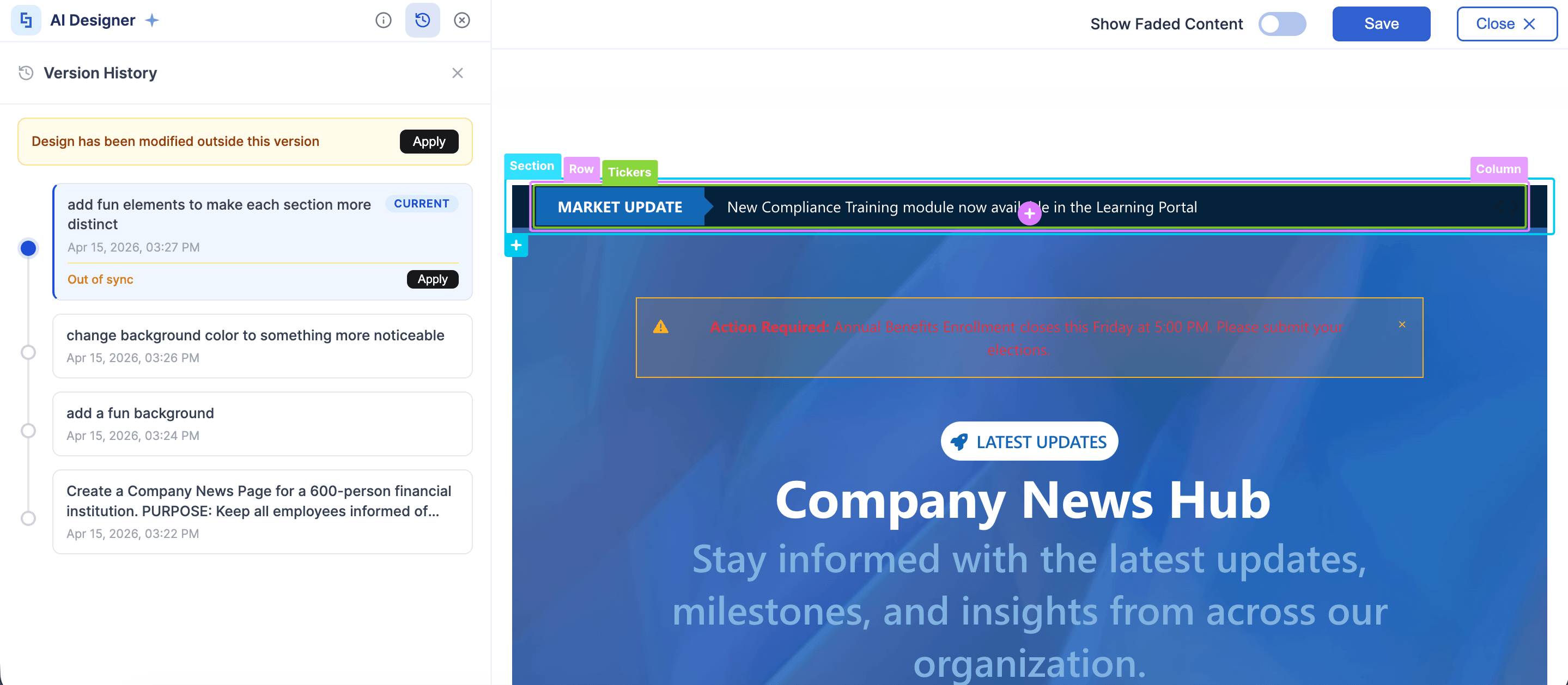
TIPIf you made changes outside the AI Designer Panel, you can still use the Version History to accurately capture those changes. Simply click Apply to add the changes made to the current version.
Frequently Asked Questions
What is the Version History feature in ShortPoint AI Designer?
Version History is a feature that saves every prompt result you create in ShortPoint AI Designer, allowing you to browse, preview, and revert to any previous design version at any time with a single click.
Who can use the Version History feature?
You must have the latest version of ShortPoint SPFx installed and be a licensed ShortPoint Designer with access to ShortPoint AI Designer.
How do I access the Version History feature?
Edit the ShortPoint web part on your SharePoint page, then click the AI Designer icon in the floating bar and select the Version History icon to browse previous prompt results.
Can I revert to any previous design version?
Yes, you can select any saved prompt version from the Version History and revert to it instantly.
Related articles:
- ShortPoint AI Designer: An Overview
- Quickstart Guide: Generate your first intranet page
- ShortPoint AI Designer Features: What Can it Do?
- How to Use the ShortPoint AI Designer: Detailed Step-by-step
- How to Write Effective AI Prompts for ShortPoint AI Designer
- How to Use Text Prompting in ShortPoint AI Designer
- How to Use Voice Prompting in ShortPoint AI Designer
- How to Use Image-to-Image Prompting in ShortPoint AI Designer
- How Brand-Aware Design Works in ShortPoint AI Designer
- How to Use ShortPoint AI Designer to Edit an Existing ShortPoint Template
- Prompt Library
- Iterating with Multi-Turn Conversation in ShortPoint AI Designer
- How to Modify Specific Page Elements Using the ShortPoint AI Designer
- How to Queue Prompts in ShortPoint AI Designer
- How to Create Dynamic Design Elements Using ShortPoint AI Designer
- How to Activate the Search & Filter Widgets Using ShortPoint AI Designer
- How to Use the Paste from Clipboard Feature of ShortPoint AI Designer
- How to Copy and Paste Design Snippets from ShortPoint AI Designer to Another SharePoint Site
