 Try ShortPoint now
ShortPoint AI Designer turns your ideas (prompts) into beautiful SharePoint pages in minutes. To keep this engine running and ensure everyone gets the performance they need, we use a simple credit-based system called AI Credits.
This article will go through the basics of AI Credits, including what they are, how to buy them, and how to track their usage.
TABLE OF CONTENTS
- What are the Prerequisites?
- What Are AI Credits?
- How to Buy AI Credits
- How to Adjust Monthly AI Credit Limit
- How to Track AI Credits Usage
- Frequently Asked Questions
What are the Prerequisites?
- You must have the latest version of ShortPoint SPFx installed.
- You must be assigned the ShortPoint Admin role to access the Admin page. For more information about the admin role, check out Who is the Short Admin.
- You must have a Pro License.
What Are AI Credits?
Think of AI credits as the “fuel” that runs the ShortPoint AI Designer. Every time you ask the AI to generate a section or refine a layout, it uses a small amount of "fuel" to get the job done. By using a credit-based system, we can allocate generation resources for all our ShortPoint Designers while maintaining high speeds and top-tier quality.
Upon activation of the AI Designer, ShortPoint Designers with a Pro License receive an initial 2,000 AI Credits per tenant to get them started. Enterprise license holders, on the other hand, will get an initial 10,000 AI Credits. Currently, designers with a Lite License will not be able to access the AI Designer and its features.
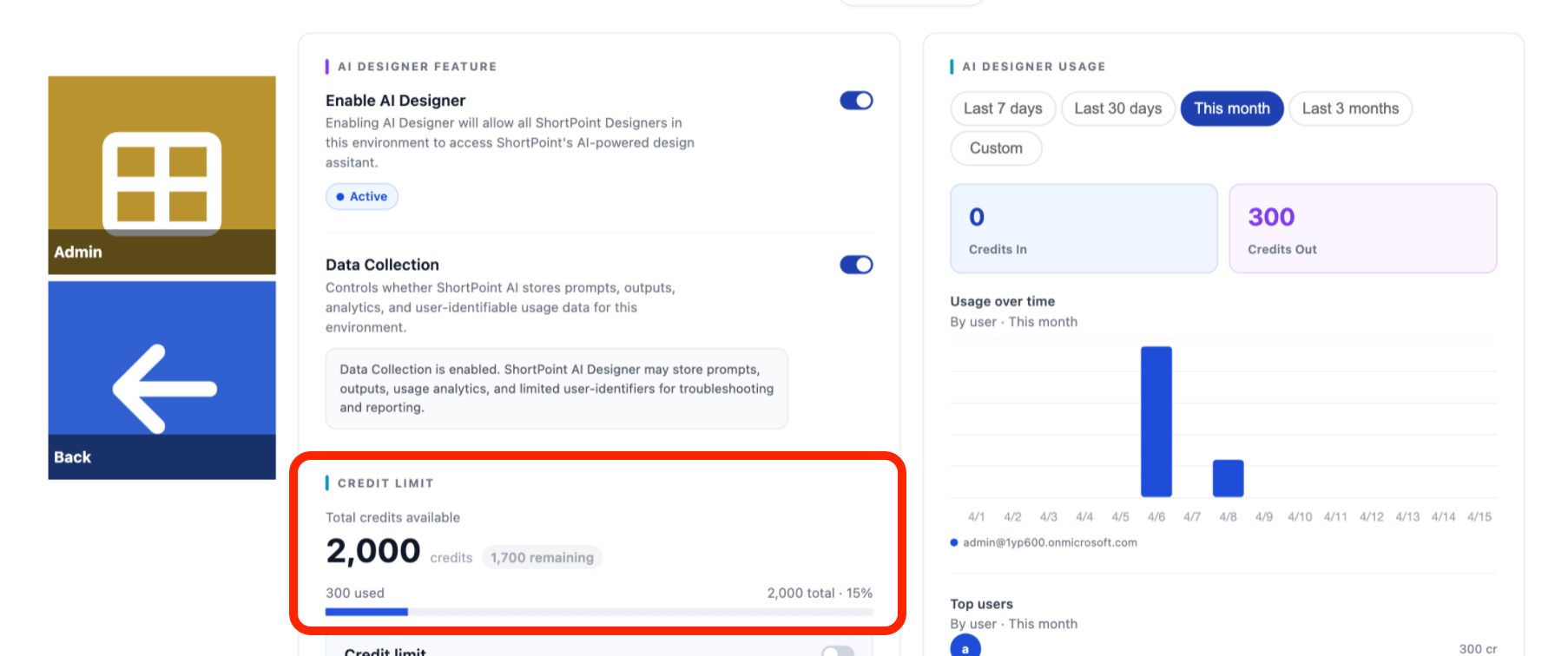
Design Tasks Breakdown
AI credits are typically consumed when you perform a design task with the AI. To help you plan your next project better, here’s a quick breakdown of the design tasks you can tackle with the AI Designer and the AI Credits required for each:
Design Task | AI Credits Used |
| Building an entire SharePoint page (with 5 Sections) | 40 |
| Generating a new Section | 6 |
| Requesting a design variation of an existing Section | 8 |
How to Buy AI Credits
When AI credits run out, it’s super easy to purchase. All you have to do is go to the ShortPoint Admin page and choose the purchase option you’d like to do. Start the interactive tutorial to learn how.
Step 1: Open the Admin Page
- Go to the SharePoint page you want to use and click the ShortPoint Icon:

- Select Dashboard:

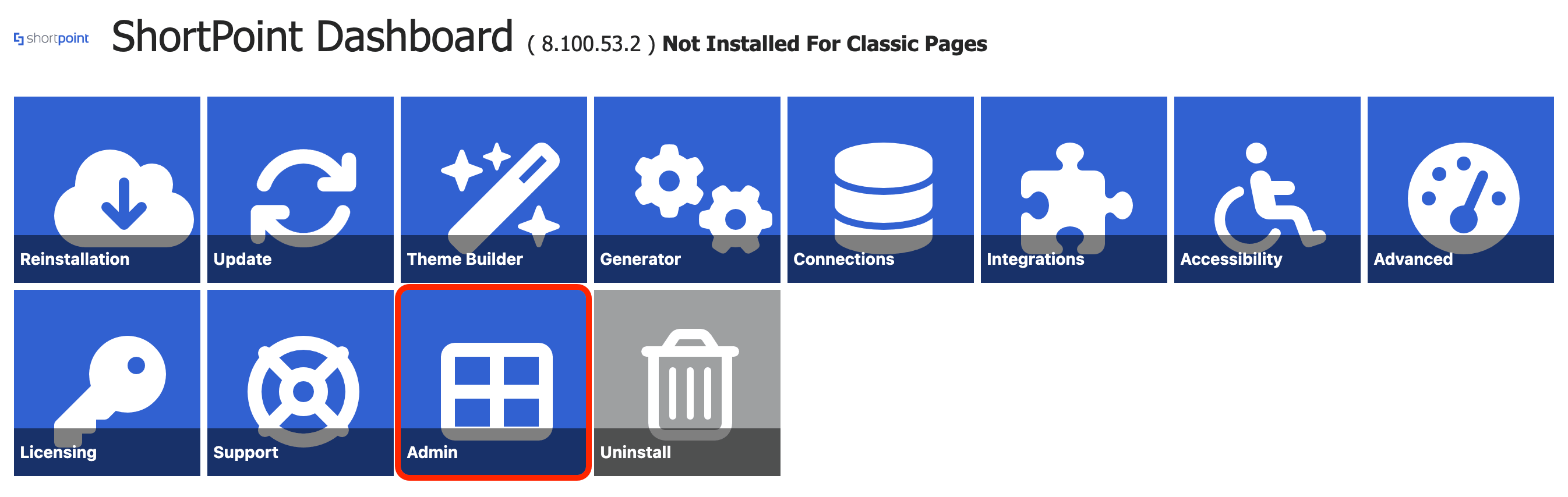
- Click Admin:
Step 2: Choose a Payment Option
There are 2 ways to buy AI credits. Choose the option that suits your needs:
Opt 1: Manual Payment
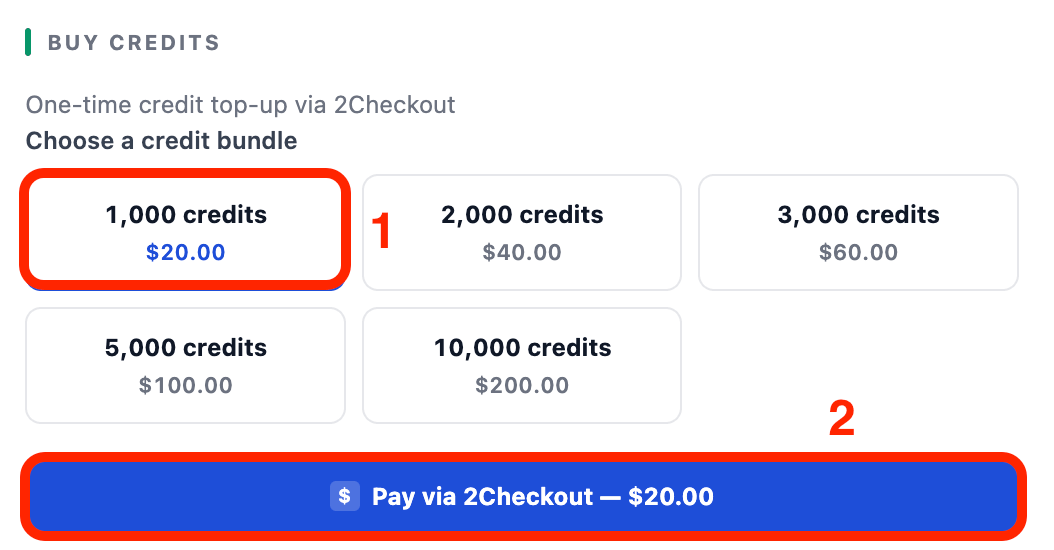
- Scroll down to the Buy Credits section, [1] select the number of AI credits you'd like to purchase, and [1] click Pay via 2Checkout:
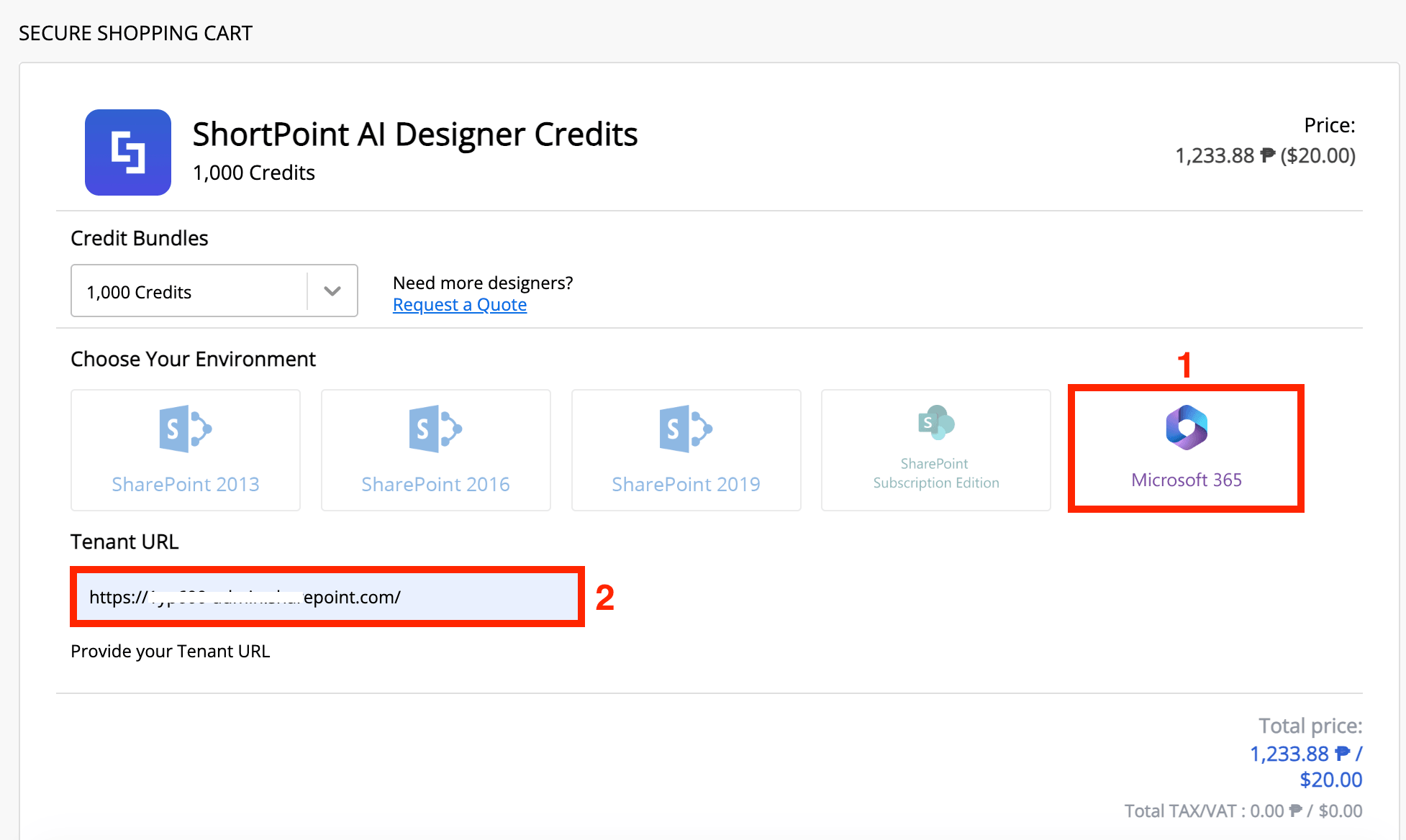
- You will be taken to the checkout page. Choose your [1] SharePoint environment and write your [2] Tenant URL:
- Fill in the necessary details.
- Once done, select Place order:

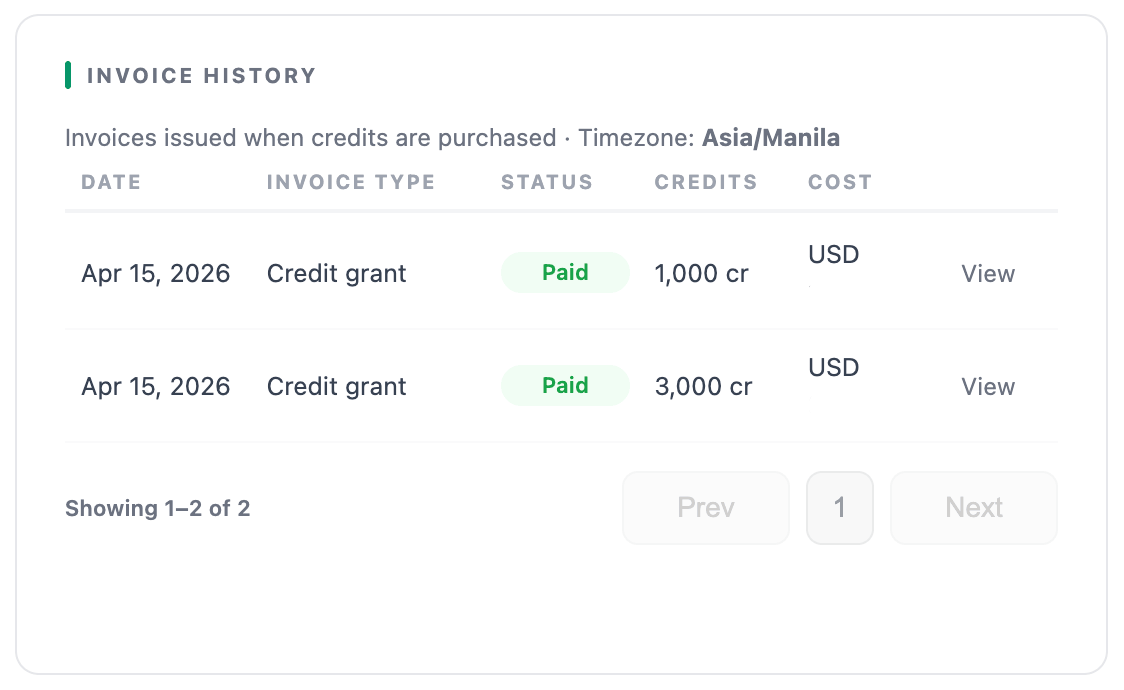
That's it! You've successfully purchased AI Credits. You will see a record of your transaction in the Invoice History.
Opt 2: Auto-Recharge
- Scroll down to the Automatic re-charge section and toggle it on.

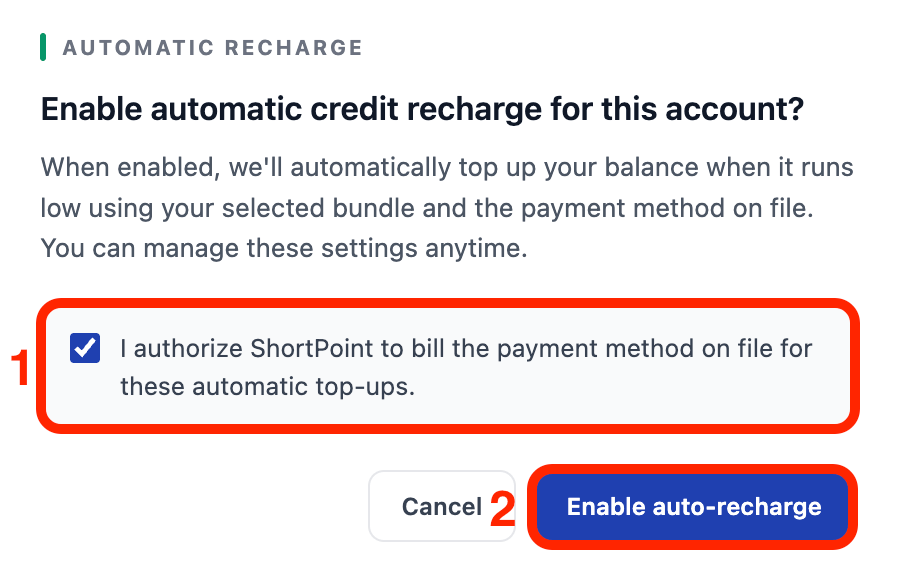
- A pop-up will appear, explaining some details about the Automatic recharge. Click the [1] checkmark to authorize it and click [2] Enable Auto recharge:
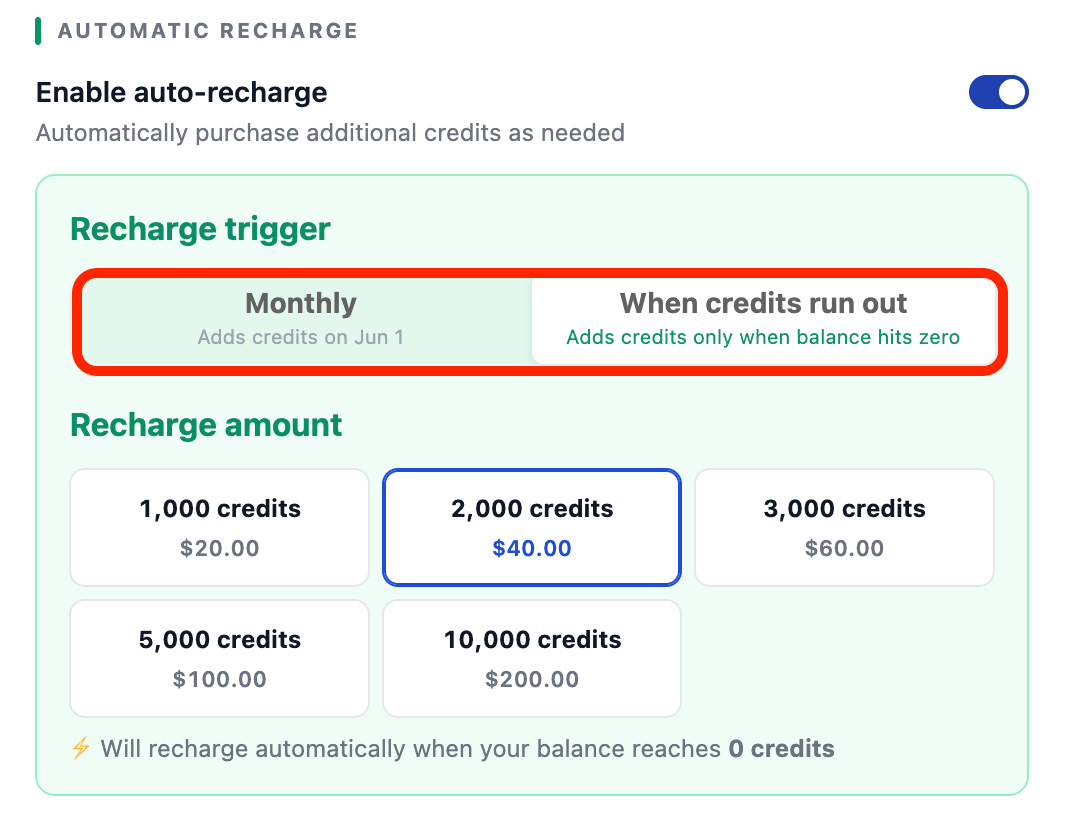
- Choose whether you want to be charged monthly or when the AI credits run out.
- Then, select the amount of AI credits you want to purchase.
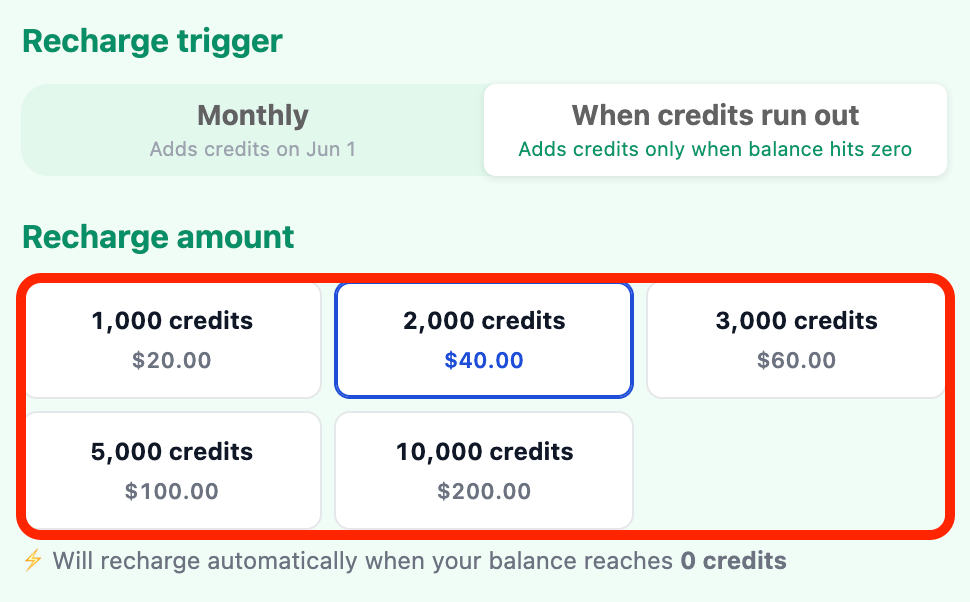
That's it! You will now be charged the specified amount either monthly or when your AI credits run out.
How to Adjust Monthly AI Credit Limit
As a ShortPoint Admin, you can adjust the monthly AI Credit consumption of all ShortPoint Designers on your team. Start the interactive tutorial to learn how to set it up:
Step 1: Open the Admin Page
- Go to the SharePoint page you want to use and click the ShortPoint Icon:

- Select Dashboard:

- Click Admin:
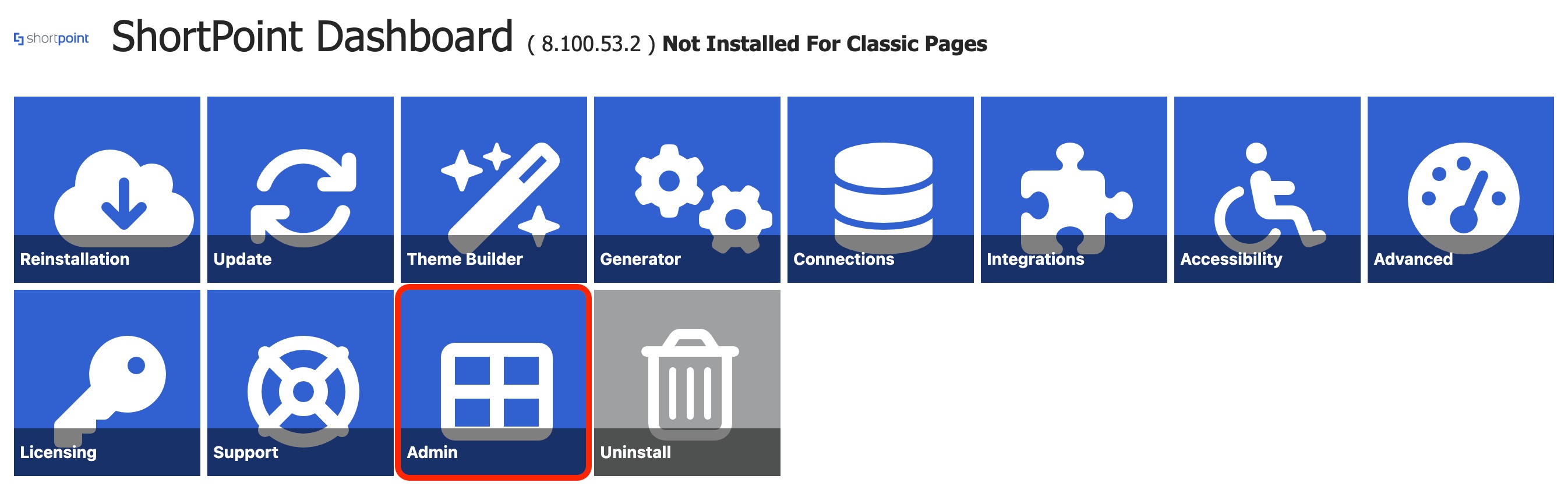
Step 2: Enable AI Credit Limit
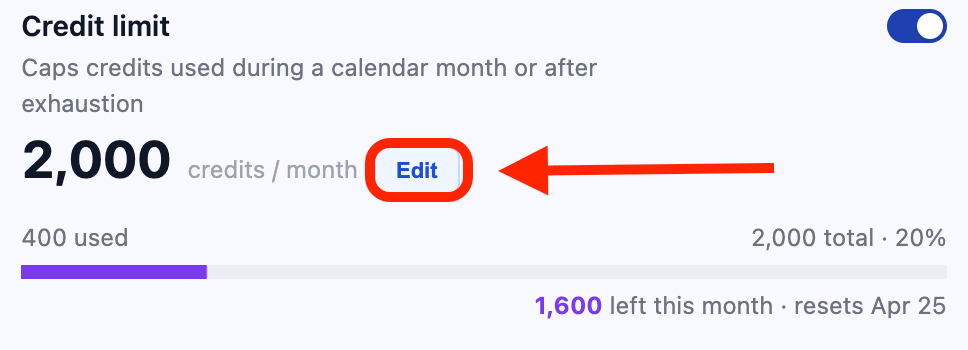
- Scroll down to Credit Limit and enable it. When it’s enabled, you’ll be able to set the number of AI Credits ShortPoint Designers can use per month.

- By default, it is capped to 2,000 AI Credits per month. To change it, click Edit.
- Modify the AI Credit limit and click Set.
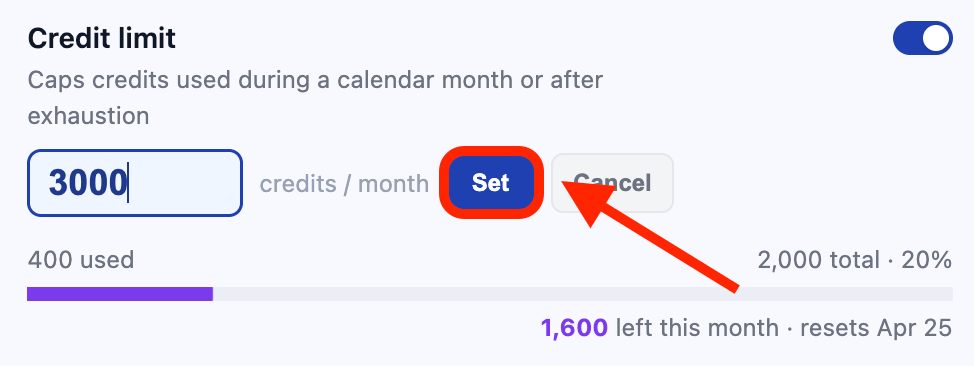
Great work! You can now set a monthly AI Credit limit.
How to Track AI Credits Usage
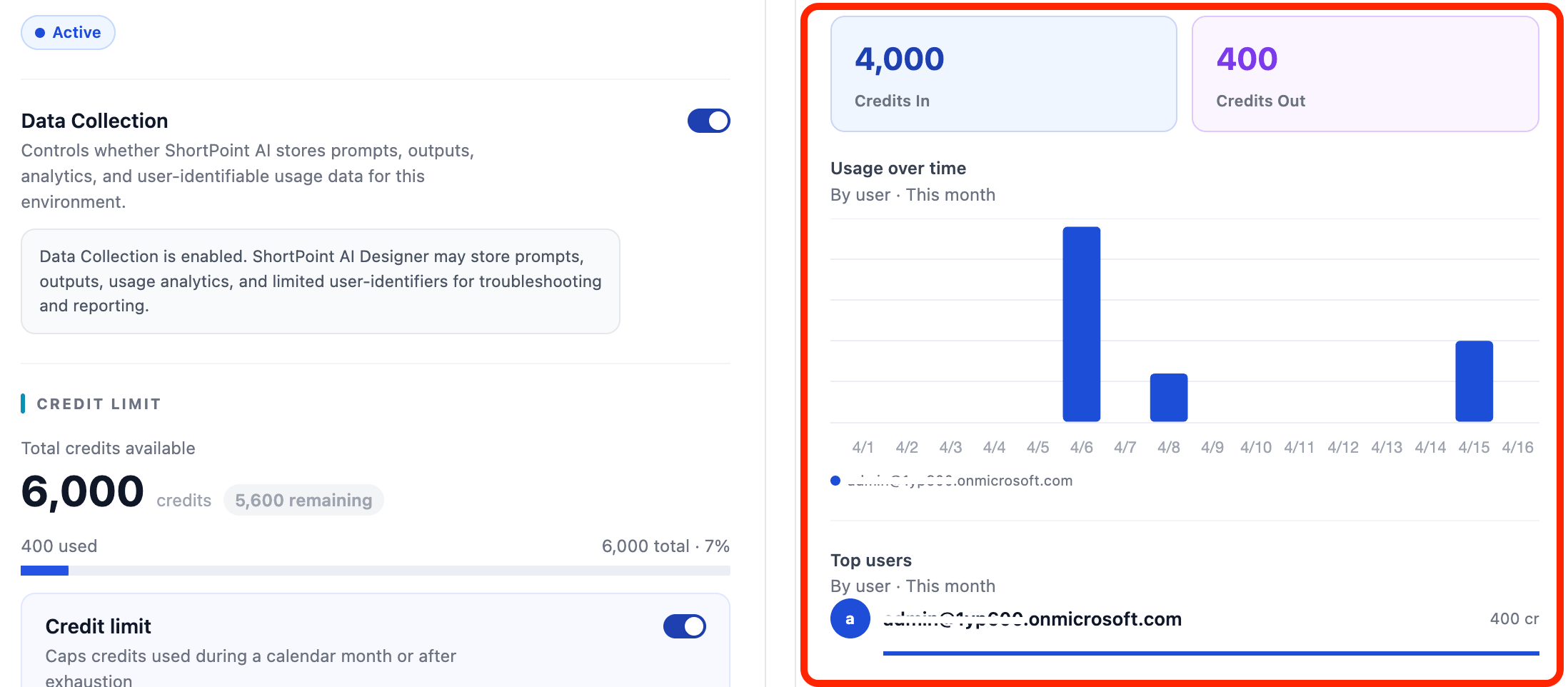
To make it easy to see how your AI Credits are used, we created an AI Usage tracker right in the ShortPoint Admin page. In the AI Usage tracker, you’ll see how much AI Credits each ShortPoint Designer is using. Here’s how you can access it:
Step 1: Open the Admin Page
- Go to the SharePoint page you want to use and click the ShortPoint Icon:

- Select Dashboard:

- Click Admin:
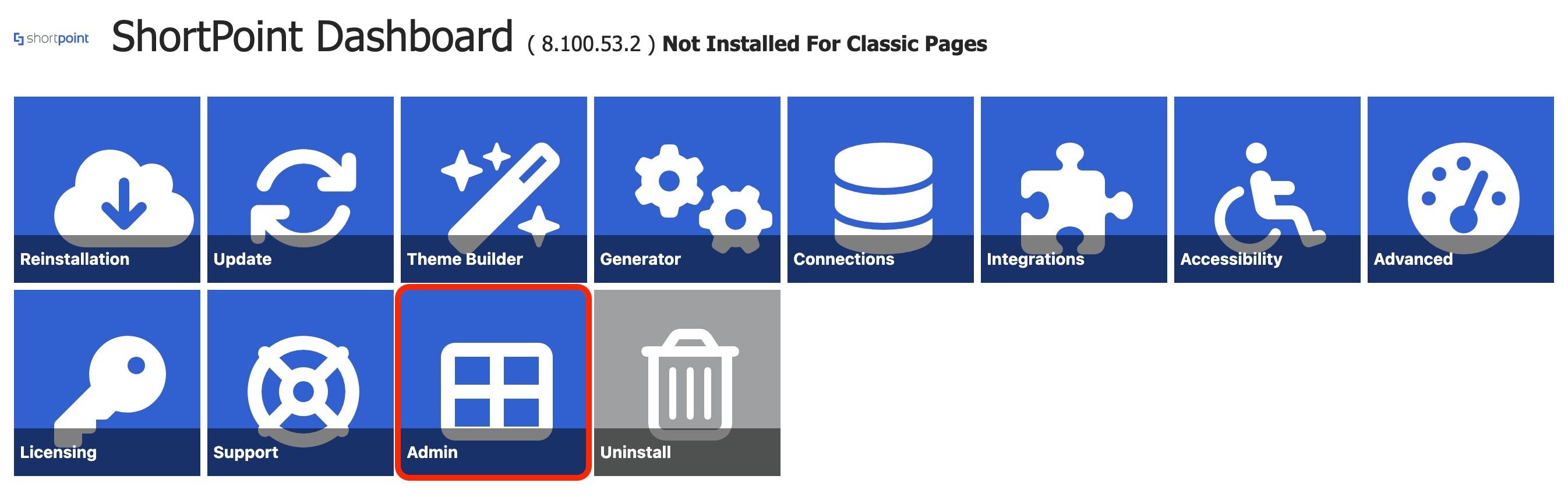
Step 2: View AI Usage
- Choose the time period you’d like to see (Last 7 days, Last 30 days, This month, Last 3 months, or Custom):
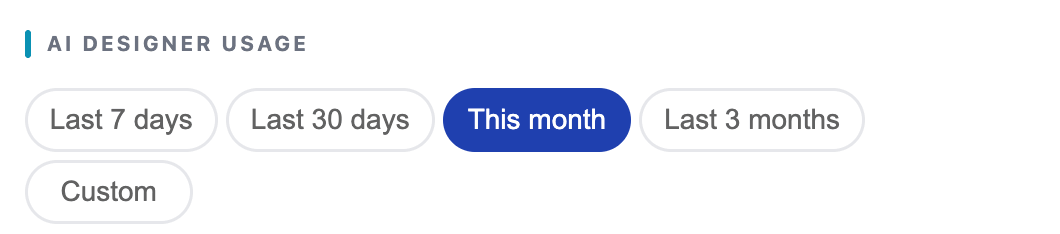
That’s it! You will now be able to see the AI Usage of each ShortPoint Designer during the time period you selected.
Frequently Asked Questions
How many AI Credits do I get initially?
,Upon activation, Pro License holders receive an initial allocation of 2,000 AI Credits per tenant and Enterprise license holders receive an initial 10,000 AI Credits per tenant to get started.
How do I buy more AI Credits?
You can purchase AI Credits manually via 2Checkout, or set up Auto-Recharge to buy credits automatically monthly or when your credits run out.
How can I track AI Credits usage?
The ShortPoint Admin page includes an AI Usage tracker where you can view how many AI Credits each designer has used over selectable time periods.
Can Lite License holders use the AI Designer?
No, currently only Pro License holders have access to the AI Designer features.
Do AI Credits expire?
No, any unused AI Credits will be left untouched in your ShortPoint Admin page. You can use these credits until they run out.
What happens when the AI Designer fails to execute my prompt? Will my AI Credits be deducted?
No, AI credits are deducted after each successful output delivery. It is not charged upfront.
Related articles:
- ShortPoint Admin Page: What It Is and How to Access It
- How to Enable/Disable the ShortPoint AI Designer
