 Try ShortPoint now
Want to make your users' data (name, department, skills, office location) findable and filterable in Microsoft Search results? To do this, you'll need to connect a SharePoint User Profile Property to a SharePoint managed property within the SharePoint search schema.
While it sounds technical, it's actually super simple to accomplish. This article will give you a detailed guide on how to link a SharePoint User Profile Property to a managed property, helping you manage search schema effectively for a better search experience in SharePoint Online.
TABLE OF CONTENTS
- Defining User Profile Property and Managed Property
- How to Link a User Profile Property to a Managed Property
- Why is linking the two properties useful?
- Frequently Asked Questions
Defining User Profile Property and Managed Property
Before we get into the detailed steps, let's define the terms first to help you understand better why we need to link a User Profile property to a SharePoint managed property.
What is a User Profile Property?
At its simplest, a User Profile Property is a specific piece of information about a person in your organization. SharePoint comes with standard properties (like Name, Job Title, and Department), but you can also create custom ones (like Certification Date or Languages Spoken). These live in the User Profile Service and act as the "source of truth" for who a user is and what they do.
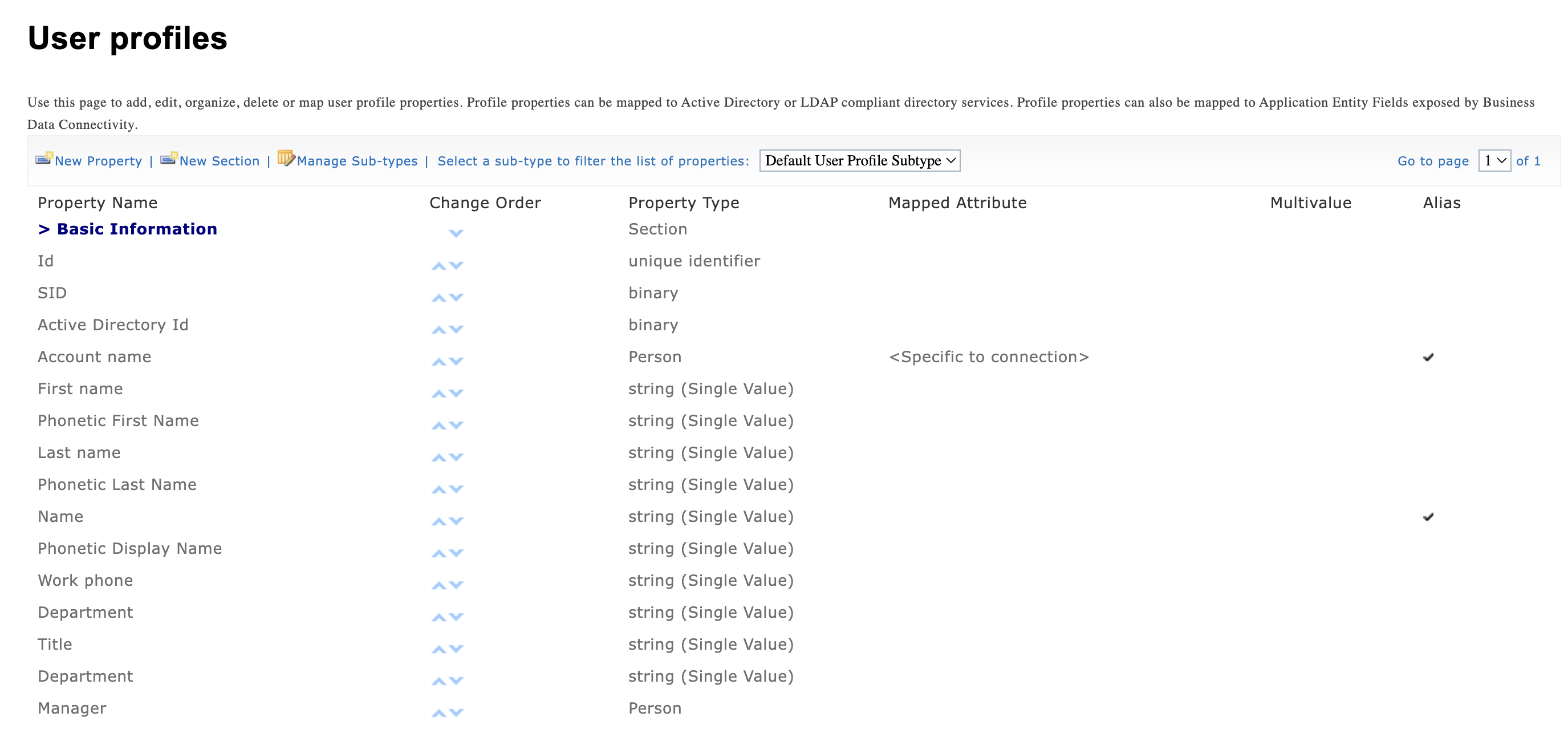
TIPWant to create Custom User Profile Properties? Check out SharePoint User Profile Properties: What They Are and How to Create Custom Properties in SharePoint.
In the Search Schema, User Profile Properties follow the People:<name> format.
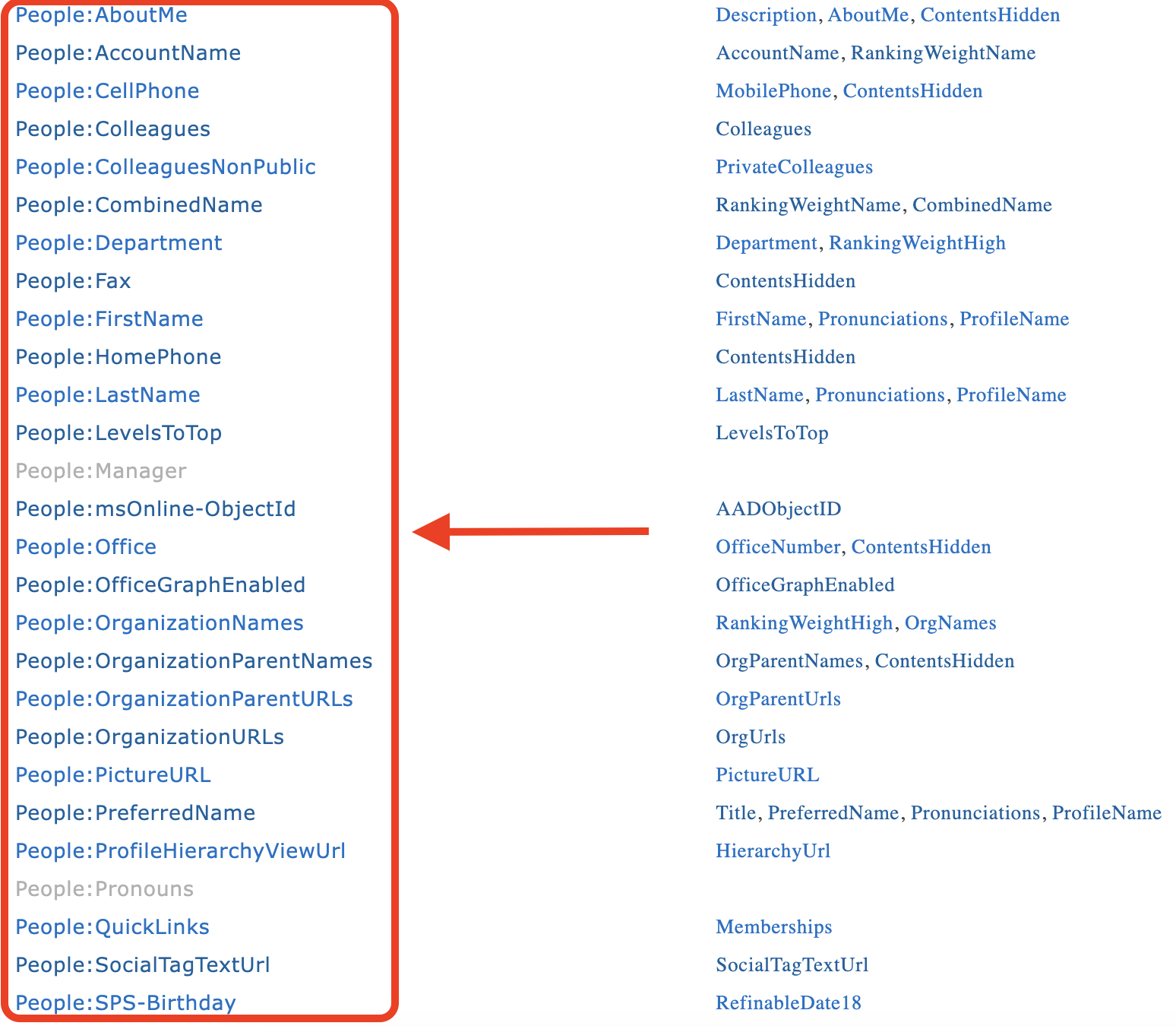
TIPIt's important to keep in mind that any User Profile Property that is left blank will not be properly crawled in the Search Schema, making it unsearchable. So, it's important to keep User Profile properties up-to-date.What is a Managed Property?
A Managed Property is a field in the SharePoint Search Schema. When SharePoint's search crawler indexes your content (including user profiles), it discovers raw data called crawled properties. However, you can’t search or filter by crawled properties directly. Managed properties are essential for effective search configuration and help surface important metadata and attributes from User Profiles stored in your SharePoint environment.
SharePoint has default managed properties created for the exact purpose of linking to User Profile Properties. Here are some you can use:
- RefinableString (start at RefinableString00 and end at RefinableString219) - can be used to map User Profile Properties with text values. For example, People:Department.
- RefinableDate (start at RefinableDate00 and end at RefinableDate19) - can be used to map User Profile Properties with date or time values. For example, People:SPS-Birthday.
- RefinableInt (start at RefinableInt00 and end with RefinableInt 49) - use to map User Profile Properties with numerical values.
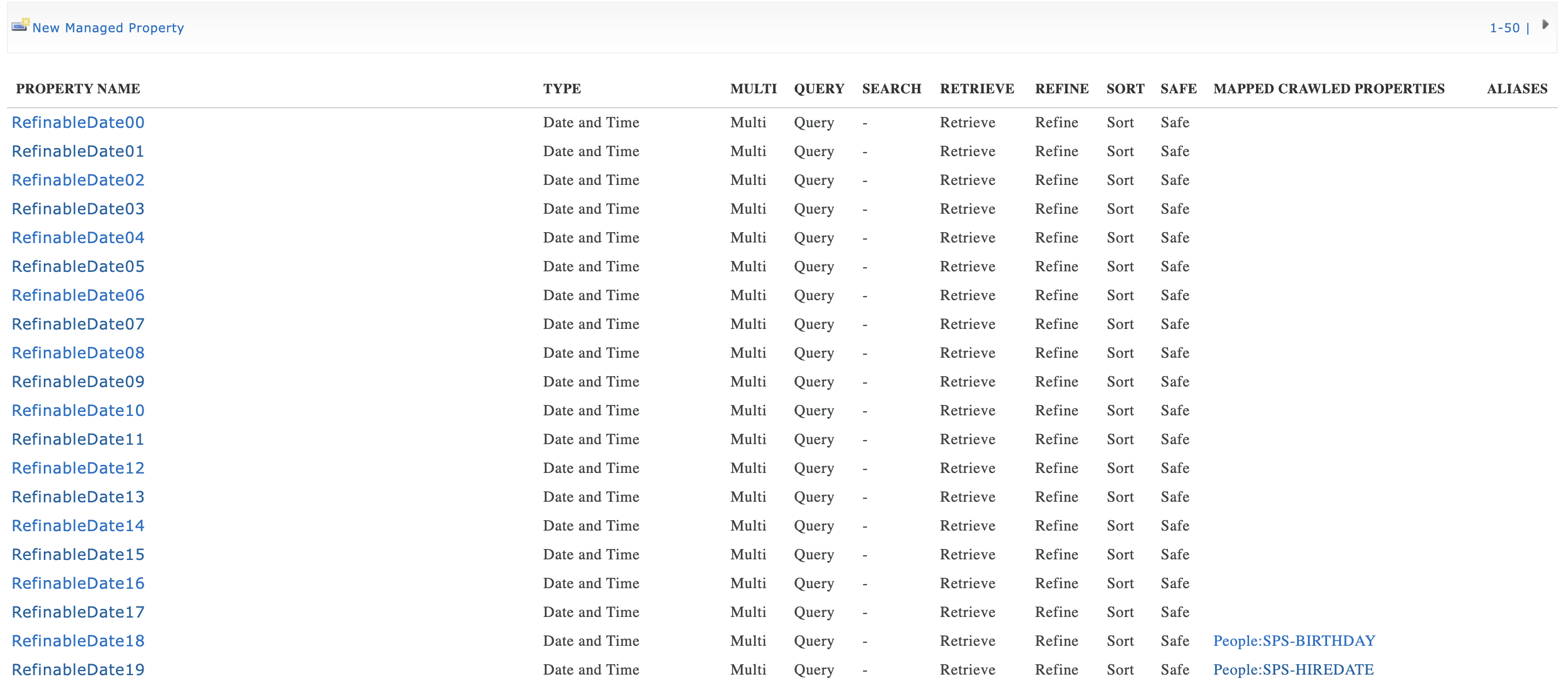
You also have the option to create your own mapped property. Just take note that you're limited to text and Yes/No values. For more information on creating a mapped property, check out SharePoint User Profile Properties: What They Are and How to Create Custom Properties in SharePoint.
How to Link a User Profile Property to a Managed Property
The steps have been divided into two parts. Start the interactive tutorial or follow the detailed guide below to get started.
Part 1: Add Details to a User Profile Property
This section will show you how to add information to the user property you want to link to a managed property. Accomplishing these steps is essential. If none of your user profiles have an entry in the User Profile Property you'll use, the crawled property won't appear in the search schema at all, which you will need in the next part. So, before you proceed, make sure to accomplish Part 1 first.
For the purpose of this guide, we'll use the Birthday User Profile property.
Step 1: Open User Profiles
- Go to the SharePoint Admin Center and select More Features:
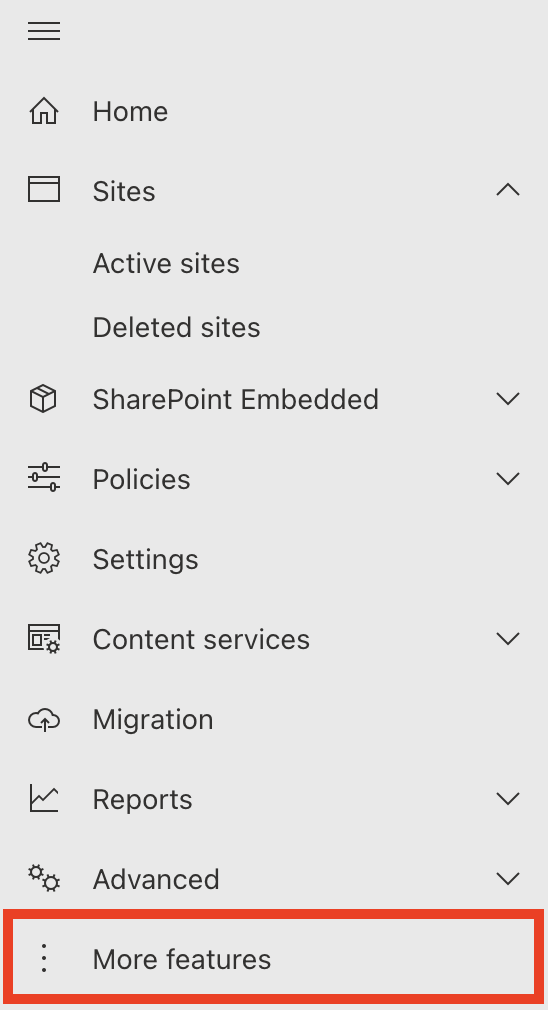
- Look for User Profiles and select Open.
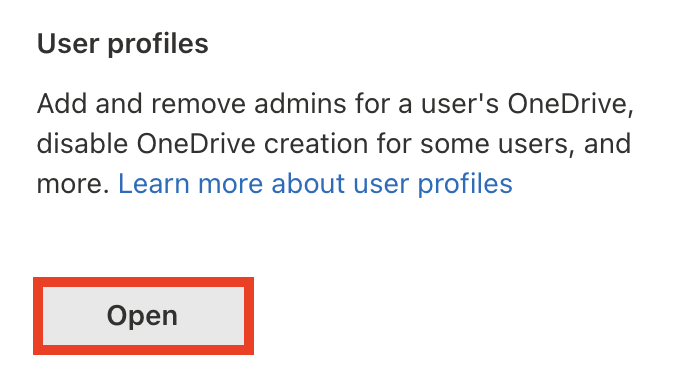
- Click Manage User Profiles

Step 2: Add Values to a User Profile Property
- Find any user:

- Then, select Edit My Profile.
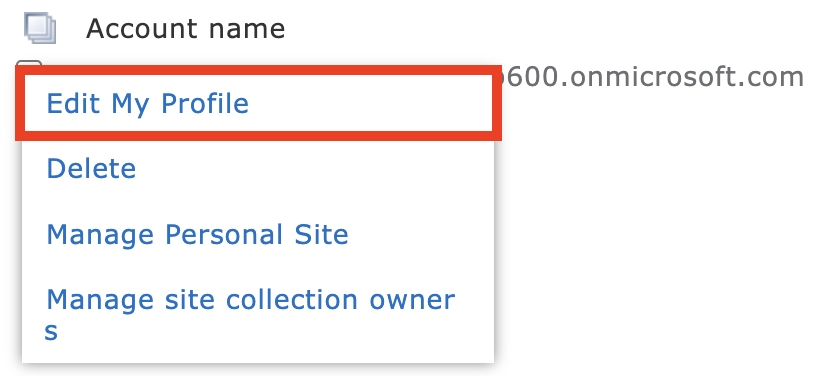
- Scroll down until you see the User Profile Property field you want to modify and fill in the details needed. In this case, it's the birthday field.

- Click Save and close.

- Repeat the same steps for every employee whose user profile property you want to modify.
Great work! You've successfully added details to a User Profile Property. You may now proceed to Part 2.
Part 2: Map a Managed Property to a User Profile Property
This section shows you how to link a User Property to a managed property in SharePoint's search schema. Since we're using the Birthday User Profile Property, which has date values, we'll use the RefinableDate mapped property. Follow the steps below to get started:
Step 1: Open Crawled Properties
- Go back to the SharePoint Admin Center and click the Open button under Search.
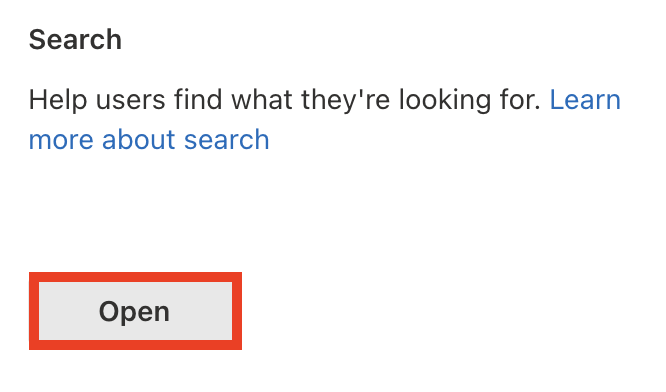
- Select Manage Search Schema:
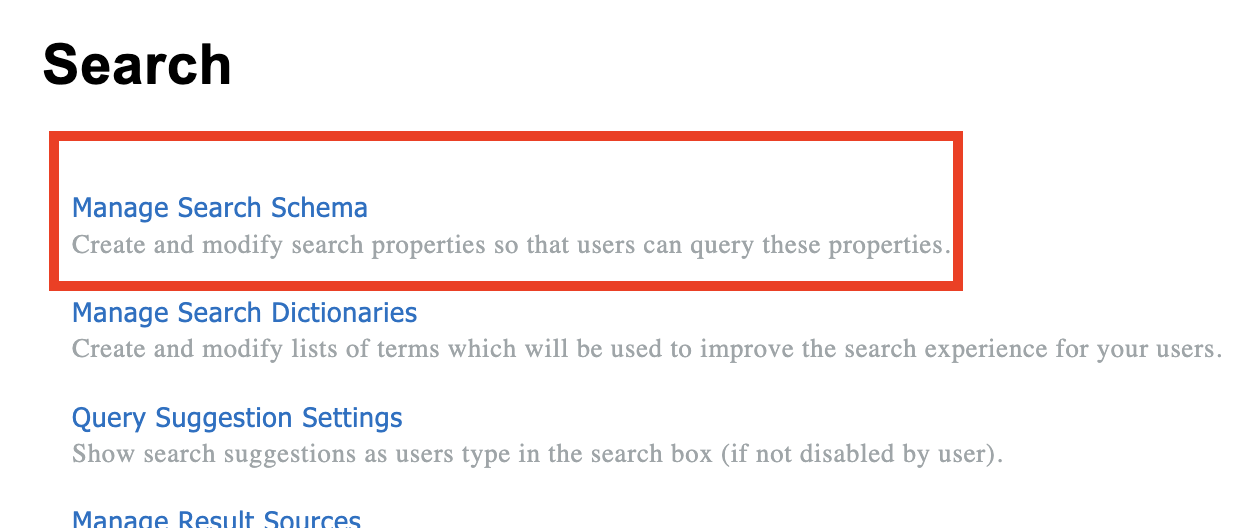
- Go to the Crawled Properties tab:

Step 2: Configure the User Profile Property
- In the list of properties, locate the User Profile Property you're using and click it to open the menu:

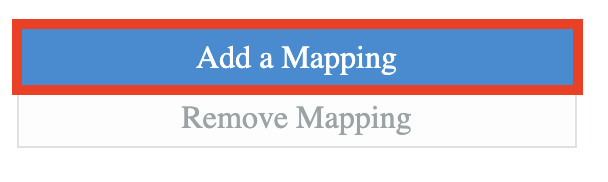
- Click Add a Mapping:
- Search for the [1] MappedProperty you'll use, select it, and click [2] OK: In our case, we'll look for RefinableDate.
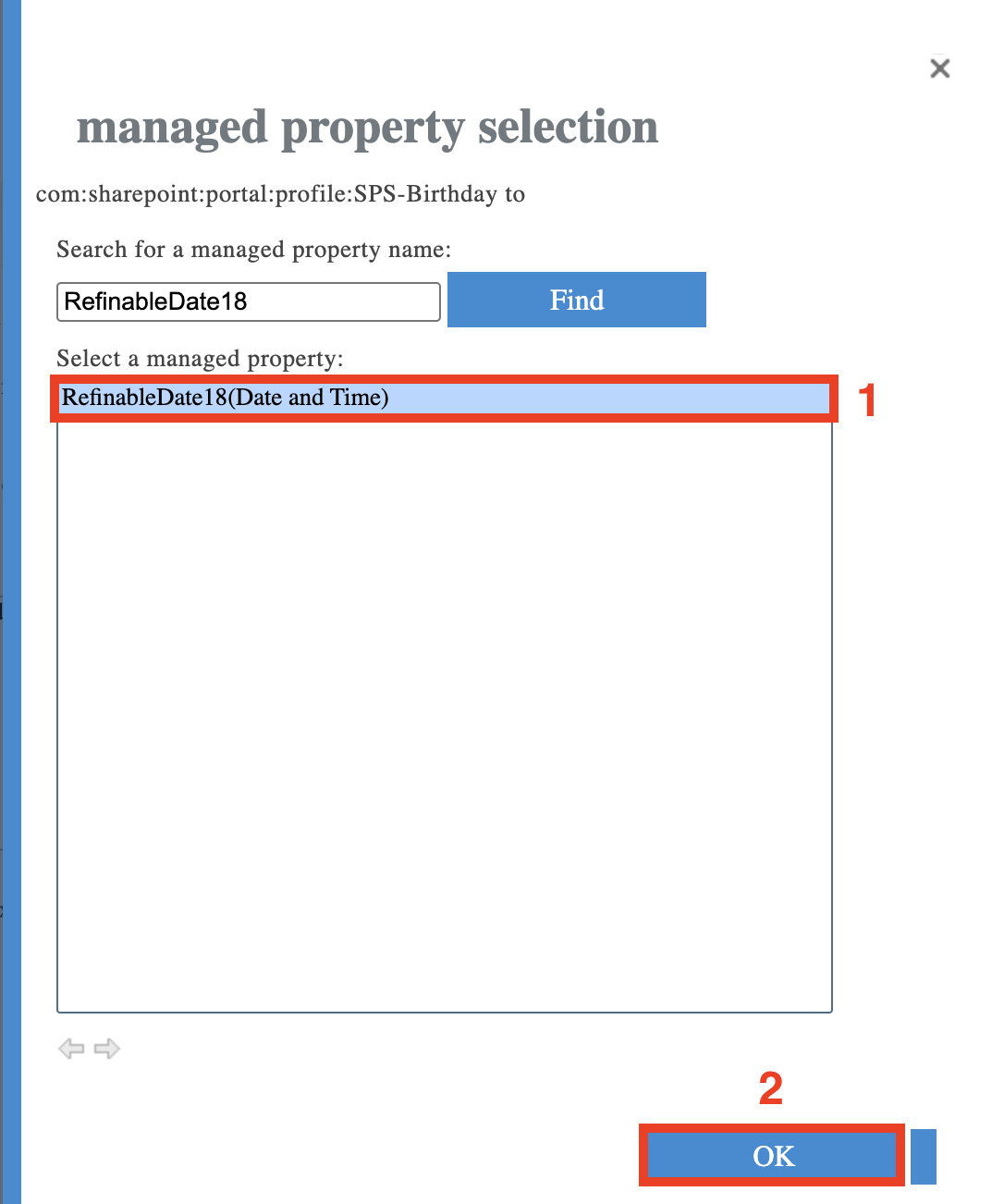
NOTEYou can choose any RefinableDate, RefinableString, or RefinableString property you want. Just make sure to take note of it for future use.
- Scroll to the bottom of the page and click OK to save the settings.

Amazing! You've successfully configured a User Profile Property to a Mapped Property. You can now use this to create dynamic content on your SharePoint pages. You can refer to these articles to get started:
- SharePoint Birthday Reminder: How to Show Upcoming Birthdays with ShortPoint People Search
- People Search Connection: How to Show Work Anniversaries on Your SharePoint Site
- People Search Connection: How to Show New Hires on Your SharePoint Site
- SharePoint Birthday Reminder: How to Show Today's Birthdays in Your SharePoint Site
Why is linking the two properties useful?
These properties are fantastic for building dynamic, automated pages. For example, you could design a directory page that instantly updates to display every team member whose "Department" is set to "Human Resources"—no manual entry required!
To make this process even smoother, ShortPoint Connect takes the heavy lifting out of the equation. It allows you to seamlessly pull data directly from SharePoint User Profiles and present it in stunning, user-friendly layouts that your team will love.
Ready to get started?
If you’re already a ShortPoint Designer, check out the following articles for a step-by-step walkthrough:
- SharePoint Birthday Reminder: How to Show Upcoming Birthdays with ShortPoint People Search
- People Search Connection: How to Show Work Anniversaries on Your SharePoint Site
- People Search Connection: How to Show New Hires on Your SharePoint Site
- SharePoint Birthday Reminder: How to Show Today's Birthdays in Your SharePoint Site
New to ShortPoint? We’d love to show you what’s possible! You can start a free 15-day trial to explore the features at your own pace, or schedule a one-on-one demo with our experts to see ShortPoint in action.
Frequently Asked Questions
How long does it take for changes to show up?
In SharePoint Online within Microsoft 365, it typically takes between 15 minutes and 4 hours for a new managed property to be crawled and indexed, though it can take up to 24 hours for the search index to fully reflect the new mapping in the search schema.
Can I use any Managed Property?
It is best to map your crawled properties to one of the pre-defined "RefinableString managed property" options provided by Microsoft (like RefinableString00), as these are pre-configured to work with search refiners and improve the query experience.
Why isn't my crawled property showing up?
A crawled property is only created if at least one user profile has data in that field. If all your users have that field empty, it won't appear in the properties in SharePoint search schema.
Related articles:
- SharePoint Birthday Reminder: How to Show Upcoming Birthdays with ShortPoint People Search
- People Search Connection: How to Show Work Anniversaries on Your SharePoint Site
- People Search Connection: How to Show New Hires on Your SharePoint Site
- SharePoint Birthday Reminder: How to Show Today's Birthdays in Your SharePoint Site
